
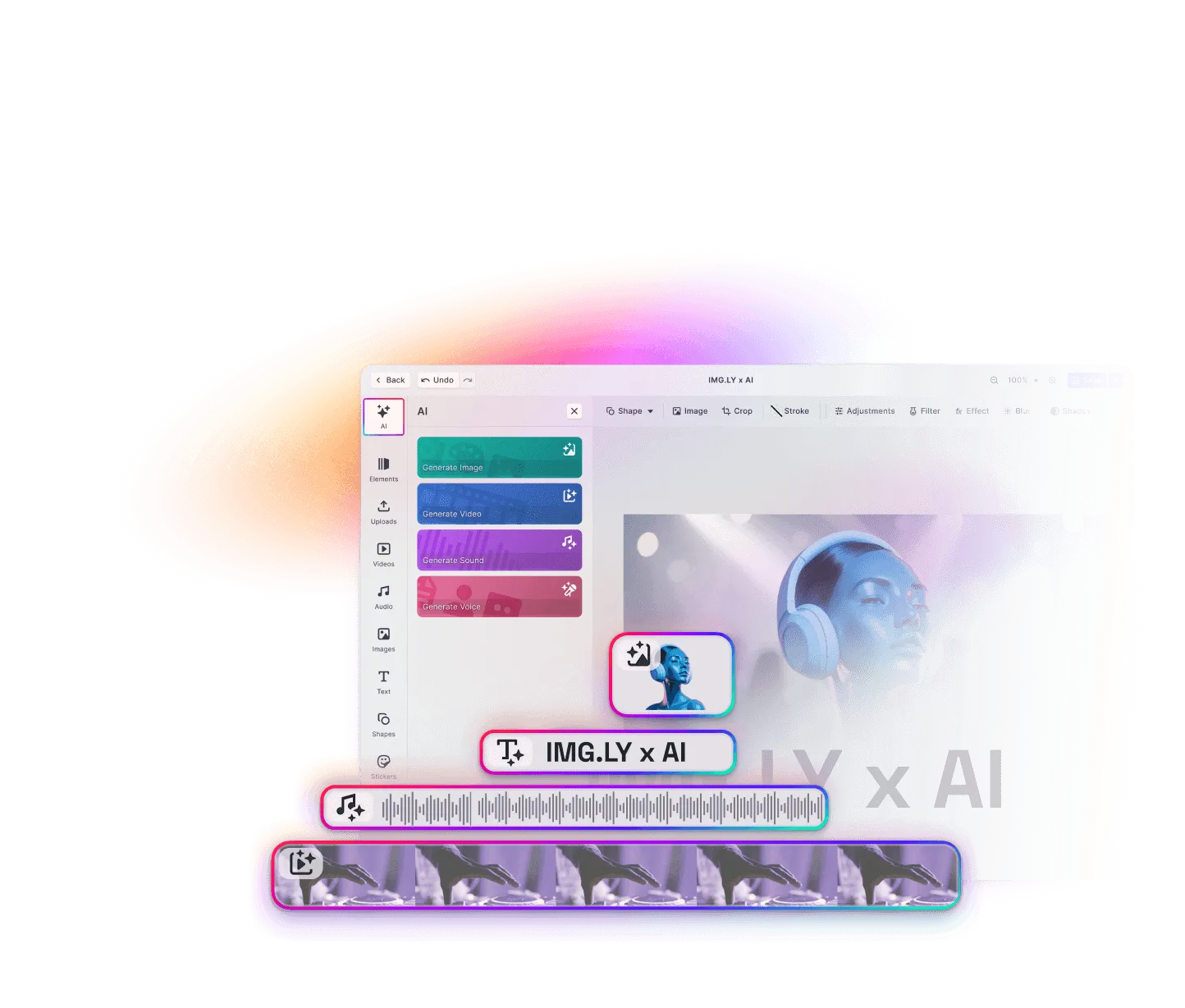
Let users turn a text prompt into an image on the canvas
Your users type what they want to see. The image they get is ready to crop, filter, or put a headline on.
- Styles, sizes, and output types per model
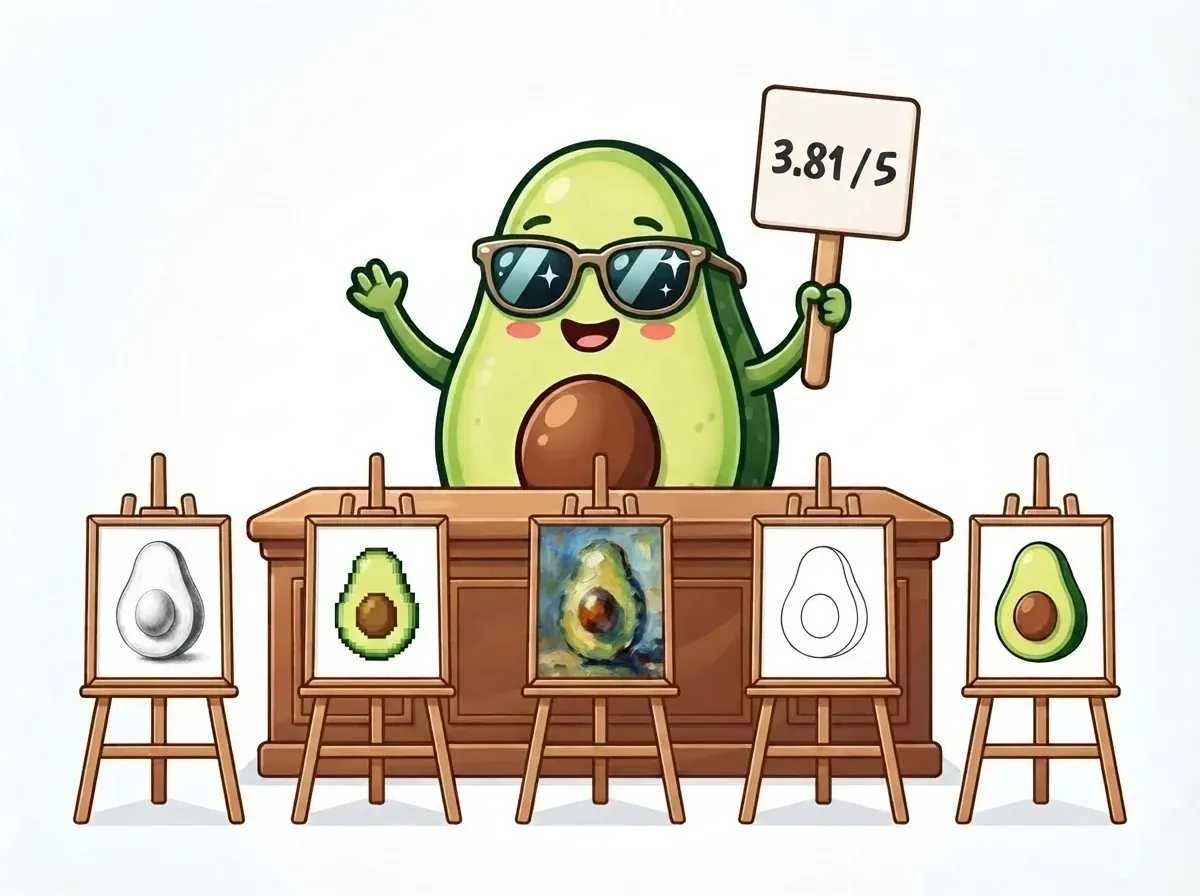
- Model choice backed by the GenAI Benchmarks
- Vector output for print with Recraft’s vector styles
From a sentence to a picture
Designs stall when nobody has the right image. Stock photos rarely fit the idea. With text to image, your users describe the image and keep going.
Describe it in plain words
Your users describe the subject and the setting. Then they pick a style, output type, and size from what the model offers.
See it in the layout
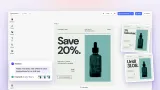
A placeholder holds the spot while the model works. The finished image fills it, so users judge the result in context.
Polish the picture
It’s a regular image, so users can resize it, tune the exposure, or change it further with Image to Image. Every earlier take is saved in the asset library.
Trusted by 100+
industry leaders













Integrating IMG.LY’s editor meant we didn’t have to build or maintain a complex editing layer ourselves. That kept our team focused on our core AI ad engine and saved us countless development hours — while still giving our customers the ability to polish and customize creatives at scale.
Hikari Senju
CEO, Omneky
With IMG.LY we built a central creative portal that now powers over 140 dealer campaigns across multiple automotive brands. Before this, asset creation was slow and inconsistent.
Martin Röhr
Product Owner, Digitas

By embedding IMG.LY’s editor we were able to hit key RFP requirements and deliver a template-based creative experience that now serves 1,000+ customers. It helped us win more deals and exceed enterprise expectations without needing to hire dedicated design teams.
Rob Driscoll
Director of PM, Optimizely
Since integrating IMG.LY’s editor, we now deliver 30,000+ ad creatives per month, dramatically shorten time-to-launch, and help our clients cut design spend by up to $10,000 per month.
Logan Welbaum
Founder, Plai
Our customers create over a million personalized postcards each year choosing from over hundreds of templates with IMG.LY’s SDK. It’s the only solution that allows us to build our own specialized, on-brand UI that integrates seamlessly with our platform.
Jeanine Zaalberg
Product Manager, SwissPost

From a developer’s perspective, the most powerful feature of the photo editor is the integration process. It was completely flawless, quick, and easy to integrate.
Stefano Fornari
CTO, Funambol
We compared IMG.LY SDK with other solutions and found that it would be the best fit for us since it provides all the features that are crucial for our use case.
Carem Pereira
SCRUM Manager, HP

What to check in an image model
Image models differ most on four things. Check them before a result goes into a print file, a listing, or a campaign.
Spelling that holds up
One wrong letter means generating the image again. Headlines work better as text blocks set on top.
Real transparency
Stickers and shirt graphics need a clean cutout. If a model paints a backdrop, the Background Removal Plugin removes it.
Exact brand colors
A hex code in the prompt is a hint to the model. Apply brand colors from a palette on the canvas, where they are exact.
The same character twice
For a series, generate the character once and reuse it. Then generate only the background for each scene.
How to add text to image to your product
Shortlist models for what your users make
The GenAI Benchmarks weight their results for print products, merch and stickers, e-commerce imagery, and text-heavy layouts. Connect the models that fit through the AI Gateway, fal.ai, OpenAI, or a custom provider.
Preset styles and sizes
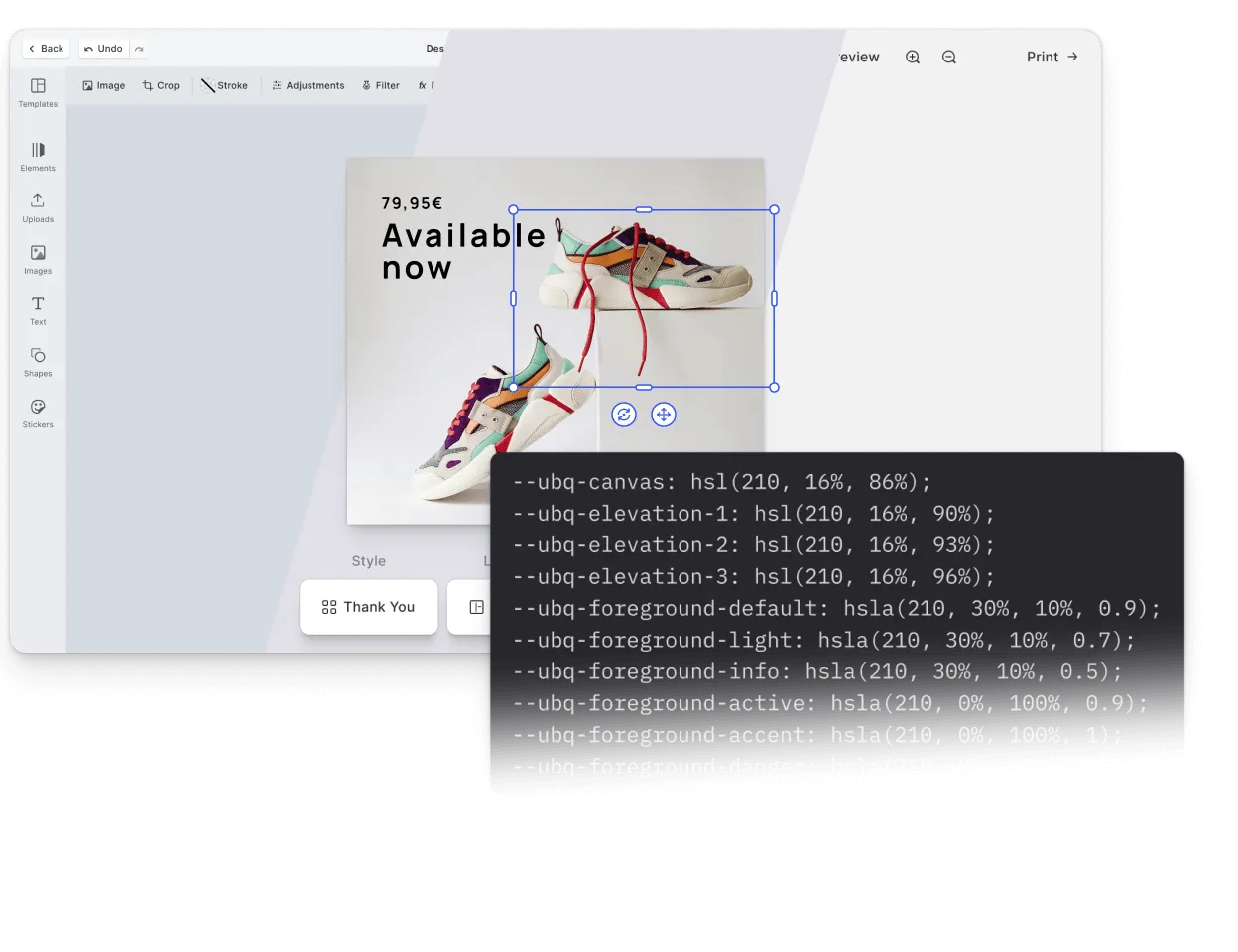
Set the default style and image size for your product. Hide the style groups it shouldn’t offer, so users start from choices that already fit.
Switch on vector output for print
Hide Recraft’s raster and icon styles, and every Recraft result arrives as a vector illustration. It stays sharp at any size, all the way into the print PDF.
What teams build with it
Social and ad graphics
Users generate the background, then add the headline and logo in the same template.
Print on demand
Customers describe the artwork for their mug or shirt and see it in the product template. Our article on AI for print products covers the resolution check before printing.
Mockups and moodboards
Teams test visual directions before anyone books a shoot or commissions an illustration.
Avatars and profile images
Users without a photo of their own create one from a short description.
More AI features
AI Sticker Generation
Create a sticker in a chosen icon style when the library has none that fits.
Try text to image in the AI Editor demo
Then talk to us about adding text to image to your product.
Frequently Asked Questions
It's a type of generative AI that creates a new picture from a written description, called a prompt. The prompt sets the subject, the setting, and the style, from a watercolor illustration to a studio product shot. In CE.SDK, the result goes into the design as an image your users can keep editing.
Any model on the AI Gateway, which works on web, iOS, and Android with one endpoint and one bill. On the web, you can also use your own fal.ai or OpenAI account through a proxy on your server, or write a custom provider for any other model, including one you host. iOS supports custom providers too, and Android connects to the Gateway or a Gateway-compatible endpoint.
Yes, as long as a raster image has enough pixels for the print size. An A4 page at 300 dpi needs 2,480 by 3,508 pixels, and each model profile in the GenAI Benchmarks lists the resolution it returns.
The web, in plain JavaScript and the React, Vue, Angular, Svelte, SvelteKit, Next.js, Nuxt.js, and Electron integrations, plus iOS and Android natively. Flutter and React Native apps use it through the native SDKs they're built on.
Yes. The AI plugins are covered by your CE.SDK license, and each provider bills its own model usage, directly or through the AI Gateway.