
Animate any image into a short video clip
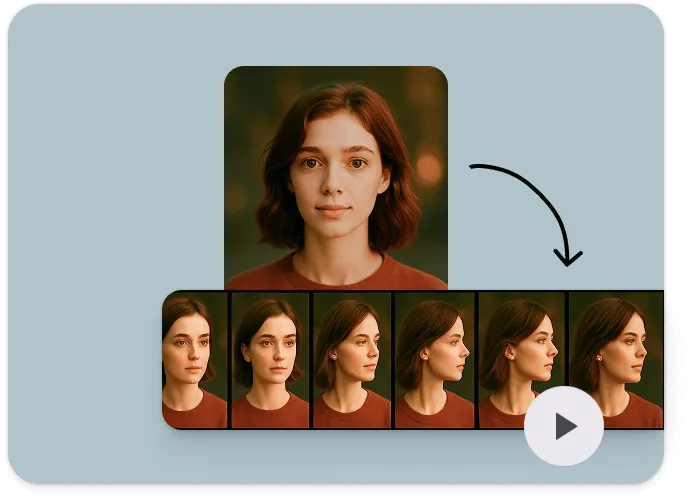
Your users pick a product shot or a campaign visual and describe how it should move. AI turns it into a short clip on the timeline, without a video shoot.
- First and last frame from two images
- Every take saved for comparison
- Clips that edit like uploaded footage
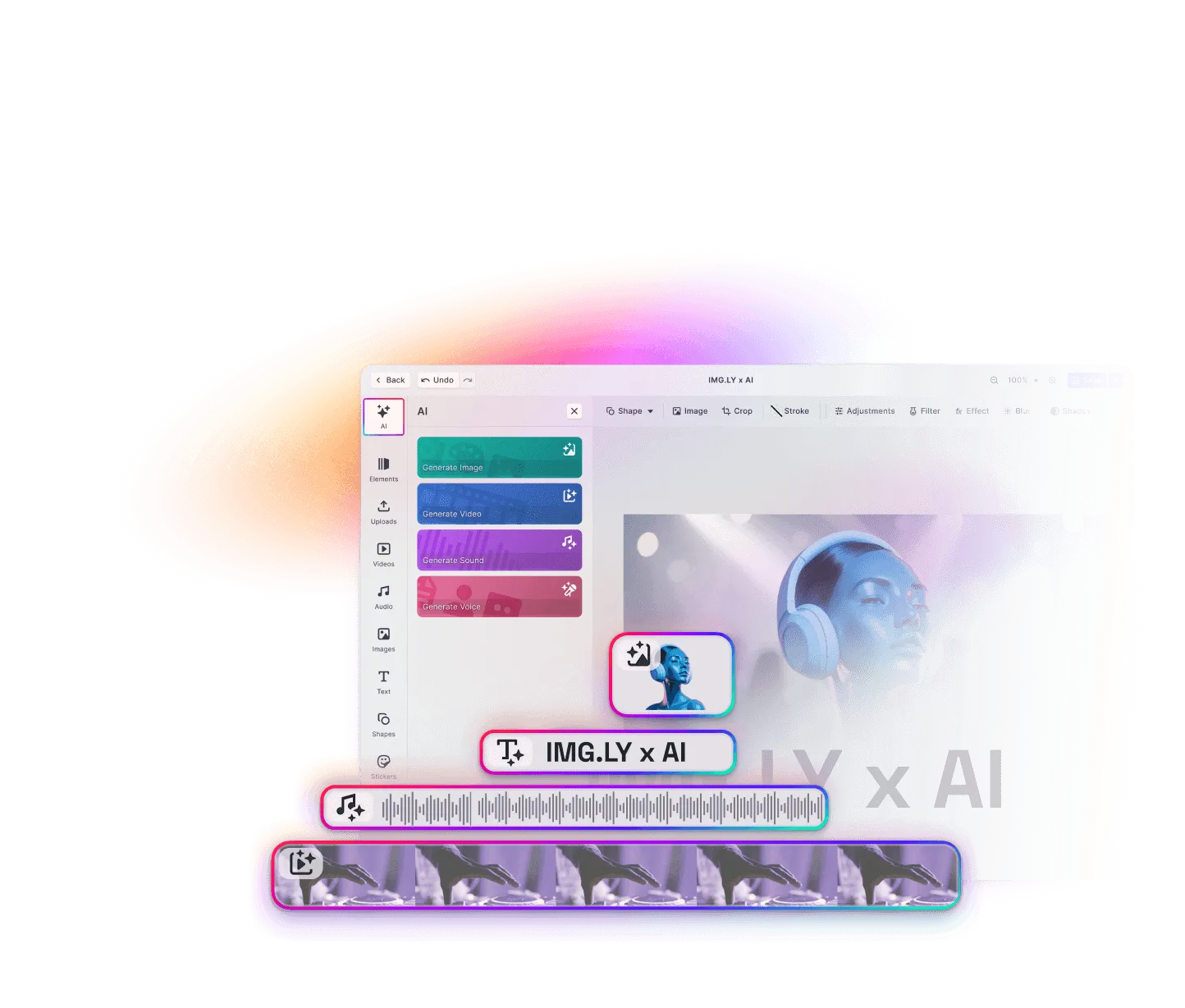
Your image, in motion
From text alone, a video model invents the product, and it rarely matches the real one. With image to video, the clip starts from the actual product photo.
Pick the image and the motion
Your users start from an image in the design or a new upload. The prompt says what moves, like steam rising from a cup or the camera pushing in.
Edit it on the timeline
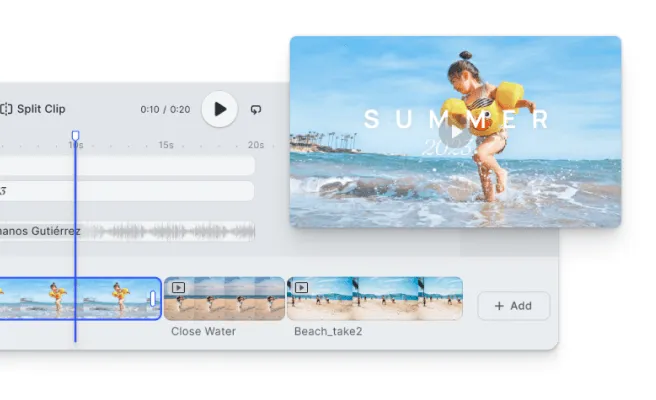
Users trim the clip, place it full-frame or as an overlay, and add titles or music.
Export it as MP4
The finished edit exports as an H.264 MP4, encoded in the browser at the resolution and quality you configure.
Trusted by 100+
industry leaders














Integrating IMG.LY’s editor meant we didn’t have to build or maintain a complex editing layer ourselves. That kept our team focused on our core AI ad engine and saved us countless development hours — while still giving our customers the ability to polish and customize creatives at scale.
Hikari Senju
CEO, Omneky

With IMG.LY we built a central creative portal that now powers over 140 dealer campaigns across multiple automotive brands. Before this, asset creation was slow and inconsistent.
Martin Röhr
Product Owner, Digitas

By embedding IMG.LY’s editor we were able to hit key RFP requirements and deliver a template-based creative experience that now serves 1,000+ customers. It helped us win more deals and exceed enterprise expectations without needing to hire dedicated design teams.
Rob Driscoll
Director of PM, Optimizely

Since integrating IMG.LY’s editor, we now deliver 30,000+ ad creatives per month, dramatically shorten time-to-launch, and help our clients cut design spend by up to $10,000 per month.
Logan Welbaum
Founder, Plai

Our customers create over a million personalized postcards each year choosing from over hundreds of templates with IMG.LY’s SDK. It’s the only solution that allows us to build our own specialized, on-brand UI that integrates seamlessly with our platform.
Jeanine Zaalberg
Product Manager, SwissPost

From a developer’s perspective, the most powerful feature of the photo editor is the integration process. It was completely flawless, quick, and easy to integrate.
Stefano Fornari
CTO, Funambol
We compared IMG.LY SDK with other solutions and found that it would be the best fit for us since it provides all the features that are crucial for our use case.
Carem Pereira
SCRUM Manager, HP

Animate between two images
With two images selected, Animate Between Images makes a clip that opens on one, ends on the other, and fills in the movement. The Animate Between Images walkthrough shows how it works.
Before and after
A home stylist plays a room’s makeover from before to after.
Sketch to artwork
An illustrator animates a rough sketch into the finished piece.
Color variants
A shop shows a sneaker changing from one color to the next.
Set up image to video: models and starting points
Connect image-to-video models
Use image-to-video models on the AI Gateway or from a provider you proxy yourself. Each model brings its own options for length, resolution, and sound.
Offer only the starting points you need
The text and image starting points switch on separately, so a product built around photos can show image to video alone.
Keep every take in the history
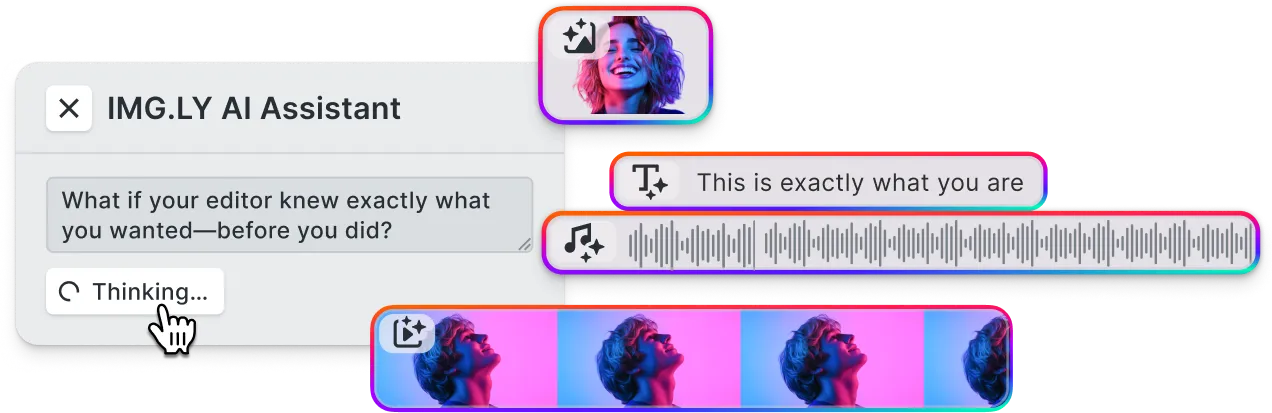
Leave the clip history on, and users can try several prompts on the same image and keep the best take.
What teams put in motion
Catalog packshots
A shop turns a product photo into a slow reveal for its online store.
Generated backgrounds
A designer makes a background with Text to Image, then animates it.
Brand images for social
A marketing team turns campaign key visuals into short clips for stories and reels.
Listing photos
A real estate agent turns a living room photo into a pan across the room for a listing video.
More AI features
Animate an image in the AI Editor demo
In video mode, select an image, describe the motion, and play the clip back. Then talk to us about adding image to video to your product.
Frequently Asked Questions
Image to video sets an image in motion, with a prompt that describes what moves. In CE.SDK, it's available in video projects.
It stays where it was. The clip is a separate video, so the image and the clip can both go into the edit.
Two selected images and Veo 3.1 Fast's first-and-last-frame model, connected through fal.ai.
Gateway models, and those from fal.ai, Runware, EachLabs, and ByteDance connected through your own proxy.
Most models offer between 4 and 16 seconds.
Veo models can generate sound along with the video.