
Change any photo in a design by describing the edit
Product shots, customer uploads, campaign images: your users change any of them with one written instruction to the AI.
- Edit, swap backgrounds, create variants, combine images
- Template locks apply to AI edits too
- Before and After for Edit Image and Swap Background
From the photo at hand to the one the design needs
Small photo fixes rarely stay small. A new background goes to a designer, back for review, and out again. With image to image, your users make the change in one step.
Describe the edit in a sentence
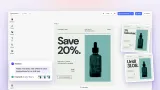
Your users select a photo and write what should change, like “add a sunset” or “put it on a marble countertop”.
Check it in the layout
The edit fills the same block at the same size and position. Before and After show what changed.
Keep refining it
The result is an ordinary photo. Users crop it, add a filter, or run a second edit on top.
Trusted by 100+
industry leaders













Integrating IMG.LY’s editor meant we didn’t have to build or maintain a complex editing layer ourselves. That kept our team focused on our core AI ad engine and saved us countless development hours — while still giving our customers the ability to polish and customize creatives at scale.
Hikari Senju
CEO, Omneky

With IMG.LY we built a central creative portal that now powers over 140 dealer campaigns across multiple automotive brands. Before this, asset creation was slow and inconsistent.
Martin Röhr
Product Owner, Digitas

By embedding IMG.LY’s editor we were able to hit key RFP requirements and deliver a template-based creative experience that now serves 1,000+ customers. It helped us win more deals and exceed enterprise expectations without needing to hire dedicated design teams.
Rob Driscoll
Director of PM, Optimizely
Since integrating IMG.LY’s editor, we now deliver 30,000+ ad creatives per month, dramatically shorten time-to-launch, and help our clients cut design spend by up to $10,000 per month.
Logan Welbaum
Founder, Plai

Our customers create over a million personalized postcards each year choosing from over hundreds of templates with IMG.LY’s SDK. It’s the only solution that allows us to build our own specialized, on-brand UI that integrates seamlessly with our platform.
Jeanine Zaalberg
Product Manager, SwissPost

From a developer’s perspective, the most powerful feature of the photo editor is the integration process. It was completely flawless, quick, and easy to integrate.
Stefano Fornari
CTO, Funambol
We compared IMG.LY SDK with other solutions and found that it would be the best fit for us since it provides all the features that are crucial for our use case.
Carem Pereira
SCRUM Manager, HP

Edit, swap, vary, or combine photos
The canvas menu offers the actions your connected models support. For painting and drawing styles, there’s Style Transfer.
Edit Image
Any change your users can put into words, for everything the other actions don’t cover.
Swap Background
The subject stays put, and the scene behind it becomes whatever your users describe.
Create Variant
A copy appears next to the original with a variation in it. Both stay on the canvas for comparison.
Combine Images
With two or more images selected, your users describe the scene, and the merged result goes into a copy of the first.
Set up image to image: models and locks
Add image to image to your product
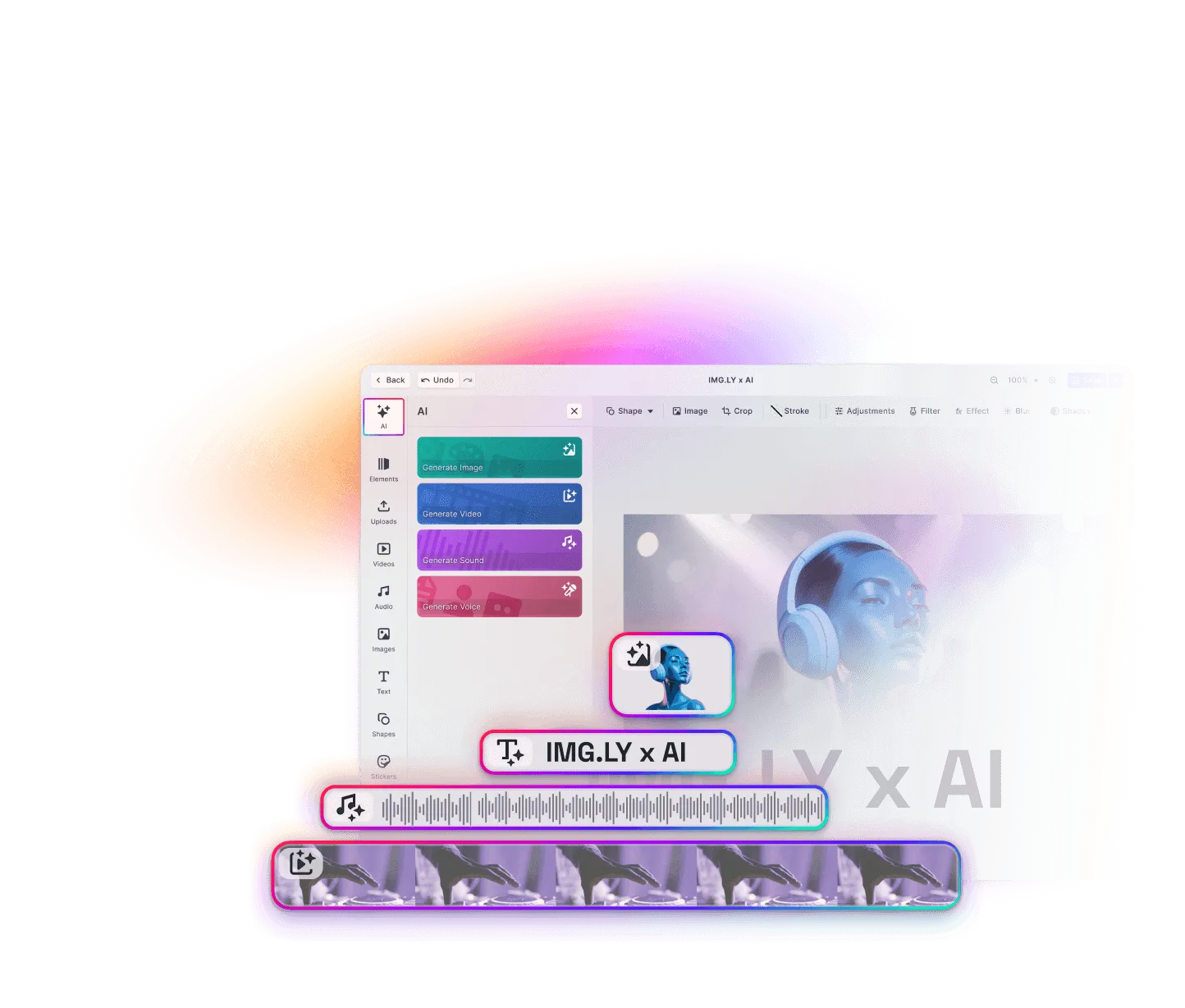
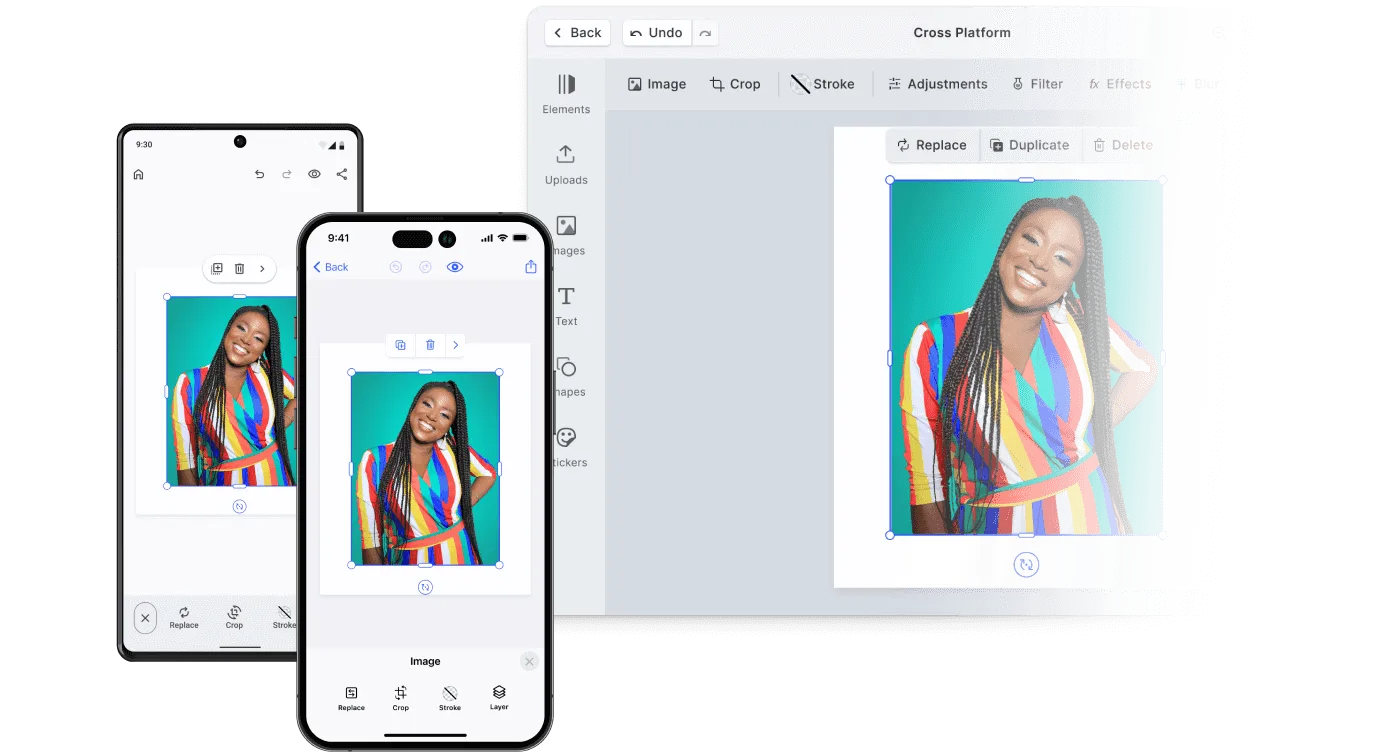
Add the AI image generation plugin to CE.SDK on the web, iOS, or Android. It works with the editor setup you already have, and you decide which editing actions appear and where.
Choose models that change only what was asked
Editing models differ in how much of the photo they leave alone. The Best GenAI Models for Web-to-Print rates how well each one keeps the rest of the photo. Connect your picks through the AI Gateway, your own provider, or a custom one.
Lock brand images against AI edits
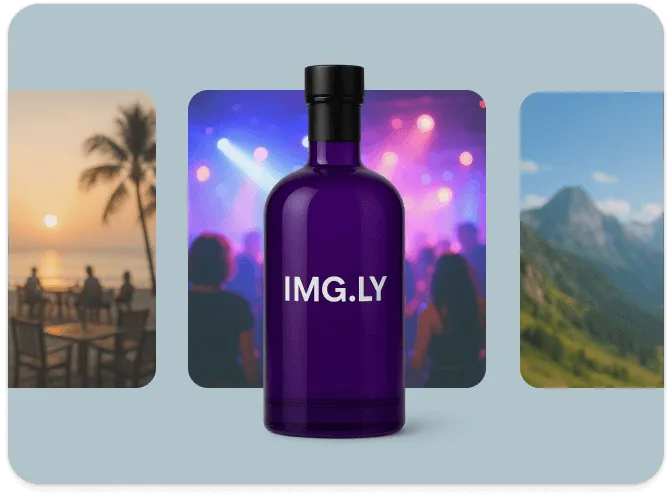
AI actions follow the same scopes as manual editing. A logo locked against replacement can’t be changed with AI either.
What teams edit with image to image
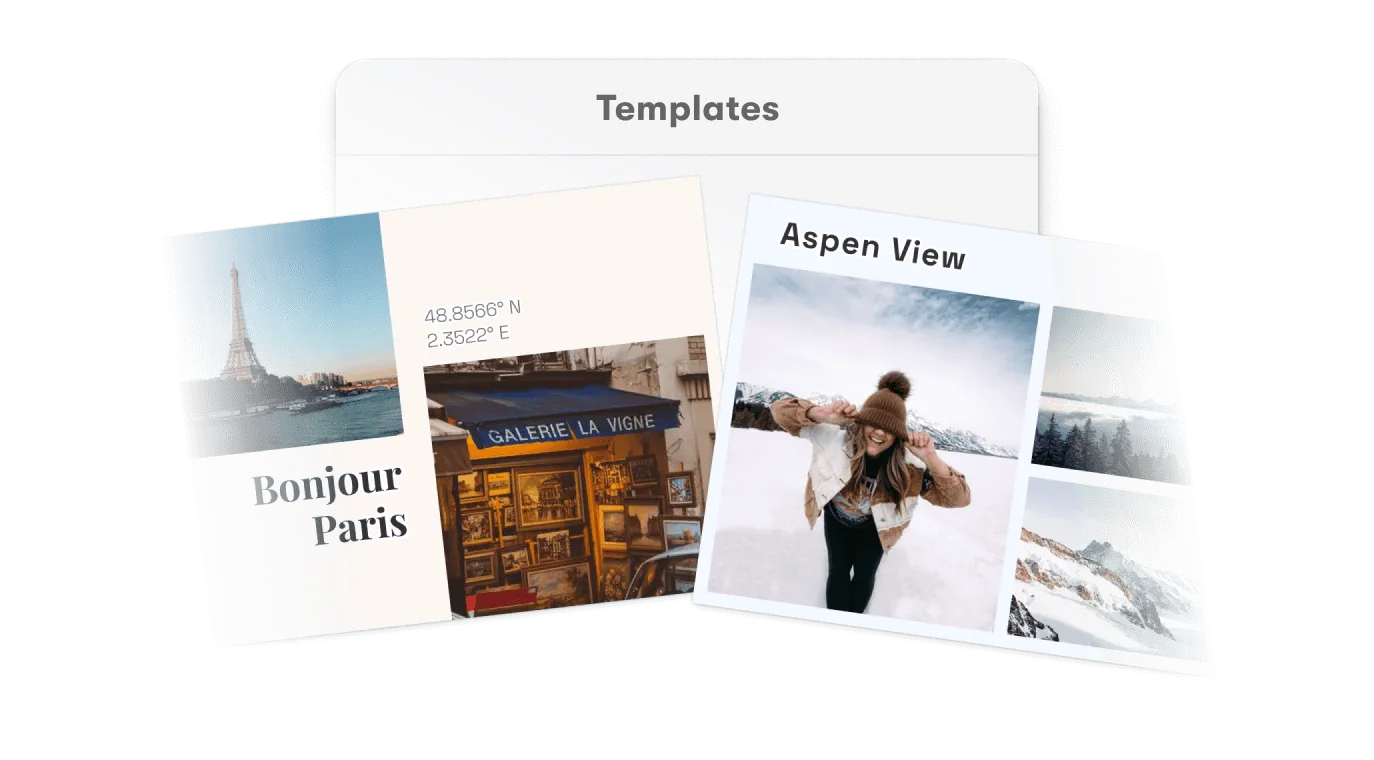
Product photos in new settings
One studio shot becomes a living room scene for one listing and a shop window for another.
Campaign variations
A marketing team gets several candidates in the layout it will publish and picks one without leaving the file.
Personalized print products
The customer’s photo gets a new scene, while the template’s text and layout stay locked.
Composite scenes
Combine Images merges a portrait and a location into one photo, with no manual cutout.
More AI features
Swap a background in the AI Editor demo
Select a photo, try Swap Background or Edit Image, and flip between before and after. Then talk to us about editing models for your product.
Frequently Asked Questions
Image to image generation edits a photo that already exists, guided by a written instruction. The instruction can swap the background, add or change elements, or produce variations. In CE.SDK, it works on the images already in a design.
On the web, models on the AI Gateway, your own OpenAI or fal.ai account through a proxy, or a custom provider for anything else. On iOS, the Gateway or a custom service of your own; on Android, the Gateway or a Gateway-compatible endpoint.
Local images are uploaded for the model automatically before the request goes out, so photos from your users' devices work as they are.
For a transparent cutout, the Background Removal Plugin does the work on the device itself, so the photo never leaves it. Swap Background is for a new scene, which an AI model paints behind the subject.