

Add or remove objects in any photo with a few words
Your users name the object to take out or put in. AI edits that part of the photo, and the design around it stays as it was.
- Removals and additions from one instruction
- Before and After on every edit
- Works on customer uploads in print templates
From a cluttered shot to a clean one
Retouching takes skills most customers don’t have. Masking a lamppost out of a holiday photo is a job for a pro. With object edits, it’s a job for anyone who can type.
Name what should go or come
Your users write which object to remove or add. It works on any photo in the design, from product shots to their own uploads.
Compare it with the original
The photo is edited where it sits, with Before and After side by side until the change is kept or discarded.
Fix what the first pass missed
The result is still a regular photo. Users send a second instruction for anything left over, then crop or filter it as usual.
Trusted by 100+
industry leaders












Integrating IMG.LY’s editor meant we didn’t have to build or maintain a complex editing layer ourselves. That kept our team focused on our core AI ad engine and saved us countless development hours — while still giving our customers the ability to polish and customize creatives at scale.
Hikari Senju
CEO, Omneky

With IMG.LY we built a central creative portal that now powers over 140 dealer campaigns across multiple automotive brands. Before this, asset creation was slow and inconsistent.
Martin Röhr
Product Owner, Digitas

By embedding IMG.LY’s editor we were able to hit key RFP requirements and deliver a template-based creative experience that now serves 1,000+ customers. It helped us win more deals and exceed enterprise expectations without needing to hire dedicated design teams.
Rob Driscoll
Director of PM, Optimizely

Since integrating IMG.LY’s editor, we now deliver 30,000+ ad creatives per month, dramatically shorten time-to-launch, and help our clients cut design spend by up to $10,000 per month.
Logan Welbaum
Founder, Plai

Our customers create over a million personalized postcards each year choosing from over hundreds of templates with IMG.LY’s SDK. It’s the only solution that allows us to build our own specialized, on-brand UI that integrates seamlessly with our platform.
Jeanine Zaalberg
Product Manager, SwissPost

From a developer’s perspective, the most powerful feature of the photo editor is the integration process. It was completely flawless, quick, and easy to integrate.
Stefano Fornari
CTO, Funambol

We compared IMG.LY SDK with other solutions and found that it would be the best fit for us since it provides all the features that are crucial for our use case.
Carem Pereira
SCRUM Manager, HP

Removing and adding, in plain words
Take out what distracts
Users name the object and where it is, like “the person in the red jacket on the left”. The model finds it and rebuilds the scene behind it.
Put in what was missing
Users say what to add and where it belongs, like “a small potted plant on the desk next to the laptop”. The model places it in the scene.
Set up object edits: model and template
Turn on image editing
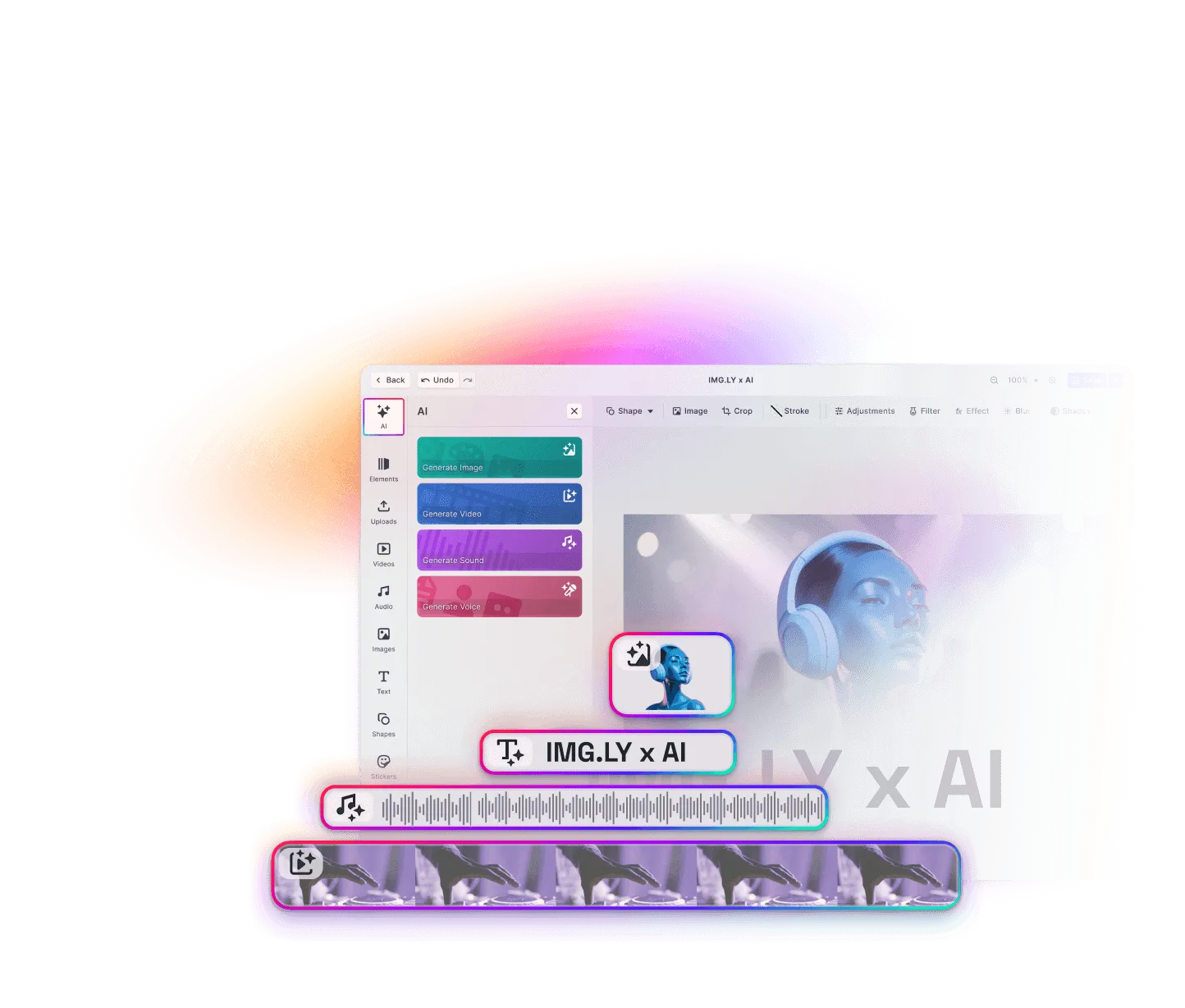
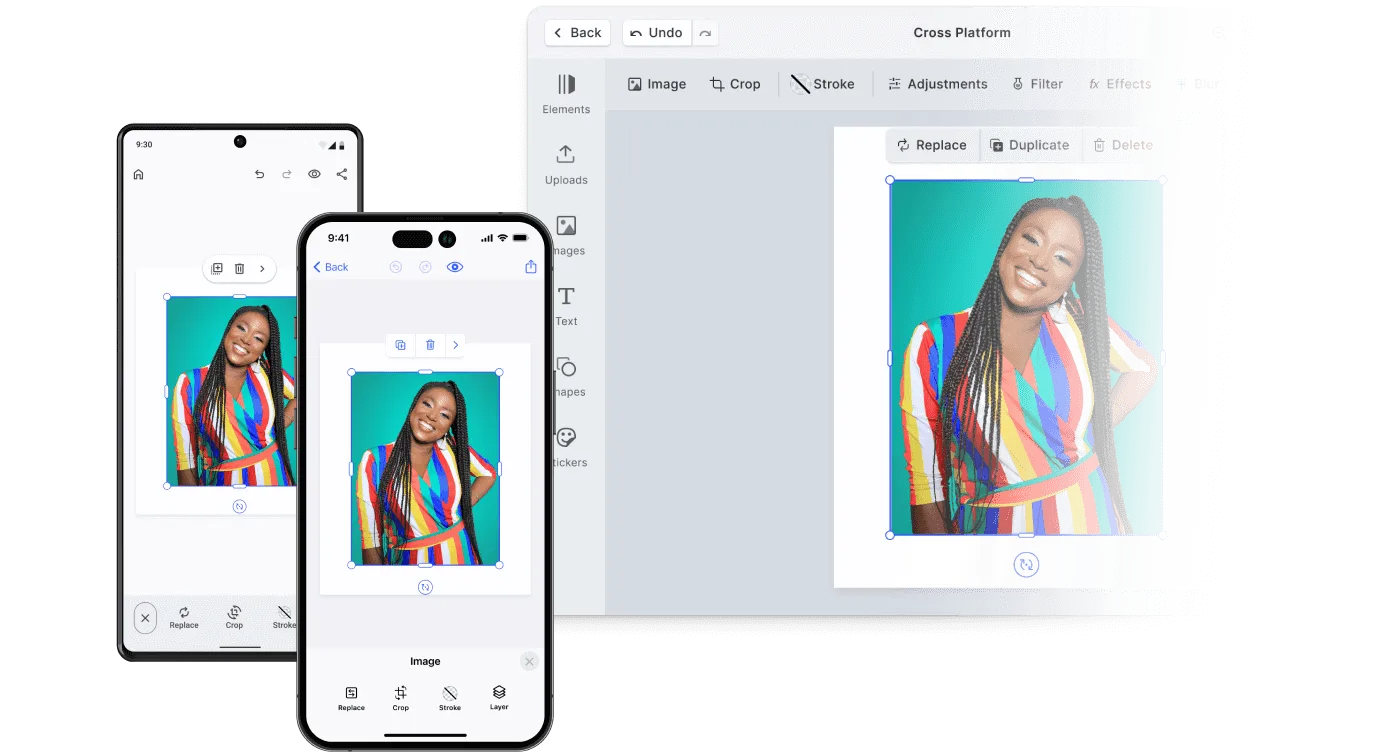
Object edits are part of image to image, so adding the AI image generation plugin turns them on for the web, iOS, and Android.
Pick a model that changes one thing
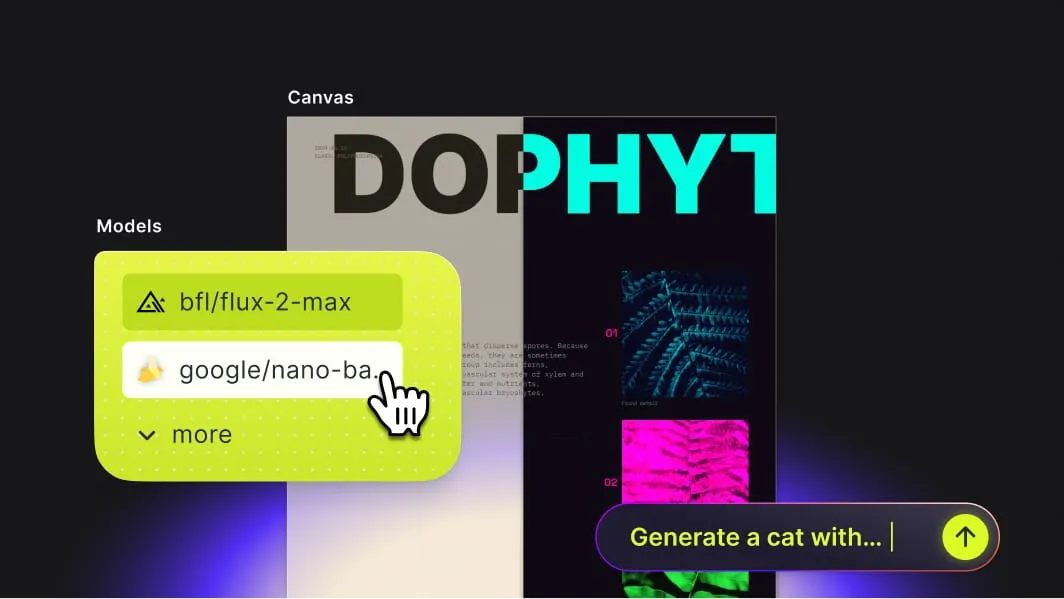
An object edit only works if everything outside the object stays as it was. The Best GenAI Models for Web-to-Print compares how each editing model handles that kind of request.
Leave the photo open in print templates
Customers can only fix an upload if the template lets that photo be replaced. Keep the placeholder editable and lock the rest.
What teams add and remove in their photos
Customer photos ready for print
A shopper takes a stranger out of the background before the photo goes on a canvas print.
Reusing older images
A designer takes the date stamp off an archive photo and reuses the photo in a new design.
Props for product shots
A marketer adds the coffee cup that was missing on set, and the shot works for a lifestyle banner.
Seasonal versions
A retailer adds snow on the windowsill and string lights, and the everyday storefront photo becomes a winter image.
More AI features
AI Sticker Generation
Create a sticker in a chosen icon style when the library has none that fits.
Take something out of a photo in the AI Editor demo
Select a photo, describe one object to remove or add, and check the result. Then talk to us about adding object edits to your product.
Frequently Asked Questions
AI object removal takes an unwanted object out of a photo, and the same instruction-based edit adds something that's missing. The user names the object in words, and an editing model repaints that part of the photo. In CE.SDK, it runs as an image to image edit on the photos in a design.
Inpainting usually asks the user to paint a mask over the object first. Here the user describes the change in words, and the editing model locates the object itself.
Yes. An upload becomes a regular photo in the design, so the same Edit Image action works on it.