Add AI-powered image generation to your editor so users can create visuals from text prompts or transform existing images.
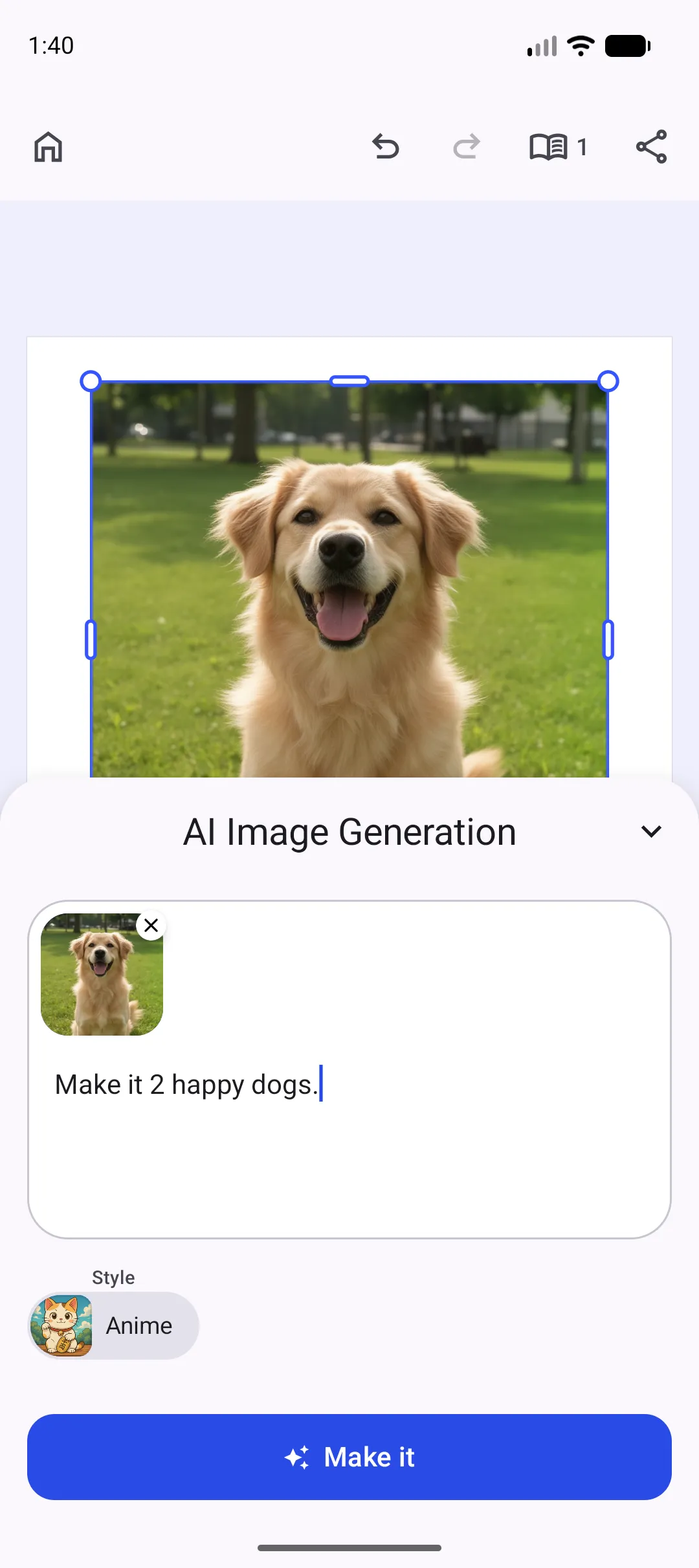
The AIImageGenerationPlugin adds two integration points to the editor: a dock button for text-to-image generation and an inspector bar button for image-to-image replacement. Both actions connect to the IMG.LY Gateway through AIGatewayConfig.
This guide builds on the Design Editor Starter Kit. The same plugin works with any editor configuration that hosts a dock and inspector bar.
Prerequisites#
You need an IMG.LY Gateway API key with access to the model family you want to use, such as FLUX.2 (bfl/flux-2) or GPT Image 2 (openai/gpt-image-2). The host app also needs network access to send generation requests and load the returned images.
Install the Plugin#
Add the AI image generation plugin package to the module that hosts CE.SDK. The plugin includes the shared AI Gateway client.
dependencies { implementation("ly.img:plugin-ai-image-generation:1.83.0")}Use the Plugin#
Import the editor configuration APIs, the plugin and the Gateway configuration types where you create your editor configuration:
import androidx.compose.runtime.Composableimport ly.img.editor.Editorimport ly.img.editor.configuration.design.DesignConfigurationBuilderimport ly.img.editor.core.component.Dockimport ly.img.editor.core.component.InspectorBarimport ly.img.editor.core.configuration.EditorConfigurationimport ly.img.editor.core.configuration.rememberimport ly.img.editor.core.configuration.thenimport ly.img.editor.plugin.ai.core.gateway.AIGatewayConfigimport ly.img.editor.plugin.ai.core.gateway.AIGatewayImageModelimport ly.img.editor.plugin.ai.imageGeneration.AIImageGenerationPluginimport ly.img.editor.plugin.ai.imageGeneration.rememberAIImageGenerationimport okhttp3.OkHttpClientimport java.util.concurrent.TimeUnitRegister AIImageGenerationPlugin alongside your existing editor configuration and provide the Gateway API key:
Editor( license = license, configuration = { EditorConfiguration .remember(::DesignConfigurationBuilder) .then(::AIImageGenerationPlugin) { aiGatewayConfig = AIGatewayConfig( apiKey = aiGatewayApiKey, ) } }, onClose = onClose,)The plugin adds a “Generate” button to the dock and an “Edit” button to the inspector bar. The dock action creates a new image block from a prompt. The inspector action appears when the current selection is a non-sticker block with an image fill and replaces that image content.
Configure the Plugin#
The Android plugin exposes the Gateway configuration and modifiers for the two editor actions. This example shows all three options with their default button placements:
Editor( license = license, configuration = { EditorConfiguration .remember(::DesignConfigurationBuilder) .then(::AIImageGenerationPlugin) { aiGatewayConfig = AIGatewayConfig(apiKey = aiGatewayApiKey) dockModifier = { addFirst { Dock.Button.rememberAIImageGeneration(aiGatewayConfig = it) } } inspectorBarModifier = { addFirst { InspectorBar.Button.rememberAIImageGeneration(aiGatewayConfig = it) } } } }, onClose = onClose,)Choose a Model#
AIGatewayConfig defaults to FLUX.2. To use GPT Image 2, set model to AIGatewayImageModel.GptImage2. You can also provide a Gateway-compatible endpoint and a custom OkHttpClient for shared interceptors or timeouts.
aiGatewayConfig = AIGatewayConfig( apiKey = aiGatewayApiKey, model = AIGatewayImageModel.GptImage2, gatewayUrl = "https://gateway.img.ly", httpClient = OkHttpClient.Builder() .connectTimeout(15, TimeUnit.SECONDS) .readTimeout(120, TimeUnit.SECONDS) .writeTimeout(120, TimeUnit.SECONDS) .build(),)| Model | Text-to-Image ID | Image-to-Image ID |
|---|---|---|
| FLUX.2 (default) | bfl/flux-2 |
bfl/flux-2-edit |
| GPT Image 2 | openai/gpt-image-2 |
openai/gpt-image-2-edit |
The model must be available to the API key configured in the IMG.LY Dashboard.
Customize Button Placement#
The plugin prepends both buttons by default. Use dockModifier and inspectorBarModifier to change their positions with the same list builder operations available to other dock and inspector bar customizations.
The following dock modifier moves the text-to-image action to the end:
dockModifier = { addLast { Dock.Button.rememberAIImageGeneration(aiGatewayConfig = it) }}The inspector bar modifier moves the image-to-image action to the end:
inspectorBarModifier = { addLast { InspectorBar.Button.rememberAIImageGeneration(aiGatewayConfig = it) }}How Generation Works#
Text-to-image: The dock action opens the generation sheet, creates a pending image block, streams the Gateway response and applies the generated image URL when the request completes.
Image-to-image: The inspector bar action reads the selected image fill URI. The plugin uploads local images through the Gateway upload flow before it sends the prompt and source image URL to the image-to-image model.
The built-in generation sheet provides prompt, style, output type and format controls. For image-to-image requests, the plugin omits the output format so the Gateway derives the dimensions from the selected source image.
Troubleshooting#
- If the buttons are missing, verify that the plugin dependency is installed and
AIImageGenerationPluginis composed with the editor configuration. - If the inspector action is hidden, select a non-sticker block with an image fill.
- If generation fails, verify network access, model access, the Gateway balance and the values in
AIGatewayConfig. - If the prompt cannot be submitted, enter non-empty prompt text.
API Reference#
| API | Purpose |
|---|---|
EditorConfiguration.remember(builderFactory=_) |
Creates the Design Editor configuration used by the example. |
EditorConfiguration.then(builderFactory=_) |
Composes the image generation plugin with the base editor configuration. |
AIImageGenerationPlugin.aiGatewayConfig |
Sets the Gateway configuration used by generation requests. |
AIGatewayConfig(apiKey=_, model=_, gatewayUrl=_, httpClient=_) |
Configures the API key, model family, Gateway endpoint and HTTP client. |
AIImageGenerationPlugin.dockModifier |
Changes where the plugin inserts its dock button. |
Dock.Button.rememberAIImageGeneration(aiGatewayConfig=_, builder=_) |
Creates the dock button for text-to-image generation. |
AIImageGenerationPlugin.inspectorBarModifier |
Changes where the plugin inserts its inspector bar button. |
InspectorBar.Button.rememberAIImageGeneration(aiGatewayConfig=_, builder=_) |
Creates the inspector bar button for image-to-image replacement. |
Next Steps#
- Dock — Customize dock items and ordering.
- Inspector Bar — Customize inspector bar actions and ordering.
- Design Editor Starter Kit — Start from the editor preset used by the example.