


Updated September 2026.
Web-to-print sells self-service. Your customer designs a postcard, a flyer, a t-shirt, or a packaging label in the browser and orders it without a designer in the loop. For years, though, the self-service stopped at the hard part. Someone still had to supply a usable image. Someone still had to know what 300 DPI meant. When they didn’t, the file landed on a prepress desk to be fixed by hand.
One operator we spoke to estimated that their designers spend around 40% of their time fixing customer artwork rather than creating templates. That is one shop’s own estimate, not an industry figure. Tom Rowe of The Print Bar described what that looks like at the design step: “Our brand didn’t match our experience. You could see it in our bounce rates.”
Generative AI changes the economics of that hard part. It can turn a prompt into a usable asset, lift a 72-DPI logo to something printable, and strip a background in the browser before a human ever sees the file.
It can also go wrong. Aimed carelessly, the same models produce beautiful screen images that fall apart on press.
The shift: from “upload a print-ready file” to “describe what you want”
The old web-to-print contract asked the customer to arrive with a finished, technically correct asset. That filter excluded most of the market. The CRM manager, the franchise owner, and the small-business buyer who “knows Canva because they make their wedding invitations on it” have never opened InDesign and never will.
Generative AI moves the burden of production off the customer. Instead of “upload a 300 DPI CMYK image with 3mm bleed,” the ask becomes “type what you want on the card.” Responsibility for turning intent into a production-safe file moves to the editor.
AI is most valuable in web-to-print where it removes a step the customer was never qualified to do. The use cases below are ordered by how directly they do that.
The use cases worth building
1. Generate on-brand imagery from a prompt (text-to-image)
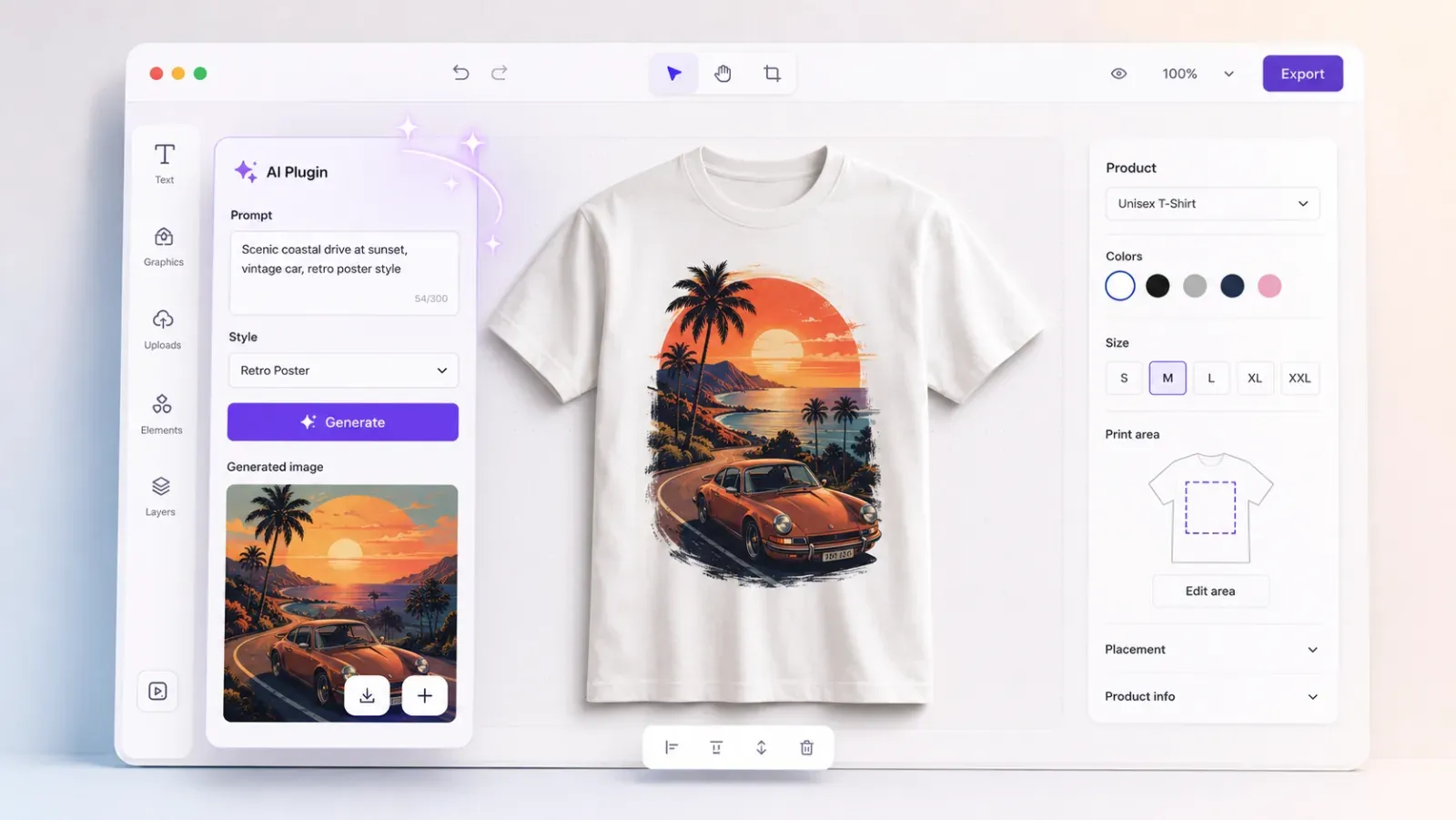
This is the most obvious win. A customer needs a hero image, a background, a seasonal motif, or a product scene, and doesn’t have one. Text-to-image generation lets them describe it and get options in seconds, without a stock-photo license hunt or a design request ticket.
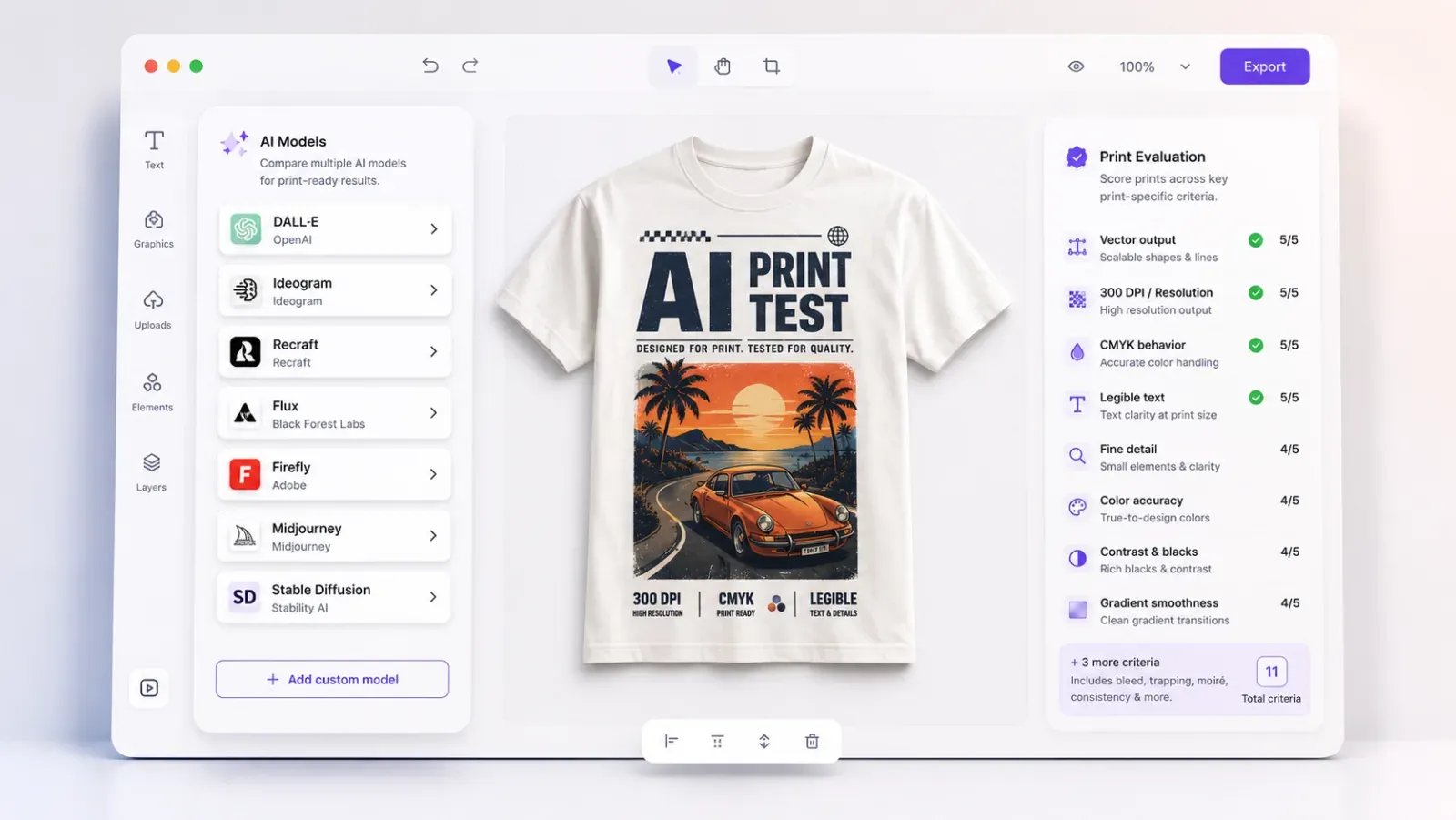
In a print context, the value is unblocking the order. The customer who would have abandoned at “I don’t have a good image” now keeps going. Models like Recraft V3, Seedream V4, Ideogram V3, and the Nano Banana family each have different strengths here, but the integration pattern is the same. Several of these families have shipped a newer release than the one named here, and our benchmark run measured those. Read Seedream V4 as Seedream 4.5, 5.0 Lite and 5.0 Pro, Ideogram V3 as Ideogram 3.0, and the Nano Banana family as Nano Banana 2, 2 Lite and Nano Banana Pro, and build on Recraft V4.1 rather than V3 for new work. Generation feeds a placeholder inside a locked template, so the output lands inside your bleed, safe-area, and brand constraints automatically.
Generated images are usually delivered at screen resolution, often around 1024px. That’s fine for a business card photo, marginal for an A4 flyer, and unusable for large-format. Pair generation with upscaling (below) and size validation before you let it reach export. Native output sizes vary widely by model. The measured native output in the model rankings (pilot-0 dataset, September 2026) shows some models topping out near 1024px while others generate at 2K.
2. Adapt and extend customer-supplied images (image-to-image, generative fill/expand)
Customers rarely arrive with an asset that fits your canvas. It’s the wrong aspect ratio, it has the wrong background, or it’s a portrait crop where you need a landscape banner. Image-to-image editing and generative expand (outpainting) solve the most common case. They extend an image to fill bleed or a different SKU’s dimensions instead of stretching or letterboxing it.
Aspect-ratio and bleed mismatches are a top source of prepress rework. Generative fill also handles object removal (“take the coffee cup off the desk”), background swaps, and clean-up. Those are the edits a non-designer can’t do in any tool they own.
Watch out: outpainting invents pixels. On a brand asset or a product photo, “invented” can mean “wrong.” Keep generative expand to backgrounds and ambient areas. Never let it reconstruct a logo, a face, or a product the customer is actually selling.
3. Background removal and cutouts for mockups and merch
Background removal is the workhorse, and it has to be a pipeline step because the models won’t do it for you. Our transparency finding shows 20 of 23 tested models emit no real alpha channel at all. For merch and print-on-demand it’s the difference between a customer’s snapshot and a clean subject that drops onto a t-shirt, mug, or sticker. IMG.LY runs this in the browser, via the open-source @imgly/background-removal package. That’s fast enough for an interactive editor, and the customer’s image never has to leave the device.
Paired with the cutout plugin, the same mask also drives the literal cut lines for die-cut stickers, labels, and packaging.
Watch out: browser-based removal is excellent on clear subjects and struggles on hair, glass, and fine fringes. For a print product that will be inspected up close, expose a manual refine step so someone can correct the mask.
4. Vectorize raster art into print-scalable graphics
A customer uploads a logo as a small, jagged PNG. Printed at size, it’s mush. Vectorization (AI raster-to-SVG) traces it into clean, resolution-independent paths that scale to any output size and reproduce crisply on press. Print buyers ask about this constantly. Screen-first builders forget it exists.
Vectorize is also how you get logos and simple graphics into a state your PDF/X pipeline can preserve as vector, instead of rasterizing everything and throwing away the scalability you vectorized for. Recraft V3 can generate vector output natively, not just trace it after the fact.
Watch out: vectorization is great for logos, icons, and flat art. It’s the wrong tool for a photograph. Detect the asset type and route photos to upscaling.
5. Resolution and image quality: upscaling, correction, and DPI repair
The single most common web-to-print failure is a low-resolution image, the 72-DPI photo that looks fine on screen and prints as a blurry mess. Two AI operations fix it, and they solve different problems.
Upscaling (super-resolution) raises the actual pixel count, reconstructing detail to lift a small image toward a printable size. It’s a generative step you route to a dedicated model, the same way you route a text-to-image prompt. The strong upscalers can take a 1024px generation to 4K. Reach for it when the source is too small for its placed size.
Image correction is the other half, and it ships in CE.SDK today as the Perfectly Clear plugin. It auto-corrects exposure, contrast, color, tint, sharpness, and noise in a single pass. It won’t add pixels, but it gets the most printable result out of the pixels you have, which is what a dim, soft phone photo usually needs more than raw resolution.
Tie both to your DPI validation. When the editor detects an image below your minimum threshold for its placed size, offer to correct or upscale it instead of just blocking export. The customer fixes it in one click instead of hitting a wall. One operator described the goal as “they don’t need to know what DPI is.”
Watch out: upscaling fabricates detail. It rescues marginal images; it can’t conjure a sharp 4-megapixel product shot from a thumbnail, and correction can’t add resolution at all. Set honest thresholds, and still warn when the source is hopeless.
6. Copy and variable text generation (text + VDP at scale)
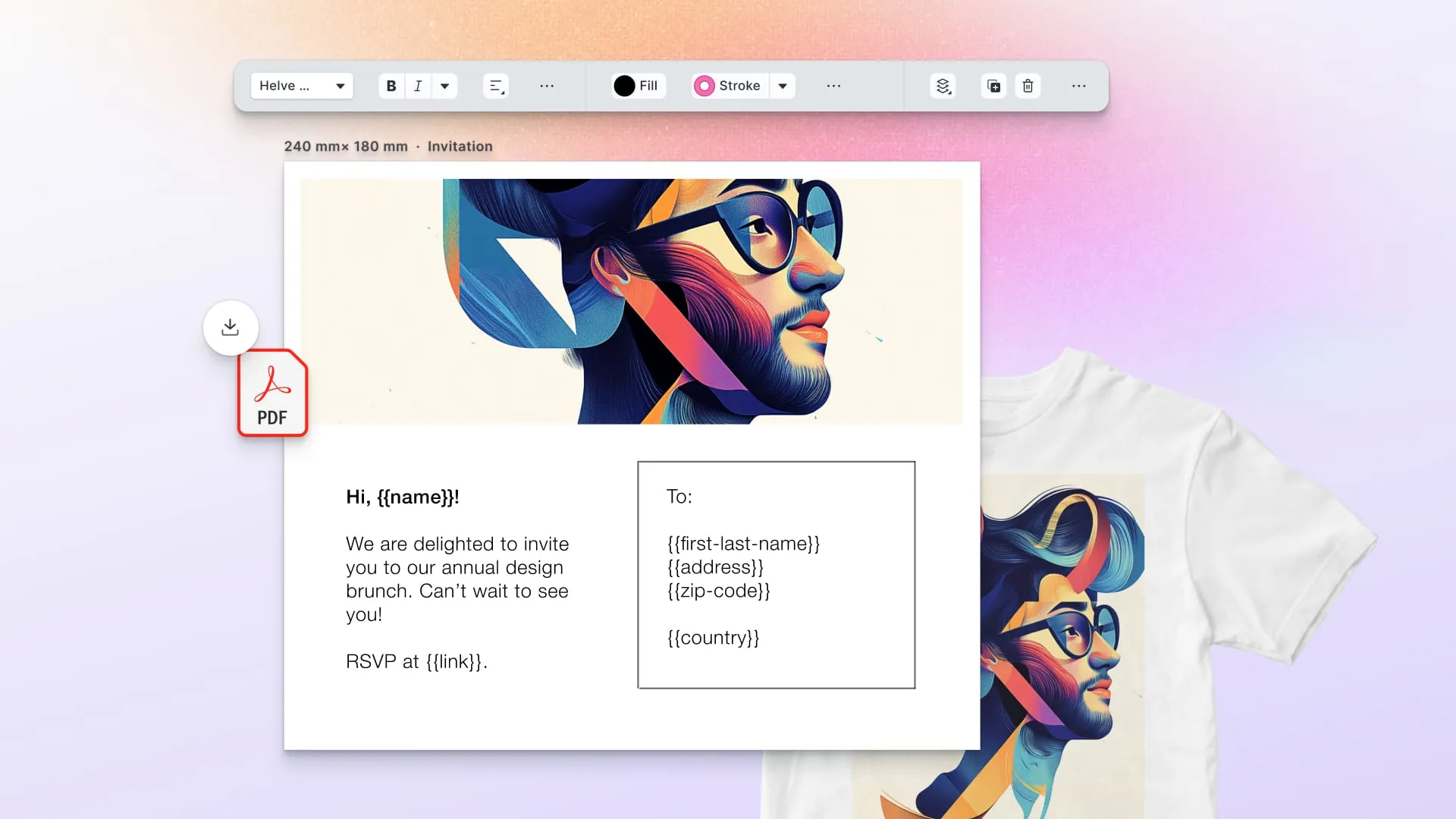
Generative text earns its place in two spots. Inside the editor it works as a writing aid, offering headline options, a tagline, or a “make it shorter / more formal / fit this space” rewrite for the non-writer staring at an empty text box. The bigger print use is Variable Data Printing, where it generates or localizes per-recipient copy across thousands of personalized postcards, mailers, or labels from a single template.
Generate the variants, merge them into print-ready files in headless mode, and run the batch.
Generated copy needs guardrails. Set length limits so it doesn’t overflow the text frame, add tone and brand constraints, and put a human-review gate on anything legally sensitive, such as pricing, claims, and regulated industries.
7. Template adaptation and auto-resize across SKUs
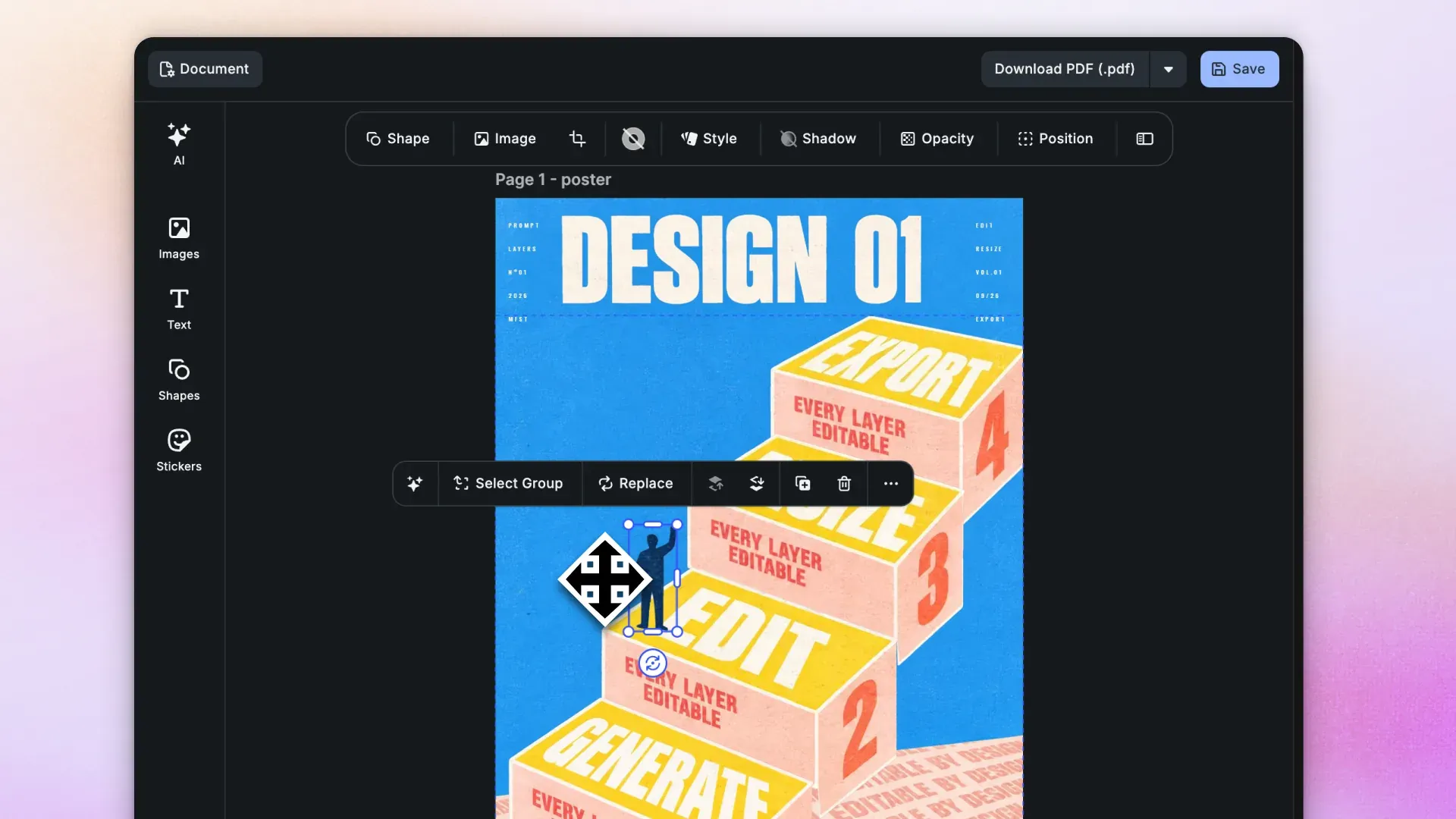
A print catalog is the same design across many sizes and substrates. One campaign becomes a postcard, a flyer, a poster, and a social tile. Automated resize and re-layout adapt one master design to every SKU’s dimensions, reflowing content instead of scaling it. Combine that with locked templates and you expand SKUs without re-authoring each one.
Watch out: reflow decisions still need brand rules. Lock what must stay fixed (logo size, safe area, mandatory legal text) so the reflow stays within your constraints.
8. Guided prepress correction
Instead of rejecting a bad file after the fact, use AI to catch and fix problems inside the editor. Flag the low-res image and offer to upscale it, detect text outside the safe area and nudge it in, notice a near-white “white” that won’t print and correct it. The same problems your prepress team used to fix by hand get caught here, before the order is placed.
Watch out: auto-correction must be transparent and reversible. Show the customer what changed and let them undo it. Silent “helpful” edits to someone’s artwork erode trust fast.
9. Localization and market variants
For franchise networks and multi-market brands, AI translation plus regeneration of localized imagery and copy turns one approved master into 12 market versions, each print-ready and on-brand, without a translation agency or 12 design tickets. A 200-location franchise can ship 200 localized flyers with the same brand guideline enforced by the editor on every one.
Machine translation in regulated or legal copy needs human sign-off. Text expansion (German runs roughly 30% longer than English) will break tight layouts unless your template frames can flex.
10. Realistic product previews
Generative and 3D-assisted mockups show the design on the product itself: the shirt, the mug, the folded brochure, the box. The preview matches what arrives on the doorstep, which heads off the “will this look right?” support tickets.
Watch out: a preview that’s prettier than the print sets up a disappointed customer and a reprint. Calibrate mockups to real output, including substrate color and finish.
The print-specific realities
Most generative models are built for screens. Print adds requirements the web doesn’t have, and the ones below are where projects most often break.
Resolution and DPI
Generated images typically arrive at around 1024px. At 300 DPI that’s about a 3.4-inch image, fine for a business card and nowhere near a poster. Always validate output resolution against the placed size, and route undersized assets through upscaling before export. The measured native output per model shows which models start closer to print size and which need the most upscaling.
Color: sRGB in, CMYK out
Models generate in RGB. Print is CMYK, plus spot colors. The saturated blues, greens, and oranges that look great on screen sit outside the CMYK gamut and will shift on press. Even inside RGB, hitting an exact brand hex is hard. Our brand-color finding measures color accuracy with CIEDE2000, and no model reliably lands the color in your brand book, which is one more reason correction belongs on the canvas. Your pipeline has to convert with the right ICC profile, validate against the print provider’s color requirements, and preserve named spot colors through to the PDF/X. Show the customer a soft-proof so the shift isn’t a surprise on delivery.
Vector vs. raster (and the “everything got rastered” trap)
Most models output raster. For logos, type, and line art that need to scale and print crisply, raster is the wrong format, and a PDF that rasterizes all text and vectors is, in one operator’s words, “death for the printer.” Use vector-native generation (e.g. Recraft) and vectorization for the elements that need it, and make sure your export keeps vector and text as vector with CMYK values preserved (PDF/X-4).
Text rendering inside images
Generative models have a reputation for garbling text inside images, and our text-reliability finding shows the top of the field has largely fixed it. Nine of the twenty-three models we tested now render every required string in our suite exactly. The catch for print is that reputation and measurement no longer line up. Ideogram, the model best known for typography, ranks twentieth of twenty-three on the measured column; several general-purpose flagships beat it. Reach for a specialist on reputation and you can end up with worse type than the default model you already route to. Put every model on the same wordmark prompt to see the spread. For anything that must be readable in print, don’t bake text into a generated image. Generate the imagery, then set real, editable, vectorizable type as a separate layer in the editor. If you must bake text in, pick the model from the measured column rather than from the marketing; the companion guide has the current ranking.
Brand safety and guardrails
Let customers generate anything and you lose brand control. Box generation inside locked templates instead. Generation fills a defined placeholder, within fixed margins, alongside a logo and palette the customer can’t move. A franchisee can change the headline and the photo; the logo size, position, and safe area stay locked.
Commercial and licensing rights
Web-to-print output is a commercial product, which makes the IP status of generated assets something you settle before you ship. Does your model provider grant commercial-use rights to outputs? Are there indemnities? Does training-data provenance create exposure for a customer reselling the printed product? Pick models and providers whose commercial terms you’ve actually read, and surface usage terms where they matter.
Cost and latency (the unit economics)
Every generation costs money and time. In an interactive editor, a 30-second generation is a broken experience. In a high-volume VDP run, a few cents per asset multiplied by 100,000 recipients is a real line item. The measured $/image and p50 latency in the model rankings run from a fraction of a cent to tens of cents, and from a couple of seconds to 141 seconds. Match the model to the job. Use a fast, cheap model for interactive iteration and a higher-quality (slower, pricier) model for the final render, and weigh the trade-off head-to-head with the compare tool. Cache what you can.
Data privacy and sovereignty
Customer-uploaded images can carry faces, IDs, and confidential product designs. Browser-based processing (background removal, some editing) keeps data on-device. API-based generation sends it to a third party, which has GDPR and data-residency implications, especially for European customers and government buyers who “prioritize a European vendor for data sovereignty.” Be explicit about what runs locally vs. in the cloud, and choose providers accordingly.
Hallucination and consistency
Generative output is non-deterministic. The same prompt yields different results, and details drift. No model in our consistency finding holds a described character across scenes, so series work needs identity stored as a reusable asset. For brand assets, product likenesses, and anything a customer will compare against reality, constrain hard (reference images, seeds, image-to-image rather than free generation) and keep a human gate on the outputs that matter.
How IMG.LY approaches it
In CE.SDK, generation happens inside the print pipeline. A few principles shape how that works:
- Model-agnostic by design. The AI plugins connect to any third-party model or API, so you bring your own. You’re not locked to one provider’s quality, price, or licensing terms. You route each task to the model that wins it, and swap models as better ones ship.
- Managed model access. The AI Gateway gives editors managed access to models, so you’re not stitching together a dozen API integrations and key-management schemes yourself.
- Generation lands inside the print pipeline. Outputs flow into locked templates with bleed, safe areas, DPI thresholds, and brand constraints already enforced, then through a CMYK / spot-color / PDF/X-4 export that keeps vectors and text as vectors.
- Drop-in generative features. Background removal, generative fill, image-to-image, vectorize, and text-to-image are available as plugins, so you can adopt the use cases above one at a time.
- Headless mode runs the same generation and export server-side for batch and variable-data runs.
In practice, the customer describes what they want, the AI handles the production step, and the pipeline enforces print correctness before the file reaches the press. For the product-level view of this stack, see AI for Print on Demand.
What customers are doing with it
High-volume print and direct-mail platforms are already building on this foundation. IMG.LY powers print and personalization workflows for operators including Postbuddy (personalized direct mail), Swiss Post, Digitas, and HP, alongside hundreds of smaller print, merch, and franchise platforms.
Operators describe the shift in narrow terms: the artwork fixing that used to eat a designer’s week gets caught in the editor instead, and the customers who bounced at “I don’t have a good image” finish the order.
Where to start
You don’t need all ten use cases on day one. The highest-ROI starting points, in order:
- Background removal: instant, in-browser, immediately useful for any merch or photo product.
- Image correction and DPI validation: catches and cleans up weak uploads before they ever reach the printer.
- Generative expand / fill: kills aspect-ratio and bleed rework.
- Text-to-image into locked placeholders: unblocks the “I don’t have an image” abandoner.
- Vectorize: rescues logos and protects your PDF/X output.
Each one removes a documented source of friction or rework. Add them inside locked templates and a real CMYK/PDF/X pipeline.
Next: which models to actually use. See the companion guide, The Best GenAI Models for Web-to-Print: A Buyer’s Guide, for a criteria-based comparison across output quality, vector/SVG support, text rendering, color, responsiveness, and cost. For the measured evidence behind these pitfalls, see the IMG.LY GenAI Benchmarks. Every model runs the same prompts, scored per criterion, with the method and headline results written up in Introducing IMG.LY AI Benchmarks.