
Most roundups of AI design agents rank the tools one to six. That only works if every reader wants the same thing. A developer wiring up app screens and a brand manager producing a campaign are not shopping in the same market, even though the same six products keep showing up in both their search results.
This survey sorts by the work instead. Two questions do most of the sorting: what you are making, and what you are left holding when the agent stops. If you want the wider tool category rather than agents specifically, we have compared the AI design tools built around prompt-first workflows.
We ran five of the six ourselves, on the same two prompts, and the findings below are what we saw rather than what the marketing pages say.
Disclosure up front. IMG.LY publishes this survey, and one of the six tools here is our own product, CoDesign. That entry says so where it appears, we assess it against the same criteria as everything else, and anything we did not test ourselves rests on public sources.
Updated September 2026.
What counts as a design agent
Three tests separate agents from the wider AI design tool space. The tool must plan multi-step work from a single goal. It must execute design operations rather than only advising. Its output must be usable design work: files, screens, or code.
These tests exclude two familiar groups. Image generators such as Midjourney and Ideogram produce strong single images without planning or executing a task around them. Chat assistants configured with design prompts, such as Taskade’s design agent templates, return recommendations in text. Both are useful, but neither does design work on your behalf.
Six products meet that definition in September 2026. We work through the definition in more detail in What Is an AI Design Agent?
How we tested
One prompt per category, given identically to every tool in that category.
For the interface tools: design a three-screen onboarding flow for a habit-tracking app, the screens in order being a welcome screen, a goal-setting screen, and a first habit formation screen, styled clean, high contrast, large type, one accent color.
For the graphic design tools: a launch campaign for a cold brew called Northwind, in three formats, an Instagram post, a story, and a DIN A5 flyer, warm and minimal, cream background, one product photo, headline supplied.
Two things decide it, and neither is how good the first draft looks.
Is the agent context aware? Can you feed it data, make it familiar with your brand, and does it hold that across every variant? We do not much care how fancy the design is. The table stakes have to be right before anything else counts.
And does it fit the habits you carried over from the before-AI age? Making a small revision by going back and prompting an AI again is the wrong shape. You want to be the human in the loop who makes that edit manually, because by the time you are prompting for the third time your frustration is already high enough that you have stopped wanting to.
One caveat on the Figma run, since it cuts against us: it executed the prompt inside IMG.LY’s own design system, so its icons, fonts, and patterns inherit work our designers had already done. That makes the head-to-head somewhat unfair in Figma’s favor.
Manus is the exception. We have not run it hands-on, and its entry below rests on public sources.
What you hold afterward
Generation quality converges fast. Every tool here produces a credible first draft, and the differences narrow every quarter. If you want to see where the underlying models differ, we benchmark 23 of them against the same design prompts.
What you keep does not converge. Some tools hand you a file inside an editor where you can select any element and change it. Others give you an export to finish in a different program. The rest keep the work inside their own platform, editable there and nowhere else.
AI design agents for app and web interfaces
Screen design has the most mature agent tooling, partly because UI has structure a model can reason about and partly because the output can be code.
Google Stitch
Stitch is a free experimental tool from Google Labs that generates multi-screen mobile and web interfaces, plus frontend code, from text or image prompts. It launched at I/O 2025, gained Gemini 3 and interactive prototype flows in December 2025, and was rebuilt in March 2026 around an AI-native canvas, a design agent and voice input. Real-time streaming design, export to Antigravity and publishing to Netlify followed at I/O in May 2026.
You describe an app and Stitch plans the screens, which you refine through further prompts. Screens render in the browser, with code export for the web stack and a paste-to-Figma path that preserves layers. Stitch has no source format of its own for the screens, so carrying on means taking one of its exits: the exported code, the paste-to-Figma path, a project opened in AI Studio or Antigravity, or DESIGN.md, the open-source markdown file that moves its design rules into other tools. Reviewers recommend exploring in Stitch and refining elsewhere.
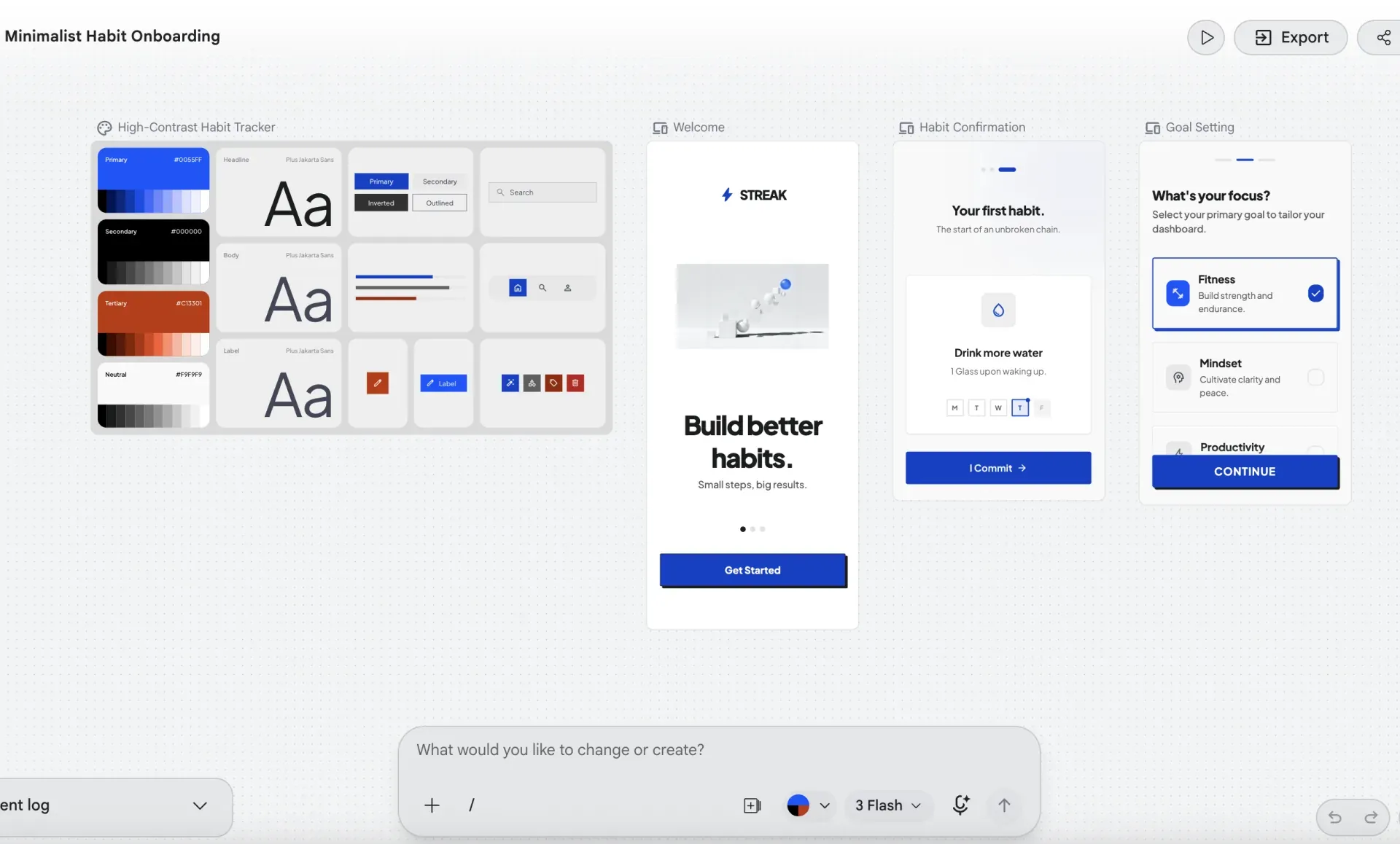
On our onboarding prompt it did not adhere to the brief. Habit formation came before goal setting, so the screen order was wrong. Button styles were somewhat inconsistent, the look and feel differed between screens, visible in the progress indicator on the welcome screen against the one on goal setting, and the aspect ratios were weird.
Editing is where it separates from Figma. Double-clicking does let you change the text, but you are apparently supposed to edit with AI, which is a nuisance when you only want to make a few design fixes. The brand kit is the part we liked: colors, accent colors, fonts, and spacing can all be changed globally. Though it looked like Stitch did not adhere to its own system that well.
It is free while in Google Labs. Google does not publish the generation caps, and third-party sources describe the limits inconsistently. Best fit is getting a first version on screen fast, especially for developers who want screens and starter code in one pass. Its Labs status makes it a tool to explore with rather than build a production process on.
Figma Agent
Figma’s agent works directly on the design canvas. It entered beta in May 2026 and gained custom skills, web search, and external MCP connections at Config in June 2026.
You prompt from any layer. The agent executes multi-step tasks: bulk edits across screens, dark-mode conversion, populating designs with real content, turning feedback threads into revisions. Custom skills written as markdown steer how it works.
Output is native Figma layers with components, variables, and design tokens preserved. This is the strongest design-system integration of the six, because the agent works inside the system your team already maintains rather than approximating it. Code generation routes through Figma Make, a separate product.
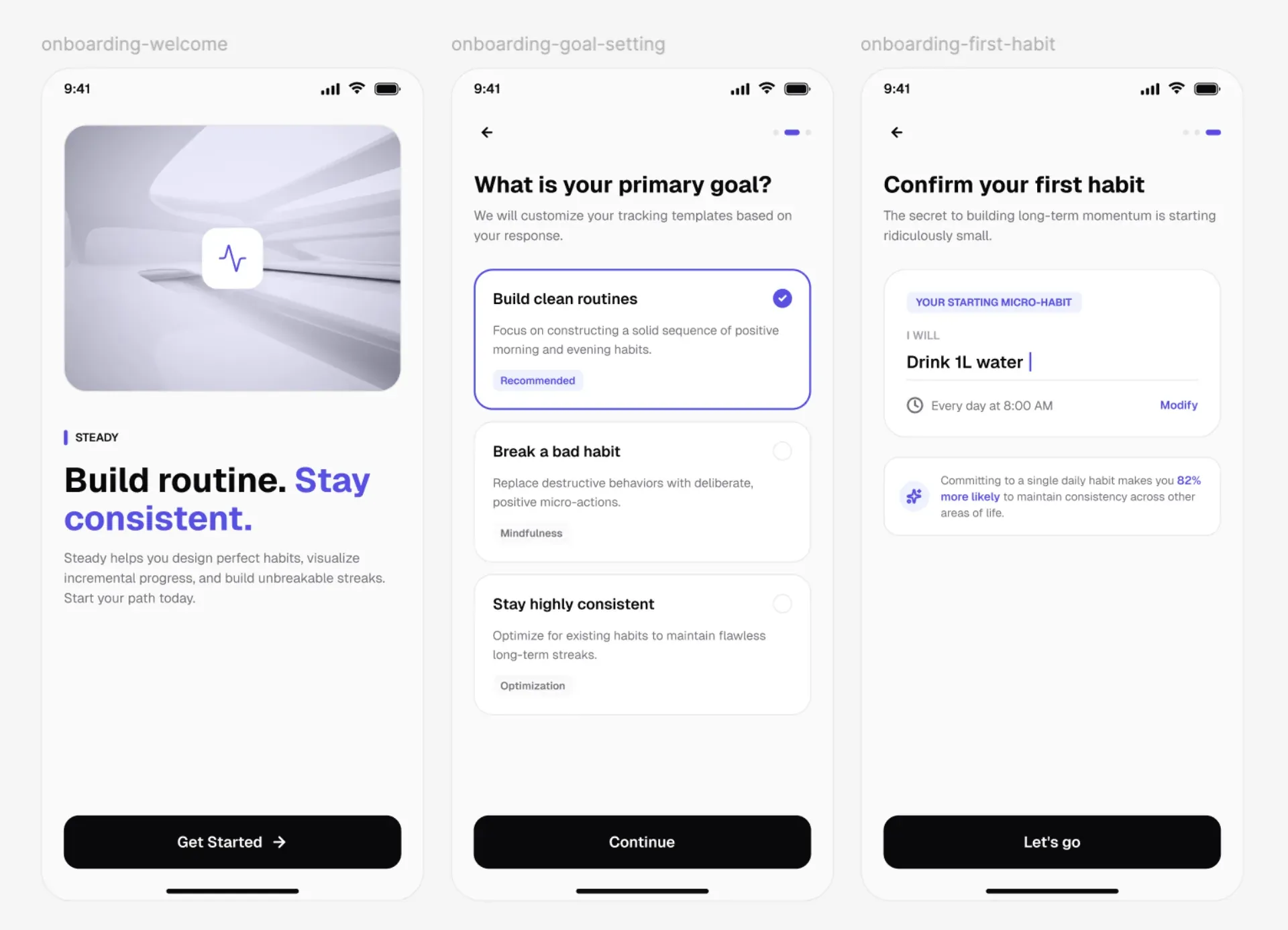
On our onboarding prompt it executed almost perfectly. The design was very clean, it adhered to the standards of modern apps, and it almost looked like something you would find browsing the App Store. Even the copy was decent, and it did not read like AI slop. The screens looked thought through: asked for a primary goal, it offered routines, breaking a bad habit, and staying consistent, which are the broad categories without too many assumptions on top. It stuck to the screen order, it baked in some interactivity, and it caught small details like “remind me every day at 8 a.m.” on the habit formation screen. As a novice you could take this and start prototyping.
Remember the caveat above, though: this run inherited IMG.LY’s design system, so the icons, fonts, and patterns were already good before the agent started.
The agent is free during beta, and Figma has said AI credits will apply at general availability without publishing how many a request consumes. It requires a full seat on any plan, including the free Starter tier. Early reviews report rough edges, including responsive layouts that broke on mobile.
In the head-to-head, Figma beat Stitch by a wide margin, which was to be expected.
Best fit is product and UI teams already working in Figma with an established design system.
AI design agents for marketing and brand assets
In campaign work you are producing dozens of assets at once, they all have to stay on brand, and some of them have to survive contact with a printer.
Lovart
Lovart is a dedicated design agent that turns a brief into a coordinated set of deliverables: logos, posters, packaging, social assets. It launched publicly in July 2025 after a closed beta that drew several hundred thousand users.
Give it a campaign-level brief and it analyzes intent, researches references, then generates dozens of assets sharing one visual system. You and the agent iterate on ChatCanvas, an infinite canvas where you both edit the same design through conversation. Results land as layers with typography kept separately, and Lovart offers targeted element and text edits in place.
On the Northwind campaign it was fairly quick, and the result was very aesthetically pleasing. We had very little to quibble with. The design subtleties were there, the product placement, the coffee beans, some cloth, and it stuck very well to the specification. Exactly what we had in mind.
The one quibble is brand drift. Look at the logo, look at the bottle, and there is significant drift in brand identity across the three formats. That is fixable in a real scenario, because you can link a brand, so you would have the product image and the logo ready and we would not expect much trouble then, whether you use Lovart to create variations, produce marketing material to A/B test, or adjust for different formats.
Editing is the problem. Ask to change the headline text and you cannot tell whether you are even looking at the same font. Quick edit means writing another prompt. Layers and in-place edits are there, but the change still went through a prompt and drifted. So while the output looks nice, for revision work it needs a finishing pass elsewhere.
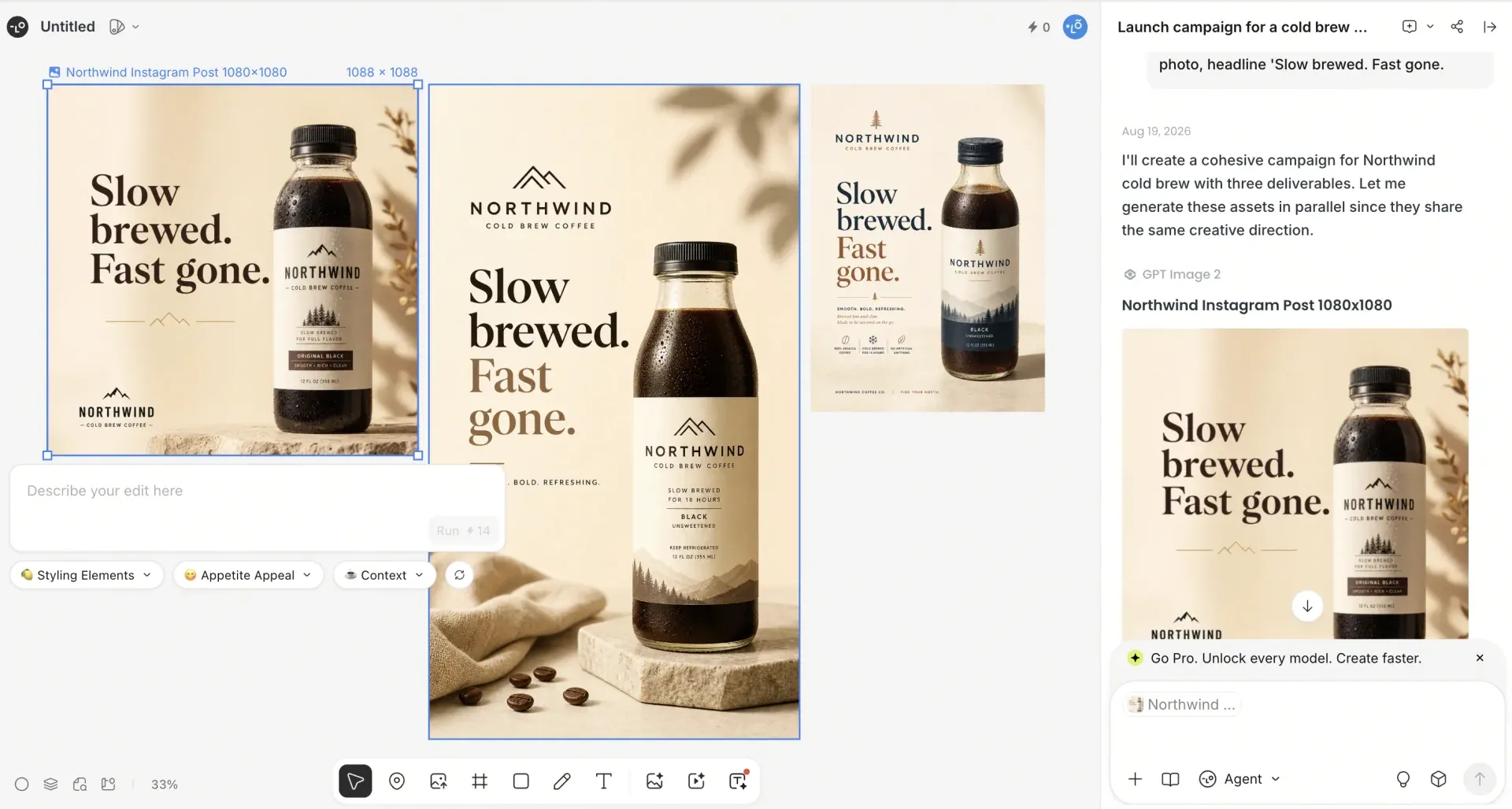
Reviewers report that precise pixel-level work tends to move into Photoshop or Figma anyway, which matches what we found.
Pricing runs on monthly credit tiers, from a starter allowance up to a substantially larger one. Lovart renders prices dynamically and third-party reports of the amounts disagree, so check the pricing page directly. Credit consumption is hard to predict on agent-driven tasks.
Best fit is marketing teams whose unit of work is the campaign rather than the asset, and who accept a finishing pass elsewhere.
Canva AI Assistant
Canva’s assistant plans and executes design tasks by calling Canva’s own tools. It launched in April 2025 and received a tool-calling rebuild in April 2026, announced as a research preview and generally available since.
It runs multi-step jobs such as producing a multi-channel campaign, and pulls context from connected sources including Slack, Gmail, Google Drive, and Notion. Scheduled tasks run in the background, with finished work arriving as drafts for review.
Output is layered, fully editable Canva designs across presentations, social posts, documents, and spreadsheets. You can change any element without regenerating. The constraint is Canva itself. The work stays editable inside Canva, and getting it out means exporting.
On the same Northwind prompt it was fairly quick, and it appears to match the brief against the vast template library Canva already has. From the get-go, though, it did not really stick to the specification. We asked for a cream background and one product photo. There is no cream background on the first asset, and we do not know why the product would be displayed on a laptop, which is plain weird. Only the last of the three is anywhere near acceptable.
We also had no indication of whether it generated variations or ignored that part of the brief. Opening one of the designs gives you more variations, including the one you did not select. What you do not get is a multi-page layout you can change, or any way to specify changes precisely. At that point you are simply inside Canva, editing.
As a starting point we would have been just as well off picking one of the Canva templates, uploading the product image, and adjusting the text. Compared with Lovart on the identical brief, Canva really does fall short.
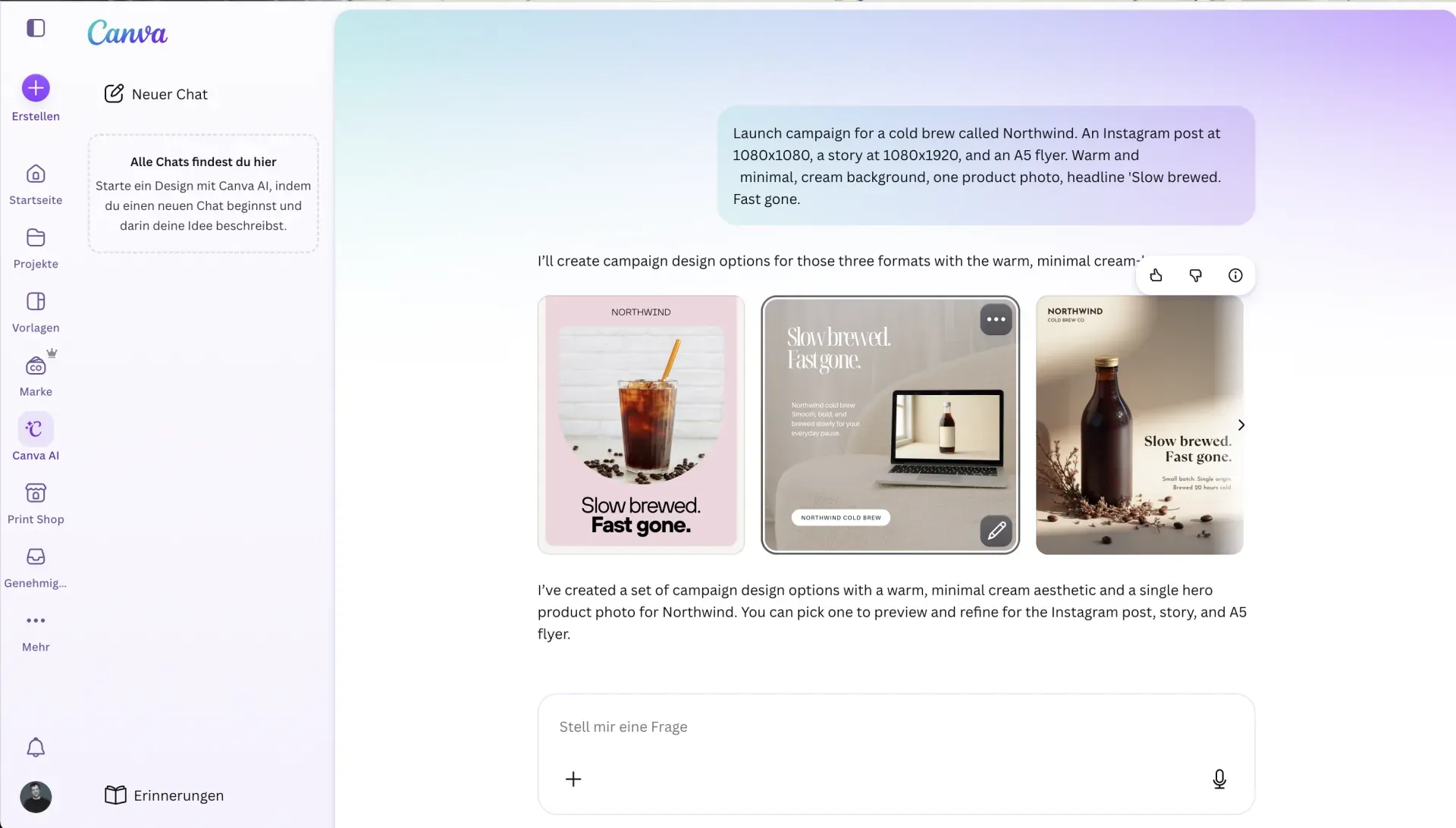
The assistant is available on the free tier with rate limits and monthly credits. Paid tiers add larger allowances, with the higher one priced per user. Reviewers warn that letting the assistant run a job end to end uses premium credits faster than editing by hand.
Best fit is teams already on Canva who want campaign production handled conversationally with brand kits applied automatically.
IMG.LY CoDesign
Disclosure: CoDesign is made by IMG.LY, which publishes this survey.
CoDesign is a free local MCP server that gives an agent you already use a full design engine. It entered technical preview in April 2026.
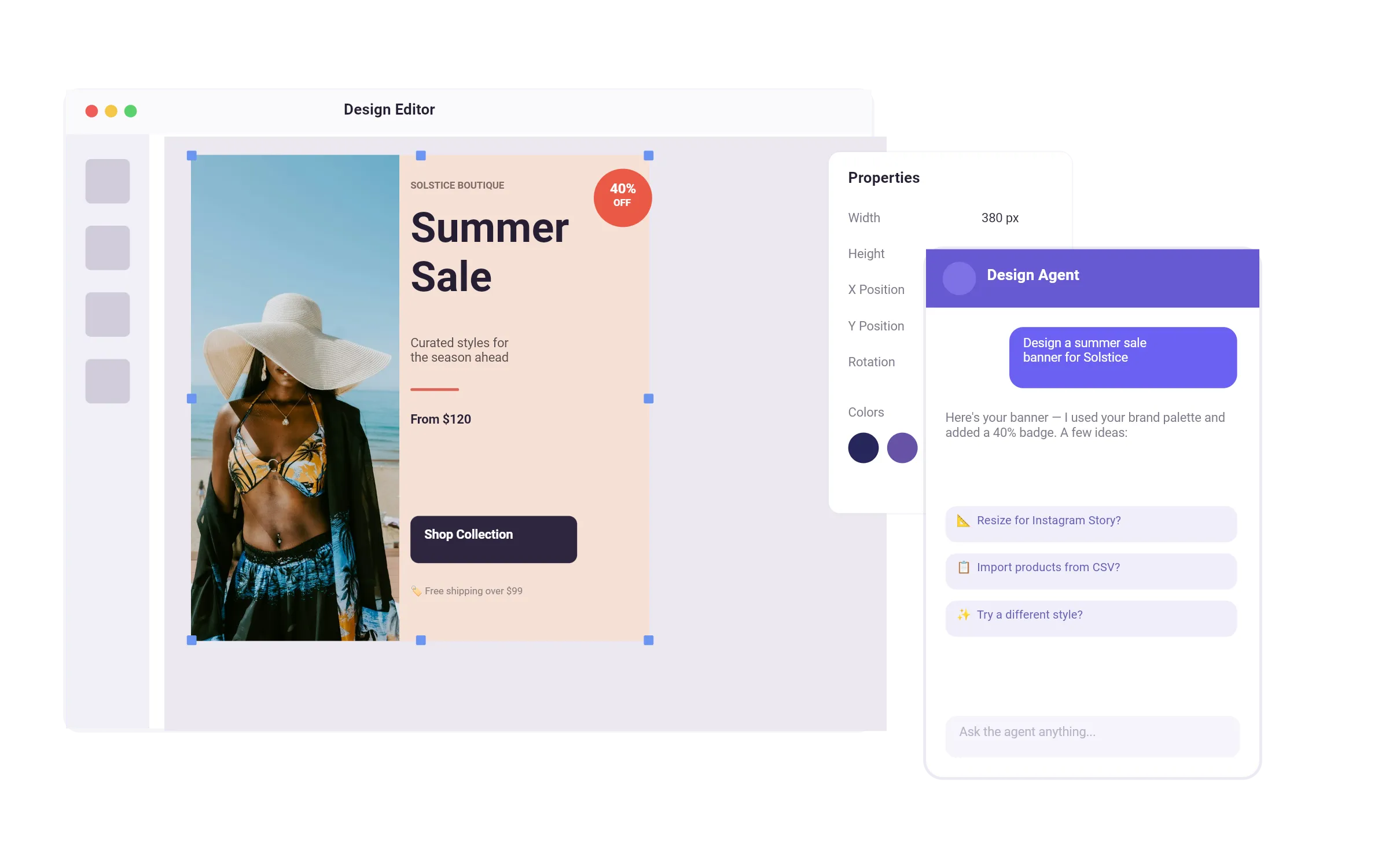
Instead of going to CoDesign, you install it into your own agent with one command, and the agent then performs design operations in conversation with you. IMG.LY documents the install for Claude Code and Codex, and any client that can run an MCP server locally works the same way. CoDesign can generate, rebrand, resize, edit, localize, import, and judge, the last checking a design against your brand rules. A representative chain: import a PSD, rebrand it, resize it to a dozen formats, check it against the rules, export.
Output is a structured scene rather than a flat image. It opens in an editor where you select any element and change it without regenerating anything. Underneath is CE.SDK, IMG.LY’s production design SDK. It imports PSD, IDML, PDF, and PPTX, and exports PDF with CMYK, bleed, and ICC profiles when a printer needs them. The agent, your code, and a human editor all work on the same file.
We ran the Northwind prompt through Claude Code. Before touching the canvas it asked where the product photo should come from, what accent color to use, what kind of cream we meant, and it drafted the copy for approval. In normal use you would run this inside your marketing documentation and brand assets, so your coding agent already carries a pile of context and can answer most of that itself. We gave it no brand context at all, to keep the comparison fair with the others.
It left us waiting a bit longer, though that is not quite fair to say, since it works in tandem with the coding agent. It was thorough and diligent. It ran a self-check against a set of axes before handing the design back, and because we supplied no brand context those came back blank. It passed, and returned one editable master file.
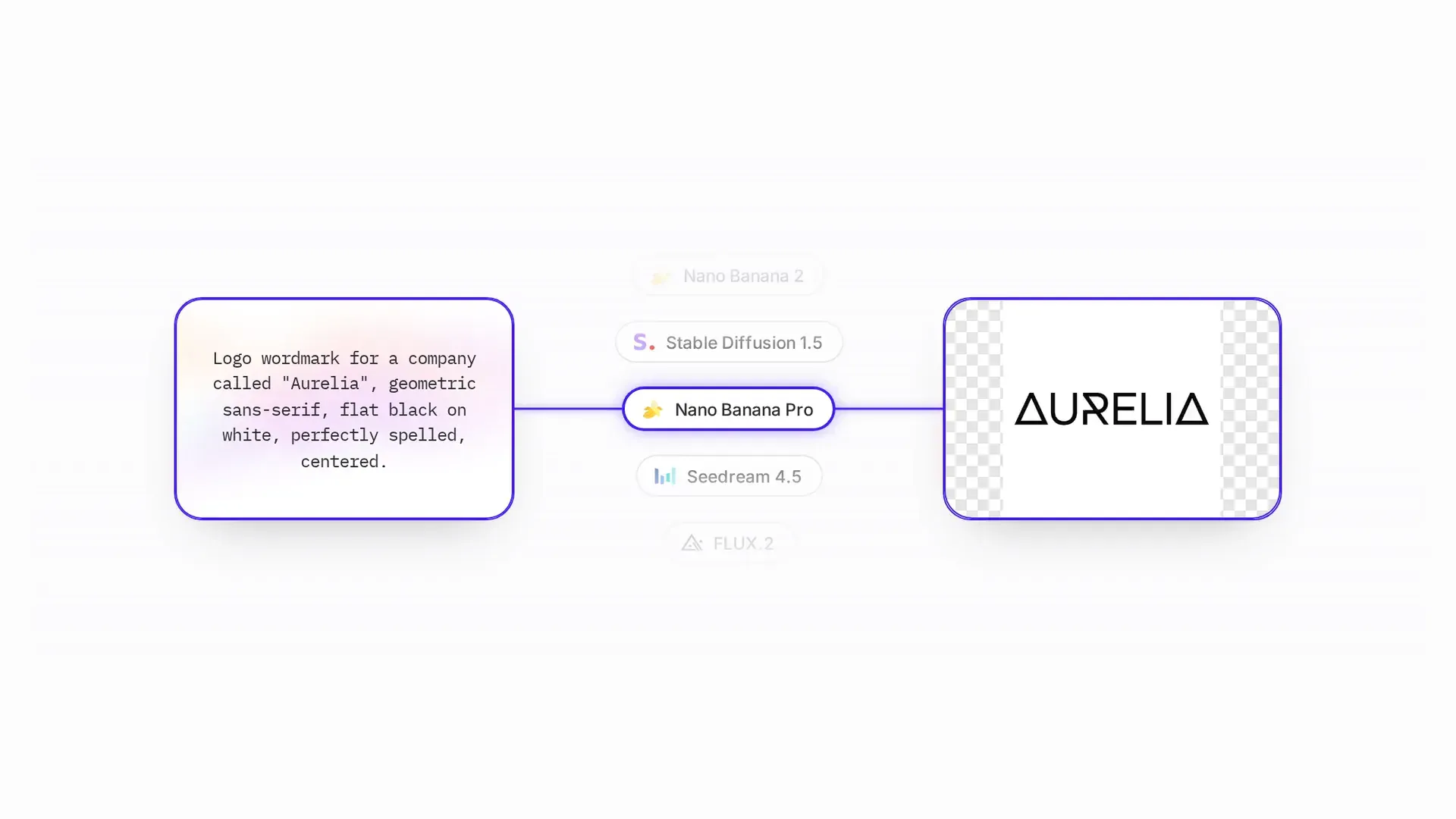
When it needed the product image it opened the IMG.LY dashboard, where the AI Gateway picked the model for it and credited the generation, which was frictionless.
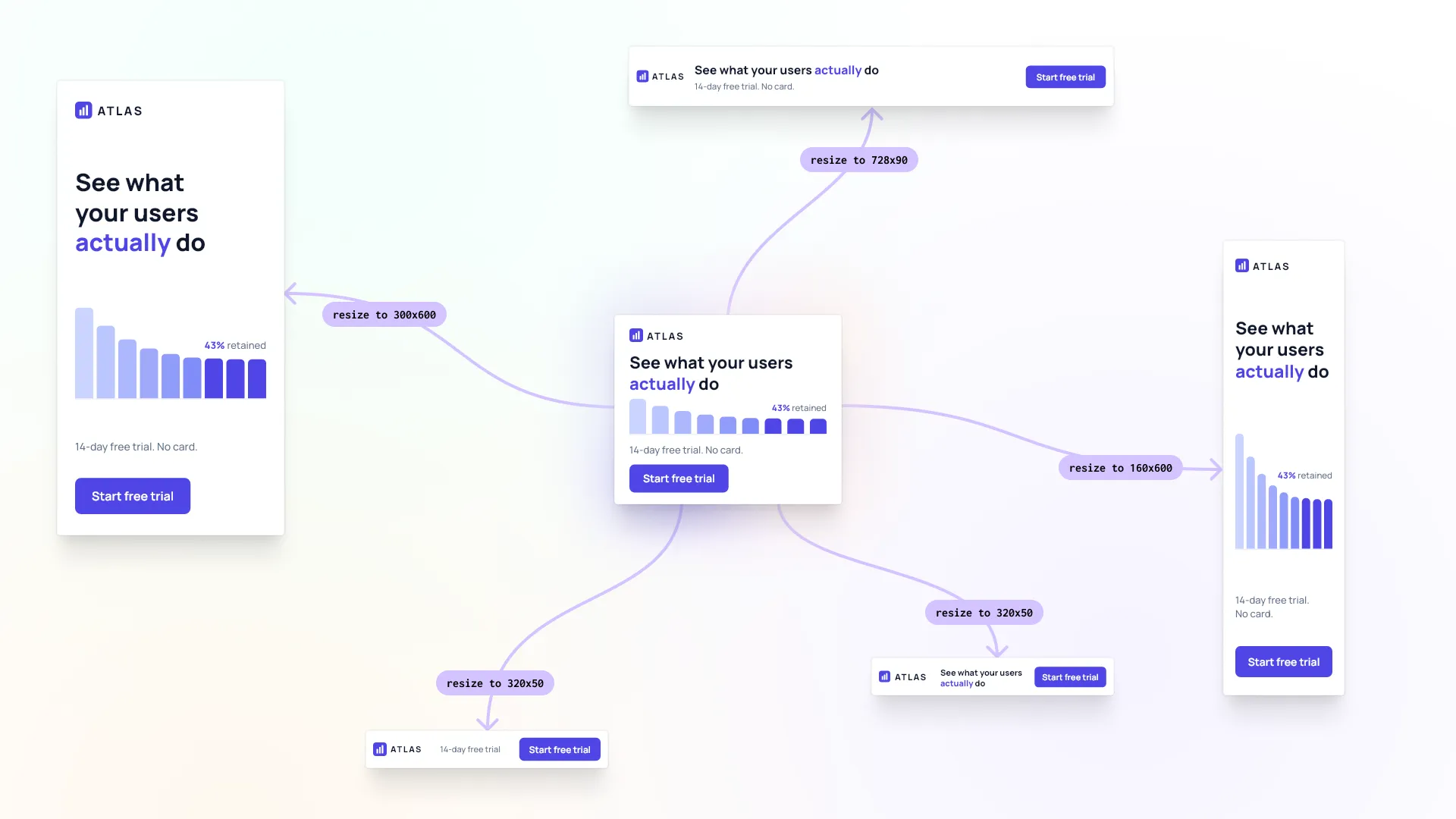
The design that came back is fairly conservative and does not assume too much: some copy, “now pouring, limited first batch”, a CTA. Fairly bare bones, but it works. What matters is that it stuck perfectly to the specification. The square asset, the story asset, and a PDF carrying its color space and a resolution we could hand to a printer. Edit one element, tell it to regenerate, and it propagates: same colors, same logo, same product image across every variant.
All three formats came out of a single master file, generated in one pass from the same brief:
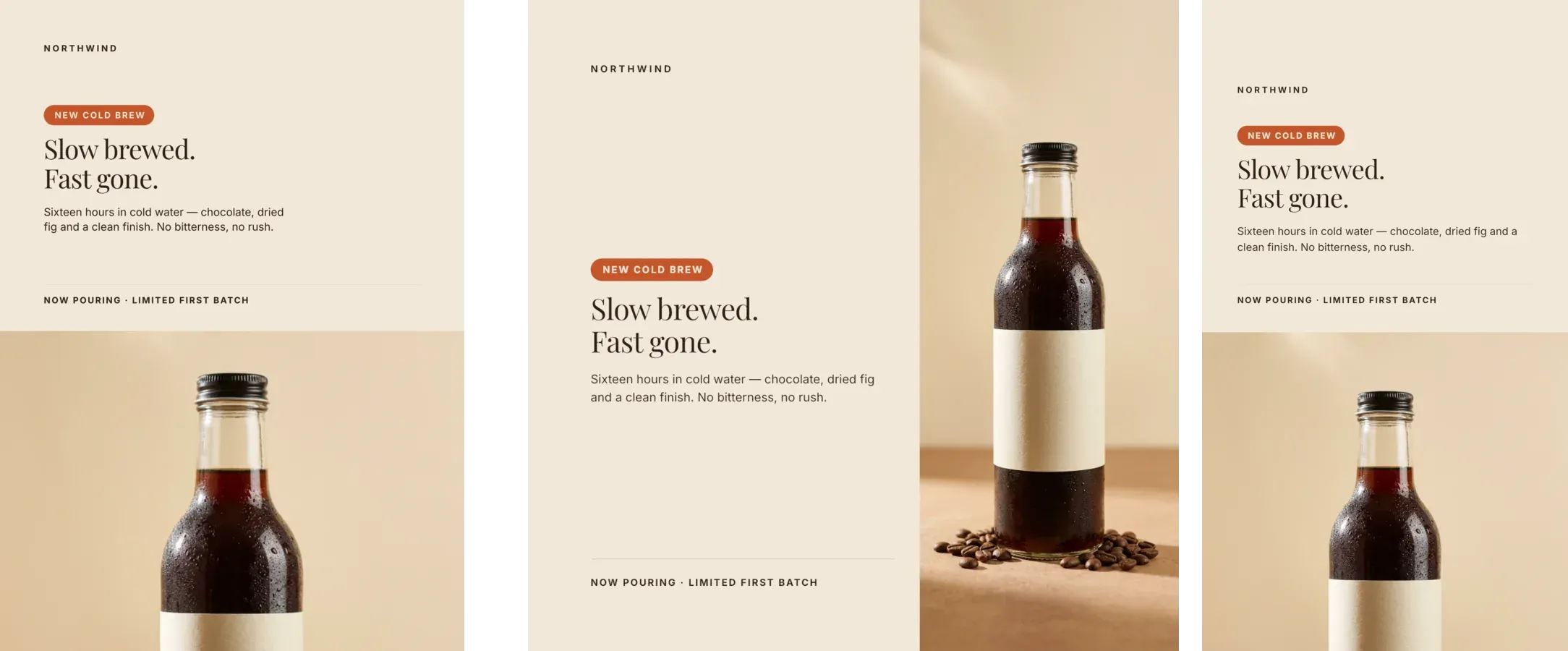
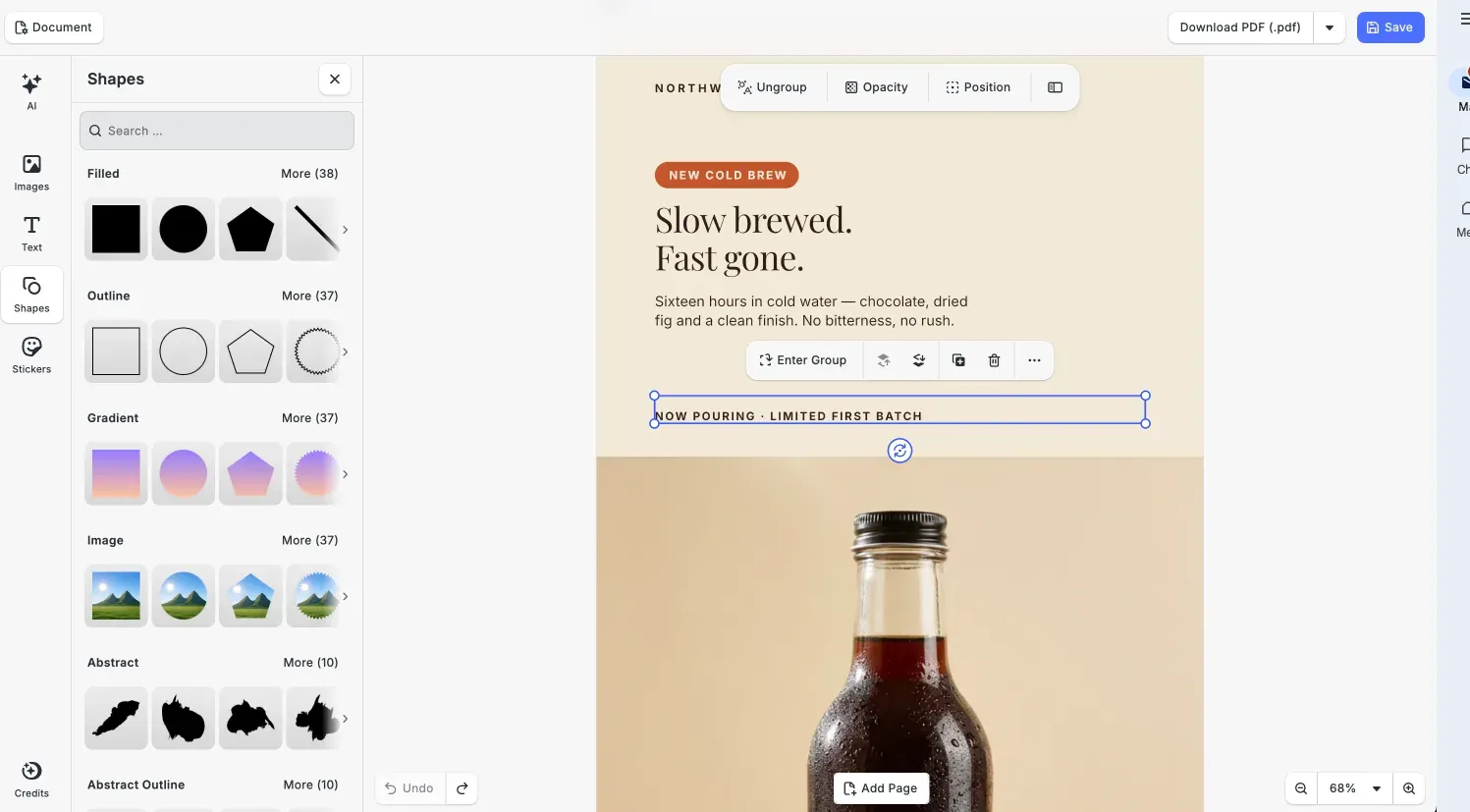
The local server is free to install and run with no account needed to start. An optional free account adds AI image generation, which routes out through IMG.LY’s AI Gateway. Paid licensing applies when you host the server for other people or embed it in a product.
Best fit is anyone running an agent-first local workflow who needs production-grade editing, print-ready files, and brand consistency across every variant. As a technical preview it is early, and behavior can change between releases.
Delegating design inside a larger task
Manus
Disclosure: this is the one entry we did not run ourselves, so unlike the five above it rests on public sources rather than hands-on testing.
Manus is a general-purpose autonomous agent with a design workspace inside it. Design is one capability among research, app building, and document production.
Manus decomposes a goal into subtasks, browses for context, runs for long stretches without supervision, and continues while you are offline. For design work it researches before designing, then produces assets you refine through object-level edits: click an element to change colors, swap a background, or reshape it, without regenerating the whole asset.
Output covers images, video, 3D assets, and presentations. Its public documentation does not describe a layered source file of the kind a dedicated design tool exposes, so you edit objects rather than a design file. General agents are closing the gap on design output faster than anything else in this survey.
The free tier includes a daily refresh of credits, and the paid plans are credit-metered subscriptions at three levels. Reviews describe unpredictable credit burn on complex tasks.
Best fit is founders and operators who want one agent handling research, documents, and adequate design output, and who value autonomy over design-tool depth.
Which tools leave you a real editor
Three tools in this survey give you a real editor after generation. Figma Agent puts native layers on the Figma canvas. Canva’s assistant produces fully editable Canva designs. CoDesign returns a structured scene that opens in a full editor. In all three you select an element and change it, instead of rewriting the prompt and hoping the next version keeps the parts you liked.
Lovart sits between. It has a canvas and in-place editing, and precision work still tends to finish in Photoshop. Stitch hands off to Figma, to code, or to Google’s own AI Studio and Antigravity. Manus edits at the object level, which suits an agent whose remit is much wider than design.
Revision takes longer than the first draft, and tools that keep you in control of the file absorb those cycles.
Destination app or capability in your stack
Five of the six tools here are destinations. You open Figma, Canva, Lovart, Stitch, or Manus, do the work there, and take the result away. That model is familiar and it works.
The sixth, CoDesign, is a design engine that installs into the agent you already use, so the design step happens inside your existing workflow.
That split is narrower than it first appears. Figma opened an MCP server in March 2026, so external coding agents can drive its canvas. Canva shipped an MCP server in July 2025 that exposes design generation inside ChatGPT, Claude, and Microsoft Copilot, and says millions of people have used it inside Claude alone. Google registered a Stitch MCP server in April 2026. Being reachable from your agent is not unique to CoDesign.
The tools differ in what they hand back. Drive Figma’s MCP and you get a Figma file, which is useful if your team lives in Figma. Drive Canva’s and you get a Canva design. Drive CoDesign and you get a portable scene file, PDF with CMYK and bleed, PSD and IDML import, and no platform you have to keep an account with. For teams whose output ends at a printer or inside their own product, that portability decides it. It matters much less if your work already lives in Figma or Canva.
How to choose
Start with what you are making. UI and app screens point to Stitch for speed or the Figma Agent for depth. Campaign and brand assets point to Lovart for volume from one brief, Canva for teams already there, or CoDesign for output that has to stay editable and reach print. If design is a side task inside something larger, Manus covers it.
Then check the exit path before you commit, because it is the part you cannot change later. Ask where the file lives, whether you can edit it without regenerating, and what happens when it needs to leave the tool.
FAQ
Are AI design agents free? All six have a free way in: Stitch while it is in Labs, Manus, Lovart, and Canva on their free tiers, Figma’s Starter plan, and CoDesign’s local server. Figma’s agent is free during beta but needs a full seat. Full Lovart and Canva use are subscriptions.
Do AI design agents replace designers? No. Every tool in this survey keeps a person reviewing the output, and all six advertise editing after generation.
Which AI design agents produce editable files? Figma Agent, Canva’s assistant, and CoDesign keep element-level editability in a design file. Lovart offers in-canvas editing, though external finishing is common. Manus edits objects in place. Stitch relies on its exports to Figma, code, AI Studio and Antigravity.
Can a design agent produce print-ready output? Rarely. Most are built for screen. Canva’s PDF Print export carries bleed and crop marks, with a CMYK profile on paid plans. CoDesign exports PDF with CMYK, bleed, and ICC profiles when a printer needs them, and imports PSD, IDML, PDF, and PPTX. If the work ends on a press, check formats before anything else.
Can I use a design agent inside Claude or ChatGPT? Yes, through MCP. Canva exposes design generation in ChatGPT, Claude, and Copilot. Figma opened its MCP server to external coding agents, and Google registered one for Stitch. CoDesign runs as a local MCP server in coding agents such as Claude Code and Codex.