
The best AI design tools no longer just generate images: they take a brief and hand back a finished design. The newest of them are AI design agents, tools you direct in conversation rather than operate click by click. The workflow has a name, vibe design: vibe coding gave non-technical people the ability to build software by describing what they wanted, and the same shift is now happening in design. For the first time, a marketer, a retailer, or a small business owner can create a professional design exactly to their specification just by explaining it to an AI. No design skills required. No external tool. No waiting for a designer to become available.
This article compares six tools leading that shift - what they do well, where they differ, and how to choose between them.
Updated September 2026.
Tools Built for Creators
These tools represent the current state of standalone vibe design software. Each is genuinely good at what it does. The differences come down to what kind of work they’re built for.
Google Stitch
Google Stitch is an AI-native design canvas from Google Labs. It started in 2025 as a screen-at-a-time UI generator, was rebuilt into the current canvas with voice steering in March 2026, and gained real-time streaming to the canvas and import of an existing codebase or design file at Google I/O in May 2026. It accepts text, voice, images, and code as input and produces high-fidelity UI designs and interactive prototypes on an infinite canvas. Its design agent can reason across an entire project rather than just the current frame - a meaningful step beyond tools that only operate on one screen at a time.
Stitch introduces a DESIGN.md file format for exporting and importing design rules across tools, and it connects to Cursor, Claude Code, and Gemini CLI via an MCP server. Screens export into Google AI Studio and Antigravity, and a project can be published to the web through Netlify. It’s free to use with generation limits, and it’s clearly aimed at UI/UX designers and developers building product interfaces - not marketing or graphic design work.
Figma’s Design Agent
Figma’s design agent is an AI design agent built into Figma Design itself. You select a frame, describe the interface you want, and it runs multi-step tasks on the canvas: new screens from a prompt, layout restructuring, variant swaps, bulk copy rewrites, image edits. Connect a library to the chat and it builds with the real components, styles, and variables your team already maintains rather than placeholder UI.
Several prompts can run at once on different frames, threads are shareable so the team sees the prompting behind a design, and a repeated workflow can be packaged as a skill anyone runs on demand. The agent connects to external tools over MCP and searches the web, and it will generate a small plugin when a job needs a control of its own. Vector editing, icon work, and prototyping are listed as coming soon, and it is free while it is in beta, with a monthly usage limit. Figma Make is the separate prompt-to-code product, and it builds working prototypes and web apps you publish to the web.
Lovart
Lovart is a standalone AI design agent founded by a former ByteDance senior product director. Its scope goes well beyond graphic asset creation: from a single prompt, it can generate brand identity systems, UI mockups, video content, packaging designs, and full marketing campaigns. It uses a proprietary MCoT (Mind Chain of Thought) reasoning engine designed to mimic how a creative director thinks - analyzing business context, target audience, and brand requirements, not just aesthetic style.
Its infinite canvas continuously analyzes all assets present to maintain visual consistency across an entire project, and outputs are compatible with Figma, Photoshop, and After Effects. It routes work across a wide model set rather than one house model, advertising 16+ image models and 13+ video models alongside 3D and audio generation. Lovart is positioned for marketing creatives, solo designers, and small creative teams who need to produce full campaigns without a large agency.
Adobe Firefly Boards
Adobe Firefly Boards is Adobe’s AI-first collaborative ideation canvas, built for creative professionals who need to move quickly from inspiration to concept. It lives inside the Adobe Firefly web app and mobile apps (iOS and Android), and syncs with Creative Cloud so work can move from moodboard to production without switching platforms.
The core of Boards is an infinite multimedia canvas where you bring in text prompts, reference images, video clips, and Adobe Stock assets, then generate across all of them at once. What makes it unusual is the model breadth: Boards gives you access to Adobe’s own Firefly models alongside partner models from Runway, Pika, Luma AI, Google Veo, Black Forest Labs, and others, all inside the same workspace. Outputs are images, video clips, text overlays, and assembled mood boards or storyboards, and every generated asset carries Content Credentials that automatically record which AI model produced it.
Canva AI
Canva AI is a suite of more than 15 AI-powered tools embedded directly into the Canva editor on web, mobile, and desktop. It’s not a separate app. If you’re already a Canva user, you’re already inside Canva AI.
The suite covers writing, image generation, video creation, format switching, and multi-language translation, all accepting text prompts, uploaded media, documents, and existing canvas elements as input. Brand Kit integration is what distinguishes it from more isolated AI generation tools: you choose a Brand Kit and a Brand Template on the Canva AI homepage, and the design comes back in your logo, colors, and fonts rather than generically styled. Magic Design runs the other way around, generating a set of designs first and applying your brand colors and fonts to them in one click afterwards, on a paid plan.
Canva AI 2.0 returns editable objects, so a generation lands as a design you can adjust rather than a flat picture. The trade-off is where the work lives. Designs sit in your Canva account, and moving them into another pipeline means an export, by hand or over the Connect API. For teams whose output has to reach their own codebase, that boundary is the constraint, not the editor’s ceiling.
IMG.LY CoDesign
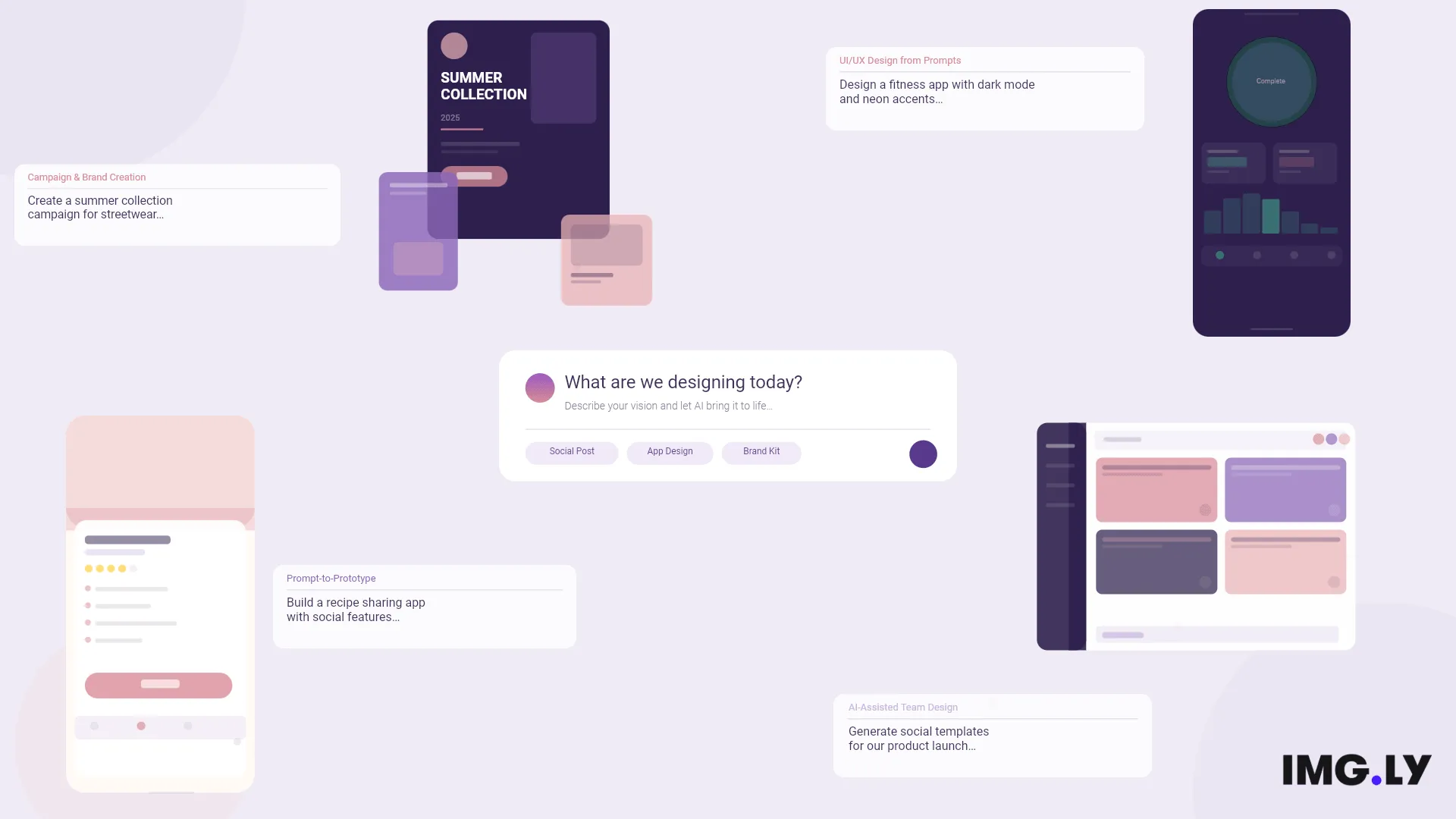
IMG.LY CoDesign is an AI-powered design companion built for creators and teams producing marketing materials, branded content, social assets, and multi-format campaigns. It’s available today, but it’s rough in places, and behavior changes between releases. Editable output on its own is not what sets it apart, since Canva returns editable objects now too. The difference is where the file lives and what can open it. CoDesign runs as a free local MCP server on your own machine, so the design stays local, your own code can open the same file a designer finishes, and it reads InDesign IDML and exports SVG, HTML, and the editable source.
The agent and the editor work on the same file. You can prompt a direction, refine it in conversation, and take over the canvas directly at any point - without switching tools, exporting, or starting over. CoDesign also goes beyond the canvas: ask it to build a brand panel, a form-based template, or a custom configurator, and it builds that too - directly inside the editor, from the same prompt interface.
That free local MCP server for design means the same agent works from Claude, Cursor, or any other MCP client.
Vibe Design Tools at a Glance
| Google Stitch | Figma agent | Lovart | Adobe Firefly Boards | Canva AI | IMG.LY CoDesign | |
|---|---|---|---|---|---|---|
| Primary use | UI/UX design from prompts | Design generation and editing on the Figma canvas | Full campaign and brand creation | AI-first concepting and moodboarding | AI design generation inside Canva editor | AI-assisted design for creators and teams |
| Where it lives | Google (standalone web app) | Inside Figma Design (web and desktop app) | Lovart (standalone) | Adobe Firefly web + mobile; syncs with Creative Cloud | Inside Canva (web, mobile, desktop) | Local MCP server on your machine, plus browser editor |
| Input types | Text, voice, images, code | Text, voice, images, Figma files, code files | Text, images, brand briefs | Text, images, video, Adobe Stock assets | Text, images, video, documents, existing design elements | Text, images, CSV, brand kits |
| Output type | UI designs and prototypes | Native layers on the Figma canvas | Brand assets, campaigns, video, packaging | Images, video, text overlays, mood boards, storyboards | Images, video, presentations, styled text, format-converted designs | Editable multi-page designs |
| Output format | Editable Figma files, HTML/CSS | Editable Figma files | Flat / exportable | Flat / exportable; Content Credentials attached | Editable objects, held in your Canva account | Editable objects; local file, SVG, HTML, editable source |
| Brand context | Manual per session | Connected libraries: components, styles, variables | Canvas-aware within session | Enterprise Custom Models; personal library import | Brand Kit and Brand Template chosen at generation | Loaded at session start |
| In-chat UI generation (editor controls built inside the tool) | No | Yes | No | No | No | Yes |
| Multi-model AI | No | No | Yes (16+ image and 13+ video models) | Yes (Runway, Pika, Luma, Google Veo, BFL, and more) | No (Canva picks the model for you) | No |
| Best for | Product designers, developers | Product designers working in Figma | Marketing creatives, solo designers | Creative professionals doing concepting and ideation | Non-designers and content teams needing fast, on-brand output | Creators and teams whose output has to leave the tool |
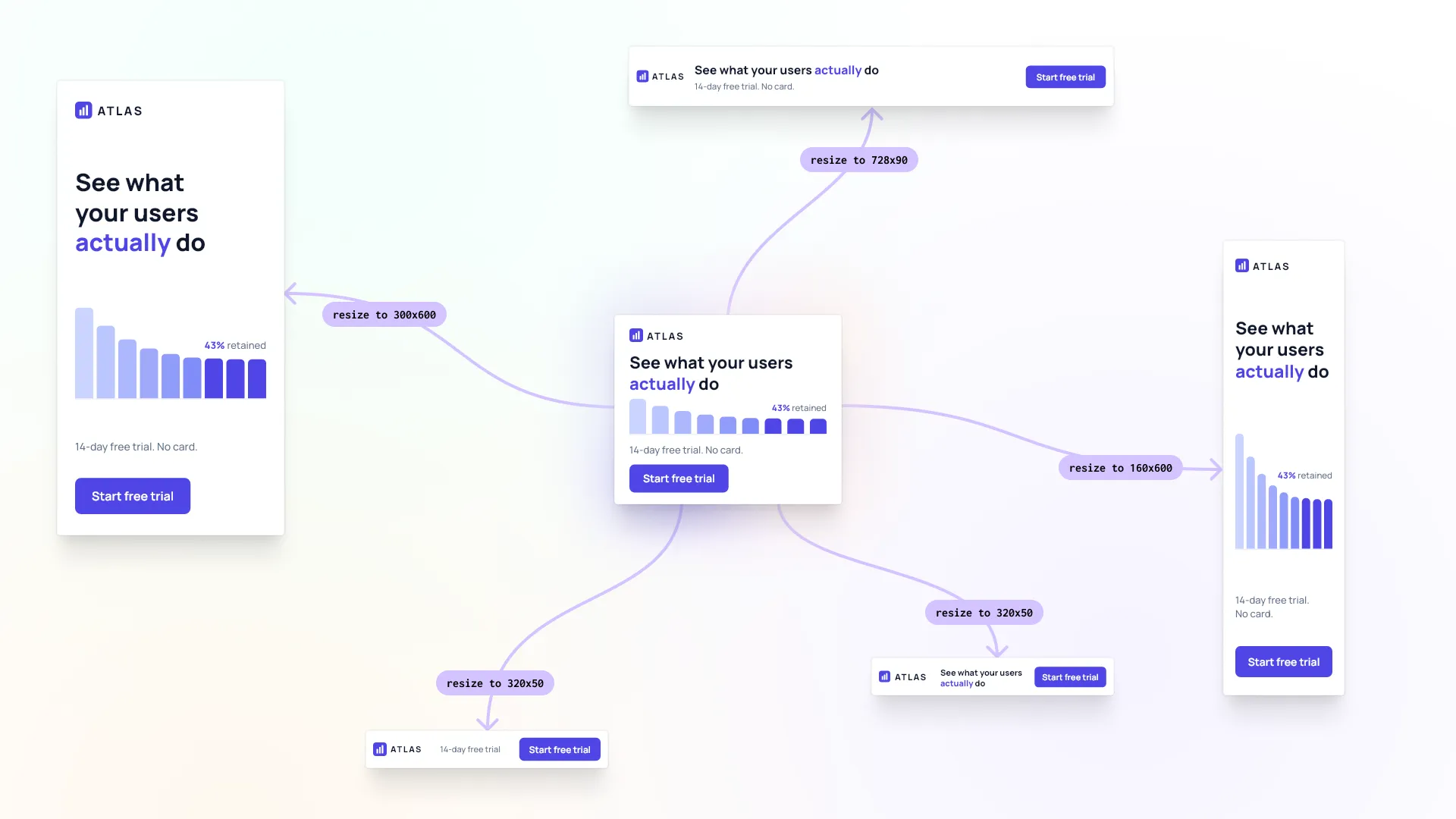
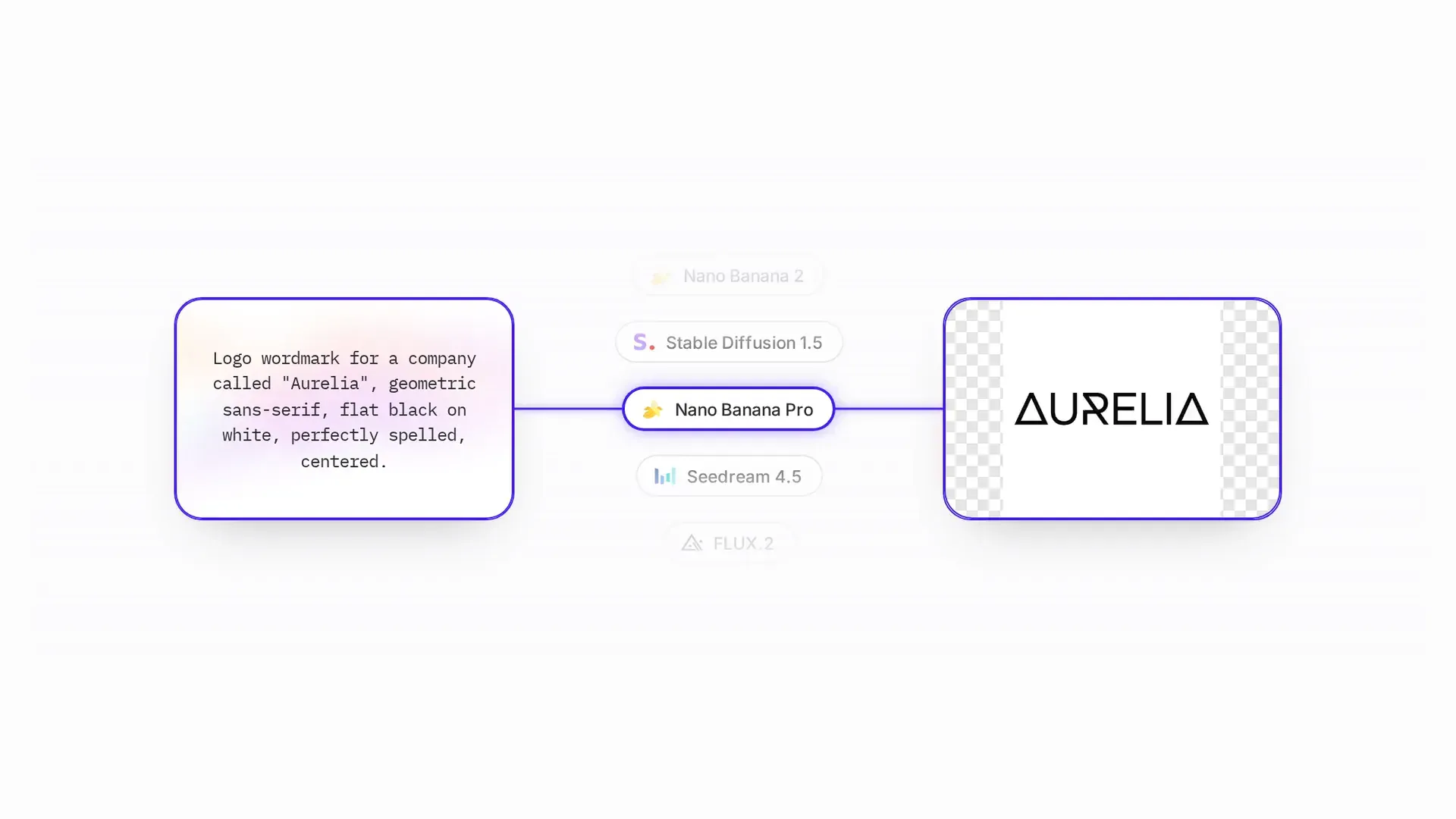
If you want cost per design, measured, we ran six AI models through the same resize job and priced every passing output. For a detailed breakdown of how Canva AI compares to CoDesign specifically, see Canva AI vs. CoDesign. If you’re evaluating from the developer side, CoDesign also doubles as an AI design tool for developers: it registers as a local MCP server, so design generation becomes a capability of whatever agent stack you already run.
How to Choose
The criteria here aren’t about feature counts. They’re about the kind of work you’re doing.
Choose Google Stitch if you’re a product designer or developer building UI and want an AI agent that reasons across your whole project, not just individual screens. It’s the most technically connected of the six (MCP server, code input, DESIGN.md export), and it’s clearly built for product interface work.
Choose Figma’s design agent if you already work in Figma and want design work generated in your own components rather than handed back as an export. It reads the libraries in the file, runs several prompts in parallel, and leaves native layers a design team can pick up.
Choose Lovart if you need to produce full creative campaigns (brand identity, packaging, video, marketing assets) from a single prompt. Its MCoT reasoning engine and canvas-level consistency analysis make it particularly strong for high-volume marketing creative work.
Choose Adobe Firefly Boards if you’re a creative professional working inside the Adobe ecosystem who needs to generate and align on large volumes of visual concepts before moving them into production. It’s the right call for designers, photographers, and creative directors doing serious concepting work that will ultimately land in Photoshop, Premiere, or Illustrator.
Choose Canva AI if you need fast, on-brand creative output and your users aren’t designers. Canva AI’s Brand Kit integration means you pick the kit before you generate, so the designs come back in your saved colors, fonts, and logos. It’s not the tool for pixel-level creative control.
Choose CoDesign if the design has to leave the tool that made it. It runs as a free local MCP server, so the file stays on your machine, your own code can open the same file a designer finishes, and it reads InDesign IDML and exports SVG, HTML, and the editable source. It also exports PDF with CMYK, bleed, and ICC profiles when a printer needs them. For teams whose output feeds print production or an existing codebase, that route out starts from a local file rather than a vendor’s cloud.
CoDesign is available now. Install it, or talk to our team about a rollout.
FAQ
Which AI design tool produces output you can still edit? Most of them now. Canva AI 2.0 returns editable objects, Figma’s agent edits native layers on the canvas, and CoDesign returns a structured scene. What matters more is where the file lives afterwards and what else can open it, because that decides whether the design can reach a print workflow or your own codebase.
Is IMG.LY CoDesign free? The local MCP server is free to install and run on your own machine, with no account needed to start. You sign in only when you want AI image generation. It’s available today, though it’s rough in places.
Can these tools produce print-ready files? Most are built for screen output. CoDesign exports PDF with CMYK, bleed, and ICC profiles when a printer needs them, and Canva’s PDF Print download covers CMYK and bleed. If your work ends up on a press rather than a feed, that’s the first capability to check.
Which tool fits a developer workflow? Google Stitch, Figma, Canva and CoDesign connect to an agent stack over MCP. Stitch is aimed at UI and product interface work. CoDesign runs locally and returns a design file your own code can open, so design generation becomes a capability of whatever agent you already run.
Do I need design skills to use these tools? No. Each of the six accepts a brief in plain language and returns a finished design. What differs is how much control you get afterwards, and whether the result is something a designer can pick up and finish.