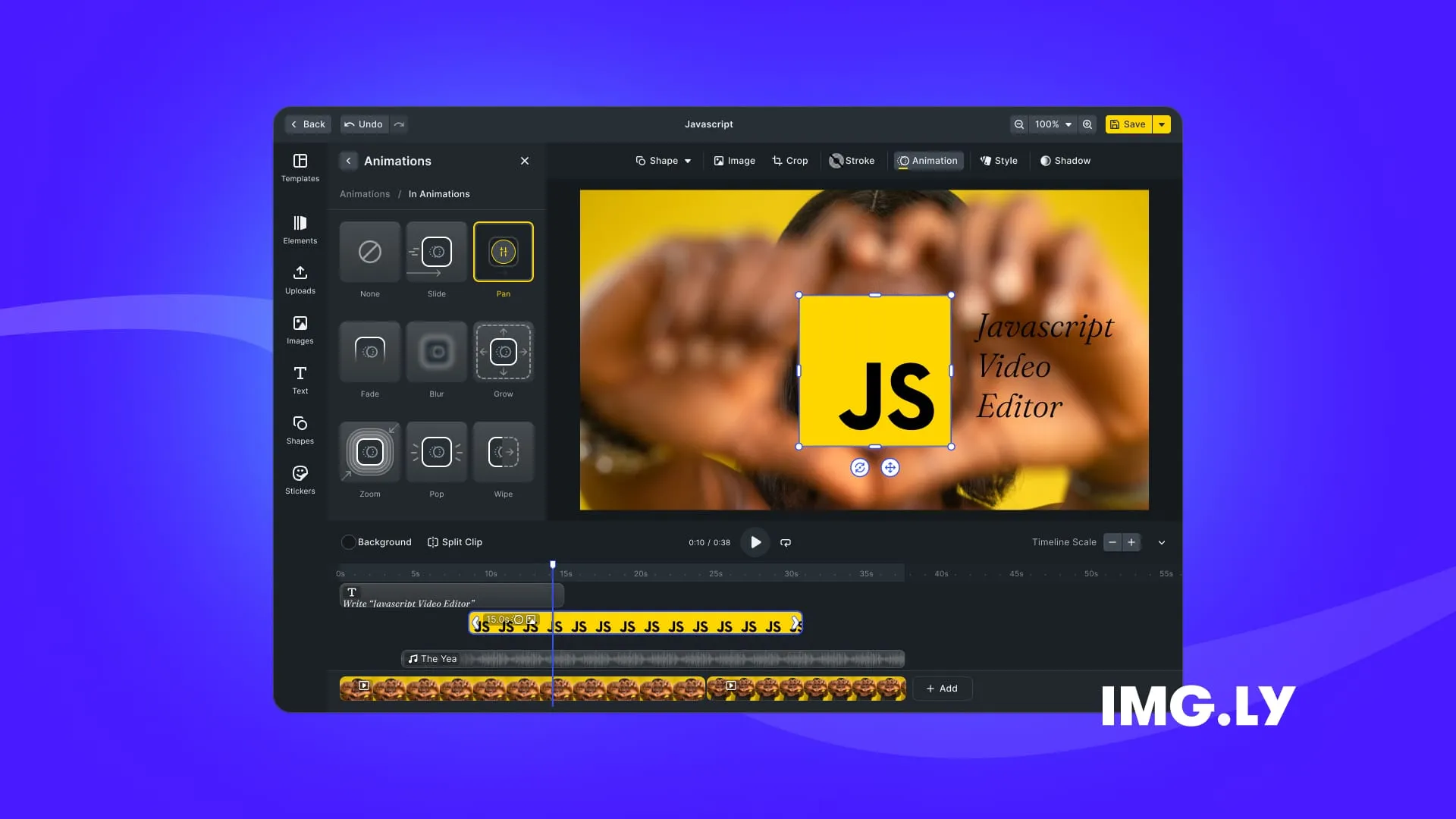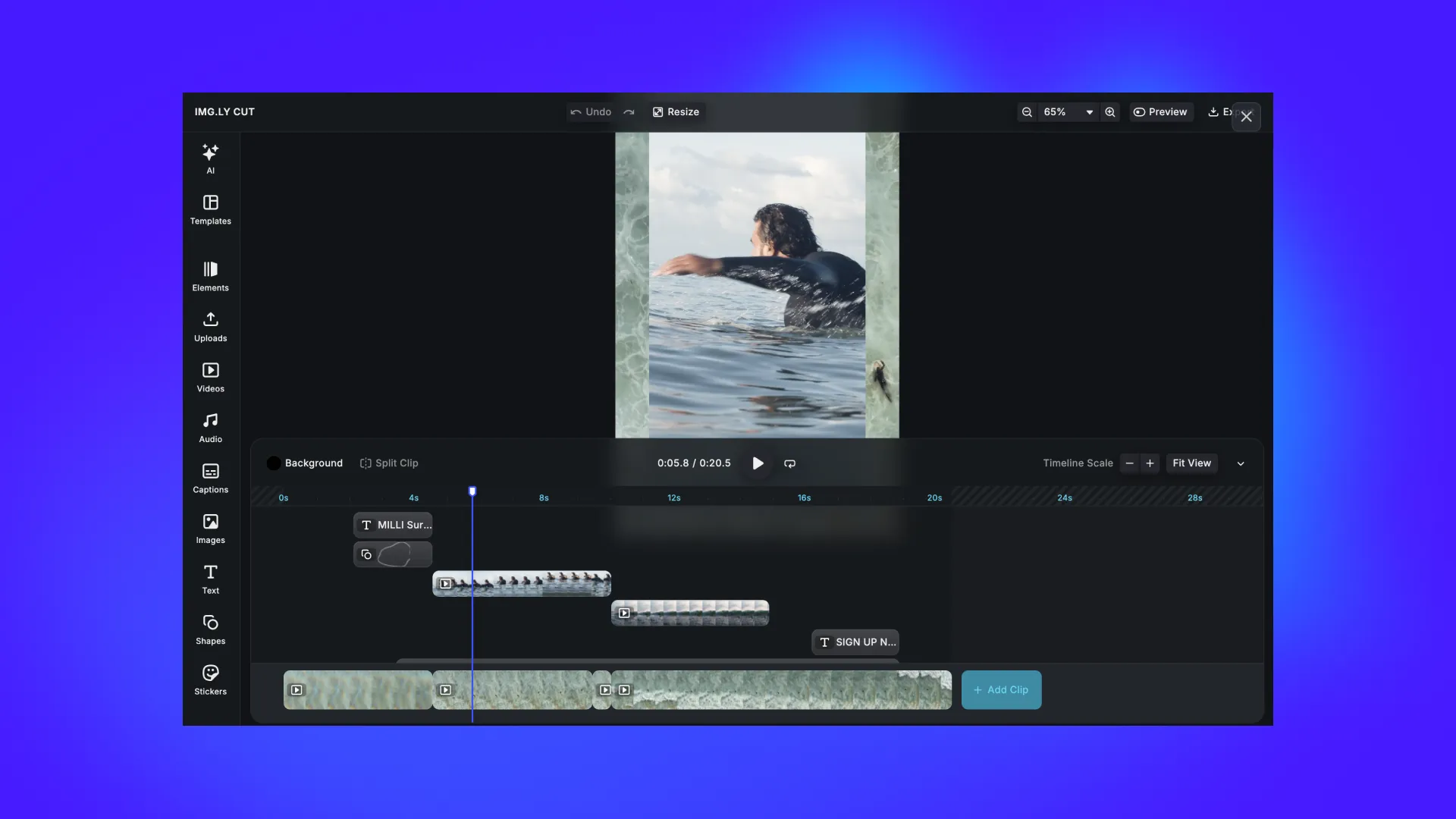



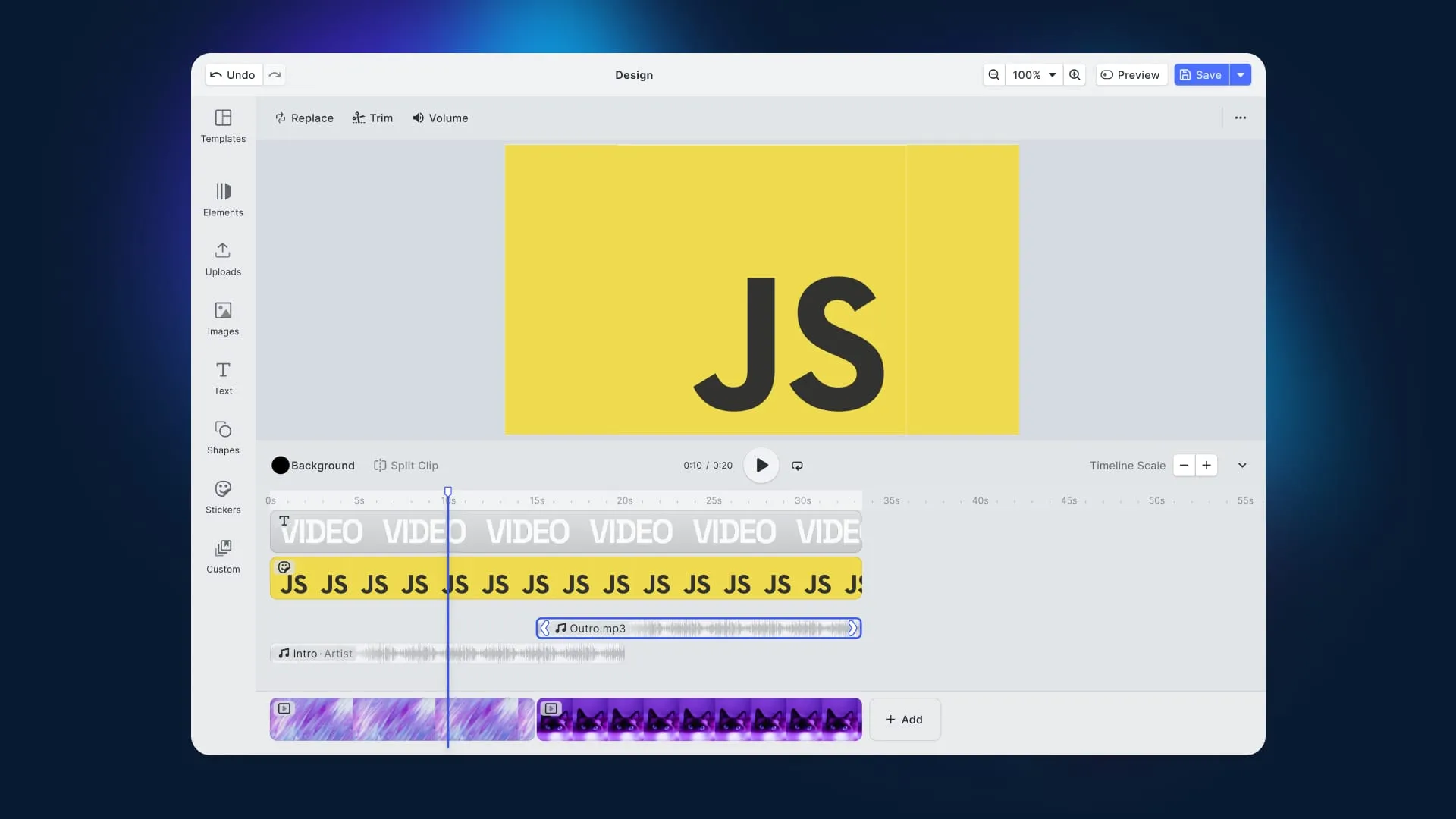
Discover how to integrate IMG.LY’s JavaScript video editor into your web application and unlock its full range of features.
Video content has always been a powerhouse for engagement, becoming even more impactful with the rise of short-form videos. Platforms like YouTube and TikTok have built their empires on video content, as that remains the preferred medium for both creating and consuming information.
Not only have those platforms changed how we consume information, but they have also transformed user behavior. We do not just want to watch videos. We want to create them, expecting the process to be both simple and professional.
Here is why embedding video creation and editing capabilities directly into your website, web or mobile application can significantly boost user engagement and satisfaction.
In this guide, you will learn how to integrate a JavaScript video editor using CreativeEditor SDK (CE.SDK). We will explore when it is most useful and what customizations it supports to suit your unique needs.
Want to jump into the code? For a quick start, visit our JavaScript video editor starter kit.
Let’s dive in!
Updated September 2026.
Why Does Your JavaScript Web App Need a Video Editor?
The world of content is constantly evolving, from text to images, from static visuals to long-form videos, and now from long videos to bite-sized clips. What stays consistent is that video content resonates deeply with us as humans.
No wonder, more than a billion people used TikTok every month in 2021, while YouTube, Facebook, and Instagram rank among the most visited sites right after Google. These platforms have not just built their empires on video. They have revolutionized how we think about video production.
They set the gold standard by enabling anyone to create professional-looking videos with minimal effort, offering tools for adding filters, overlays, audio, and text in just a few clicks. This ease of use has made intuitive video editing a must-have for web applications featuring social media integration, marketing ambitions, or content management capabilities.
By embedding a user-friendly JavaScript video editor in your application, you can ride this trend, providing a feature billions of users are already familiar with. The payoff? Lower barriers to user-generated content, enhanced engagement, and wider content distribution.
CreativeEditor SDK from IMG.LY delivers a seamless, high-performance, and feature-rich JavaScript solution for in-browser design, video, and photo editing, ready to meet your users’ expectations.
Getting Started: Adding a Video Editor in JavaScript
Follow this step-by-step guide to learn how to integrate a JavaScript video editor into your site using CreativeEditor SDK.
Get started with integrating CE.SDK in a vanilla JavaScript application!
Requirements
CreativeEditor SDK runs directly in your browser’s JavaScript engine. For video, check browser support first: Chrome and Edge 114 or newer and Safari 26 or newer support video editing and export, Firefox 130 or newer supports editing but not export, Chrome on Linux usually lacks the H.264 and AAC encoders so exports can fail there, and mobile browsers do not support video editing yet. The browser support page has the details. cesdk.utils.supportsVideoDecode() and await cesdk.utils.supportsVideoEncode() let you check support in code.
The setup below uses npm and a bundler, so ensure that you have the latest stable versions of Node.js and npm installed.
Start From the Starter Kit
The fastest way to a running editor is the JavaScript video editor starter kit, a Vite project with the complete editor configuration:
npx degit imgly/starterkit-video-editor-ts-web#release-1.82.0 my-video-editor
cd my-video-editor
npm install
npm run dev
The kit’s npm run build script runs tsc first, which stops on the 1.82.0 release with a TS2345 error on features/videoCaptionsEnabled in src/imgly/config/settings.ts. The engine uses that setting to enable captions, but the 1.82.0 type definitions do not list it yet. Cast the key and value on that line to build:
engine.editor.setSetting(
  'features/videoCaptionsEnabled' as never,
  true as never
);
Installation and Library Import
If you are using a bundler like Webpack, Rollup, Parcel, or Vite, and you want to integrate the CreativeEditor module within your existing project, add the @cesdk/cesdk-js npm package together with the background removal plugin that the editor configuration uses:
npm install @cesdk/cesdk-js@1.82.0 @imgly/plugin-background-removal-web@1.82.0 onnxruntime-web@1.21.0The editor’s dock, inspector, timeline controls, and asset libraries come from an editor configuration that the starter kit ships as source files. Copy them into your project:
npx degit imgly/starterkit-video-editor-ts-web/src/imgly#release-1.82.0 src/imglyThe configuration is written in TypeScript, so your bundler needs to handle .ts files, which Vite does out of the box. The release-1.82.0 tag matches the SDK version installed above.
Well done!
Initialize the Video Editor
In your JavaScript module, initialize CreativeEditor SDK with the following logic:
// src/video-editor.js
import CreativeEditorSDK from '@cesdk/cesdk-js';
import { initVideoEditor } from './imgly';

// your CE.SDK user config
const config = {
  userId: '<YOUR_USER_ID>',
};

CreativeEditorSDK.create('#cesdk_container', config)
  .then(async (cesdk) => {
    // Video editor UI, asset libraries and plugins from the starter kit
    await initVideoEditor(cesdk);

    // Open an empty video scene
    await cesdk.actions.run('scene.create');
  })
  .catch((error) => {
    console.error('Failed to initialize CE.SDK:', error);
  });
You do not need a CE.SDK license key to try it: without one the editor runs in evaluation mode and exports carry a watermark. Start a free trial to get one and set it as license in the config.
Replace <YOUR_USER_ID> with your user ID. The user ID is optional and helps track MAUs (Monthly Active Users).
To integrate the video-editor.js file, import it into your HTML page like this:
<script type="module" src="/src/video-editor.js"></script>Note the type=“module” attribute. This tells the browser to treat the script as an ES6 module, so that you can use import and export statements within your JavaScript code.
Make sure the same HTML page includes the following div element where the video editor will be embedded:
<div id="cesdk_container" style="width: 100%; height: 100vh;"></div>This loads the editor with an empty scene, the video timeline, and demo clips and music, giving users the ability to trim, cut, apply filters, add text overlays, include music, and more to enhance their videos. Since CE.SDK 1.72 deprecated the design and video scene modes, scene.create gives you a scene that supports video without extra options. The starter kit configuration also runs editor.checkBrowserSupport, which shows a blocking message in browsers that cannot decode video and a dismissible warning in browsers that cannot export it. Since CE.SDK 1.72, the editor no longer runs this check on its own, so keep that call if you replace the configuration. When you no longer need the editor, for example when the user navigates away, call cesdk.dispose() to free its resources.
Note: The editor loads its engine assets from our CDN by default. The IMG.LY CDN is intended for development and prototyping only, so in a production environment you need to host assets on your own servers.
Congratulations, you have successfully integrated the video editor!
CreativeEditor SDK: JavaScript Video Editing API for Web, Desktop, and Mobile
You just saw how to integrate the CE.SDK into a browser application. Yet, do not forget that the SDK supports a wide variety of frameworks and libraries, including mobile and web applications.
Web Framework Support
CE.SDK is designed to work with several popular JavaScript frameworks and libraries. For more detailed integration instructions, take a look at the official page on the documentation for each framework:
Additionally, the SDK is available for headless mode and works well in a Node.js environment.
Cross-Platform Support
One of the standout features of CreativeEditor SDK is its cross-platform philosophy. This extends beyond JavaScript ecosystems for the web, and includes mobile (iOS and Android) and desktop, thanks to support for:
That is made possible through a powerful engine that powers your app via features like:
- Unified API: The same underlying API is shared across web, desktop, iOS, and Android applications.
- Shared Engine: Core functionality is implemented at the engine level, so most features you use on one platform are available on the others. Availability still differs for some features and plugins, so check the documentation for each platform you target.
- Interoperable Designs: Scenes created on one platform can be opened on the others. One caveat since CE.SDK 1.72: scenes created on the web without an explicit mode cannot yet be opened by the iOS and Android SDKs, so set a mode for scenes you share with mobile apps.
Native iOS and Android libraries, along with other frameworks, are also available. Learn more in our documentation!
JavaScript Video Editor Use Cases
It is time to explore some key use cases. Let’s see how the unique features of the CreativeEditor SDK can cover many scenarios!
Social Media Publishing
CreativeEditor SDK features what users need to create engaging and easy-to-share videos optimized for popular social media platforms like Instagram, TikTok, YouTube, LinkedIn, and more. This is possible due to a large set of capabilities, which include:
- Reusable Templates: Users can design their own templates and reuse them, or start from ready-made ones. This variety of ready-to-use templates for different scenarios helps users skip the daunting blank canvas to bring their ideas to life. Explore various templates in our video editor demo.
- Music and Audio Library: In CE.SDK, adding audio to videos is simple and intuitive. Given the impact of audio, users can set the tone with music or narration in just a few clicks, creating a more immersive atmosphere for their content.
- Animations: The SDK includes a wide selection of animations to enhance the design elements positioned within video scenes.
After creating a video within your web app, users can export it directly from CE.SDK in the appropriate formats and aspect ratios for their target social media platforms.
Product Showcase for E-Commerce Applications
Images have long been a simple yet powerful tool for showcasing products on e-commerce platforms, and sites like eBay, Amazon, AliExpress, and Walmart have relied on them for years (and still do!).
However, in recent years, customer expectations have shifted. Today’s buyers crave more interactive and immersive ways to visualize products. They want to see how items look and perform in real-world settings.
Short, dynamic product videos offer a superior presentation experience. According to an analysis by Firework, video content increases purchase likelihood by 51%, highlighting its undeniable impact on buying decisions. This is why many sellers have already embraced video to enhance product displays.
With a CE.SDK-powered JavaScript video editor, producing compelling videos that deliver a seamless, multi-device shopping experience becomes effortless. Plus, reusable templates help you generate unique product videos while maintaining brand consistency.
Engaging Video Messages for Sales Outreach
Marketers and sales teams know that cold emails often come across as impersonal and boring. The solution to this challenge? Personalized video messages!
Customized video messages are proving to be an effective outreach tool, with studies showing significantly higher conversion rates.
With CreativeEditor SDK, sales and marketing teams can easily create personalized videos tailored to individual clients or leads, making their outreach more engaging and impactful. Unlike traditional email campaigns, personalized videos create a sense of real, one-on-one interaction.
Additionally, the SDK’s localization support lets you offer the editor interface in your users’ languages, which helps teams working across different regions.
Explore this feature in our localization demo.
Digital Asset Management
DAM, short for Digital Asset Management, is the process of organizing, storing, and managing digital assets, including video content. As your business grows, an effective DAM system becomes key to enabling multiple teams to easily access and collaborate on assets across different projects.
CreativeEditor SDK backs DAM workflows by offering powerful tools to organize, edit, and repurpose video content through an embeddable, centralized interface. Its core JavaScript video editor component empowers users to:
- Effortlessly adapt and customize video assets.
- Ensure brand consistency while automating updates across various assets.
- Edit content efficiently within a collaborative environment.
CE.SDK’s roles (Creator, Adopter, Viewer, and Presenter) and scopes control what users can edit, while user accounts and access rules stay in your backend. The Feature API then lets you show or hide editor functionality based on those permissions.
Automated Video Creation
CreativeEditor SDK streamlines the automation of asset creation by enabling users to generate on-brand video content variations for multiple channels. Thanks to adaptable templates, dynamic text variables, and lockable designs, the SDK ensures consistency and brand compliance over all produced videos.
Given a template, the creative engine automates the generation of countless personalized assets by populating them with resources from various data sources. That eliminates manual effort, reduces design bottlenecks, and accelerates production, making it perfect for scaling campaign-specific videos or building dedicated marketing tech.
Customizing your CreativeEditor SDK Instance
CreativeEditor SDK is not a one-size-fits-all JavaScript video editor. Instead, it is built for flexibility, offering a wide set of customization options to tailor the editor to your unique requirements and brand identity. These include:
- Theming Options: Match the editor’s look to your app’s style with built-in themes, or create custom themes with CSS custom properties. Explore theming possibilities in our dedicated demo.
- Custom UI: Build entirely bespoke JavaScript video editing user interfaces that align with your specific use case.
- Media Library Integration: Set up sortable, flexible media libraries and integrate popular third-party libraries like Unsplash and others. Get easy access to external assets.
- Localization: Adapt the editor to different languages and regions with full i18n support, letting you extend or overwrite any language setting.
- Toolbar Customization: Rearrange toolbar elements, update icons, or rename tools to deliver a tailored user experience.
With these customization options, CreativeEditor SDK ensures your video editor is as unique as your JavaScript application.
Conclusion
Implementing a JavaScript video editor in your web app can greatly improve the user experience and provide a powerful feature to drive higher engagement, retention, and even product distribution. This is true whether you are developing an e-commerce platform, a social media app, a tool for influencers, or a SaaS web solution.
With the CreativeEditor SDK, adding a fully customizable video editing experience to your web application typically takes days to a few weeks depending on scope. Explore CE.SDK’s video capabilities and dive into the docs.
Stay tuned for more updates, and please reach out if you have any questions. Thank you for reading.
FAQ
Which browsers support video editing with CE.SDK? Chrome and Edge 114 or newer and Safari 26 or newer support both video editing and MP4 export. Firefox 130 or newer supports editing but not export, because it lacks the H.264 and AAC encoders, and Chrome on Linux usually lacks them too. Chrome on Android and iOS and Safari on iOS do not support video editing yet, while design and photo editing work there.
Which frameworks does CE.SDK support? CE.SDK works in plain JavaScript and ships dedicated components for React, Vue, and Angular. The documentation also covers Svelte, Electron, React Native, and Node.js for headless use.
Should I load CE.SDK from the CDN or from npm? Install the npm package. The editor configuration from the starter kit is written in TypeScript and needs a bundler. By default the engine assets still load from the IMG.LY CDN, which is meant for development and prototyping only, so production deployments need to host the engine assets on their own servers.
Why does the editor show only a canvas? CreativeEditorSDK.create sets up the editor, but the dock, inspector and asset libraries come from an editor configuration. Apply the starter kit configuration after create, as shown above, or build your own.
Over 3,000 creative professionals gain early access to our new features, demos, and updates. Don’t miss out, and subscribe to our newsletter.