


Learn how to integrate IMG.LY’s design editor for React into your web app and explore various use cases and customization options.
It is no surprise that content asset generation is a key for businesses in marketing and promotion, as well as for users on social media. Whether it is images or videos, these are the types of posts we engage with and relate to the most as human beings, much more than plain text.
Most content that resonates with an audience is not created from scratch. Instead, it often comes from pre-designed designs that are reused, repurposed, and adapted to fit different content or goals. That is why adding a design editor to your React application is so valuable.
In this guide, you will learn how to build a React design editor using the CreativeEditor SDK (also known as CE.SDK). We will also cover when this is useful and the customization options the editor supports.
For a quick start, check out the React design editor starter kit with the full code integration.
Let’s dive in!
Updated September 2026.
Why Add a Design Editor to Your React App?
Before answering the question, you must understand what a design is and how helpful it can be. In this context, a design can be defined as a set of predefined assets, text overlays, placeholders, and other elements arranged in a specific layout.
Users can use designs to create images or videos with a particular structure and for specific use cases at scale. Thus, a design editor would enable your users to create personalized assets, and in the case of a React application, directly within the browser.
Building such a platform is not a piece of cake. A robust design editor requires numerous features, such as intuitive drag-and-drop functionality, template management, image manipulation tools, and more. It also generally requires integrations with third-party services and dependencies to enhance its capabilities.
Fortunately, an all-in-one solution like CreativeEditor SDK from IMG.LY makes it easy to embed this powerful design editor into your application. It supports various programming languages and technologies, including React. With extensive features and customization options, CE.SDK covers a wide range of design types, from social posts to print-ready artwork.
CE.SDK features adaptable design tools for diverse industries and use cases, such as social media post creation, digital asset management, and AI-assisted content personalization. That is why it is used by hundreds of customers, including governments, Fortune 500 companies, and dozens of startups.
CreativeEditor SDK is trusted by companies like Swiss Post, Brother, Optimizely, HP, and many more.
How to Integrate a Design Editor in React
Follow this step-by-step tutorial to see how to quickly set up a React design editor in your web app using CreativeEditor SDK. For a complete guide, read our tutorial on building a Canva alternative in React using CE.SDK.
Integrate CE.SDK into your React app using the instructions below!
Requirements
Before getting started, ensure that you meet the following prerequisites:
- Node.js 20.19+ or 22.12+, which create-vite requires: if you do not have it installed, download it from the official site and follow the installation instructions.
- A React 18+ application: If you do not have one set up, follow the instructions below to create it.
- A CreativeEditor SDK license: optional to start and needed for production. In case you do not have one, sign up for a free trial or buy a license.
If you do not have a React project set up yet, create a new one using Vite:
npm create vite@latest my-react-design-editor-app -- --template react
cd my-react-design-editor-app
Open your project in a JavaScript IDE, and you are all set to start coding!
Install CE.SDK
Install CE.SDK by adding the @cesdk/cesdk-js package to your project’s dependencies, together with the background removal plugin the editor configuration uses:
npm install @cesdk/cesdk-js@1.82.0 @imgly/plugin-background-removal-web@1.82.0 onnxruntime-web@1.21.0Add the Design Editor Configuration
The dock, inspector, navigation bar, feature toggles, and asset libraries of the editor come from a configuration that CE.SDK ships as source files in the design editor starter kit. Copy them into your project:
npx degit imgly/starterkit-design-editor-ts-web/src/imgly#release-1.82.0 src/imglyThe release-1.82.0 tag matches the CE.SDK version installed above. Since the configuration now lives in your project, you can edit it like any other file.
Create the Design Editor Component
In the src folder of your React project, create a DesignEditor.jsx file. This will house your CE.SDK-based React design editor component:
// src/DesignEditor.jsx
import CreativeEditor from '@cesdk/cesdk-js/react';
import { initDesignEditor } from './imgly';

// your CE.SDK user config
const config = {
  userId: '<YOUR_USER_ID>',
};

// runs once, after the CE.SDK instance is created
const init = async (cesdk) => {
  // add the design editor UI, asset libraries, and plugins
  await initDesignEditor(cesdk);

  // open an empty design
  await cesdk.actions.run('scene.create');
};

export default function DesignEditor() {
  return (
    <CreativeEditor
      config={config}
      init={init}
      onError={(error) => console.error('[CE.SDK]', error.message, error.cause)}
      width="100vw"
      height="100vh"
    />
  );
}
You do not need a CE.SDK license key to try it: without one the editor runs in evaluation mode and exports carry a watermark. Start a free trial to get one and set it as license in the config.
Replace <YOUR_USER_ID> with your user ID to optionally track monthly active users (MAUs).
The component defined above embeds CreativeEditor SDK into your React app and disposes of it when the component unmounts. If anything inside init throws, the error goes to onError. See how to customize and use it in the docs.
The editor loads its engine assets from the IMG.LY CDN, which is meant for development. For production, serve the assets from your own servers.
Use the Component
Replace the contents of src/App.jsx so the editor is the only thing on the page:
// src/App.jsx
import DesignEditor from './DesignEditor';

export default function App() {
  return <DesignEditor />;
}
The Vite starter styles in src/index.css give #root a fixed width, so replace the contents of that file with body { margin: 0; } to let the editor fill the window.
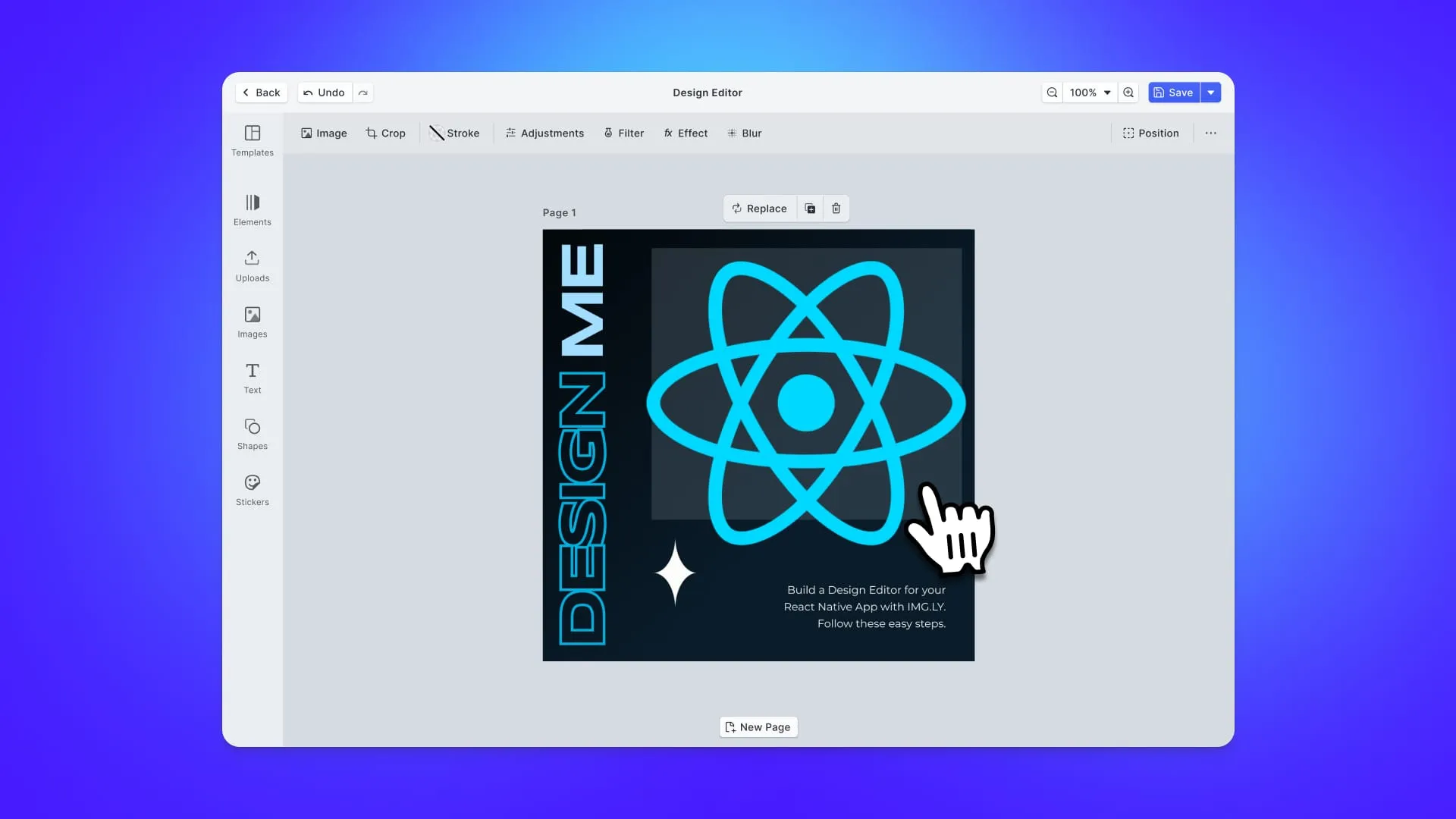
This opens the design editor with an empty page, enabling users to start from templates, place assets, and perform other tasks to create their final designs.
React Design Editor Use Cases
Now that you are familiar with integrating a React design editor into your web app, it is time to explore key use cases and see how CreativeEditor SDK can cover many scenarios.
Social Media Publishing
CreativeEditor SDK offers a wide suite of tools to help users easily create high-quality, personalized, on-brand social media assets in your React application.
With a vast library of professionally designed templates, it streamlines the design process and ensures consistency across multiple platforms. Users can efficiently produce engaging content tailored for each platform.
Key features include customizable dimensions, filters, placeholders, and text overlays. These give users what they need to craft content optimized for various social networks, such as Instagram, X, LinkedIn, and more. That is possible thanks to page size presets for each social network.
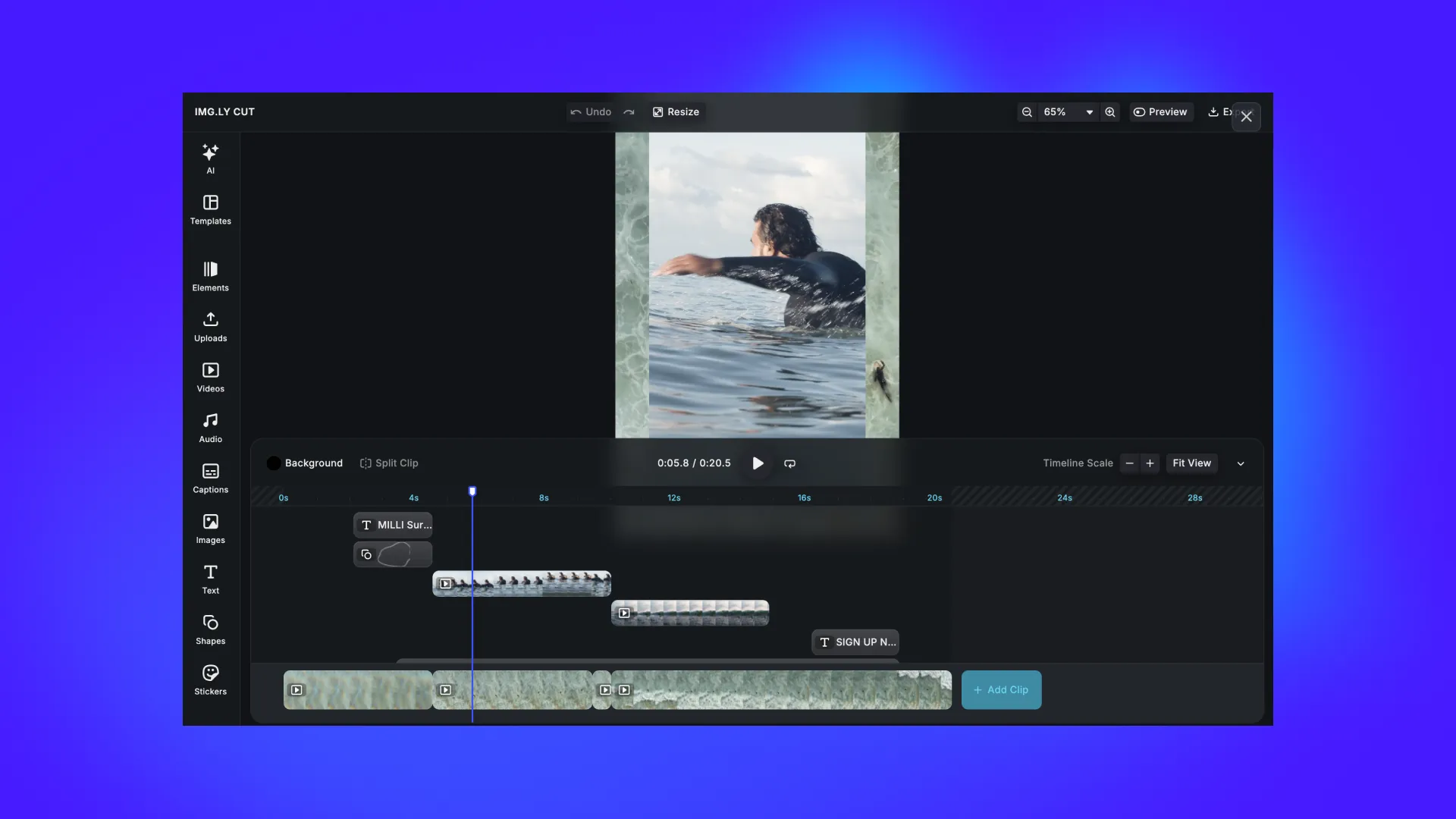
The SDK’s capabilities extend beyond static images, supporting the creation of dynamic short videos, stories, and reels. Do not forget that CE.SDK can also function as a modern React video editor.
Digital Asset Management
DAM, short for Digital Asset Management, is the process of organizing, storing, and efficiently retrieving a wide range of digital files.
CreativeEditor SDK supports DAM by helping teams centralize asset creation and editing directly within an embeddable React design editor, eliminating the need for external tools. This is achieved through features like pre-defining and locking branding elements (including logos, fonts, and color schemes) to ensure brand consistency across all generated content.
Additionally, CE.SDK offers:
- Design validation tools to catch print issues before users export their designs.
- Automatic asset generation to streamline content variations.
- Robust asset management features for handling both generated content and external assets retrieved via third-party APIs.
Marketing Automation
Businesses can use CreativeEditor SDK to scale marketing campaigns through dynamic, unique, customizable design templates. In detail, this design editor allows you to generate campaign materials (like personalized flyers, ads, or banners) quickly and at scale.
Key features for marketing automation include:
- Automation: Populate templates with data from your CRM or marketing tools through text variables and the engine API.
- Dynamic Templates: Easily create content with placeholders or custom text variables for personalized outputs and A/B testing.
- Brand Compliance: Lock assets like logos and fonts for consistent messaging and branding.
AI-Powered Applications
AI is rapidly becoming a key component of more and more applications, with many integrating it in some form. Still, a critical step is often overlooked: manual editing and supervision.
CreativeEditor SDK bridges that gap by seamlessly integrating with AI-powered workflows while guaranteeing users the ability to manually define constraints and placeholders that keep automated changes within the template’s layout.
Example of how a CE.SDK-powered React design editor could work with AI includes:
- Automated template suggestions based on industry or use case.
- Prompt-based content generation where users describe their needs, and the app delivers a draft design.
- Automated content optimization, where the AI evaluates design elements and suggests improvements for readability and visual appeal.
AI-generated content is impressive, but it is essential to find the right balance between automation and manual control in the content generation process for the best results.
Product Mockups
CreativeEditor SDK simplifies the creation of product mockups, packaging designs, and marketing materials, including printable brochures and business cards.
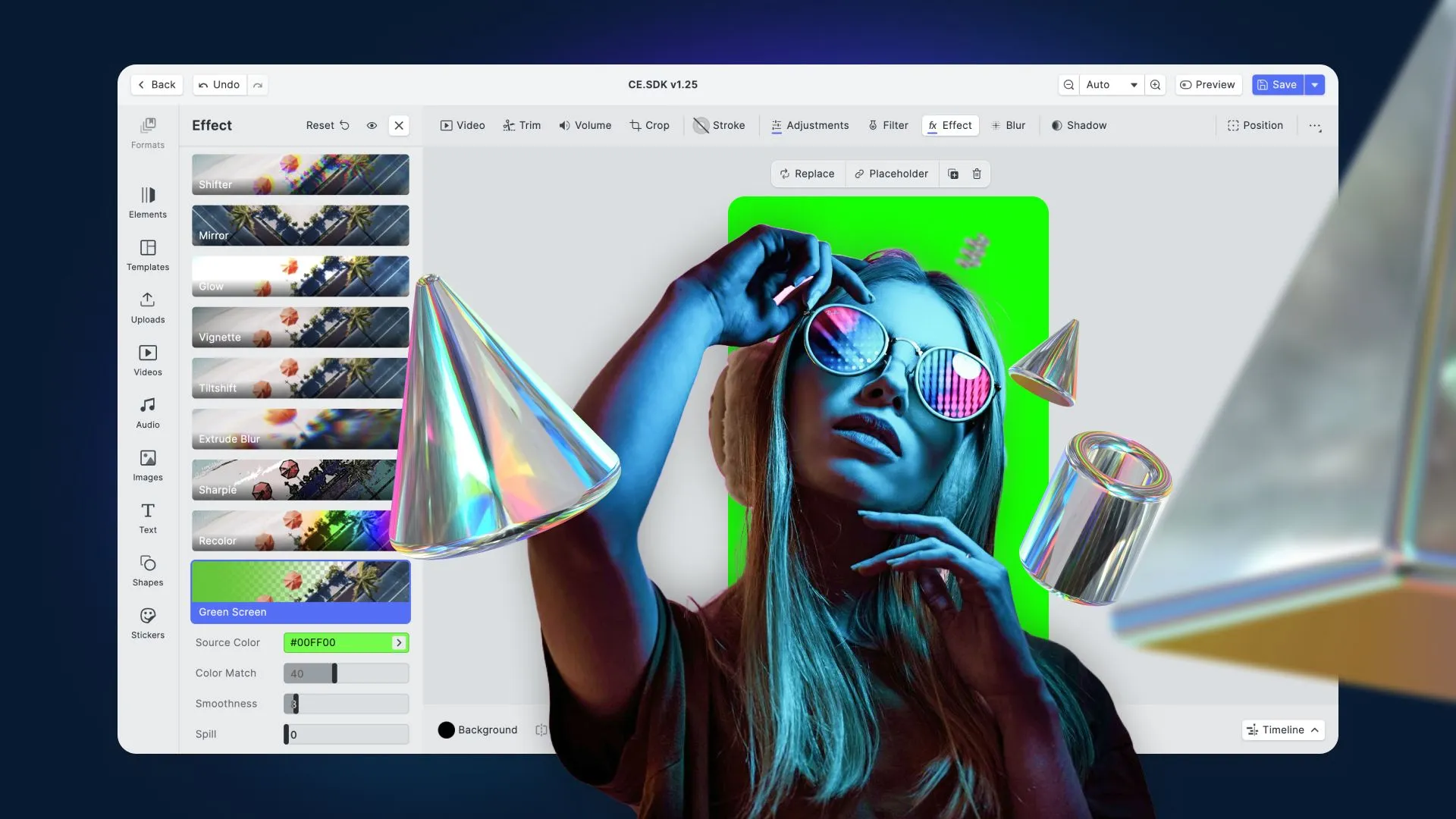
CE.SDK features powerful customization tools and flexible capabilities, including alignment guides and snap tools to ensure perfect positioning. Additionally, color pickers and vector shape editors enable you to explore and create professional design concepts.
E-Learning Materials
Thanks to CreativeEditor SDK, you can integrate a design editor into your React e-learning application.
The embeddable design editor supports the entire process of creating e-learning materials, including custom graphics like annotations, diagrams, and visual explanations, or videos. On iOS and Android, teachers and coaches can also record clips directly with the camera using our mobile video SDK. The component also allows for the creation of unique and customized student certificates.
Those features empower educators and content creators in the education sector to craft visually engaging and impactful learning materials.
Customization Options With CreativeEditor SDK
CreativeEditor SDK does not provide a static React design experience. Instead, it offers extensive customization options to align with your application’s branding and workflow. Key customization options are:
- Theming: Adjust the editor’s theme to match your app’s design. Choose from built-in themes or create a custom theme with CSS custom properties. Test themes in the demo page.
- Custom UI Plugins: Add custom UI components to fit your design style through custom plugins.
- Enabling/Disabling Features: Tailor the editor by enabling or disabling features like specific fonts, templates, or tools.
- Toolbar Customization: Reposition toolbar elements, change icons, or rename tools to suit your needs, creating a unique editing experience.
- Custom Templates, Assets, Themes: Add your own templates, assets, or themes for a more personalized user experience.
- Media Libraries: Set up customizable, sortable media libraries. CE.SDK supports integration with third-party libraries, allowing easy access to external media assets.
- Custom Integrations via Events: Hook into the editor’s events to trigger workflows, save progress, or integrate with external systems.
- Internationalization: Adapt the design editor component for different languages and regions with full i18n support. Overwrite and extend text strings in any language.
Let an agent do the integration
If you work in an AI-assisted editor, IMG.LY publishes Agent Skills for CE.SDK, which load CE.SDK’s documentation and conventions into Claude Code, Codex, and other agent tools, so the agent writes the integration against the current API instead of what it remembers from training. There is also an MCP server that exposes the docs for live lookup during a session. We wrote about the reasoning behind it in Introducing IMG.LY Agent Skills.
Conclusion
CreativeEditor SDK’s compatibility with React’s component-based architecture and large set of features ensures simple integration into any project, making it ideal for a wide range of industries, from marketing and e-learning to e-commerce and social media.
A CE.SDK-based design editor offers UI customization and unique feature options to adapt to any use case. Additionally, its support for AI workflows ensures your application remains future-proof and ready to meet evolving user needs.
By following the steps outlined in this blog post, you can bring professional-level design editing features to your web users. Explore CE.SDK’s capabilities and dive into the docs.
Stay tuned for more updates, and please reach out if you have any questions. Thank you for reading.
FAQ
How do I add a design editor to a React app? Install @cesdk/cesdk-js, copy the editor configuration from the CE.SDK design editor starter kit into your project, and render the CreativeEditor component from @cesdk/cesdk-js/react with an init function that applies the configuration and creates a scene.
Why does the editor only show a canvas without panels? The React component creates the editor, but the dock, inspector and asset libraries come from an editor configuration. Apply the starter kit configuration inside init, as shown above, or build your own.
Does CE.SDK work with React 19? Yes. A new Vite project uses React 19, and the CE.SDK React component works with it.
Can I use the design editor with Next.js? Yes, as long as the editor only renders in the browser. Mark your editor component with ‘use client’, and if server rendering fails with a window is not defined error, load it with next/dynamic and ssr: false, as CE.SDK’s Next.js starter kits recommend.
How do I customize the editor UI? Edit the configuration files you copied from the starter kit, for example the dock and inspector layout, or use the CE.SDK UI APIs to reorder components, register custom ones and apply themes.
Is there a free trial? Yes. You can sign up for a free trial license to test CE.SDK before you buy a license.
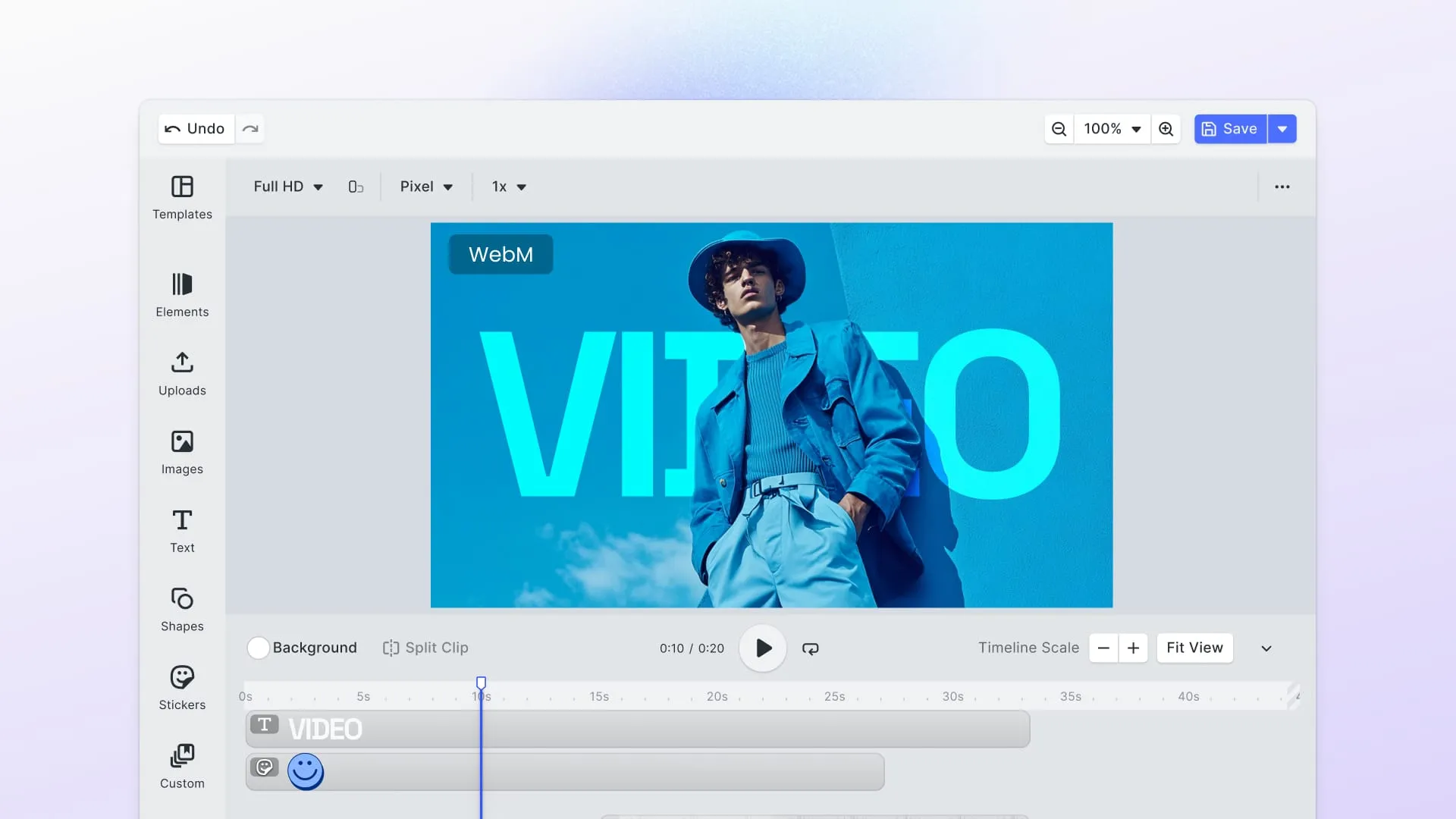
Can the React design editor also edit video? Yes, on desktop browsers, though Firefox cannot export video and Chrome on Linux usually cannot either. CE.SDK also powers video editing in React, with a timeline, which our React video editor guide covers.
Over 3,000 creative professionals gain early access to our new features, demos, and updates. Don’t miss out, and subscribe to our newsletter.