

Canvas Menu
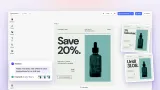
The Canvas Menu is the contextual action bar that appears on or next to a selected block on the canvas. It carries the operations that should be one click away once a block is selected: duplicate, delete, layer up or down, flip, replace, background remove, vectorize, edit text.
The Canvas Menu serves a specific purpose in the editor’s UI layout. It carries actions users are likely to invoke immediately after selecting a block, with no property editing involved. Property editing (font size, fill color, opacity, crop dimensions) lives in the Inspector Bar instead. The Canvas Menu handles single-tap actions; the Inspector Bar handles property adjustments.
What goes in the Canvas Menu by default
The default Canvas Menu carries actions that most editors need available at the canvas surface.
- Duplicate creates a copy of the selected block in place.
- Delete removes the selected block from the scene.
- Bring to Front and Send to Back adjust the layer order without leaving the canvas.
- Flip mirrors the block content horizontally or vertically.
- Replace opens the asset library scoped to replacement content for the block’s type: image replacement for image blocks, video replacement for video blocks.
- Edit Text appears for text blocks and enters inline text editing mode.
- Background Removal appears when the Background Removal Plugin is active and the selected block has an image fill.
- Vectorize appears when the Vectorizer Plugin is active and the selected block has an image fill.
Each entry is block-type-aware. The menu only shows actions that apply to whatever is selected. An image block surfaces replace, flip, and (with the plugins active) background removal and vectorize. A text block surfaces edit text and formatting shortcuts. A video clip surfaces trim and replace. The filtering happens inside each component, so the integration does not have to manage which entries show up for which block types.
Edit-mode contexts
The Canvas Menu is also edit-mode-aware, with separate component orders configurable per mode through the orderContext parameter. The available modes are Transform (the default), Text, Crop, Trim, and any custom mode an integration defines.
The most visible difference in practice is between Transform mode (standard block actions) and Text mode, which surfaces text-specific shortcuts while a user is inline-editing text on the canvas.
How Starter Kits configure the Canvas Menu
The Canvas Menu’s default set is a reasonable starting point. Each Starter Kit trims or extends the default depending on what the editor needs to surface immediately.
The Photo Editor exposes background removal directly on the Canvas Menu so users can isolate a subject in a single click. The Design Editor adds vectorize for converting raster logos to scalable SVG without leaving the canvas. Plugins that register a Canvas Menu component get this front-and-center placement, which is why both Background Removal and Vectorizer surface there rather than buried in a side panel.
For template-based integrations where certain actions should be suppressed (for example, delete or duplicate on a locked block), the Feature API can hide individual components conditionally based on block type, role, or any custom check, without removing them from the configured order. This is the recommended approach for products where Adopters should see only a subset of the default menu.
Links
Documentation and references for this concept.
Related Terms
Canvas
The primary workspace in the CE.SDK editor where users view, interact with, and compose their design, rendering the curr…
Scope
A named permission that controls whether a specific editing operation is allowed, operating at two levels: global (edito…
Layer Panel
A panel that displays the full stacking order of all blocks on the current page (ordered from front to back) where users…