
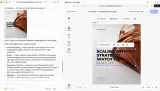


Canvas
The canvas is the primary workspace where users see and interact with their design in CE.SDK. It is the rendering surface itself, managed by the CreativeEngine, and it carries every visible element of the scene: blocks, pages, backgrounds, overlays.
The canvas is not a DOM element developers manipulate directly. It is rendered by the CreativeEngine’s cross-platform C++ rendering pipeline. This is what produces identical output across web, mobile, desktop, and server: a design that looks correct in the browser editor will render the same way when exported to PNG, processed headlessly on a Node.js server, or opened on iOS.
What the canvas shows in each Starter Kit
The canvas adapts to whichever Starter Kit is running on top of it.
- Design Editor. The canvas shows the full multi-page scene. All blocks are visible and selectable. Pages can be added, reordered, and resized through the surrounding UI.
- Photo Editor. The canvas initializes with a single image filling the page. The focus stays on the photo rather than a multi-element composition.
- Video Editor. The canvas shows the current frame of the video composition. Users interact with visual elements on the canvas; the Timeline below handles clip sequencing and timing.
The underlying canvas is the same in every Starter Kit. What changes is the surrounding UI and the kind of content the editor expects.
Zoom and viewport behavior
Zoom level is a ratio where 1.0 equals one design pixel per screen pixel. A zoom of 2.0 shows content twice as large; 0.5 shows it half as large. The built-in zoom component in the Navigation Bar covers most use cases, with programmatic methods available for setting specific levels, zooming incrementally, or zooming to fit a specific block in the viewport.
Auto-fit mode continuously adjusts zoom to keep a target block filling the viewport. It disables automatically when the user sets a manual zoom level.
Camera position clamping constrains the canvas viewport so users cannot pan outside a defined boundary, typically the page or scene bounds. This prevents end users from scrolling into empty canvas space in consumer-facing tools where unrestricted canvas navigation would be disorienting.
Safe area insets account for UI overlays (toolbars, navigation bars, components sitting over the canvas surface) so scene content stays visible within the effective viewport. All camera operations including zoom and pan automatically respect the configured insets.
How the canvas relates to the surrounding UI
The canvas is surrounded by distinct UI zones that handle different categories of user interaction: the Dock for adding content, the Inspector Bar for editing selected blocks, the Navigation Bar for global actions, the Canvas Menu for one-tap block actions, and the Canvas Bar for canvas-level controls. None of these are part of the canvas itself; they are separate components that respond to what is selected or happening on the canvas.
Canvas interaction settings (snap-to-grid, padding around the design, page highlight color) are configurable through editor settings.
Links
Documentation and references for this concept.
Related Terms
Inspector Bar
The contextual properties panel that appears when a block is selected, adapting dynamically based on the selected block'…
Dock
The entry point in the CE.SDK editor UI for accessing assets and tools not tied to a currently selected block, typically…
Layer Panel
A panel that displays the full stacking order of all blocks on the current page (ordered from front to back) where users…