Force Crop
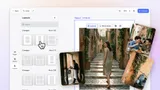
Start editing with predefined crop presets to simplify content creation and maintain layout consistency.
What is Force Crop
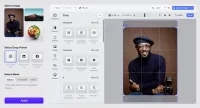
Force Crop ensures that media is cropped to match a specific size or aspect ratio from the start, making it easy to create profile images, social posts, or brand assets that follow exact format rules.
Using presets
Force Crop applies cropping presets based on the exact requirements of your use case:
- Fixed size: For example, a 300×300px profile picture or a 1080×1920px Instagram Story
- Locked aspect ratios: Such as 1:1 for Instagram posts, 16:9 for YouTube thumbnails, or 4:5 for Facebook and Instagram feeds
Presets can be limited to just one or offer a selection, ensuring users stay within bounds, but with room for choice if desired. When only one preset is allowed, the UI reflects this clearly, removing unnecessary options and controls.
Users can always move and scale content within the crop area to get the perfect framing.
Crop modes
Force Crop can be triggered in three ways, depending on how you want users to interact with the editor:
- Silent: Apply the preset behind the scenes without showing Crop Mode immediately
- If Needed: Launch Crop Mode only when the uploaded media doesn’t match the required size or aspect ratio
- Always: Always begin in Crop Mode with a preset applied, ensuring the right framing from the start
What is Force Crop
Force Crop ensures that media is cropped to match a specific size or aspect ratio from the start, making it easy to create profile images, social posts, or brand assets that follow exact format rules.
Using presets
Force Crop applies cropping presets based on the exact requirements of your use case:
- Fixed size: For example, a 300×300px profile picture or a 1080×1920px Instagram Story
- Locked aspect ratios: Such as 1:1 for Instagram posts, 16:9 for YouTube thumbnails, or 4:5 for Facebook and Instagram feeds
Presets can be limited to just one or offer a selection, ensuring users stay within bounds, but with room for choice if desired. When only one preset is allowed, the UI reflects this clearly, removing unnecessary options and controls.
Users can always move and scale content within the crop area to get the perfect framing.
Crop modes
Force Crop can be triggered in three ways, depending on how you want users to interact with the editor:
- Silent: Apply the preset behind the scenes without showing Crop Mode immediately
- If Needed: Launch Crop Mode only when the uploaded media doesn’t match the required size or aspect ratio
- Always: Always begin in Crop Mode with a preset applied, ensuring the right framing from the start
Related Demos
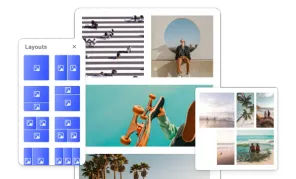
Layouts
Allow users to select different layouts without changing page content.
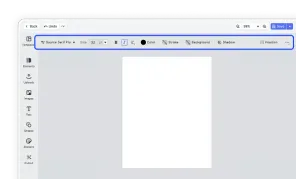
Design Editor UI
Our easy to use editor variant focused on layout, text, and images is ideal for adapting existing templates.
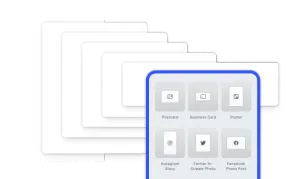
Page Sizes
Automatically adapt the same design or template to different page sizes and easily scale marketing campaigns and print materials across platforms.
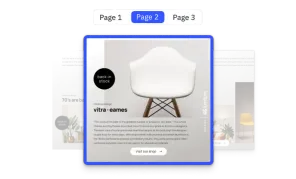
Single Page Mode
The editor shows only one active page at a time.