
Illustrator Template Import
Learn how to convert Adobe Illustrator files to .PSD files for import into CE.SDK. Use our example files to validate your workflow.
IMG.LY is committed to expanding the CE.SDK platform to support a wide range of file types, enabling you and your users to create designs in the tools where your designers are most comfortable or easily import existing designs into CE.SDK.
Adobe Illustrator is a popular program for designing vector graphics, such as logos, especially in advertising and social media. It excels in use cases that require scaling designs to different sizes and formats without losing quality.
We recently released an importer Adobe Photoshop to make PSD files available as templates inside CreativeEditor SDK.
This makes it possible to also import AI files as these are convertible to PSD files. In principle. However, it turns out that converting an AI file to PSD is not as straightforward as simply exporting it to PSD from within Adobe Illustrator. Unfortunately, if you simply follow the route of File → Export → PSD you usually end up with randomly flattened raster layers negating the benefit of designing with Adobe Illustrator in the first place.
Throughout the rest of this post, we will refer to Sergey Osokin’s excellent blog post that outlines a solution as well as detailing the shortcomings of most commercial alternative promising.faithful conversions of AI to PSD.
One of his major findings was that In order to prepare files within Illustrator for export to PSD and preserve vector shapes you need to apply the “Make Compound Shape” command from the Pathfinder panel to all objects. However doing so manually is cumbersome and slow.
Fortunately, the author developed a script that automates this process. It can be downloaded for free and integrated as extension via the Scripshon Trees panel. After integration you can select run the script File → Scripts → Ai2Psd and then export the file to PSD.
Consult the Github repository on how to download and integrate the script.
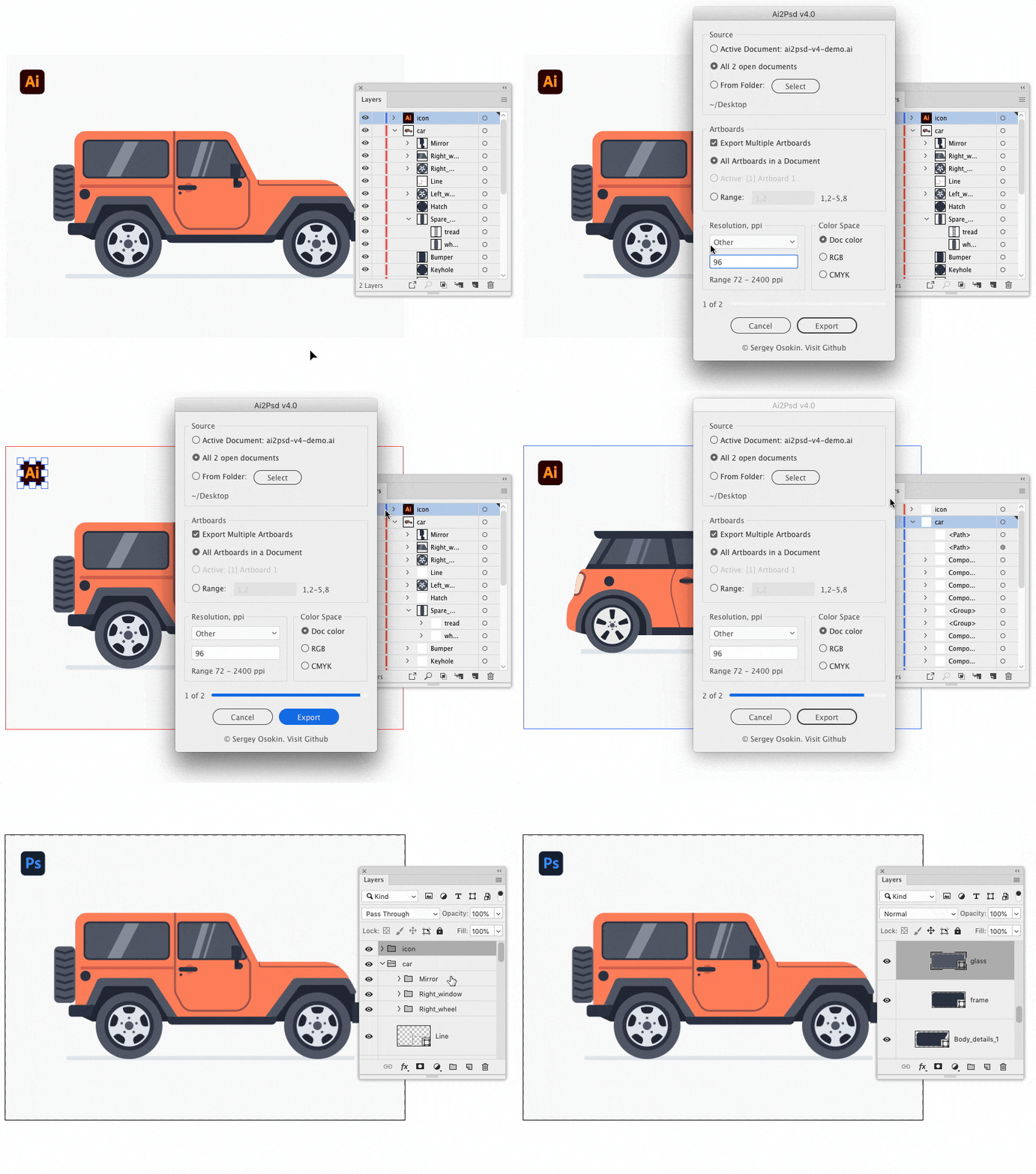
The script preserves vector shapes with solid color fills, transparencies, blend modes, custom names and editable text. Some downsides of using the script include:
- modifying the oringal (be sure to make a copy before running the script)
- rasterizing gradients, patterns and strokes
- randomly flattening embedded raster images into one layer
- solid colors are converted to an image fill
After you have converted your AI files you can easily import them into the Creative Editor for use as templates.
IMG.LY is committed to expanding the CE.SDK platform to support a wide range of file types, enabling you and your users to create designs in the tools where your designers are most comfortable or easily import existing designs into CE.SDK.
Adobe Illustrator is a popular program for designing vector graphics, such as logos, especially in advertising and social media. It excels in use cases that require scaling designs to different sizes and formats without losing quality.
We recently released an importer Adobe Photoshop to make PSD files available as templates inside CreativeEditor SDK.
This makes it possible to also import AI files as these are convertible to PSD files. In principle. However, it turns out that converting an AI file to PSD is not as straightforward as simply exporting it to PSD from within Adobe Illustrator. Unfortunately, if you simply follow the route of File → Export → PSD you usually end up with randomly flattened raster layers negating the benefit of designing with Adobe Illustrator in the first place.
Throughout the rest of this post, we will refer to Sergey Osokin’s excellent blog post that outlines a solution as well as detailing the shortcomings of most commercial alternative promising.faithful conversions of AI to PSD.
One of his major findings was that In order to prepare files within Illustrator for export to PSD and preserve vector shapes you need to apply the “Make Compound Shape” command from the Pathfinder panel to all objects. However doing so manually is cumbersome and slow.
Fortunately, the author developed a script that automates this process. It can be downloaded for free and integrated as extension via the Scripshon Trees panel. After integration you can select run the script File → Scripts → Ai2Psd and then export the file to PSD.
Consult the Github repository on how to download and integrate the script.
The script preserves vector shapes with solid color fills, transparencies, blend modes, custom names and editable text. Some downsides of using the script include:
- modifying the oringal (be sure to make a copy before running the script)
- rasterizing gradients, patterns and strokes
- randomly flattening embedded raster images into one layer
- solid colors are converted to an image fill
After you have converted your AI files you can easily import them into the Creative Editor for use as templates.
Related Demos
Photoshop Template Import
Transform your existing Photoshop templates for use in the CE.SDK with our Importer. Preserve design elements and streamline the transition between platforms.
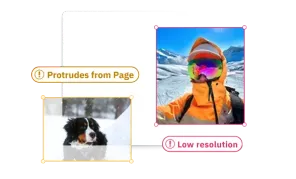
Design Validation
Reduce the risk of misprints and speed-up validation process thanks to design validation. Automatic error notifications will let you know if the design is not print-ready.

Content Moderation
Content moderation made easy. Decide what type of imagery to restrict and receive automatic notifications flagging content that might be violating your guidelines.
PPTX Template Import
Transform PowerPoint slides into editable CE.SDK designs. All formatting preserved.