



You’re launching a global campaign for 40 products across 50 markets in 5 languages, with 5 creative variants to test in each. That’s 10,000 unique ad variants, and you need them ready by Monday. Your design team can’t produce that volume manually. Outsourcing to agencies would take weeks and cost a fortune, and copy-pasting templates in Photoshop isn’t a realistic option.
This is the reality of performance marketing at scale. The modern approach treats creative generation as infrastructure: designers create one master template with intelligence built in, your systems inject localized data programmatically, and automation renders thousands of perfect variants in hours instead of weeks. You’re not replacing creative work. You’re separating template design (what humans do best) from variant generation (what automation does best).
In this guide, we’ll build a complete pipeline for generating 10,000 localized ad variants using CE.SDK’s Engine API. You’ll see the full architecture, production-ready code for batch processing, localization handling across languages and markets, performance optimization strategies, and how to deliver finished assets to your ad platforms. This isn’t a toy example. It’s the real infrastructure teams like Plai use to generate 30,000+ ad creatives monthly.
This guide is written for engineers and technical teams building high-volume creative automation pipelines, and assumes familiarity with Node.js, APIs, and backend infrastructure.
If you’re new to CE.SDK, start with our explainer on how the unified engine works to understand the platform. For strategic context on why automation infrastructure matters, see our article on creative automation infrastructure. This guide assumes you’re ready to implement and want the technical details.
A quick note on CE.SDK templates: CE.SDK templates are the same artifacts used by both the visual editor and the Engine API, which is what allows designers and automation pipelines to share a single source of truth.
What You’ll Build
By the end of this guide, you’ll have:
- A production-ready batch rendering pipeline for 10,000+ variants
- A localization-safe template design strategy
- Rendering that scales with engine processes and nodes
- Automated output delivery to ad platforms
Five Ways to Produce 10,000 Variants
Before the architecture, it’s worth being explicit about what you’re choosing between, because this guide takes one of five routes and the others are reasonable in different situations.
| Approach | Control over output | Cost shape | Localization depth | Where it breaks |
|---|---|---|---|---|
| Manual design production | Total | Designer hours, linear with volume | Whatever the designer does by hand | Volume. 10,000 variants isn’t a staffing problem you can solve |
| Headless browser screenshots | Full, it’s your own HTML and CSS | Compute, plus the engineering to keep it stable | Whatever you build, including RTL, if you do the work | Typography and print fidelity. No CMYK, no font shaping guarantees, layout drifts between browser versions |
| Design-tool APIs | Constrained by the tool’s model | Per call or per seat, often both | Depends on the tool’s text handling | Throughput and lock-in. The design lives in their account and rate limits decide your ceiling |
| Template-API services | Constrained by their template schema | Per render, so it scales with volume | Usually text substitution only | Per-render pricing at 10,000, and limited control when a layout needs to reflow rather than stretch |
| Engine API in your own infra (this guide) | Full, same template the editor uses | Compute you already pay for, flat per node | Auto font size, RTL, font fallback, per-market rules | Requires engineers and infrastructure. There’s no operator UI to hand to a marketer on day one |
The route below suits teams that need the type scaled to fit each market’s copy in the frame the designer set, and that would rather own the render step than pay per output. If you only need text substitution on a stable layout, a template API is less work.
System Architecture: From Template to 10,000 Variants
Before writing code, let’s map the complete system architecture. You need four layers working together: template design, data management, generation engine, and output delivery.
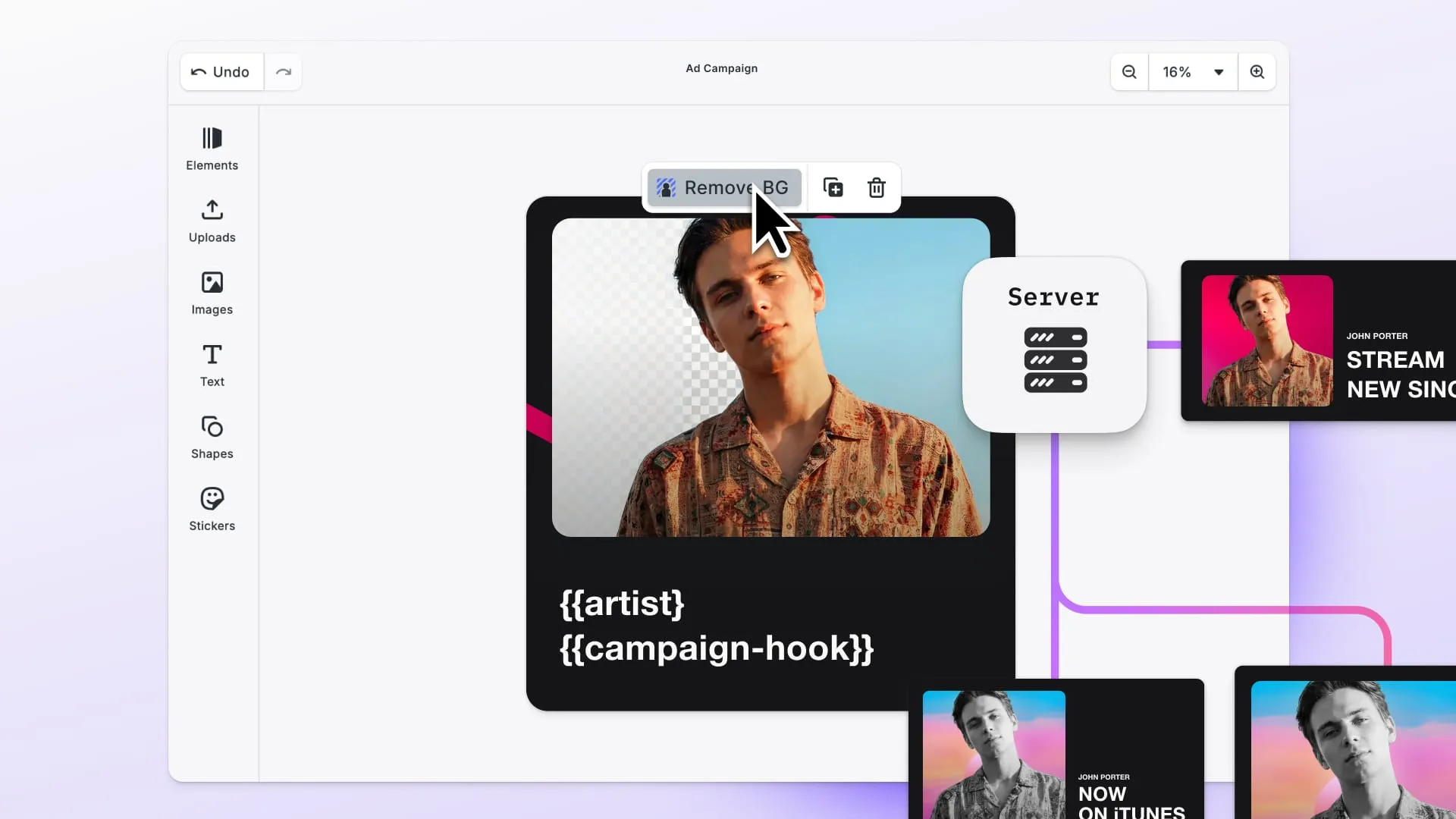
Template Design Layer is where your designers create the master ad template using CE.SDK’s visual editor. They define the layout, give the text blocks for headlines and CTAs a kind or name so the pipeline can find them, configure image placeholders for product photos, lock brand elements that shouldn’t change, and test with sample data to ensure the template handles different content lengths. This template becomes the source of truth for all 10,000 variants.
Data Management Layer holds three datasets: your product catalog (40 products with names, prices, images, and features translated into 5 languages), market configurations (50 markets with language, currency, locale, and platform specifications), and creative variants (different headlines and CTAs you want to A/B test). The generation engine combines these datasets to produce unique outputs.
Generation Engine is CE.SDK’s Node.js renderer running on your servers. It loads the template, loops through your data combinations, injects each variant’s specific data, renders the creative, and exports in your target formats. This runs as batch jobs, either scheduled overnight or triggered by campaign launches.
Output Management takes the rendered assets and delivers them where they need to go: uploads to your CDN with organized paths for easy retrieval, integration with ad platform APIs (Facebook Marketing API, Google Ads API), manifest generation for tracking which variants deployed where, and analytics tagging for performance measurement.
The data flow looks like this: Template (one master design) + Product Data (40 items × 5 languages) + Market Data (50 configurations) + Creative Variants (5 headline/CTA combinations) = 10,000 unique assets ready for deployment.
From an infrastructure perspective, you’ll need Node.js 22 or newer (required by @cesdk/node), rendering nodes (CPU instances work, and GPU instances need the native @cesdk/node-native package), storage for templates, source data, and rendered outputs (S3, Google Cloud Storage, or equivalent), a CDN for asset delivery to ad platforms, and optionally Redis for caching frequently used data and a queue system like RabbitMQ or AWS SQS for managing batch jobs across multiple rendering nodes.
Why This Architecture Scales
Separation of concerns is the key to maintainability. Designers work in the visual editor without touching code. Engineers manage the data pipeline and rendering infrastructure. Marketers configure campaigns and trigger generation. Each team works in their domain, connected by the template format.
Horizontal scaling means adding engine processes and rendering nodes increases throughput. In our benchmark on an Apple M2, one engine process rendered about 9 variants per second and four processes about 30, so a 10,000-variant job drops from around 19 minutes to about 6, and each extra node divides the time further.
Caching strategies make repeated renders faster. Load the template once and modify it in place for each variant instead of reloading it every time. Order the combinations by market, so each market’s typeface is fetched once and stays loaded for that market’s run. These optimizations can significantly reduce initial load time and prevent redundant network requests.
Parallelism comes from running several engine processes, not from rendering many variants at once in one engine. A single engine holds one scene, so each process renders its variants one after another, and you add processes up to the number of CPU cores.
For the deep technical details on GPU-accelerated rendering and server deployment, see our CE.SDK Renderer deep-dive. For this guide, we’ll focus on the generation pipeline itself.
Designing Templates That Work Across 50 Markets
Template design is where most multi-market campaigns fail. A template that works perfectly in English might break spectacularly in German (30% longer text), Japanese (different character density), or Arabic (right-to-left layout). Get this foundation right or waste time debugging broken renders at scale.
Text Overflow Handling
Different languages have wildly different text lengths for the same content. “Buy Now” in English becomes “Jetzt Kaufen” in German (71% longer), “今すぐ購入” in Japanese (compact characters), or “اشتر الآن” in Arabic (with different text flow). Your template needs to handle this automatically without manual adjustment per language.
CE.SDK’s automatic font sizing handles most of this. You configure text blocks with minimum and maximum font sizes, and the engine scales text to fit the block. If content is still too long at the minimum size, it no longer fits, so size the block for your longest language.
Here’s how to configure a text block for flexible sizing:
// Configure headline text block with overflow handling
engine.block.setBool(headlineBlock, 'text/automaticFontSizeEnabled', true);
engine.block.setFloat(headlineBlock, 'text/minAutomaticFontSize', 24);
engine.block.setFloat(headlineBlock, 'text/maxAutomaticFontSize', 32);
engine.block.setEnum(headlineBlock, 'text/horizontalAlignment', 'Center');
engine.block.setEnum(headlineBlock, 'text/verticalAlignment', 'Center');
This configuration says: “Size the headline between 24pt and 32pt so it fits its frame, and center it horizontally and vertically within its bounds.”
Test your template with the longest and shortest language variants before automating. German and Finnish tend to be longest for European languages. Japanese and Korean are typically shortest due to character density. If your template works with German headlines and Japanese CTAs, it’ll probably work everywhere.
Layout Flexibility and Safe Zones
Fixed layouts break when content exceeds expected lengths. Flexible layouts adapt. Define safe zones where critical elements (product images, logos, legal disclaimers) must remain visible regardless of text length. Allow text blocks to expand within defined boundaries that don’t overlap these zones.
Note: CE.SDK uses manual positioning rather than automatic constraint-based layouts. For dynamic content, you’ll need to programmatically adjust element positions when text length varies. Consider using fixed layouts with sufficient padding, or implementing resize detection to reflow elements as needed.
Right-to-Left (RTL) Language Support
Arabic and Hebrew read right-to-left. The engine detects right-to-left scripts and shapes them on its own, and a text block left at its default Auto horizontal alignment resolves to right-aligned for Arabic and Hebrew, so the text itself needs no flag. What can still need attention is the layout: element ordering and directional indicators (arrows, chevrons) often need to flip.
If the template sets an explicit Left or Center alignment on a text block, override it for RTL markets from your market configuration data:
// Check if market requires RTL layout
if (market.textDirection === 'rtl') {
  // The engine shapes the Arabic or Hebrew text; align the text blocks right
  engine.block.setEnum(headlineBlock, 'text/horizontalAlignment', 'Right');
  engine.block.setEnum(bodyBlock, 'text/horizontalAlignment', 'Right');
}
For mirrored element order and flipped icons, design separate RTL and LTR template variants. Load the appropriate template based on market configuration.
Font Management Across Languages
Latin fonts (Roboto, Open Sans, Arial) don’t include glyphs for Chinese, Japanese, or Korean characters. The engine then draws those characters from a fallback font, which won’t match your brand typography. You need font families with appropriate character coverage for each language.
Google’s Noto font family is your friend here. It has variants covering virtually every writing system. Map languages to typefaces that point at static font files, since a variable font renders in its default weight. The URLs below are the static Regular files Google Fonts serves for each family, and in production you would host copies on your own CDN. Every uri must be reachable from the machine that runs the batch, because an unreachable font aborts that variant’s export:
// Typefaces for non-Latin scripts; Latin markets keep the template's typeface
const typefaces = {
  ja: {
    name: 'Noto Sans JP',
    fonts: [
      {
        uri: 'https://fonts.gstatic.com/s/notosansjp/v56/-F6jfjtqLzI2JPCgQBnw7HFyzSD-AsregP8VFBEj75s.ttf',
        subFamily: 'Regular',
        weight: 'normal',
        style: 'normal',
      },
    ],
  },
  ar: {
    name: 'Noto Sans Arabic',
    fonts: [
      {
        uri: 'https://fonts.gstatic.com/s/notosansarabic/v33/nwpxtLGrOAZMl5nJ_wfgRg3DrWFZWsnVBJ_sS6tlqHHFlhQ5l3sQWIHPqzCfyGyvuw.ttf',
        subFamily: 'Regular',
        weight: 'normal',
        style: 'normal',
      },
    ],
  },
  // Add ko, zh, he and th the same way
};

function applyFontForLanguage(engine, textBlock, language, templateTypeface) {
  // templateTypeface is null when the template block never had a typeface set,
  // and setTypeface needs a real one, so skip the call and leave whatever
  // typeface the block already carries
  const typeface = typefaces[language] ?? templateTypeface;
  if (typeface) engine.block.setTypeface(textBlock, typeface);
}
The engine fetches a typeface during the first export that uses it, keeps it while any block uses it, and fetches it again once every block has moved to another typeface. Render all of a market’s variants together, so each font is fetched once per market rather than at every language switch.
Cultural and Visual Considerations
Colors carry different meanings across cultures. White signals purity and weddings in Western markets but represents mourning in parts of East Asia. Red is lucky in China but signals danger or alerts elsewhere. Your template should allow market-specific color overrides if needed.
Imagery needs localization too. Stock photos featuring Western models might not resonate in Asian markets. Lifestyle imagery showing specific products (food, clothing) needs cultural adaptation. Build flexibility into your template for swapping background images or graphic elements per market.
Date formats, currency symbols, and number formatting vary by locale. Don’t hardcode “12/25/2024” (US format) or “$99.99” (dollar sign). Use market configuration to format correctly: “25.12.2024” and “99,99 €” for European markets, “2024年12月25日” and “¥11,000” for Japan.
Digitas built a centralized campaign portal for 600+ car dealers across 9-10 automotive brands with automated multilingual asset generation in German, French, and Italian. Their 140 active campaigns generate thousands of assets with self-service creation, adapting campaigns from days to seconds while maintaining brand compliance across all stakeholders.
Martin Röhr, Senior Project Manager: “We shipped a much better product than initially planned. Building something like this ourselves would have taken years or ten times the budget.”
Template Design Checklist
Before moving to code, validate your template:
- Test with longest language variant (usually German or Finnish)
- Test with shortest variant (often Japanese due to character density)
- Verify RTL layout if supporting Arabic or Hebrew markets
- Confirm font coverage for all target languages (no missing glyphs)
- Leave flexible space for text expansion (30% buffer minimum)
- Define safe zones for critical brand elements
- Test all CTA button texts to ensure they fit
- Validate currency and number formatting across locales
Get the template right and automation becomes straightforward. Get it wrong and you’ll debug layout issues across 10,000 variants.
Organizing Data for 10,000 Variants
Data structure determines how efficiently you generate at scale. Three layers of data combine to produce your variants: product information, market configurations, and creative variations. Structure them correctly and your generation code becomes clean. Structure them poorly and you’ll fight data transformation bugs.
Product Data Structure
Each product needs information in all target languages plus market-specific details:
{
  "productId": "PRD-001",
  "category": "electronics",
  "name": {
    "en": "Wireless Noise-Cancelling Headphones",
    "es": "Auriculares Inalámbricos con Cancelación de Ruido",
    "fr": "Écouteurs Sans Fil à Réduction de Bruit",
    "de": "Kabellose Kopfhörer mit Geräuschunterdrückung",
    "ja": "ワイヤレスノイズキャンセリングヘッドホン"
  },
  "price": {
    "USD": 299.99,
    "EUR": 279.99,
    "GBP": 249.99,
    "JPY": 33000
  },
  "images": {
    "product": "https://img.ly/static/ubq_samples/sample_1.jpg",
    "lifestyle": "https://img.ly/static/ubq_samples/sample_2.jpg",
    "detail": "https://img.ly/static/ubq_samples/sample_3.jpg"
  },
  "features": {
    "en": [
      "Active Noise Cancellation",
      "40-Hour Battery Life",
      "Premium Sound Quality"
    ],
    "es": [
      "Cancelación Activa de Ruido",
      "40 Horas de Batería",
      "Calidad de Sonido Premium"
    ],
    "fr": [
      "Réduction Active du Bruit",
      "Autonomie 40 Heures",
      "Qualité Audio Premium"
    ],
    "de": [
      "Aktive Geräuschunterdrückung",
      "40 Stunden Akkulaufzeit",
      "Premium-Klangqualität"
    ],
    "ja": [
      "アクティブノイズキャンセリング",
      "40時間バッテリー",
      "プレミアムサウンド"
    ]
  }
}
This structure supports language-specific content (names, features) and market-specific pricing. Store products in a database (PostgreSQL, MongoDB) or JSON files depending on your infrastructure and update frequency. The image URLs here are sample photos on our CDN. In production they point at your own CDN, and the engine fetches each one from the render host at export time, so they must resolve from that machine (a file:// path to a local copy also works).
Market Configuration
Markets define language, currency, locale, and platform-specific requirements:
{
  "marketId": "US",
  "country": "United States",
  "language": "en",
  "locale": "en-US",
  "currency": "USD",
  "currencySymbol": "$",
  "currencyPosition": "before",
  "textDirection": "ltr",
  "dateFormat": "MM/DD/YYYY",
  "numberFormat": {
    "decimal": ".",
    "thousands": ","
  },
  "targetPlatforms": ["facebook", "instagram", "google"],
  "adSpecs": {
    "facebook": {
      "feed": { "width": 1080, "height": 1080, "format": "jpg" },
      "story": { "width": 1080, "height": 1920, "format": "jpg" }
    },
    "instagram": {
      "square": { "width": 1080, "height": 1080, "format": "jpg" },
      "portrait": { "width": 1080, "height": 1350, "format": "jpg" }
    }
  }
}
Market configurations centralize localization logic. When rendering for the German market, you load its configuration and apply language, currency, number formatting, and platform specs automatically.
Creative Variant Configuration
Different headlines and CTAs for A/B testing:
{
  "variantId": "VAR-001",
  "name": "Value-Focused",
  "headline": {
    "en": "Premium Quality at an Unbeatable Price",
    "es": "Calidad Premium a un Precio Inmejorable",
    "fr": "Qualité Premium à Prix Imbattable",
    "de": "Premium-Qualität zum unschlagbaren Preis",
    "ja": "プレミアム品質、比類なき価格"
  },
  "cta": {
    "en": "Shop Now",
    "es": "Comprar Ahora",
    "fr": "Acheter Maintenant",
    "de": "Jetzt Kaufen",
    "ja": "今すぐ購入"
  },
  "background": "gradient-blue",
  "layout": "product-focus"
}
Creative variants let you test messaging strategies across markets. Same product, same market, different headline/CTA combinations to find what resonates best.
Combining Data Layers
The Cartesian product of these layers creates your 10,000 variants:
- 40 products
- × 50 markets
- × 5 creative variants
- = 10,000 unique combinations
Each combination needs a unique render with the right product, localized for the right market, using the right creative messaging. Your generation code loops through these combinations systematically. As your variant dimensions grow, treat generation as a queued system rather than a single batch job to avoid runaway combinatorics.
For efficient processing, organize batches strategically. The batch in Step 4 groups by market: it processes all products for one market sequentially, which keeps that market’s typeface loaded for the whole run and suits CDN upload batching. Group by product if you’d rather keep all markets for one product together in the list (better for data loading efficiency), at the cost of a font fetch at every language switch.
Building the Generation Engine
Now for the code that actually generates 10,000 variants. This is production-ready implementation with error handling, performance optimization, and progress tracking.
Step 1: Initialize the Rendering Engine
import CreativeEngine from '@cesdk/node';
import fs from 'fs/promises';
import path from 'path';
import { pathToFileURL } from 'url';

// Initialize CE.SDK engine (assets ship with the installed @cesdk/node version)
const engine = await CreativeEngine.init({
  license: process.env.CESDK_LICENSE,
});

console.log('✓ CreativeEngine initialized');
This initializes CE.SDK’s Node.js engine, which requires Node.js 22 or newer. Store your license key in environment variables for security.
Step 2: Load and Cache the Template
// Load template once, reuse for all variants
// Save the template from the editor as an archive, so its fonts and images travel with it
const templateURL = pathToFileURL(
  path.resolve('./templates/product-ad-template.zip')
).href;
const sceneId = await engine.scene.loadFromArchiveURL(templateURL);

console.log(`✓ Template loaded: ${sceneId}`);

// Get block IDs for elements we'll modify
// Strategy 1: Use findByType and filter by kind
const allTextBlocks = engine.block.findByType('text');
const blocks = {
  headline: allTextBlocks.find((id) => engine.block.getKind(id) === 'headline'),
  productName: allTextBlocks.find(
    (id) => engine.block.getKind(id) === 'product-name'
  ),
  ctaButton: allTextBlocks.find(
    (id) => engine.block.getKind(id) === 'cta-button'
  ),
  price: allTextBlocks.find((id) => engine.block.getKind(id) === 'price'),
  feature1: allTextBlocks.find(
    (id) => engine.block.getKind(id) === 'feature-1'
  ),
  feature2: allTextBlocks.find(
    (id) => engine.block.getKind(id) === 'feature-2'
  ),
  feature3: allTextBlocks.find(
    (id) => engine.block.getKind(id) === 'feature-3'
  ),
};

// Get image block
const allImageBlocks = engine.block.findByType('graphic');
blocks.productImage = allImageBlocks.find(
  (id) => engine.block.getKind(id) === 'product-image'
);

// Every text block the variant loop writes into. The per-market typeface has to
// reach all of them: a market whose script the template font cannot render falls
// back to a face that does not match your brand typography.
const textBlocks = [
  blocks.headline,
  blocks.productName,
  blocks.price,
  blocks.ctaButton,
  blocks.feature1,
  blocks.feature2,
  blocks.feature3,
];

// Remember the template's own typeface and alignment, so every variant starts from them
const templateStyle = new Map(
  textBlocks.map((id) => {
    // getTypeface throws BLOCK.TEXT_NO_TYPEFACE_AND_DEFAULT_NOT_REGISTERED on a
    // block whose typeface was never set explicitly, so catch it and keep null
    // rather than abort the whole run
    let typeface = null;
    try {
      typeface = engine.block.getTypeface(id);
    } catch {
      // no explicit typeface on this block
    }
    return [
      id,
      {
        typeface,
        alignment: engine.block.getEnum(id, 'text/horizontalAlignment'),
      },
    ];
  })
);

console.log('✓ Template blocks mapped');
This lookup relies on each block’s kind, which the template author sets when building the template (engine.block.setKind). If your template only names its blocks, look them up with engine.block.findByName('headline')[0] instead.
Loading the template once and reusing it for all variants is critical for performance. Reloading from disk for each of 10,000 variants adds minutes to your batch job: a warm loadFromArchiveURL on a template this size takes about 20 ms, so 10,000 reloads cost roughly four minutes. The specific strategy for managing scenes and blocks depends on your workflow. See the generation function for implementation considerations.
Step 3: Core Generation Function
async function generateAdVariant(
  engine,
  templateSceneId,
  blocks,
  product,
  market,
  variant
) {
  // This example modifies the template's blocks in place for each variant.
  // Text, alignment and price are set on every call. The one value that can carry
  // over is the typeface, on a block the template never gave one: applyFontForLanguage
  // has nothing to reset it to, so render a market's variants together.

  try {
    const lang = market.language;

    // Update headline with localized creative variant
    engine.block.setString(
      blocks.headline,
      'text/text',
      variant.headline[lang]
    );

    // Update product name
    engine.block.setString(blocks.productName, 'text/text', product.name[lang]);

    // Format and update price with market-specific currency.
    // formatCurrency is your function: it groups the digits and places the symbol
    const formattedPrice = formatCurrency(
      product.price[market.currency],
      market.currencySymbol,
      market.currencyPosition,
      market.numberFormat
    );
    engine.block.setString(blocks.price, 'text/text', formattedPrice);

    // Update CTA button
    engine.block.setString(blocks.ctaButton, 'text/text', variant.cta[lang]);

    // Update product features, blanking slots the product doesn't fill
    const features = product.features?.[lang] ?? [];
    [blocks.feature1, blocks.feature2, blocks.feature3].forEach((block, i) =>
      engine.block.setString(block, 'text/text', features[i] ?? ' ')
    );

    // Replace product image by setting the URI on the block's image fill
    const imageFill = engine.block.getFill(blocks.productImage);
    engine.block.setString(
      imageFill,
      'fill/image/imageFileURI',
      product.images.product
    );
    engine.block.resetCrop(blocks.productImage);

    // Apply market-specific typeface, and right alignment for RTL markets
    for (const block of textBlocks) {
      const style = templateStyle.get(block);
      applyFontForLanguage(engine, block, lang, style.typeface);
      engine.block.setEnum(
        block,
        'text/horizontalAlignment',
        market.textDirection === 'rtl' ? 'Right' : style.alignment
      );
    }

    // Generate filename: {marketId}_{productId}_{variantId}.png
    const filename = `${market.marketId}_${product.productId}_${variant.variantId}.png`;
    const outputDir = `./output/${market.marketId}/${product.category}`;
    await fs.mkdir(outputDir, { recursive: true });
    const outputPath = path.join(outputDir, filename);

    // Load the images the scene references (this rejects if one cannot be
    // fetched), then export the variant from the scene block passed in
    await engine.block.forceLoadResources([templateSceneId]);
    const blob = await engine.block.export(templateSceneId, {
      mimeType: 'image/png',
    });
    const buffer = Buffer.from(await blob.arrayBuffer());
    await fs.writeFile(outputPath, buffer);

    return { success: true, path: outputPath, filename };
  } catch (error) {
    return {
      success: false,
      // The engine can throw plain strings, such as a cancelled export
      error: error instanceof Error ? error.message : String(error),
      product: product.productId,
      market: market.marketId,
      variant: variant.variantId,
    };
  }
}
This function handles a single variant: it injects all localized data into the template’s blocks, applies market-specific typefaces and alignment, loads the images the scene references, renders, and exports. forceLoadResources rejects when an image cannot be fetched from the render host, and the export fails with FILE_FETCH_FAILED when a typeface URL is unreachable, so a variant with an unreachable asset fails rather than rendering without it. Errors are caught and returned, so one bad variant doesn’t stop the batch.
Step 4: Orchestrating the Batch
async function generateAllVariants() {
  // Load data
  const products = await loadProducts(); // Your function to load 40 products
  const markets = await loadMarkets(); // Your function to load 50 markets
  const variants = await loadCreativeVariants(); // Your function to load 5 variants

  const startTime = Date.now();
  let completed = 0;
  let failed = 0;
  const total = products.length * markets.length * variants.length;
  const errors = [];

  console.log(`Starting generation of ${total} variants...`);

  // Build all combinations, market first, so each market's typeface is
  // fetched once and reused for that market's run
  const combinations = [];
  for (const market of markets) {
    for (const product of products) {
      for (const variant of variants) {
        combinations.push({ product, market, variant });
      }
    }
  }

  // One engine holds one scene, so it renders one variant at a time.
  // Scale out with more engine processes or nodes, not Promise.all.
  for (const { product, market, variant } of combinations) {
    const result = await generateAdVariant(
      engine,
      sceneId,
      blocks,
      product,
      market,
      variant
    );

    // Track results
    if (result.success) {
      completed++;
    } else {
      failed++;
      errors.push(result);
    }

    // Progress reporting every 100 variants
    const done = completed + failed;
    if (done % 100 === 0 || done === total) {
      const overallElapsed = (Date.now() - startTime) / 1000;
      const rate = done / overallElapsed;
      const remaining = (total - done) / rate;
      console.log(
        `${done}/${total}: ${completed} completed, ${failed} failed | ` +
          `${rate.toFixed(1)} variants/sec | ` +
          `${Math.ceil(remaining)}s remaining`
      );
    }
  }

  // Final summary
  const totalDuration = (Date.now() - startTime) / 1000;
  console.log('\n=== Generation Complete ===');
  console.log(
    `✓ Completed: ${completed}/${total} (${((completed / total) * 100).toFixed(1)}%)`
  );
  console.log(`✗ Failed: ${failed}/${total}`);
  console.log(`⏱ Duration: ${(totalDuration / 60).toFixed(1)} minutes`);
  console.log(
    `⚡ Average rate: ${(completed / totalDuration).toFixed(1)} variants/sec`
  );

  // Log errors for debugging
  if (errors.length > 0) {
    console.log('\nFailed variants:');
    errors.forEach((err) => {
      console.log(
        `  ${err.product}/${err.market}/${err.variant}: ${err.error}`
      );
    });
  }

  return { completed, failed, errors, duration: totalDuration };
}

// Run the batch generation, then release the engine so the process can exit
const result = await generateAllVariants();
engine.dispose();
This orchestration code renders all 10,000 variants one after another on a single engine. It tracks progress, estimates time remaining, handles errors gracefully, provides a comprehensive summary when complete, and disposes of the engine at the end, without which the Node.js process keeps running.
Performance Optimization: From Hours to Minutes
Default configurations won’t give you optimal performance. Here’s how to tune for speed and scale.
CPU and GPU Rendering
The @cesdk/node package used in this guide runs the engine as WebAssembly and renders on the CPU, so it runs anywhere Node.js 22 runs. The native @cesdk/node-native package exposes the same API and renders on a real GPU context on macOS and Linux, and on the CPU on Windows. On the same Apple M2, one @cesdk/node-native process rendered about 15 variants per second against about 9 for @cesdk/node (details in the benchmarks below).
Infrastructure requirements: CPU instances work with @cesdk/node. For GPU rendering, use GPU-enabled instances (AWS g4dn.xlarge or larger, Google Cloud with attached GPUs, or on-premise servers with NVIDIA GPUs) with @cesdk/node-native. GPU instances cost more per hour, so they only lower the cost of a batch when they render proportionally faster.
See our CE.SDK Renderer technical guide for detailed GPU deployment instructions.
Template and Asset Caching
Loading templates and assets repeatedly is wasteful. Cache them:
// Bad: Loading template for every variant (slow)
for (const combo of combinations) {
  await engine.scene.loadFromArchiveURL(templateURL); // Repeated loading
  // ... render ...
}

// Good: Load once, modify blocks in place for each variant (fast)
const sceneBlock = await engine.scene.loadFromArchiveURL(templateURL);

// Get references to blocks once
const allTextBlocks = engine.block.findByType('text');
const blocks = {
  headline: allTextBlocks.find((id) => engine.block.getKind(id) === 'headline'),
  productName: allTextBlocks.find(
    (id) => engine.block.getKind(id) === 'product-name'
  ),
  // ... etc
};

// Then modify these same blocks for each variant, exporting between changes
for (const { product, market, variant } of combinations) {
  // Modify block properties
  engine.block.setString(
    blocks.headline,
    'text/text',
    variant.headline[market.language]
  );
  // ... other modifications ...

  // Export
  const blob = await engine.block.export(sceneBlock, { mimeType: 'image/png' });

  // Continue to next variant
}
Note on font loading: forceLoadResources loads images, not fonts. The engine fetches a typeface during the first export that uses it and drops it once no block uses it, which is why the batch in Step 4 is ordered by market.
Parallel Engine Processes
Launching many renders at once with Promise.all doesn’t make a single engine faster. The variants share the same blocks, so later variants overwrite them while earlier exports are still loading their images, and the files come out with the wrong content. In our test, four variants started together all exported the last variant’s image.
Run several engine processes instead, each with its own engine and its own slice of the combinations:
// render-worker.js: one engine per process, one slice of the work
// Usage: node render-worker.js <workerIndex> <workerCount>
// This file needs the engine setup from Step 1, the template and blocks from
// Step 2, the generateAdVariant function from Step 3 and your combinations list.
const [workerIndex, workerCount] = process.argv.slice(2).map(Number);
const myCombinations = combinations.filter(
  (_, i) => i % workerCount === workerIndex
);

for (const { product, market, variant } of myCombinations) {
  const result = await generateAdVariant(
    engine,
    sceneId,
    blocks,
    product,
    market,
    variant
  );
  if (!result.success) console.error('Failed:', result);
}

engine.dispose();
Start four workers from a shell with for i in 0 1 2 3; do node render-worker.js $i 4 & done; wait. Throughput grows with the process count until processes outnumber the cores doing the rendering, so start with one process per physical core and measure from there.
Horizontal Scaling with Multiple Rendering Nodes
One server hitting limits? Add more nodes and distribute work via a queue system:
// Simplified queue-based architecture
import Queue from 'bull'; // Or AWS SQS, RabbitMQ, etc.

const renderQueue = new Queue('ad-generation');

// Producer: Add jobs to queue
for (const combo of combinations) {
  await renderQueue.add(combo);
}

// Consumer (runs on each rendering node):
renderQueue.process(async (job) => {
  const { product, market, variant } = job.data;
  return await generateAdVariant(
    engine,
    sceneId,
    blocks,
    product,
    market,
    variant
  );
});
Throughput adds up across nodes, since each runs its own engine processes. If one node renders the batch in 20 minutes, four identical nodes take about 5.
Performance Benchmarks
These figures come from our own benchmark, not a guarantee. We measured them on an Apple M2 (8 cores) with CE.SDK 1.82.0, a simple 1080x1080 template with seven text blocks and one product photo, and PNG export. Complex templates, larger images and effects will be slower:
| Configuration | Throughput | 10,000 variants |
|---|---|---|
1 process, @cesdk/node (CPU) | ~9 variants/sec | ~19 minutes |
4 processes, @cesdk/node | ~30 variants/sec | ~6 minutes |
1 process, @cesdk/node-native (GPU) | ~15 variants/sec | ~11 minutes |
4 processes, @cesdk/node-native | ~52 variants/sec | ~3 minutes |
Going from four to eight processes on the same machine added comparatively little (about 37 and 57 variants per second). The M2 has four performance cores and four efficiency cores, so the extra processes most likely ran on the slower efficiency cores, which would explain the flattening.
Always benchmark with your specific templates and infrastructure before committing to production architecture.
What a Variant Actually Costs
The compute cost is the part that surprises people, so it’s worth stating plainly rather than leaving it in a footnote. This estimate combines a published on-demand instance rate with the benchmark above, so treat it as an order of magnitude and plug in your own measured throughput:
| Estimate | |
|---|---|
| CPU instance (AWS c7i.2xlarge, 8 vCPUs, US East) | $0.357 per hour on demand |
Throughput with 4 @cesdk/node processes | ~30 variants/sec, as benchmarked above |
| Time for 10,000 variants | ~6 minutes |
| Compute for the full batch | ~3 cents |
| Compute per variant | a tiny fraction of a cent |
A GPU instance such as the g4dn.xlarge lists at $0.526 per hour, about 1.5 times the CPU instance, so it only makes a batch cheaper if it renders at least 1.5 times as fast with your templates.
Adding nodes buys wall-clock time, not cheaper output: four nodes finish the same batch in roughly a quarter of the time at roughly four times the hourly rate, so the cost per variant stays flat. That’s the useful property. Compute isn’t what makes this expensive.
What does cost money is everything around the render: the engineering to build and operate the pipeline, the translation and copy work behind 5 languages, the design time on a template that has to survive 50 markets, and storage and egress once the assets exist. Budget those, not the compute minutes.
Output Management and Delivery to Ad Platforms
Generated assets need organized storage and delivery to ad platforms. Here’s the complete workflow.
CDN Upload and Organization
Upload rendered assets to S3 (or equivalent) with organized paths:
import { S3Client, PutObjectCommand } from '@aws-sdk/client-s3';

const s3 = new S3Client({});

async function uploadToS3(localPath, product, market, variant) {
  // Organized path: ads/{marketId}/{category}/{filename}
  const key = `ads/${market.marketId}/${product.category}/${market.marketId}_${product.productId}_${variant.variantId}.png`;

  const fileContent = await fs.readFile(localPath);

  await s3.send(
    new PutObjectCommand({
      Bucket: process.env.S3_BUCKET,
      Key: key,
      Body: fileContent,
      ContentType: 'image/png',
      CacheControl: 'public, max-age=31536000', // 1 year cache
      Metadata: {
        productId: product.productId,
        marketId: market.marketId,
        variantId: variant.variantId,
        category: product.category,
        generatedAt: new Date().toISOString(),
      },
    })
  );

  const cdnUrl = `https://cdn.example.com/${key}`;
  return cdnUrl;
}
Metadata tagging enables analytics tracking and asset management downstream.
Ad Platform Integration
Upload assets to Facebook/Instagram via Marketing API:
import { FacebookAdsApi, AdAccount } from 'facebook-nodejs-business-sdk';

FacebookAdsApi.init(process.env.FB_ACCESS_TOKEN);

async function uploadToFacebookAdLibrary(imagePath, product, market) {
  const account = new AdAccount(`act_${process.env.FB_AD_ACCOUNT_ID}`);

  // Upload the image as base64 bytes
  const result = await account.createAdImage([], {
    filename: path.basename(imagePath),
    bytes: (await fs.readFile(imagePath)).toString('base64'),
  });

  // The response lists the uploaded image with its hash and URL
  const { hash, url } = Object.values(result.images)[0];

  // Tag with metadata for campaign organization
  return {
    hash,
    url,
    productId: product.productId,
    marketId: market.marketId,
  };
}
Similar integrations exist for Google Ads API, TikTok Ads, LinkedIn Ads, and programmatic platforms.
Manifest Generation
Create a manifest file tracking all generated variants:
const manifest = {
  generatedAt: new Date().toISOString(),
  totalVariants: combinations.length,
  variants: [],
};

// Add each variant to manifest during generation
const filename = `${market.marketId}_${product.productId}_${variant.variantId}.png`;
manifest.variants.push({
  filename,
  cdnUrl: `https://cdn.example.com/ads/${market.marketId}/${product.category}/${filename}`,
  productId: product.productId,
  productName: product.name.en,
  marketId: market.marketId,
  language: market.language,
  variantId: variant.variantId,
  headline: variant.headline[market.language],
  platforms: market.targetPlatforms,
});

await fs.writeFile('./output/manifest.json', JSON.stringify(manifest, null, 2));
This manifest feeds your campaign management tools, analytics dashboards, and reporting systems.
Troubleshooting Common Issues
Even with solid code, you’ll hit edge cases. Here’s how to debug them.
Issue: Text Overflow in German Headlines
Problem: German headlines exceed layout bounds, causing truncation or broken layouts.
Solution: Configure text blocks with proper overflow handling and test with German content during template design:
engine.block.setBool(headlineBlock, 'text/automaticFontSizeEnabled', true);
engine.block.setFloat(headlineBlock, 'text/minAutomaticFontSize', 20);
engine.block.setFloat(headlineBlock, 'text/maxAutomaticFontSize', 32);
Always test templates with longest-language variants before automating thousands of renders.
Issue: Memory Leaks During Batch Processing
Problem: Memory usage grows continuously, eventually crashing the process.
Solution: The pipeline in this guide creates nothing per variant. It loads the template once and writes new values into the same blocks, so there are no blocks to clean up, and in our 300-variant runs the process stayed under about 320 MB of resident memory with no upward trend. Memory grows when the process holds on to what each variant produces: write each export to disk and let the Blob and Buffer go out of scope rather than collecting them in an array, and keep only the failed results, as the batch above does. If your variant code does create blocks, destroy them with engine.block.destroy() after the export. Monitor memory with process.memoryUsage(), and since the batch already runs as separate worker processes, recycle a worker after a fixed number of variants if its footprint keeps climbing.
Issue: One Language Fails with FILE_FETCH_FAILED
Problem: Every variant in one language fails with FILE_FETCH_FAILED naming a font URL, while the other languages export.
Solution: The engine fetches each typeface uri when it renders, and an unreachable one aborts that variant’s export rather than falling back, so every URL in the typefaces map and in the fallbackFontUri setting must resolve from the render host. Fetch each one from the machine that runs the batch before you start it. For typeface definitions and script coverage, see Text and Language Support in the Node.js documentation.
Issue: Slow First Batch, Then Fast
Problem: The first renders are much slower than the steady-state throughput in the benchmark above, and the rate picks up after that.
Explanation: Template loading and the first downloads of fonts and images happen on the first renders. This is normal overhead.
Solution: Run a small warmup batch (10-20 variants) before starting production batches, or accept the first-batch penalty as initialization cost.
Issue: Special Characters in the Wrong Font
Problem: Japanese, Arabic, or Thai characters render in the wrong font, or as empty boxes (□).
Solution: Verify fonts support required character sets. Use the Noto Sans font family for comprehensive Unicode coverage, and set a fallback font for glyphs the block’s typeface doesn’t have:
// Good: a Noto Sans typeface covers Japanese (see Font Management above)
engine.block.setTypeface(textBlock, typefaces.ja);

// Safety net: characters missing from a block's typeface come from this font
engine.editor.setSettingString(
  'fallbackFontUri',
  'https://fonts.gstatic.com/s/notosansjp/v56/-F6jfjtqLzI2JPCgQBnw7HFyzSD-AsregP8VFBEj75s.ttf'
);
Debugging Best Practices
- Start with a single variant to isolate template issues before running full batches
- Log each data injection step to catch malformed data
- Validate data before sending it to the engine: check for null and undefined values, and fetch every image and font URL from the render host. An unreachable image fails
forceLoadResourceswithNot all resources were loaded., andengine.block.getState(blocks.productImage)then reports{ type: 'Error', error: 'FileFetch' } - Keep a test dataset small (10-20 variants) during development
- Export one variant manually through the visual editor to verify template correctness
From Proof of Concept to Production
You now have a complete pipeline for generating 10,000 localized ad variants programmatically. The architecture separates template design (visual editor), data management (structured JSON), generation (batch rendering), and delivery (CDN and ad platforms). This same pattern scales to millions of variants by adding rendering nodes horizontally.
The approach isn’t limited to ads. Apply it to email personalization (thousands of unique email headers), social media content (automated post generation for multiple accounts), product catalogs (e-commerce banners for entire inventory), or video campaigns (personalized video at scale). The template-plus-data model works wherever you need high-volume creative generation.
Production considerations you’ll want to add: monitoring and alerting for failed generation jobs (integrate with Datadog, CloudWatch, or similar), versioning for templates and data (Git for templates, database migrations for product data), A/B testing integration to track which creative variants perform best, and compliance checks to ensure all outputs meet brand guidelines and legal requirements.
Next steps for implementation: start with a small test batch (100 variants) to validate your complete pipeline end-to-end, tune the number of parallel engine processes to your infrastructure capacity, integrate with your existing marketing automation workflows, add quality gates and approval workflows for high-stakes campaigns, and set up monitoring dashboards to track generation performance and error rates.
For more background, see our CE.SDK explainer for understanding the visual editor and engine API capabilities, our creative automation infrastructure guide for strategic context on why this architecture matters, and our CE.SDK Renderer technical details for GPU rendering optimization and server deployment best practices.
Ready to test this yourself? Try CE.SDK to experiment with template creation and rendering workflows.
Frequently asked questions
How long does it take to render 10,000 ad variants? In our benchmark on an Apple M2 with a simple 1080x1080 template, one engine process renders about 9 variants per second, so 10,000 variants take around 19 minutes. Four processes bring that to about 6 minutes, and each extra node divides it further. Template complexity, image sizes and applied effects move these numbers a lot, so benchmark your own templates before you size infrastructure.
What does it cost to generate a variant? The compute is a tiny fraction of a cent. At the published on-demand rate of $0.357 per hour for an 8-vCPU AWS instance and about 30 variants per second, the full 10,000-variant batch costs roughly 3 cents. Adding nodes shortens wall-clock time at proportionally higher hourly cost, so cost per variant stays flat. The real budget goes on engineering, translation and template design, not compute minutes.
How do you stop German text from breaking the layout? Size the frame for your longest language and let the engine scale the type to fit it. Set a minimum and maximum font size so the type only shrinks within a range you choose, and test the longest string in your data against the tightest slot before you run the batch.
Does this handle right-to-left languages? Yes. The engine detects right-to-left scripts, shapes them and, with the default Auto alignment, right-aligns Arabic and Hebrew on its own, so the text needs no flag. What needs planning is the layout: mirrored element order, flipped directional icons and fonts that cover the script are template design decisions that are painful to retrofit once 10,000 variants exist.
Do I need a GPU to run this?
No. The @cesdk/node package in this guide renders on the CPU. The native @cesdk/node-native package renders on the GPU on macOS and Linux and on the CPU on Windows, and in our benchmark it was about 1.7 times as fast on the same machine. A GPU instance also costs more per hour, so compare cost per batch with your own templates rather than speed alone.
Can designers still work on the template without touching code? That’s the point of the split. The template is the same artifact the visual editor uses, so designers build and revise it in the editor while the pipeline loads it unchanged. Engineers own the data and the render loop, and neither side has to work in the other’s tool.
How does this compare to a template API service? Template APIs are less work if you need text substitution on a stable layout, and they charge per render, which scales with volume. Running the engine yourself costs engineering effort up front and flat compute after, and it scales the type to fit each market’s copy in the frame the designer set.