



Video Overlay
What Is a Video Overlay?
A video overlay is anything layered on top of the main footage: text, a logo, a graphic, a still image or a second video. In an editor it sits on a track above the main one, where it can hide part of the frame, fill all of it, or let the picture underneath show through.
Whether the picture shows through depends on the overlay file. Its clear parts need an alpha channel, which stores how see-through each pixel is, or a blend mode that drops the dark pixels. We laid one logo clip over the same footage in three ways, and the diagram below shows the three outcomes.
Which Video Overlay Should You Use?
Pick the kind of overlay by the job it does on screen. A webinar recording, for example, might show the presenter’s camera as picture-in-picture over the slides and keep a transparent logo in the opposite corner.
Picture-in-picture for a second camera
A smaller clip sits in one corner of the main video, so viewers see a presenter and the slides, or a player and the game, at once. When the clips should share the frame side by side, a split screen suits better.
A transparent logo to brand every frame
A logo saved with an alpha channel covers only its own shape, and it stays in one corner while the footage underneath changes from shot to shot.
A lower third to name the speaker
A lower third puts a name and role, or a short line of context, in the bottom part of the frame, set low and to one side so it stays clear of faces.
An effect clip on black for light leaks
Light leaks, sparkles, dust and smoke usually come as clips on a black background. Set to Screen, the black drops out and only the light is added to the picture.
A cutout to put a subject in a new scene
Key a person or product out of a green screen with chroma key, or use a clip saved with alpha, and only the subject covers the new footage.
B-roll to cover a cut
Full-frame B-roll on the track above covers the speaker’s picture for a few seconds while their voice keeps running, so an edit in the interview stays out of sight.
Which Overlay Files Keep Their Transparency?
WebM and HEVC files saved with alpha did in our test, and an MP4 did not. We made one logo clip as a WebM (VP9 with alpha), an HEVC file with alpha (.mov) and an MP4 (H.264). Then we laid each over the same background in CE.SDK 1.84, in Google Chrome on macOS, and measured the colors in the exported frame.
Both alpha files let the background show through around the logo. The MP4, made from the same frames, filled its whole rectangle and turned black wherever the clip was meant to be clear. We tested this one browser only, and CE.SDK’s docs list HEVC transparency as unsupported on Windows hosts.
Can a Blend Mode Hide a Black Background?
Screen and Lighten can, and both made the MP4’s black box disappear in our test. Screen turns both layers into negatives, multiplies them and turns the product back, so black leaves the picture below unchanged and every other color comes out lighter. Lighten keeps whichever layer is lighter at each pixel, which rules out the black.
Multiply kept the box black, and lowering the clip’s opacity to 50% only made it half as dark. Screen lightened the logo as well, so it suits light effects shot on black, while a logo is better saved with alpha.
How Video Overlays Work in CE.SDK
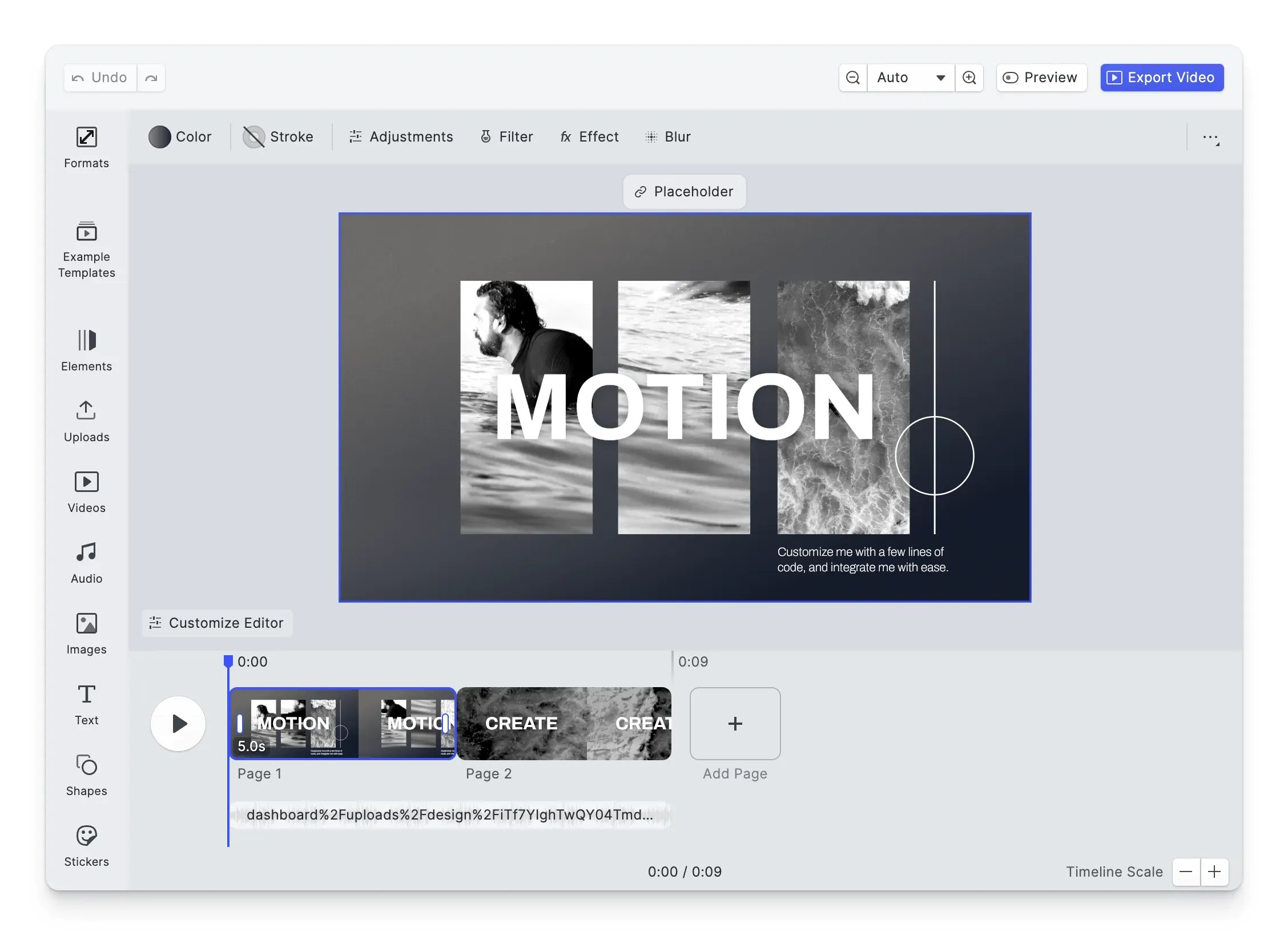
In CE.SDK video editing, overlays live on tracks stacked above the main track, and each later track draws on top of the ones before it. Users can try the first two steps in the video editor demo below.
Put a clip over the main video
When users want one clip over another, they open the clip’s menu in the web editor: Set as Overlay lifts a main-track clip onto an overlay track, and Bring Forward and Send Backward set which overlay sits on top. The inspector bar offers the same move in the mobile editors. An overlay clip can start anywhere on the timeline, and like any block it can be moved and resized in the frame, so users can shrink it into a picture-in-picture window in any corner.
Blend it into the picture
When an overlay should blend in rather than sit on top, set its opacity or one of CE.SDK’s 27 blend modes. Both also work in the iOS and Android SDKs and on the server. Screen suits effect clips on black, and a clip whose alpha channel the player honors needs no blend mode.
Build overlays from your app
When your app places overlays for users, such as a webcam window in every recording, the engine API creates the overlay track, adds the clip and sets its size, position and start time. The docs example puts a quarter-size clip at the lower right, 40 pixels in from both edges, from 2 to 7 seconds. Multiple tracks work on the server too, so a backend job can build the same layout.
Record a reaction on mobile
When users react to a video on iOS or Android, Reactions records their camera while the video plays, then puts the video and the reaction together in a scene they can keep editing. The iOS docs describe that scene as picture-in-picture.
FAQs
Picture-in-picture is one kind of video overlay, in which a second video plays in a small window over the main one. Overlays can also be titles, logos, graphics or effects. Clips placed next to each other, as in a split screen or a grid, form what is usually called a video collage.
No. WebM video encoded with VP8 or VP9 can hold an alpha channel, and Chrome has played it since version 31, but Safari doesn't support alpha in those codecs. HEVC with alpha, Apple's format, plays in Safari on macOS Catalina and iOS 13 or later, and a player that can't read the alpha shows only the base video. ProRes 4444 keeps alpha as well, but it is an editing format with a very high data rate, not one for delivery.
Overlay ads were banners that a video player laid over the lower part of the picture, separate from the video file itself. YouTube, which ran them on desktop only, stopped showing them on April 6, 2023, and called them a legacy ad format. In computing, it also names a way of speeding up video on a computer screen, in which a device such as a TV tuner card sends its picture around the usual route from the CPU through the graphics card.
Links
Documentation and references for this concept.
Video Editor SDK
Let your users stack overlays above a clip and blend them in.
Blend Modes
Set how a layer mixes with the layers below it, from Multiply to Screen.
Join and Arrange Video Clips
Stack clips on several tracks, with a picture-in-picture example on an overlay track.
Related Terms
Timeline
The time-based editing interface in CE.SDK's video editor where users sequence, trim, and synchronize all media elements…
Video Collage
A CE.SDK layout where multiple video clips play simultaneously on a single canvas (in split-screen, grid, or picture-in-…
Chroma Key
A way of combining two shots by removing one backdrop color, usually green or blue, from the foreground footage and leav…