Getting Started
Free Trial#
Our tech is modified to be used for testing purposes without a license key. To start testing just follow this Get Started guide and leave out the step of entering the commercial license keys. The editor will simply render a watermark over the preview and final results. And in case you need any technical assistance, make sure to reach out to us: https://img.ly/support. We’ll be glad to help.
Requirements#
VideoEditor SDK requires iOS 9+ and Xcode 12+ with Swift 5.3+. If you have to use older versions of Swift or support older versions of iOS, please have a look at previous versions.
Swift Package Manager#
VideoEditor SDK is available as a Swift package. If you're new to Swift Package Manager, this Guide will help you to add a dependency to your app. Using the Swift Package Manager is the preferred and simplest way to use VideoEditor SDK.
To add the VideoEditor SDK package dependency to your Xcode project, select File > Swift Packages > Add Package Dependency and enter the URL of our build repository:
https://github.com/imgly/vesdk-ios-build
CocoaPods#
VideoEditor SDK is available via CocoaPods. If you're new to CocoaPods, this Getting Started Guide will help you.
Important: Please make sure that you have a CocoaPods version >= 1.10.0 installed. You can check your version of CocoaPods with pod --version.
Here's what you have to add to your Podfile:
use_frameworks!pod 'VideoEditorSDK'
To make sure you're fetching the latest SDK version, run pod repo update. Then run pod install to install the SDK.
License file#
Before using any components of the VideoEditor SDK, you have to unlock the SDK using your license key file. It is important that you set the license key before using any of the SDK classes.
func application(_ application: UIApplication, willFinishLaunchingWithOptions launchOptions: [UIApplication.LaunchOptionsKey: Any]? = nil) -> Bool {if let licenseURL = Bundle.main.url(forResource: "license", withExtension: "") {VESDK.unlockWithLicense(at: licenseURL)}return true}
The license is digitally signed so it can not be altered without becoming invalid. Once you retrieved the license file it can be used to unlock the view controller. The following examples demonstrates how to unlock the SDK.
Manually#
If you prefer not to use CocoaPods, you can integrate VideoEditor SDK into your project manually via a dynamic framework.
- Download the SDK here, then simply drag
ImglyKit.frameworkas well asVideoEditorSDK.frameworkinto theFrameworks, Libraries, and Embedded Contentsection of your target and make sure that theEmbedsettings are set toEmbed & Sign:
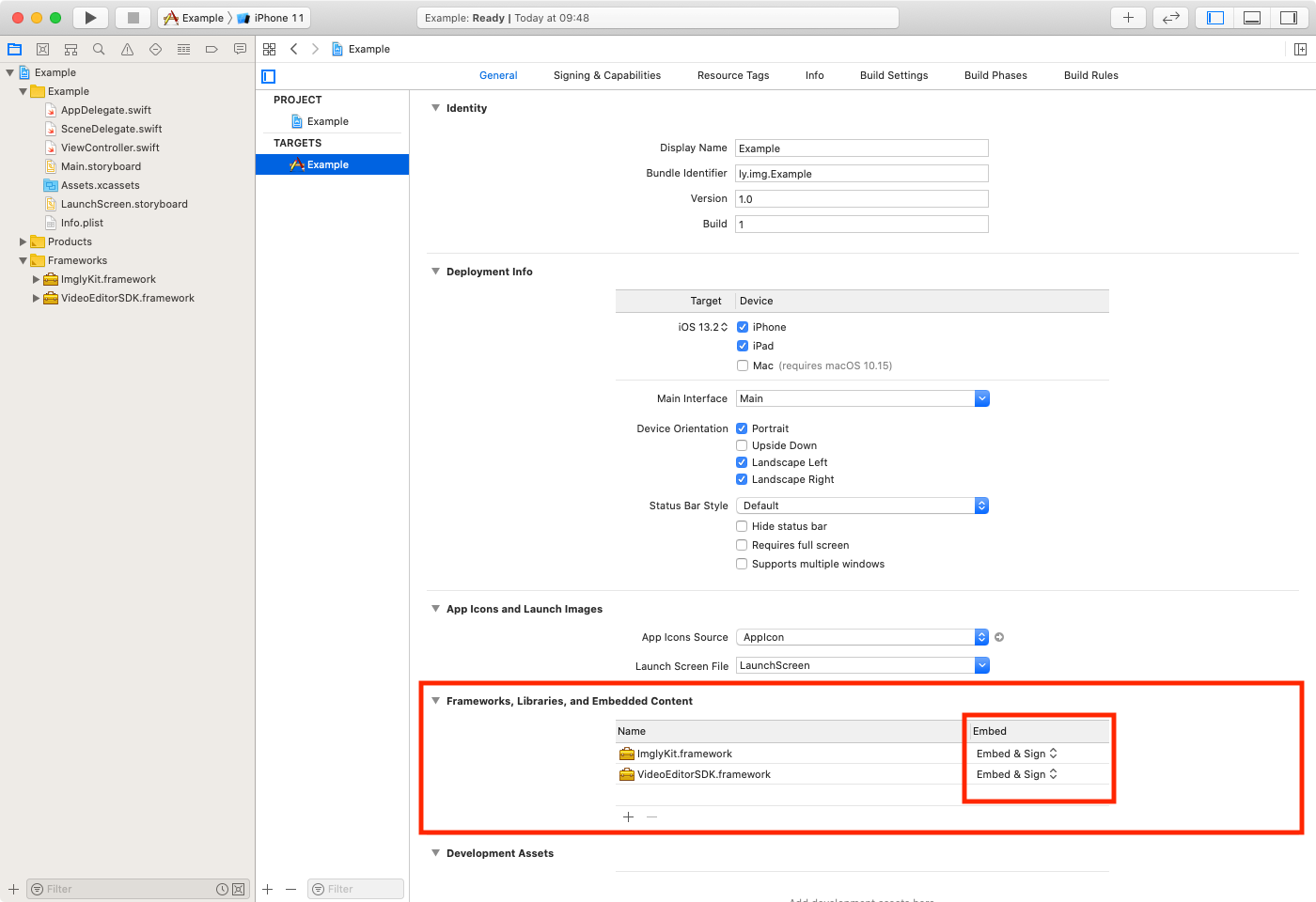
- Open your project's
Build Phasestab and add a newRun Script Phasesomewhere below theEmbed Frameworksphase. Then copy the following line into the newly created build phase's text field:
bash "$BUILT_PRODUCTS_DIR/$FRAMEWORKS_FOLDER_PATH/ImglyKit.framework/strip-framework.sh"
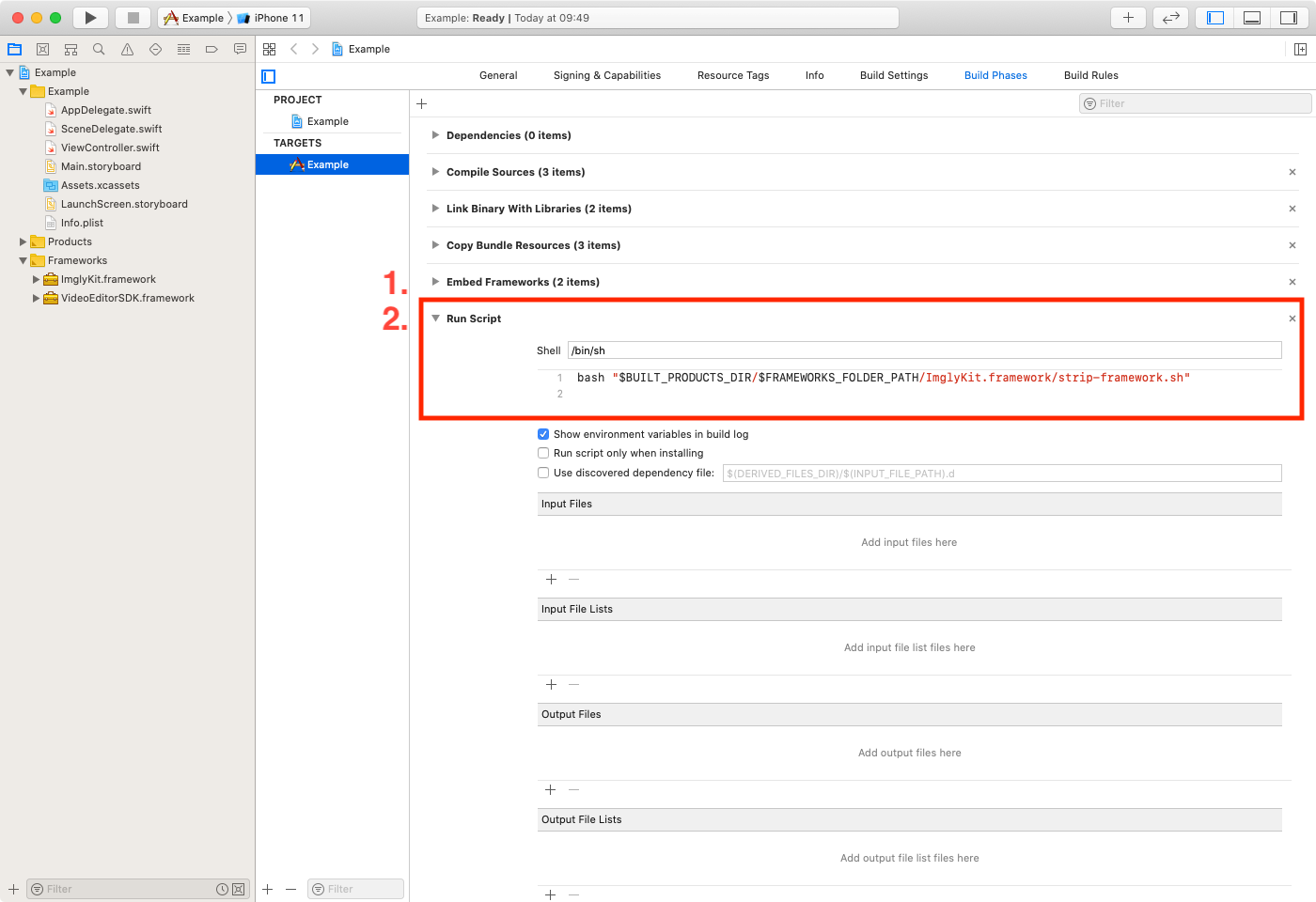
This script will remove the simulator slices from the universal binary, because Xcode does not allow uploading apps to App Store Connect that contain slices for both, the simulator and for devices.
If you are integrating the VideoEditor SDK into an otherwise Objective-C only project you also have to set the
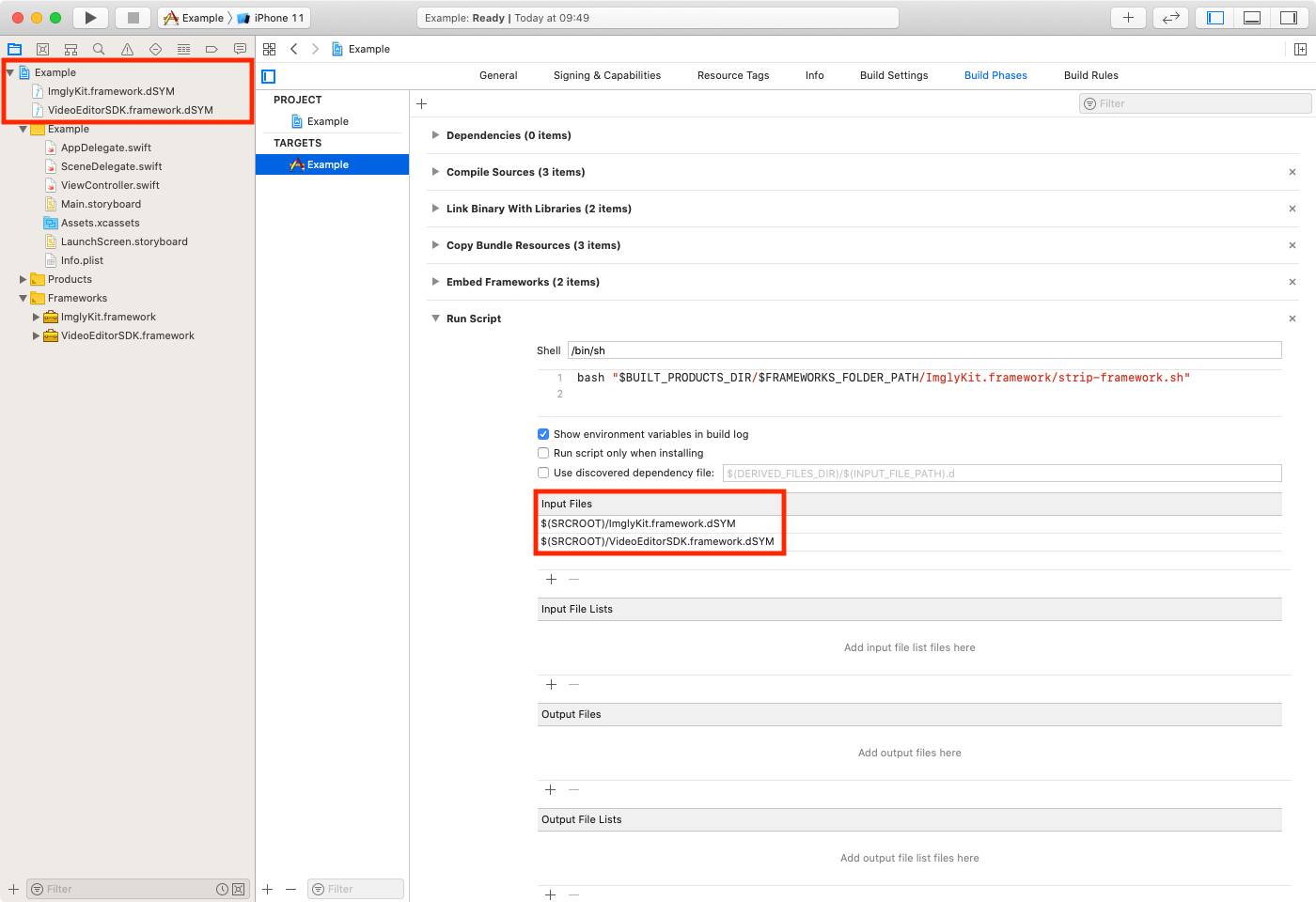
Always Embed Swift Standard Librariesbuild setting in your project'sBuild Settingstab toYes.To receive symbolicated crash logs, you need to include our debug symbols. Copy the
ImglyKit.framework.dSYMandVideoEditorSDK.framework.dSYMfile to your project's tree without adding it to any of your targets. Then add the copied file as an input file to theRun Script Phaseof step 2.
Our SDK provides two main view controllers. One to work with the camera and the other to edit an image.
In the following section, we will first explain how the licensing works and then how the basic view controllers are set up.
We will also demonstrate how they can be embedded into a UINavigationController.
UIKit#
Add Import Statement#
You have to add an import statement like this:
import VideoEditorSDK
Add a CameraViewController#
The CameraViewController class is responsible for displaying an interface to interact with the camera. It provides user interface elements among others to enable the flash, toggle the camera and choose a filter. All you have to do is the following:
let cameraViewController = CameraViewController()present(cameraViewController, animated: true, completion: nil)
The CameraViewController has completionBlock, dataCompletionBlock and cancelBlock properties, which will be called after an action was taken within the camera.
Add a VideoEditViewController#
The VideoEditViewController class is responsible for presenting and rendering a video. It can be presented modally in which case it will display a toolbar at the bottom or it can be pushed onto a UINavigationController in which case it will use the navigation controller’s navigation bar. It also handles presentation of PhotoEditToolController subclasses.
To present a VideoEditViewController just add these few lines:
let video = Video(url: Bundle.main.url(forResource: "sample_video", withExtension: "mp4")!)let videoEditViewController = VideoEditViewController(videoAsset: video)videoEditViewController.delegate = selfpresent(videoEditViewController, animated: true, completion: nil)
Here, we set the delegate of the videoEditViewController object to self.
That means that the presenting view controller must implement the VideoEditViewControllerDelegate protocol.
The methods of the VideoEditViewControllerDelegate protocol are designed to inform the delegate about the result of the editing process (for example cancellation).
The method that gets called when the user confirms the changes is
func videoEditViewController(_ videoEditViewController: VideoEditViewController, didFinishWithVideoAt url: URL?).
It provides the resulting video as an URL object.
Embed in an UINavigationController#
The controllers provided with the SDK can be embedded in an UINavigationController. The following code demonstrates how.
let video = Video(url: Bundle.main.url(forResource: "sample_video", withExtension: "mp4")!)let videoEditViewController = VideoEditViewController(videoAsset: video)videoEditViewController.delegate = selflet navigationController = UINavigationController(rootViewController: videoEditViewController)present(navigationController, animated: true, completion: nil)
SwiftUI#
Add Import Statement#
You have to add an import statement like this:
import VideoEditorSDK
Add a Camera#
The Camera wraps a CameraViewController for the use in SwiftUI. To use it, all you have to do is:
var body: some View {Camera().onDidSave { result in// The `Camera` has saved the photo/video.}.onDidCancel {// The `Camera` has been cancelled by the user.}}
In order to access the result of the Camera, simply use the modifiers Camera.onDidCancel and Camera.onDidSave.
Add a VideoEditor#
The VideoEditor wraps a VideoEditViewController for the use in SwiftUI. To display a VideoEditor, simply add these lines:
var video = Video(url: Bundle.main.url(forResource: "sample_video", withExtension: "mp4")!)var body: some View {VideoEditor(video: video).onDidSave { result in// The `VideoEditor` has exported the video at the given url.}.onDidCancel {// The `VideoEditor` has been cancelled by the user.}.onDidFail {// The `VideoEditor` has failed to export the video.}}
In order to access the result of the VideoEditor, simply use the modifiers VideoEditor.onDidCancel, VideoEditor.onDidSave, VideoEditor.onDidFail.
To try these examples, and find out about more options please take a look at the sample project provided in the demo repository .