You're viewing documentation for a previous version of this software.Switch to the latest stable version
PESDK/Android/Features
Camera
The PhotoEditor SDK offers a camera implementation for Android to complement your editor, featuring essential camera components as well as live filters.
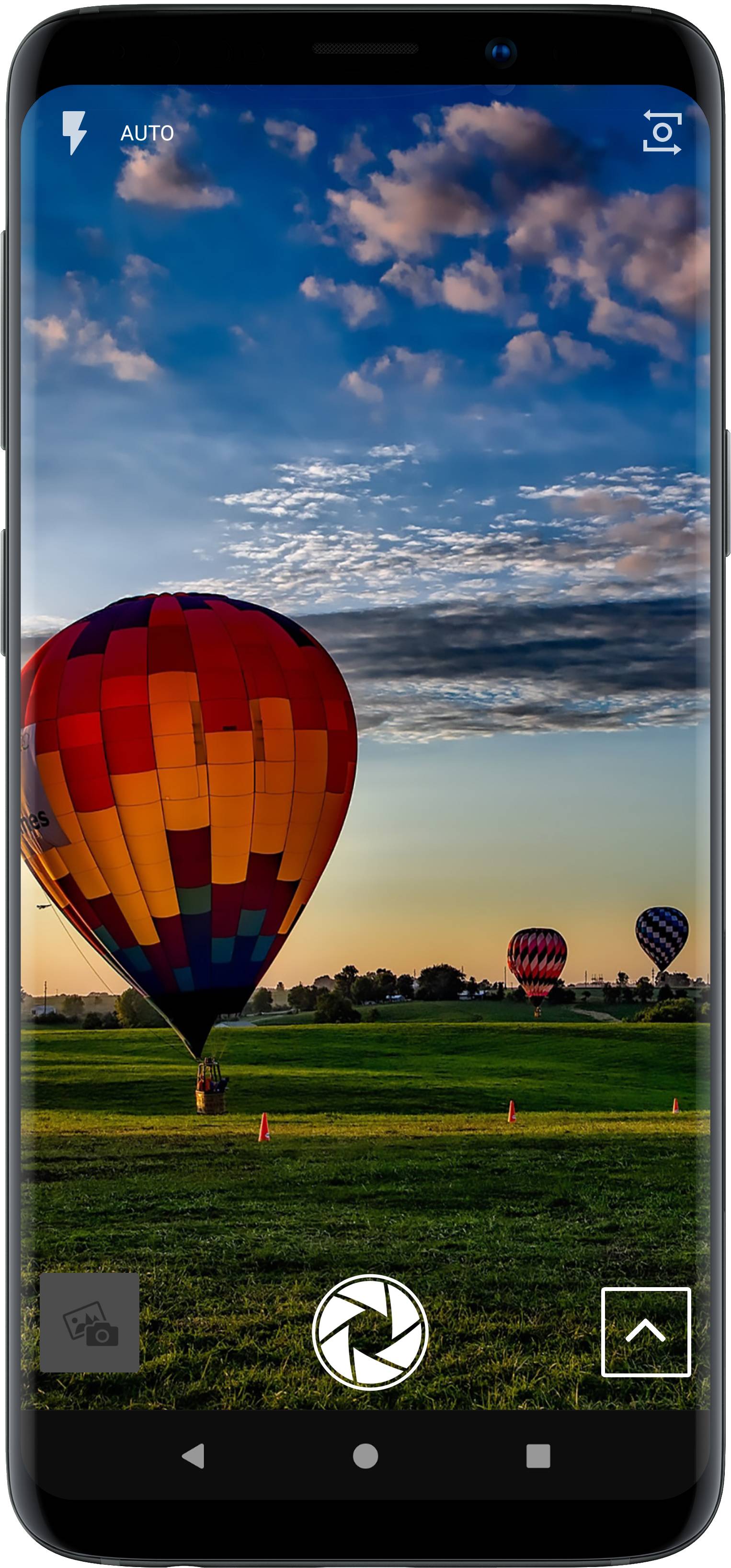
The PhotoEditor SDK offers a camera implementation for Android to complement your editor, featuring basic essential camera components as well as live filters.
In order to use our camera, you need to instantiate a CameraPreviewActivity using a CameraPreviewBuilder and present it. You can configure the camera to fit your needs by passing a SettingsList object to the builder. If no configuration is passed, the default setup is passed:
class KCameraDemoActivity : Activity(), PermissionRequest.Response {companion object {const val PESDK_RESULT = 1}// Important permission request for Android 6.0 and above, don't forget to add this!override fun onRequestPermissionsResult(requestCode: Int, permissions: Array<String>, grantResults: IntArray) {PermissionRequest.onRequestPermissionsResult(requestCode, permissions, grantResults)super.onRequestPermissionsResult(requestCode, permissions, grantResults)}override fun permissionGranted() {}override fun permissionDenied() {/* TODO: The Permission was rejected by the user. The Editor was not opened,* Show a hint to the user and try again. */}// Create a empty new SettingsList and apply the changes on this referance.// If you have included our asset Packs and you want to use our default UI you also need to add them to the UI config,// otherwise they are only available for the backend link serialisation.// See the specific feature sections of our guides if you want to know how to add your own assets.private fun createPESDKSettingsList() = PhotoEditorSettingsList().configure<UiConfigFilter> {it.setFilterList(FilterPackBasic.getFilterPack())}.configure<UiConfigText> {it.setFontList(FontPackBasic.getFontPack())}.configure<UiConfigFrame> {it.setFrameList(FramePackBasic.getFramePack())}.configure<UiConfigOverlay> {it.setOverlayList(OverlayPackBasic.getOverlayPack())}.configure<UiConfigSticker> {it.setStickerLists(StickerPackEmoticons.getStickerCategory(),StickerPackShapes.getStickerCategory())}override fun onCreate(savedInstanceState: Bundle?) {super.onCreate(savedInstanceState)setContentView(R.layout.activity_main)openCamera()}private fun openCamera() {val settingsList = createPESDKSettingsList()CameraPreviewBuilder(this).setSettingsList(settingsList).startActivityForResult(this, PESDK_RESULT)}override fun onActivityResult(requestCode: Int, resultCode: Int, intent: Intent) {super.onActivityResult(requestCode, resultCode, intent)if (resultCode == RESULT_OK && requestCode == PESDK_RESULT) {// Editor has saved an Image.val data = EditorSDKResult(intent)Log.i("PESDK", "Source image is located here ${data.sourceUri}")Log.i("PESDK", "Result image is located here ${data.resultUri}")// TODO: Do something with the result image// OPTIONAL: read the latest state to save it as a serialisationval lastState = data.settingsListtry {IMGLYFileWriter(lastState).writeJson(File(getExternalFilesDir(null),"serialisationReadyToReadWithPESDKFileReader.json"))} catch (e: IOException) {e.printStackTrace()}} else if (resultCode == RESULT_CANCELED && requestCode == PESDK_RESULT) {// Editor was canceledval data = EditorSDKResult(intent)val sourceURI = data.sourceUri// TODO: Do something...}}}
Disable editor to open#
To prevent the 'editor screen' to open after taking a photo and to stay on 'capture mode' use this code:
settingsList.getSettingsModel(CameraSettings.class).setOpenEditorAfterCapture(false);
For more details, take a look at our getting started section.