Add automatic moderation to your Android video editor. Check every clip, image and text on the timeline against a moderation service, see at which times a clip may violate your guidelines, and confirm before exporting it.
Pre-Requisites#
This guide assumes basic familiarity with Android and Kotlin. You will need:
- Latest Android Studio
- Kotlin: 1.9.10 or later
- Gradle: 8.4 or later
- Android: 7.0+ (API level 24+)
- An IMG.LY Gateway API key, used to moderate the clips, images and text in the scene
Set Your Gateway API Key#
The kit moderates with the imgly/detection model on the IMG.LY Gateway. Keys use the sk_ prefix. Model access and credit budgets are configured per key in the Dashboard, so the key you use must have access to imgly/detection and a credit balance to spend.
Paste the key into GATEWAY_API_KEY:
const val GATEWAY_API_KEY = "sk_live_..."Every screen in the kit reads the key from this one constant. The Gateway API key is separate from your CE.SDK license key, so set both. Until the key is set, running a check reports a missing-key error instead of results.
Get Started#
Start with a complete, runnable Android starter kit project.
Step 1: Clone the Repository#
git clone -b v1.87.0 https://github.com/imgly/starterkit-video-moderation-editor-android.gitcd starterkit-video-moderation-editor-androidStep 2: Open and Run#
Create and launch a new Android emulator, use an existing one, or connect a physical device with USB Debugging on.
Open the project in Android Studio, sync Gradle via File -> Sync Project With Gradle Files and run the app module from the UI, or use:
./gradlew app:installDebugThe sample app launches MainActivity, which has a “Launch Editor” button. Clicking it launches EditorActivity:
package ly.img.editor.configuration.videomoderation
import android.os.Bundleimport androidx.activity.ComponentActivityimport androidx.activity.compose.setContentimport androidx.activity.enableEdgeToEdgeimport ly.img.editor.Editorimport ly.img.editor.configuration.videomoderation.moderation.GATEWAY_API_KEYimport ly.img.editor.configuration.videomoderation.moderation.GatewayModerationProviderimport ly.img.editor.core.configuration.EditorConfigurationimport ly.img.editor.core.configuration.remember
/** * Encapsulated editor to be used in legacy activity navigation. * Delete this file if you are using jetpack compose navigation. */class EditorActivity : ComponentActivity() { override fun onCreate(savedInstanceState: Bundle?) { super.onCreate(savedInstanceState) // This is required to remove the default action bar on top. setTheme(android.R.style.Theme_Material_Light_NoActionBar) // This is required, so that the editor is displayed full screen on relatively older devices. enableEdgeToEdge() setContent { Editor( license = null, // pass null or empty for evaluation mode with watermark configuration = { EditorConfiguration.remember( builderFactory = { // The video moderation backend lives behind the [ContentModerationProvider] // interface. Replace [GatewayModerationProvider] with your own // implementation to plug in a different moderation service. VideoModerationConfigurationBuilder( moderationProvider = GatewayModerationProvider(apiKey = GATEWAY_API_KEY), ) }, ) }, onClose = { // Finish the activity, potentially handle errors. finish() }, ) } }}Get Started#
Integrate only the starter-kit library module into your existing Android app.
Step 1: Run the Extraction Script From Your App Root#
Run this from your application root directory:
repo="starterkit-video-moderation-editor-android"version="1.87.0"curl -0 "https://codeload.github.com/imgly/${repo}/tar.gz/refs/heads/v${version}" | tar -xz --strip-components=1 "${repo}-${version}/starter-kit"This extracts the starter-kit/ library module into your Android project.
Step 2: Include the Module#
Declare the newly added Android library module in your project:
include(":starter-kit")Step 3: Add Dependency in Your App Module#
Include the starter kit module dependency in your app module:
dependencies { implementation(project(":starter-kit"))}Step 4: Include missing plugins#
Include plugins that may be missing in your project’s root build.gradle.kts file:
plugins { // Existing plugins here id("org.jetbrains.kotlin.plugin.compose") version "2.1.10" apply false}Step 5: Add the IMG.LY Maven Repository#
Add the IMG.LY Maven repository to your project:
dependencyResolutionManagement { repositoriesMode.set(RepositoriesMode.FAIL_ON_PROJECT_REPOS) repositories { google() mavenCentral() maven { name = "IMG.LY Artifactory" url = uri("https://maven.img.ly/maven") mavenContent { includeGroup("ly.img") } } }}If the project is open in Android Studio, sync Gradle via File -> Sync Project With Gradle Files to make all dependencies available.
Step 6: Launch the Editor From Your UI#
If you use Jetpack Compose navigation in your app, add a new navigation destination and invoke the following composable:
import androidx.compose.runtime.Composableimport ly.img.editor.Editorimport ly.img.editor.configuration.videomoderation.VideoModerationConfigurationBuilderimport ly.img.editor.configuration.videomoderation.moderation.GATEWAY_API_KEYimport ly.img.editor.configuration.videomoderation.moderation.GatewayModerationProviderimport ly.img.editor.core.configuration.EditorConfigurationimport ly.img.editor.core.configuration.remember
// onClose should pop screen from the backstack of jetpack compose navigation@Composablefun EditorScreen(onClose: (Throwable?) -> Unit) { Editor( license = null, // pass null or empty for evaluation mode with watermark configuration = { EditorConfiguration.remember( builderFactory = { VideoModerationConfigurationBuilder( moderationProvider = GatewayModerationProvider(apiKey = GATEWAY_API_KEY), ) }, ) }, onClose = onClose, )}If you use legacy Android navigation instead, the starter kit has an EditorActivity class with fully encapsulated logic:
package ly.img.editor.configuration.videomoderation
import android.os.Bundleimport androidx.activity.ComponentActivityimport androidx.activity.compose.setContentimport androidx.activity.enableEdgeToEdgeimport ly.img.editor.Editorimport ly.img.editor.configuration.videomoderation.moderation.GATEWAY_API_KEYimport ly.img.editor.configuration.videomoderation.moderation.GatewayModerationProviderimport ly.img.editor.core.configuration.EditorConfigurationimport ly.img.editor.core.configuration.remember
/** * Encapsulated editor to be used in legacy activity navigation. * Delete this file if you are using jetpack compose navigation. */class EditorActivity : ComponentActivity() { override fun onCreate(savedInstanceState: Bundle?) { super.onCreate(savedInstanceState) // This is required to remove the default action bar on top. setTheme(android.R.style.Theme_Material_Light_NoActionBar) // This is required, so that the editor is displayed full screen on relatively older devices. enableEdgeToEdge() setContent { Editor( license = null, // pass null or empty for evaluation mode with watermark configuration = { EditorConfiguration.remember( builderFactory = { // The video moderation backend lives behind the [ContentModerationProvider] // interface. Replace [GatewayModerationProvider] with your own // implementation to plug in a different moderation service. VideoModerationConfigurationBuilder( moderationProvider = GatewayModerationProvider(apiKey = GATEWAY_API_KEY), ) }, ) }, onClose = { // Finish the activity, potentially handle errors. finish() }, ) } }}Launch the activity from an activity of your app:
import android.content.Intentimport ly.img.editor.configuration.videomoderation.EditorActivity
fun launchEditor() {    // "this" is the current activity    startActivity(Intent(this, EditorActivity::class.java))}
The full implementation of the starter kit lives in the starter-kit/ folder:
starter-kit/├── build.gradle.kts # Starter kit library module config, includes ly.img:editor dependency└── src/main/ ├── AndroidManifest.xml # Starter kit manifest file, may contain permissions ├── assets/ │ └── scene/ │ └── video-moderation.scene # Demo scene: two remote clips and a title └── kotlin/ly/img/editor/configuration/videomoderation/ ├── VideoModerationConfigurationBuilder.kt # Editor configuration logic encapsulated in 1 place ├── EditorActivity.kt # Encapsulated editor for legacy navigation. Delete if you use Jetpack Compose navigation ├── callback/ │ ├── OnCreate.kt # Editor initialization and scene loading │ ├── OnExport.kt # MP4 export, including the moderation warning │ └── OnLoaded.kt # Post onCreate logic, marks the result stale on every edit ├── component/ │ ├── BottomPanel.kt # Bottom panel that holds the timeline │ ├── CanvasMenu.kt # Canvas Menu component configuration │ ├── Dock.kt # Dock component configuration │ ├── InspectorBar.kt # Inspector Bar component configuration │ ├── ModerationSheet.kt # Bottom sheet that lists the moderation results │ ├── NavigationBar.kt # Navigation Bar component configuration, including the moderation button │ ├── Overlay.kt # Export progress and the export warning dialog │ └── Timeline.kt # Timeline component configuration ├── iconPack/ # Shield, warning and export status icons ├── model/ │ └── ExportStatus.kt # Export progress state └── moderation/ ├── ContentModerationProvider.kt # Swappable interface for the moderation backend ├── ModerationEngine.kt # Scans clips, images and text, applies the trim filter ├── ModerationModels.kt # Category, frame, state and result data types └── GatewayModerationProvider.kt # Default provider talking to the IMG.LY gatewayStarter Kit as a Dynamic Feature#
Since the starter-kit folder is an Android library module, you can turn it into a dynamic feature. This helps if you want to lazy load the editor to reduce the download size of your app.
See Bundle Size for more details.
Set Up a Scene#
The scene setup logic is located in OnCreate.kt, as part of the onCreate implementation:
suspend fun VideoModerationConfigurationBuilder.onCreateScene() { getOrLoadScene(sceneUri = "file:///android_asset/scene/video-moderation.scene".toUri())}getOrLoadScene loads an existing scene if available, or initializes one from file:///android_asset/scene/video-moderation.scene when no scene is active. The scene holds two remote clips, one that the gateway flags and one that it does not, and a title over the first clip. Replace the scene file with your own, or point sceneUri at another scene.
Customize Assets#
The asset source setup is located in OnCreate.kt, as part of the onCreate implementation. Enable or disable individual sources:
suspend fun VideoModerationConfigurationBuilder.onLoadAssetSources() {    // Load asset sources in parallel from content.json files    coroutineScope {        val baseUri = editorContext.baseUri        val sourceIds = listOf(            "ly.img.sticker",            "ly.img.vector.shape",            "ly.img.filter",            "ly.img.color.palette",            "ly.img.effect",            "ly.img.blur",            "ly.img.typeface",            "ly.img.crop.presets",            "ly.img.page.presets",            "ly.img.text",            "ly.img.text.styles",            "ly.img.text.curves",            "ly.img.text.components",            "ly.img.caption.presets",            "ly.img.image",            "ly.img.audio",            "ly.img.video",        )        sourceIds.forEach { id ->            launch {                editorContext.engine.asset.addLocalSourceFromJSON(                    contentUri = "$baseUri/$id/content.json".toUri(),                )            }        }    }
    // Load local asset sources    editorContext.engine.asset.addLocalSource(        sourceId = "ly.img.image.upload",        supportedMimeTypes = listOf(            "image/jpeg",            "image/png",            "image/heic",            "image/heif",            "image/svg+xml",            "image/gif",            "image/apng",            "image/bmp",        ),    )
    editorContext.engine.asset.addLocalSource(        sourceId = "ly.img.audio.upload",        supportedMimeTypes = listOf(            "audio/x-m4a",            "audio/mp3",            "audio/mpeg",        ),    )    editorContext.engine.asset.addLocalSource(        sourceId = "ly.img.video.upload",        supportedMimeTypes = listOf(            "video/mp4",        ),    )
// Register gallery asset sources listOf( AssetSourceType.GalleryAllVisuals, AssetSourceType.GalleryImage, AssetSourceType.GalleryVideo, ).forEach { type -> editorContext.engine.asset.addSource( source = SystemGalleryAssetSource( context = editorContext.engine.applicationContext, type = type, ), ) } SystemGalleryPermission.setMode(systemGalleryConfiguration)}For production deployments, self-hosting assets is required. The IMG.LY CDN is intended for development only. See Serve Assets for downloading assets, configuring baseUri and excluding unused sources to optimize load times.
Customize Export Functionality#
Export handling logic is located in OnExport.kt, as part of the onExport callback. The moderation warning runs first. If the user confirms, or the video was found clean, the export continues.
onExportByteBuffer controls what is exported. For this editor, the page is exported as an MP4 video, and the export progress is shown in an overlay:
suspend fun VideoModerationConfigurationBuilder.onExportByteBuffer(): ByteBuffer { val targetDesignBlock = requireNotNull(editorContext.engine.scene.getCurrentPage()) return editorContext.engine.block.exportVideo( block = targetDesignBlock, timeOffset = 0.0, duration = editorContext.engine.block.getDuration(targetDesignBlock), mimeType = MimeType.MP4, progressCallback = { progress -> val lastExportStatus = exportStatus val newProgress = progress.encodedFrames.toFloat() / progress.totalFrames // Update export UI whenever the progress changes if (lastExportStatus !is ExportStatus.Loading || newProgress >= lastExportStatus.progress + 0.01F) { exportStatus = ExportStatus.Loading(progress = newProgress) } }, // videoBitrate: VideoBitrate.Auto derives a bounded bitrate from the resolution/framerate. options = ExportVideoOptions(videoBitrate = VideoBitrate.Auto), )}onPostExport controls what happens to the exported ByteBuffer. You can upload the result to your server, save it to the device gallery, or close the editor via editorContext.eventHandler.send(EditorEvent.CloseEditor()):
suspend fun VideoModerationConfigurationBuilder.onPostExport(byteBuffer: ByteBuffer) { val file = writeToFile(byteBuffer = byteBuffer, mimeType = MimeType.MP4) exportStatus = ExportStatus.Success(file = file, mimeType = MimeType.MP4)}Video Moderation#
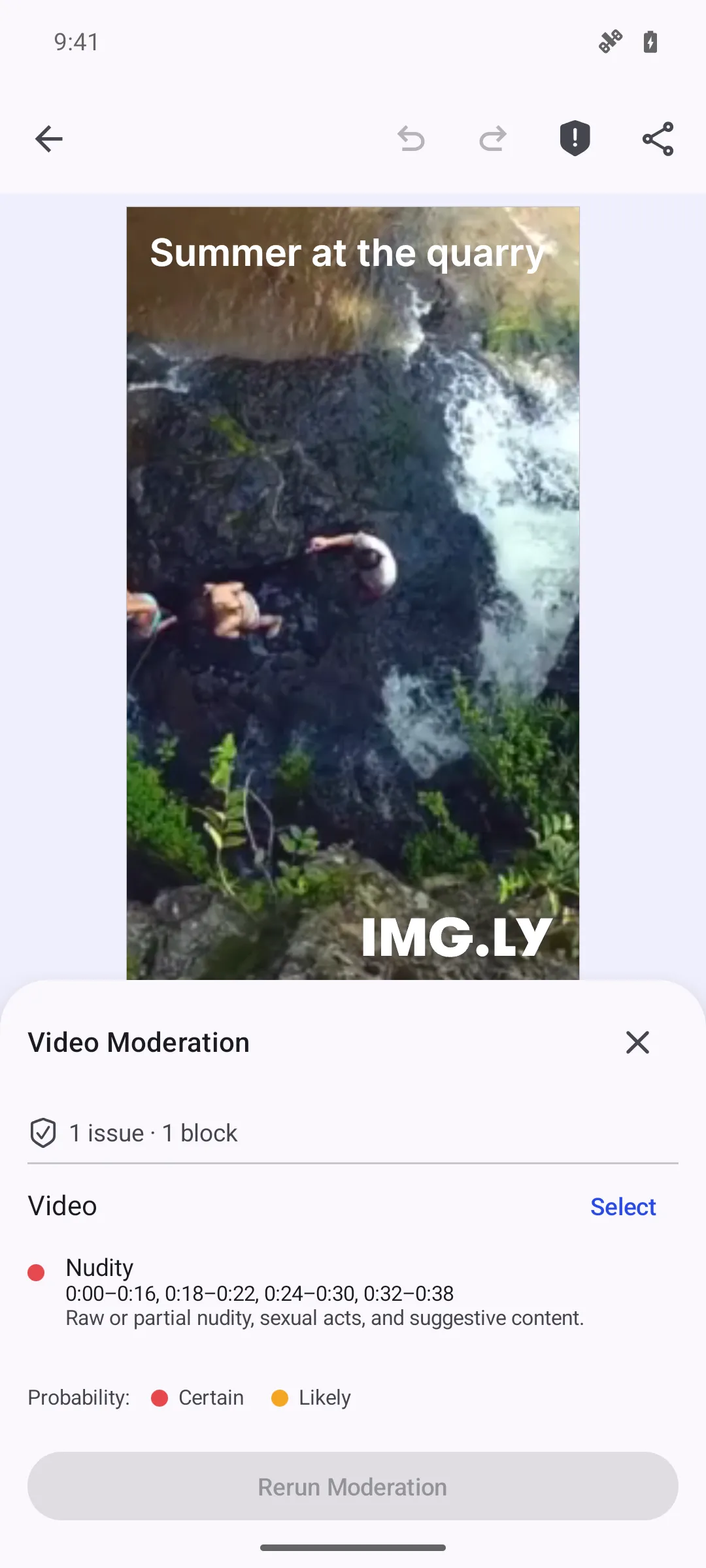
The kit adds a Video moderation button to the navigation bar. It shows a shield-check, which becomes a shield-alert once a check flags content or cannot check a block, and stays an alert across edits until a later check comes back clean. The icon fills while the sheet is open. Tapping it opens a bottom sheet that first prompts the user to Run Moderation. The sheet then shows a loading state and finally the flagged categories, or a message that nothing was flagged.
Results are grouped by block. Each flagged block gets one heading and one Select action, with its categories listed underneath, each with a severity dot: red for Certain, orange for Likely. For a clip, each category also shows the flagged times in clip time, for example 0:04–0:10, and Select selects the clip and moves the playhead to its first flagged moment. An image or a text has no time of its own, so Select selects it and moves the playhead to where it starts. The header counts both, for example 3 issues · 2 blocks.
Exporting is gated too. The export warning is skipped only when a fresh check of the unchanged scene found nothing. Otherwise a dialog offers to moderate now, to export anyway, or to cancel.
The navigation bar button is configured in NavigationBar.kt and sends an event that opens the moderation sheet:
/** * A navigation bar button that runs video moderation on the scene and opens the results bottom sheet. * * @param builder the configuration builder, used to reach the [ContentModerationProvider]. */@Composablefun NavigationBar.Button.rememberModerate(builder: VideoModerationConfigurationBuilder): Button<NavigationBar.ItemScope> = NavigationBar.Button.remember { id = { EditorComponentId("ly.img.videomoderation.navigationBar.button.moderate") } // Reflect the last completed check (a warning persists across edits until a clean // re-check), and fill the icon while the moderation sheet is open. vectorIcon = { val flagged = builder.lastModerationHadIssues val open = builder.isModerationSheetOpen when { flagged && open -> IconPack.ShieldAlertFilled flagged -> IconPack.ShieldAlert open -> IconPack.ShieldCheckFilled else -> IconPack.ShieldCheck } } contentDescription = { "Video moderation" } onClick = { // Toggle: tapping the icon while the sheet is open closes it. if (builder.isModerationSheetOpen) { editorContext.eventHandler.send(EditorEvent.Sheet.Close(animate = true)) } else { editorContext.eventHandler.send(createModerationSheetOpenEvent(builder = builder)) } } }What Gets Checked#
Every video clip, every graphic with an image fill, such as a photo or a sticker, and every text block and caption that is not blank is checked. A clip whose file cannot load is listed as unchecked, and the other blocks are still checked:
- Images and text go first, up to four requests at a time. An image with a public
http(s)URL is sent as that URL. Any other image is rendered by the engine at a 1024-pixel target and uploaded. Text blocks are sent as their text. - Each video source file goes next, once and one at a time. The gateway answers a video request that overlaps another request with “busy”, so the kit never sends two at once. A clip with a public URL is sent as that URL. A clip from the gallery, the camera or the app’s assets is uploaded first, streamed from the device so a large file is never held in memory.
- For a video, the model scores a frame every two seconds of the whole source file.
- Each clip keeps only the frames that play. The kit reads the clip’s trim and playback speed, so content the user trimmed away does not flag the clip.
The frames of each source file are kept for the editor session. A trim, a split or a move along the timeline only changes which frames count, so running the check again after such an edit sends no new video request and costs no credits. Any edit still marks the result as stale, so the export warning returns until the video is checked again.
A block whose request fails is reported as unchecked instead of being dropped, so a partial run shows as Incomplete check with the error message. An incomplete check is never cached, so the export warning is never skipped until a run covers the whole scene. When every request fails, the sheet shows an error state instead of results.
Content Categories#
The imgly/detection model scores video frames and images against one category set and text against another. The kit maps each score to a severity with the same two thresholds, both constructor parameters on GatewayModerationProvider: above 80% is reported as Certain, above 40% as Likely.
Video frames and images:
| Category | Covers |
|---|---|
| Nudity | Raw or partial nudity, sexual acts and suggestive content |
| Weapons | Handguns, rifles, machine guns, threatening knives |
| Recreational Drugs | Cannabis and other recreational drugs |
| Medical | Pills, syringes, medical devices and other medical imagery |
| Alcohol | Wine, beer, cocktails, champagne |
| Offensive Symbols | Hate symbols, extremist imagery and offensive gestures |
| Gore | Blood, wounds, corpses and other graphic imagery |
Text:
| Category | Covers |
|---|---|
| Toxic Language | Language likely to make someone leave the conversation |
| Insulting Language | Insults, name-calling and demeaning remarks |
| Discriminatory Language | Language that demeans a group or protected characteristic |
| Violent Language | Threats of violence and calls to harm someone |
| Sexual Language | Sexually explicit or suggestive wording |
| Self-Harm | References to suicide, self-injury or eating disorders |
A category the model scores that the provider has no copy for is still reported, named from its id, so a category added to the model later is never dropped.
Cost#
The gateway charges credits for each sampled video frame, so a longer clip costs more than a short one. An image or a text costs one request each.
Use Your Own Moderation Service#
The moderation backend sits behind a single ContentModerationProvider interface. To use a different service, plug in your own implementation:
fun interface ContentModerationProvider { /** * Classifies a single video, image or text into moderation categories. * * A video arrives as a [ModerationContent.VideoUrl] the service can fetch itself, or as a * [ModerationContent.VideoFile] when the file is on the device. An image arrives as a * [ModerationContent.ImageUrl] or as rendered [ModerationContent.ImageBytes], and a text as * [ModerationContent.Text]. Implementations decide their own categories, descriptions, * thresholds and sampling interval. * * @param content the video, image or text to classify. * @return for a video, the sampled frames of the whole file, each with the [ModerationState] of * every category. The kit keeps only the frames inside the part of the clip that plays, so return * frames for the whole file, not for one trimmed range. For an image or a text, a single frame at * position `0`. */ suspend fun moderate(content: ModerationContent): List<ModerationFrame>}Implement the interface with your backend and pass it to VideoModerationConfigurationBuilder where you create the editor: in EditorActivity, or in the composable of your navigation destination. Nothing else needs to change, since the scene scan and every UI component depend only on the interface. For a video, return the sampled frames of the whole source file, each with its position in seconds. For an image or a text, return a single frame at position 0:
import ly.img.editor.configuration.videomoderation.moderation.ContentModerationProviderimport ly.img.editor.configuration.videomoderation.moderation.ModerationContentimport ly.img.editor.configuration.videomoderation.moderation.ModerationFrame
class MyModerationProvider : ContentModerationProvider {    override suspend fun moderate(content: ModerationContent): List<ModerationFrame> = when (content) {        // Your backend, mapped to one ModerationFrame per sampled position.        is ModerationContent.VideoUrl -> myBackend.classifyVideoUrl(content.url)        is ModerationContent.VideoFile -> content.openStream().use { myBackend.classifyVideo(it, content.mimeType) }        is ModerationContent.ImageUrl -> listOf(ModerationFrame(0.0, myBackend.classifyImageUrl(content.url)))        is ModerationContent.ImageBytes -> listOf(ModerationFrame(0.0, myBackend.classifyImage(content.bytes)))        is ModerationContent.Text -> listOf(ModerationFrame(0.0, myBackend.classifyText(content.text)))    }}
// Where you create the editor, for example in EditorActivity:EditorConfiguration.remember(    builderFactory = { VideoModerationConfigurationBuilder(moderationProvider = MyModerationProvider()) },)
The kit keeps only the frames inside the part of a clip that plays, so return frames for the whole file, not for one trimmed range. A custom provider fully controls its own categories, descriptions and thresholds. The results sheet renders whatever it returns.
Customize (Optional)#
Base Uri#
The starter kit does not set a baseUri, which means it points to https://cdn.img.ly/packages/imgly/cesdk-engine/1.87.0/assets. To serve the assets from your own CDN or locally, download them as a zip file. For example, to store them locally, unzip the content and place it at starter-kit/src/main/assets:
import androidx.compose.runtime.Composableimport androidx.core.net.toUriimport ly.img.editor.Editorimport ly.img.editor.configuration.videomoderation.VideoModerationConfigurationBuilderimport ly.img.editor.configuration.videomoderation.moderation.GATEWAY_API_KEYimport ly.img.editor.configuration.videomoderation.moderation.GatewayModerationProviderimport ly.img.editor.core.configuration.EditorConfigurationimport ly.img.editor.core.configuration.remember
@Composablefun EditorBaseUriScreen(onClose: (error: Throwable?) -> Unit) {    Editor(        license = null, // pass null or empty for evaluation mode with watermark        baseUri = "file:///android_asset".toUri(), // this points to android assets        configuration = {            EditorConfiguration.remember(                builderFactory = {                    VideoModerationConfigurationBuilder(                        moderationProvider = GatewayModerationProvider(apiKey = GATEWAY_API_KEY),                    )                },            )        },        onClose = onClose,    )}
UI Mode#
CE.SDK supports light and dark UI modes out of the box, plus automatic system preference detection. Switch between themes programmatically:
import androidx.compose.runtime.Composableimport ly.img.editor.Editorimport ly.img.editor.EditorUiModeimport ly.img.editor.configuration.videomoderation.VideoModerationConfigurationBuilderimport ly.img.editor.configuration.videomoderation.moderation.GATEWAY_API_KEYimport ly.img.editor.configuration.videomoderation.moderation.GatewayModerationProviderimport ly.img.editor.core.configuration.EditorConfigurationimport ly.img.editor.core.configuration.remember
@Composablefun EditorUiModeScreen(onClose: (error: Throwable?) -> Unit) {    Editor(        license = null, // pass null or empty for evaluation mode with watermark        uiMode = EditorUiMode.SYSTEM, // EditorUiMode.SYSTEM, EditorUiMode.LIGHT, EditorUiMode.DARK        configuration = {            EditorConfiguration.remember(                builderFactory = {                    VideoModerationConfigurationBuilder(                        moderationProvider = GatewayModerationProvider(apiKey = GATEWAY_API_KEY),                    )                },            )        },        onClose = onClose,    )}
See Theming for more details.
Native Android Canvas#
CE.SDK supports rendering on two native Android views that allow GPU rendering: TextureView and SurfaceView:
import androidx.compose.runtime.Composableimport ly.img.editor.Editorimport ly.img.editor.configuration.videomoderation.VideoModerationConfigurationBuilderimport ly.img.editor.configuration.videomoderation.moderation.GATEWAY_API_KEYimport ly.img.editor.configuration.videomoderation.moderation.GatewayModerationProviderimport ly.img.editor.core.configuration.EditorConfigurationimport ly.img.editor.core.configuration.rememberimport ly.img.editor.core.engine.EngineRenderTarget
@Composablefun EditorRenderTargetScreen(onClose: (error: Throwable?) -> Unit) { Editor( license = null, // pass null or empty for evaluation mode with watermark engineRenderTarget = EngineRenderTarget.SURFACE_VIEW, // EngineRenderTarget.SURFACE_VIEW, EngineRenderTarget.TEXTURE_VIEW configuration = { EditorConfiguration.remember( builderFactory = { VideoModerationConfigurationBuilder( moderationProvider = GatewayModerationProvider(apiKey = GATEWAY_API_KEY), ) }, ) }, onClose = onClose, )}Localization#
See Localization for supported languages, adding support for new languages and replacing existing keys.
UI Layout#
All the configurable components are located at starter-kit/src/main/kotlin/ly/img/editor/configuration/videomoderation/component:
CanvasMenu.kt- see Canvas Menu for full configuration options.Dock.kt- see Dock for full configuration options.InspectorBar.kt- see Inspector Bar for full configuration options.NavigationBar.kt- see Navigation Bar for full configuration options.Overlay.kt- see Overlay for full configuration options.
Troubleshooting#
Editor doesn’t load#
- Check onCreate: Ensure the
onCreatecallback loads a scene and no coroutine is stuck - Verify the baseUri: Assets must be accessible from the CDN or your self-hosted location
- Check logcat errors: Look for errors in Android logcat
Moderation results don’t appear#
- Set your API key: Paste your IMG.LY Gateway key into
GATEWAY_API_KEYinGatewayModerationProvider.kt. Without it every check reports a missing-key error - Credit the balance:
Insufficient creditsmeans the key is valid but the account has no Gateway balance. Top up at img.ly/dashboard/credit-balance - Wait for long clips: The gateway scores the whole source file before it answers, so a long clip can take a minute
- Read the sheet’s error state: A rejected key, an empty balance or an unreachable service is reported there rather than as empty results
Export fails#
- Wait for the clips to load: Ensure every clip has loaded before exporting
- Check logcat errors: Look for errors in Android logcat
Watermark appears in production#
- Add your license key: Set the
licenseproperty in your configuration - Get a license: Contact us at img.ly/forms/contact-sales/
Next Steps#
- Moderate Content – Engine APIs for extracting content for moderation
- Configuration – Complete list of initialization options
- Serve Assets – Self-host engine assets for production
- Theming – Customize colors and appearance
- Localization – Add translations and language support