Customize the Android inspector bar by replacing its item list, modifying an existing list builder, and creating app-specific controls.
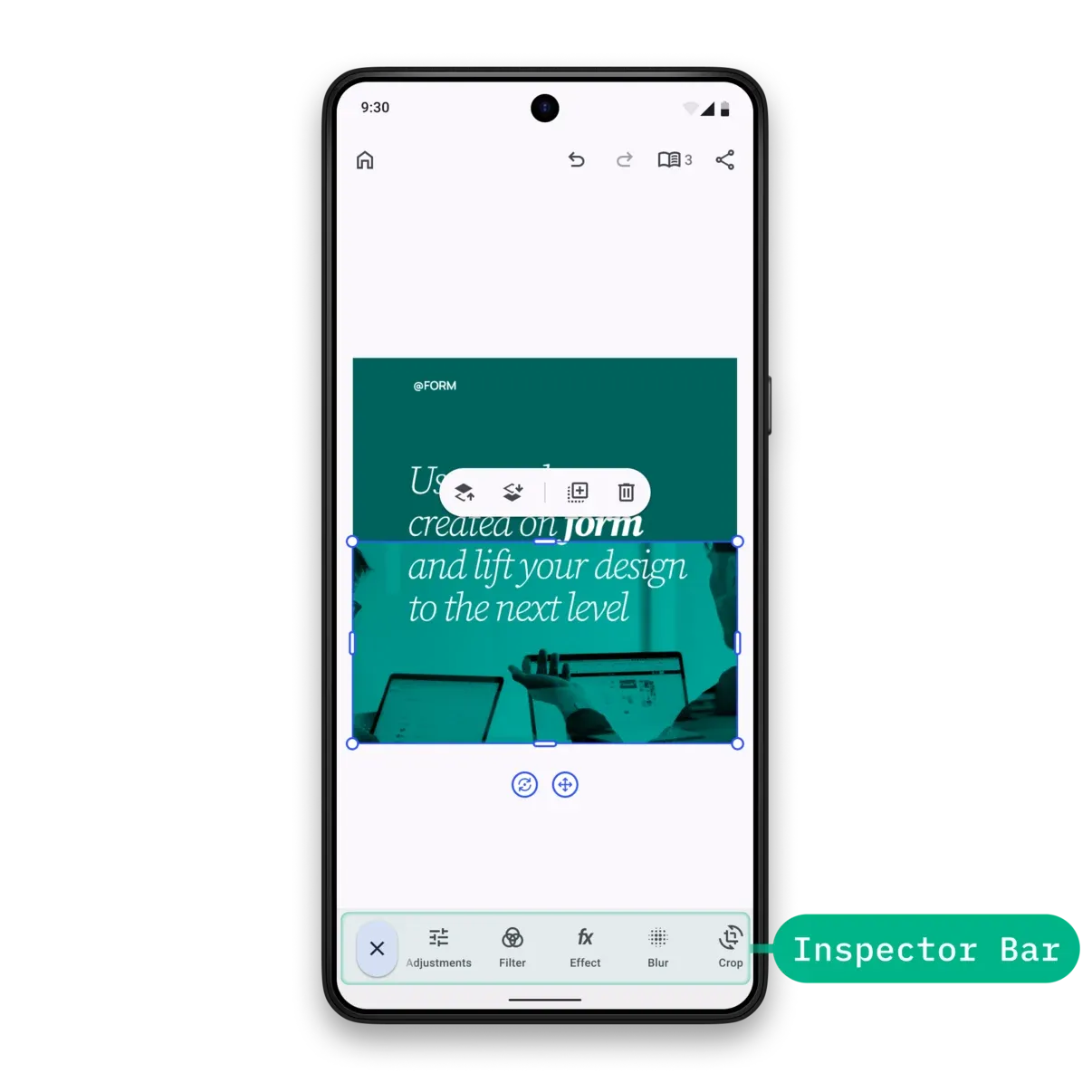
Inspector Bar Architecture#
The inspector bar is an EditorComponent that the editor renders at the bottom when a design element is selected. It shows context-sensitive controls for the current selection, such as text formatting, crop actions, media adjustments, and layer operations.
You assemble the inspector bar from these component entries and related types:
InspectorBar.Button- The built-in button implementation, with an action plus an icon and optional text.EditorComponent- The base component type for fully custom inspector bar items.
The related InspectorBar.Scope exposes the editor context, current selection, and current edit mode to inspector bar configuration callbacks.
For a complete product surface, start from the Design Editor Starter Kit. This guide focuses on the inspector bar configuration that you can apply to your own editor setup.
Configuration#
Inspector bar customization lives in EditorConfiguration. The Editor composable owns Engine startup; these snippets use the existing editor context and configure only the inspector bar surface.
EditorConfiguration.remember { inspectorBar = { InspectorBar.remember { // Reuse the editor selection and edit mode as the inspector bar scope. scope = { InspectorBar.rememberDefaultScope(parentScope = this) } listBuilder = { InspectorBar.ListBuilder.remember { add { InspectorBar.Button.rememberDelete() } } } } }}InspectorBar.remember keeps the default visibility and decoration unless you override them, but it does not add items on its own. Assign listBuilder to populate the bar. Leaving visible unset keeps the default valid-selection, non-Crop edit mode, and Voiceover-sheet guards active.
The Configuration guide covers editor setup more broadly; this page covers the inspector bar portion of that setup.
Key configuration properties:
| Property | Purpose |
|---|---|
id |
Sets the component ID for the inspector bar. The default is ly.img.component.inspectorBar. |
scope |
Provides the editor state used by the inspector bar and its items. |
modifier |
Applies a Jetpack Compose modifier to the bar. |
visible |
Controls whether the bar is shown for the current selection and edit mode. Leave it unset to keep the default behavior. |
enterTransition |
Animates the bar as it appears. The default is a vertical slide in. |
exitTransition |
Animates the bar as it disappears. The default is a vertical slide out. |
decoration |
Wraps the full bar with styling such as background, shadow, or padding. The default is InspectorBar.DefaultDecoration. |
listBuilder |
Defines which EditorComponent items are available and in which order. The sample adds the predefined delete button as a minimal item. |
horizontalArrangement |
Controls the horizontal arrangement when the list does not use aligned groups. The default is Arrangement.Start. |
itemsRowEnterTransition |
Animates the item row while the bar appears. The default is a horizontal slide in. |
itemsRowExitTransition |
Animates the item row while the bar disappears. The default is no exit transition. |
itemDecoration |
Applies the same decoration to all items in the bar. Use per-item decoration when only one item needs custom styling. |
Declaring the Item List#
Use InspectorBar.ListBuilder.remember when you want strict control over the entire inspector bar order. Add predefined buttons in the sequence you want them to appear, then add custom buttons only when built-in behavior does not cover your workflow.
InspectorBar.ListBuilder.remember { add { InspectorBar.Button.rememberDuplicate() } add { InspectorBar.Button.rememberDelete() } add { InspectorBar.Button.rememberAnimations() } add { InspectorBar.Button.rememberAdjustments() } add { InspectorBar.Button.rememberEffect() } add { InspectorBar.Button.rememberBlur() } add { InspectorBar.Button.rememberClipSpeed() } add { InspectorBar.Button.rememberReplace() } add { InspectorBar.Button.rememberEditText() } add { InspectorBar.Button.rememberFormatText() } add { InspectorBar.Button.rememberFillStroke() } add { InspectorBar.Button.rememberTextBackground() } add { InspectorBar.Button.rememberVolume() } add { InspectorBar.Button.rememberCrop() } add { InspectorBar.Button.rememberShape() } add { InspectorBar.Button.rememberLayer() } add { InspectorBar.Button.rememberSplit() } add { InspectorBar.Button.rememberMoveAsClip() } add { InspectorBar.Button.rememberMoveAsOverlay() }}Only items whose own visible state returns true render for the current selection. This lets one list contain buttons for text, image, video, audio, and shape blocks without showing irrelevant controls.
Common predefined buttons are listed below.
Modify Inspector Bar Items#
Use modify when you already have a list builder and only need to add, replace, or remove a few items. This keeps the source order intact and applies the changes around stable component IDs.
val existingListBuilder = InspectorBar.ListBuilder.remember { add { InspectorBar.Button.rememberLayer() } add { InspectorBar.Button.rememberCrop() } add { InspectorBar.Button.rememberFormatText() } add { InspectorBar.Button.rememberDelete() }}existingListBuilder.modify { addFirst { InspectorBar.Button.rememberDuplicate() } addLast { InspectorBar.Button.rememberReplace() } addAfter(id = InspectorBar.Button.Id.layer, failIfNotFound = true) { InspectorBar.Button.rememberFillStroke() } addBefore(id = InspectorBar.Button.Id.crop, failIfNotFound = true) { InspectorBar.Button.rememberAnimations() } replace(id = InspectorBar.Button.Id.formatText, failIfNotFound = true) { InspectorBar.Button.rememberTextBackground() } remove(id = InspectorBar.Button.Id.delete, failIfNotFound = true)}Available modification operations:
| Operation | Effect |
|---|---|
addFirst |
Prepends a new item at the beginning. |
addLast |
Appends a new item at the end. |
addAfter |
Inserts a new item after the item with the provided id. |
addBefore |
Inserts a new item before the item with the provided id. |
replace |
Replaces the item with the provided id. |
remove |
Removes the item with the provided id. |
When failIfNotFound is true, addAfter, addBefore, replace, and remove throw if the target id is missing from the source list. Use this when a missing item should fail loudly during development.
Inspector Bar Item Configuration#
Each inspector bar item is an EditorComponent, so every custom item should use a stable, unique EditorComponentId. Start with predefined buttons when possible, then customize button content or create a custom item when the UI needs a different layout.
Predefined Buttons#
Predefined buttons are exposed as composable helper functions, such as InspectorBar.Button.rememberDelete() or InspectorBar.Button.rememberCrop(). They include default icons, text, visibility, and actions for common editor operations.
Customize Predefined Buttons#
Pass a builder block to a predefined helper when you want its default ID and behavior family, but need to override specific properties. The example keeps the predefined format-text button and replaces its click action, icon, label, enabled state, and visibility.
@Composablefun rememberCustomizedFormatTextButton() = InspectorBar.Button.rememberFormatText { onClick = { editorContext.eventHandler.send(EditorEvent.Sheet.Open(SheetType.FormatText())) } vectorIcon = { IconPack.Typeface } textString = { "Format" } enabled = { editorContext.selection.type == DesignBlockType.Text && editorContext.engine.block.isAllowedByScope( editorContext.selection.designBlock, "text/character", ) } visible = { editorContext.selection.type == DesignBlockType.Text && editorContext.engine.block.isAllowedByScope( editorContext.selection.designBlock, "text/character", ) }}When you override enabled or visible on a predefined button, keep the same selection and editing-scope checks that make the default button safe for the current block.
Create New Buttons#
Use InspectorBar.Button.remember for a fully custom button. The builder controls the button ID, visibility, transitions, decoration, click behavior, content, tint, and enabled state.
@Composablefun rememberInspectorBarButton() = InspectorBar.Button.remember { id = { EditorComponentId("my.package.inspectorBar.button.showMessage") } onClick = { Toast .makeText(editorContext.activity, "Inspector action tapped", Toast.LENGTH_SHORT) .show() } icon = { Icon( imageVector = IconPack.Preview, contentDescription = "Show inspector message", ) } text = { Text( text = "Show message", ) }}If your button only needs an icon vector, text, and content description, use the shorter vectorIcon, textString, and contentDescription properties.
@Composablefun rememberInspectorBarButtonSimple() = InspectorBar.Button.remember { id = { EditorComponentId("my.package.inspectorBar.button.closeEditor") } onClick = { editorContext.eventHandler.send(EditorEvent.CloseEditor()) } vectorIcon = { IconPack.Close } textString = { "Close editor" } contentDescription = { "Close editor" }}Create Custom Items#
For custom layouts that do not fit the button component, use EditorComponent.remember and render the item’s UI inside decoration.
@Composablefun rememberInspectorBarCustomItem() = EditorComponent.remember { id = { EditorComponentId("my.package.inspectorBar.newCustomItem") } decoration = { Box( modifier = Modifier .fillMaxHeight() .clickable { Toast .makeText(editorContext.activity, "Custom inspector item clicked", Toast.LENGTH_SHORT) .show() }, ) { Text( modifier = Modifier.align(Alignment.Center), text = "Show toast", ) } }}Insert Custom Items#
Defining an item only creates the component. Add the component inside InspectorBar.ListBuilder.remember so the inspector bar can render it with the rest of the item list.
@Composablefun rememberCustomInspectorBarList() = InspectorBar.ListBuilder.remember { add { rememberCustomizedFormatTextButton() } add { rememberInspectorBarButton() } add { rememberInspectorBarButtonSimple() } add { rememberInspectorBarCustomItem() }}Predefined InspectorBar.Buttons#
This table highlights the commonly used public composable helpers on InspectorBar.Button with IDs that are safe to target when modifying a list builder. You can use them directly in a list builder or customize their builder properties as shown in Customize Predefined Buttons.
| Button | ID | Description | Renders For |
|---|---|---|---|
InspectorBar.Button.rememberReplace |
InspectorBar.Button.Id.replace |
Opens the asset library sheet with EditorEvent.Sheet.Open. The selected asset replaces the content of the selected design block. |
Page image/video backgrounds, non-sticker image/video graphics, and non-voiceover audio |
InspectorBar.Button.rememberEditText |
InspectorBar.Button.Id.editText |
Enters text editing mode for the selected text block. | Text blocks with text/edit scope |
InspectorBar.Button.rememberFormatText |
InspectorBar.Button.Id.formatText |
Opens the text formatting sheet with EditorEvent.Sheet.Open. |
Text and caption blocks with text/character scope |
InspectorBar.Button.rememberFillStroke |
InspectorBar.Button.Id.fillStroke |
Opens the fill and stroke sheet with EditorEvent.Sheet.Open. |
Non-sticker selections with fill or stroke controls |
InspectorBar.Button.rememberTextBackground |
InspectorBar.Button.Id.textBackground |
Opens the text background sheet with EditorEvent.Sheet.Open. |
Text and caption blocks with text/character scope |
InspectorBar.Button.rememberTextPresets |
InspectorBar.Button.Id.textPresets |
Opens a restyle picker with EditorEvent.Sheet.Open. The picker offers three buckets — Plain, Styles and Curved — that apply a new look to the selected text block in place. |
Text blocks with text/character scope when the ly.img.text.styles source is registered |
InspectorBar.Button.rememberTextOnPath |
InspectorBar.Button.Id.textOnPath |
Opens the text-on-path sheet with EditorEvent.Sheet.Open. Reads curve presets from the ly.img.text.curves source. |
Text blocks with text/character scope |
InspectorBar.Button.rememberEditCaptions |
InspectorBar.Button.Id.editCaptions |
Opens the captions sheet with EditorEvent.Sheet.Open, scrolled to the selected caption. |
Caption selections with text/edit scope |
InspectorBar.Button.rememberCaptionStyle |
InspectorBar.Button.Id.captionStyle |
Opens the caption style preset sheet with EditorEvent.Sheet.Open. Reads presets from the ly.img.caption.presets source. |
Caption selections while the ly.img.caption.presets source is registered |
InspectorBar.Button.rememberVolume |
InspectorBar.Button.Id.volume |
Opens the volume sheet with EditorEvent.Sheet.Open. |
Audio selections and video-fill selections with fill/change scope |
InspectorBar.Button.rememberClipSpeed |
InspectorBar.Button.Id.clipSpeed |
Opens the clip speed sheet with EditorEvent.Sheet.Open. |
Audio or video-playback selections with fill/change scope |
InspectorBar.Button.rememberCrop |
InspectorBar.Button.Id.crop |
Opens the crop sheet with EditorEvent.Sheet.Open. Pages open page crop mode; other selections open element crop mode. |
Page or non-sticker image/video fills that support crop and layer/crop scope |
InspectorBar.Button.rememberAnimations |
InspectorBar.Button.Id.animations |
Opens the animation sheet with EditorEvent.Sheet.Open. |
Non-page, non-audio, non-caption selections |
InspectorBar.Button.rememberTransition |
InspectorBar.Button.Id.transition |
Opens the transition sheet with EditorEvent.Sheet.Open, for the transition between the selected clip and the one after it. |
Selections followed by another clip on the same track, where both support transitions and the next clip starts no later than the selected one ends |
InspectorBar.Button.rememberAdjustments |
InspectorBar.Button.Id.adjustments |
Opens the adjustments sheet with EditorEvent.Sheet.Open. |
Non-sticker image/video fills with appearance/adjustments scope |
InspectorBar.Button.rememberFilter |
InspectorBar.Button.Id.filter |
Opens the filter sheet with EditorEvent.Sheet.Open. |
Non-sticker image/video fills with appearance/filter scope |
InspectorBar.Button.rememberEffect |
InspectorBar.Button.Id.effect |
Opens the effect sheet with EditorEvent.Sheet.Open. |
Non-sticker image/video fills with appearance/effect scope |
InspectorBar.Button.rememberBlur |
InspectorBar.Button.Id.blur |
Opens the blur sheet with EditorEvent.Sheet.Open. |
Non-sticker image/video fills with appearance/blur scope |
InspectorBar.Button.rememberShape |
InspectorBar.Button.Id.shape |
Opens the shape sheet with EditorEvent.Sheet.Open. |
Non-sticker blocks with Star, Polygon, or Rect shapes and shape/change scope |
InspectorBar.Button.rememberSelectGroup |
InspectorBar.Button.Id.selectGroup |
Selects the group that contains the current selection. | Selections whose parent block is a group |
InspectorBar.Button.rememberEnterGroup |
InspectorBar.Button.Id.enterGroup |
Changes selection from the selected group to a design block inside that group. | Group selections |
InspectorBar.Button.rememberLayer |
InspectorBar.Button.Id.layer |
Opens the layer sheet with EditorEvent.Sheet.Open. |
Non-page, non-audio, non-caption selections with layer, lifecycle, or move scope |
InspectorBar.Button.rememberSplit |
InspectorBar.Button.Id.split |
Splits the selected block at the playhead. A caption split divides its time at the playhead and its text at the nearest word gap, so the button disables itself unless the playhead sits at least 0.1 seconds away from both the caption’s start and its end and the caption holds at least two characters. | Selections with lifecycle/duplicate scope |
InspectorBar.Button.rememberMoveAsClip |
InspectorBar.Button.Id.moveAsClip |
Moves the selected block into the background track as a clip. | Non-audio, non-caption selections outside the background track |
InspectorBar.Button.rememberMoveAsOverlay |
InspectorBar.Button.Id.moveAsOverlay |
Moves the selected block from the background track to an overlay. | Non-audio selections in the background track |
InspectorBar.Button.rememberVoiceover |
InspectorBar.Button.Id.voiceover |
Opens the voiceover recording sheet with EditorEvent.Sheet.Open for another take. |
Audio selections of kind voiceover whose recording is saved |
InspectorBar.Button.rememberReorder |
InspectorBar.Button.Id.reorder |
Opens the reorder sheet with EditorEvent.Sheet.Open. |
Selections in a background track with at least two children |
InspectorBar.Button.rememberDuplicate |
InspectorBar.Button.Id.duplicate |
Duplicates the selected design block. | Non-page, non-caption selections with lifecycle/duplicate scope |
InspectorBar.Button.rememberDelete |
InspectorBar.Button.Id.delete |
Deletes the selected design block. | Non-page selections with lifecycle/destroy scope |
Troubleshooting#
- If the bar does not appear, check
visibleand confirm the editor has a valid selection. - If a custom insertion does not run, verify the target
EditorComponentIdand thefailIfNotFoundsetting. - If a button is missing for a block type, the button’s own
visiblelogic may hide it for the current selection.
API Reference#
| API | Purpose |
|---|---|
EditorConfiguration.remember(builder=_) |
Creates the editor configuration that owns the inspector bar override. |
InspectorBar.remember(builder=_) |
Creates an inspector bar component from builder properties. |
InspectorBar.rememberDefaultScope(parentScope=_) |
Reuses the editor selection and edit mode as the inspector bar scope. |
InspectorBar.ListBuilder.remember(builder=_) |
Builds a new ordered inspector bar item list. |
listBuilderScope.add(block=_) |
Adds an EditorComponent item to the current inspector bar list. |
existingListBuilder.modify(builder=_) |
Returns a modified list builder derived from an existing list. |
modifyScope.addFirst(block=_) |
Prepends an item during list modification. |
modifyScope.addLast(block=_) |
Appends an item during list modification. |
modifyScope.addAfter(id=_, failIfNotFound=_, block=_) |
Inserts an item after the matching component ID. |
modifyScope.addBefore(id=_, failIfNotFound=_, block=_) |
Inserts an item before the matching component ID. |
modifyScope.replace(id=_, failIfNotFound=_, block=_) |
Replaces the item with the matching component ID. |
modifyScope.remove(id=_, failIfNotFound=_) |
Removes the item with the matching component ID. |
InspectorBar.Button.remember(builder=_) |
Creates a custom inspector bar button. |
InspectorBar.Button.rememberFormatText(builder=_) |
Creates a predefined format-text button that can be customized through its builder. |
editorContext.engine.block.isAllowedByScope(block=_, key="text/character") |
Checks whether text character formatting is allowed for the current selection before showing or enabling formatting controls. |
editorContext.eventHandler.send(event=_) |
Dispatches editor events from an inspector bar item. |
EditorComponent.remember(builder=_) |
Creates a custom inspector bar item with fully custom Compose content. |
Next Steps#
- Dock — Customize the bottom toolbar that opens asset libraries and sheets.
- Navigation Bar — Configure the top bar.
- Canvas Menu — Customize the floating selection toolbar.
- Asset Library — Configure the sheets that buttons like
replaceopen.