Professional video editing for your Android app—edit clips, add effects, trim footage, and export to MP4. Runs entirely on the mobile device with no server dependencies.
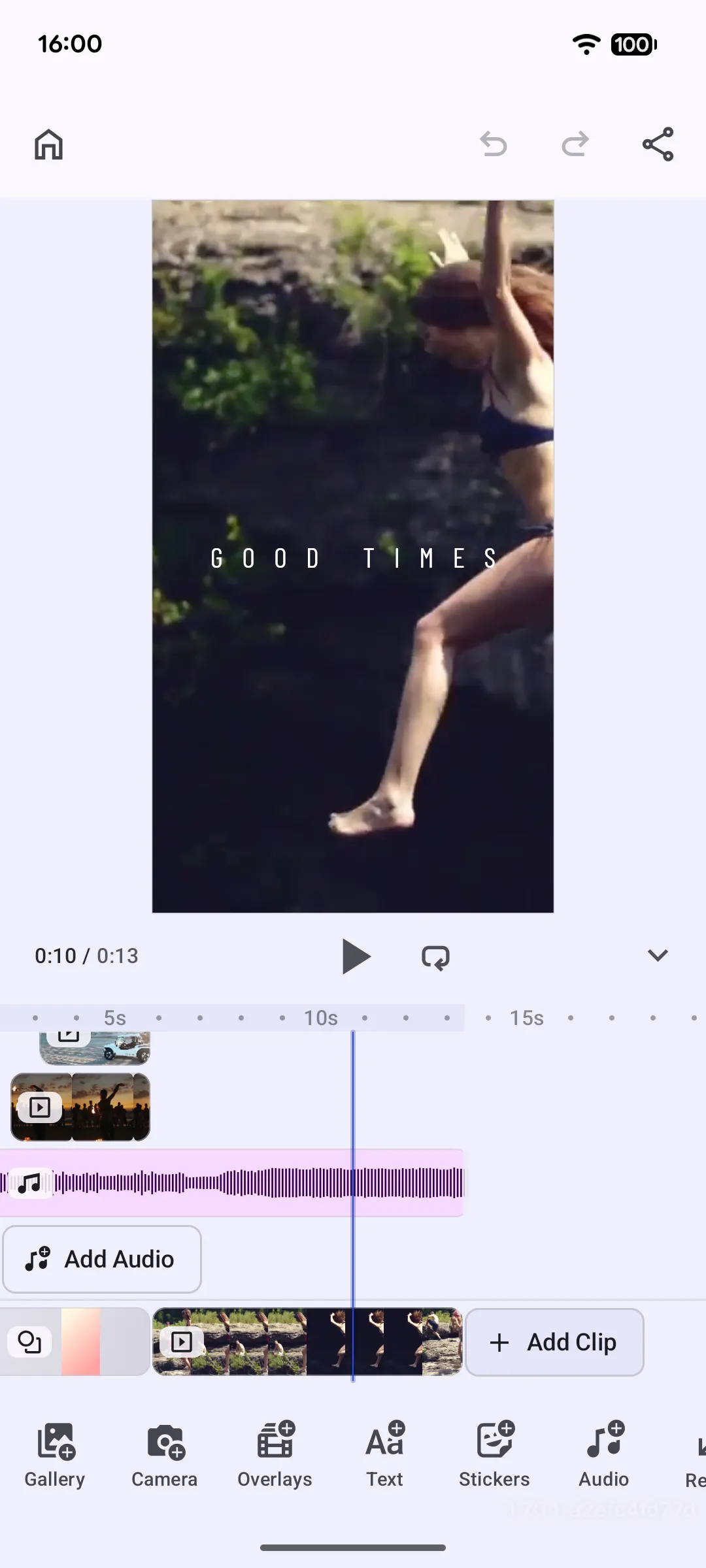
Pre-Requisites#
This guide assumes basic familiarity with Android and Kotlin. You will need:
- Latest Android Studio
- Kotlin: 1.9.10 or later
- Gradle: 8.4 or later
- Android: 7.0+ (API level 24+)
Get Started#
Start with a complete, runnable Android starter kit project.
Step 1: Clone the Repository#
git clone -b v1.84.0 https://github.com/imgly/starterkit-video-editor-android.gitcd starterkit-video-editor-androidStep 2: Open and Run#
Create and launch a new android emulator or use an existing one or connect a physical device with USB Debugging on.
Open the project in Android Studio, sync gradle via File -> Sync Project With Gradle Files and run the app module from UI, or use:
./gradlew app:installDebugThe sample app launches MainActivity that has “Launch Editor” button. Clicking it launches EditorActivity:
package ly.img.editor.configuration.video
import android.os.Bundleimport androidx.activity.ComponentActivityimport androidx.activity.compose.setContentimport androidx.activity.enableEdgeToEdgeimport ly.img.editor.Editorimport ly.img.editor.core.configuration.EditorConfigurationimport ly.img.editor.core.configuration.remember
/** * Encapsulated editor to be used in legacy activity navigation. * Delete this file if you are using jetpack compose navigation. */class EditorActivity : ComponentActivity() { override fun onCreate(savedInstanceState: Bundle?) { super.onCreate(savedInstanceState) // This is required to remove the default action bar on top. setTheme(android.R.style.Theme_Material_Light_NoActionBar) // This is required, so that the editor is displayed full screen on relatively older devices. enableEdgeToEdge() setContent { Editor( license = null, // pass null or empty for evaluation mode with watermark configuration = { EditorConfiguration.remember(::VideoConfigurationBuilder) }, onClose = { // Finish the activity, potentially handle errors. finish() }, ) } }}Get Started#
Integrate only the starter-kit library module into your existing Android app.
Step 1: Run the Extraction Script From Your App Root#
Run this from your application root directory:
repo="starterkit-video-editor-android"version="1.84.0"curl -0 "https://codeload.github.com/imgly/${repo}/tar.gz/refs/heads/v${version}" | tar -xz --strip-components=1 "${repo}-${version}/starter-kit"This extracts the starter-kit/ library module into your android project.
Step 2: Include the Module#
Declare the newly added android library module in your project:
include(":starter-kit")Step 3: Add Dependency in Your App Module#
Include the starter kit module dependency in your app module:
dependencies { implementation(project(":starter-kit"))}Step 4: Include missing plugins#
Include plugins that may be missing in your project’s root build.gradle.kts file:
plugins { // Existing plugins here id("org.jetbrains.kotlin.plugin.compose") version "2.1.10" apply false}Step 5: Add the IMG.LY Maven Repository#
Add IMG.LY maven repository path in your project:
dependencyResolutionManagement { repositoriesMode.set(RepositoriesMode.FAIL_ON_PROJECT_REPOS) repositories { google() mavenCentral() maven { name = "IMG.LY Artifactory" url = uri("https://maven.img.ly/maven") mavenContent { includeGroup("ly.img") } } }}If the project is open in Android Studio, sync gradle via File -> Sync Project With Gradle Files in order to make all dependencies available.
Step 6: Launch the Editor From Your UI#
If you use jetpack compose navigation in your app, simply add a new navigation destination and invoke the following composable:
import androidx.compose.runtime.Composableimport ly.img.editor.Editorimport ly.img.editor.configuration.video.VideoConfigurationBuilderimport ly.img.editor.core.configuration.EditorConfigurationimport ly.img.editor.core.configuration.remember
// onClose should pop screen from the backstack of jetpack compose navigation@Composablefun EditorScreen(onClose: (Throwable?) -> Unit) { Editor( license = null, // pass null or empty for evaluation mode with watermark configuration = { EditorConfiguration.remember(::VideoConfigurationBuilder) }, onClose = onClose, )}If you do not use jetpack compose navigation and use legacy android navigation, the starter kit has a special EditorActivity class with full encapsulated logic:
package ly.img.editor.configuration.video
import android.os.Bundleimport androidx.activity.ComponentActivityimport androidx.activity.compose.setContentimport androidx.activity.enableEdgeToEdgeimport ly.img.editor.Editorimport ly.img.editor.core.configuration.EditorConfigurationimport ly.img.editor.core.configuration.remember
/** * Encapsulated editor to be used in legacy activity navigation. * Delete this file if you are using jetpack compose navigation. */class EditorActivity : ComponentActivity() { override fun onCreate(savedInstanceState: Bundle?) { super.onCreate(savedInstanceState) // This is required to remove the default action bar on top. setTheme(android.R.style.Theme_Material_Light_NoActionBar) // This is required, so that the editor is displayed full screen on relatively older devices. enableEdgeToEdge() setContent { Editor( license = null, // pass null or empty for evaluation mode with watermark configuration = { EditorConfiguration.remember(::VideoConfigurationBuilder) }, onClose = { // Finish the activity, potentially handle errors. finish() }, ) } }}Simply launch the activity from the activity of your app. Optionally, you can pass parameters to the editor:
import android.content.Intentimport ly.img.editor.configuration.video.EditorActivity
fun launchEditor() {    // "this" is the current activity    val intent = Intent(this, EditorActivity::class.java).also {        // Optionally pass parameters for EditorActivity to consume, i.e. your image/video/scene uri        it.putExtra("my_param", "my_param_value")    }    startActivity(intent)}
In case you want to consume the parameter in EditorActivity:
class EditorActivity : ComponentActivity() { override fun onCreate(savedInstanceState: Bundle?) { super.onCreate(savedInstanceState) val param = intent.getStringExtra("my_param") ?: "default" ... }}The full implementation of the starter kit lives in the starter-kit/ folder:
starter-kit/├── build.gradle.kts # Starter kit library module config, includes ly.img:editor dependency└── src/main/ ├── AndroidManifest.xml # Starter kit manifest file, may contain permissions ├── assets/ │ └── scene/ │ └── video.scene # Default video scene that should be loaded └── kotlin/ly/img/editor/configuration/video/ ├── EditorActivity.kt # Encapsulated editor for legacy navigation. Delete if you use jetpack compose navigation ├── VideoConfigurationBuilder.kt # Editor configuration logic encapsulated in 1 place ├── callback/ │ ├── OnCreate.kt # Editor initialization logic │ ├── OnExport.kt # Export flow and handling │ └── OnLoaded.kt # Post onCreate logic ├── component/ │ ├── BottomPanel.kt # Bottom Panel component configuration │ ├── CanvasMenu.kt # Canvas Menu component configuration │ ├── Dock.kt # Dock component configuration │ ├── InspectorBar.kt # Inspector Bar component configuration │ ├── NavigationBar.kt # Navigation Bar component configuration │ └── Overlay.kt # Overlay component configuration ├── iconPack/ │ ├── CheckCircleOutline.kt # Check-circle with outline icon │ ├── ErrorOutline.kt # Error with outline icon │ └── IconPack.kt # Icon pack of the starter kit to access all the icons └── model/ └── ExportStatus.kt # Export status model used by the overlayStarter Kit as a Dynamic Feature#
Since starter-kit folder is an android library module, it is possible to turn it into a dynamic feature. This can be helpful if you want to lazy load the editor in order to reduce the download size of your app.
See Bundle Size for more details.
Configuring the Starter Kit#
The starter kit that we provide contains a very generic structure and behavior, however we understand that every customer wants to configure it according to their needs. The good thing is that the starter kit implementation is part of your codebase and you can configure, add/remove/modify functionality as you wish. In addition, you may want to configure the editor based on your business logic, i.e. restore the scene file from previous edits, display different dock items for different users etc.
This example demonstrates on how to pass, store and use external parameters in the starter kit. First, declare a new property to the builder class:
...import android.net.Uri
@Stableclass VideoConfigurationBuilder : BasicConfigurationBuilder() {    /**     * The scene uri that should be loaded in onCreate if not null.     * Note that editorContext.mutableStateOf is used to store mutable objects in the editor scope that survive configuration changes.     */    var sceneUri: Uri? by editorContext.mutableStateOf(        key = "your.package.name.state.sceneUri",        initial = null,    )    ...}
Next, read your external parameter from activity intent extras (or jetpack compose screen arguments) and assign to the property of the builder:
import androidx.core.net.toUri
class EditorActivity : ComponentActivity() {    override fun onCreate(savedInstanceState: Bundle?) {        super.onCreate(savedInstanceState)        ...        val sceneUri = intent.getStringExtra("sceneUri")?.toUri()        Editor(            license = null, // pass null or empty for evaluation mode with watermark            configuration = {                EditorConfiguration.remember(::VideoConfigurationBuilder) {                    sceneUri = sceneUri                }            },            onClose = {                // Finish the activity, ignore any errors.                finish()            },        )    }}
Finally, make use of the property. The scene loading logic is located at OnCreate.kt file, as part of onCreate implementation (see next section for more details). We modify this function to load the sceneUri instead if the value is not null:
suspend fun VideoConfigurationBuilder.onCreateScene() { sceneUri?.let { safeSceneUri -> // Load the sceneUri if it's not null getOrLoadScene(sceneUri = safeSceneUri) } ?: run { // Otherwise stick to the default behavior of the starter kit getOrLoadScene(sceneUri = "file:///android_asset/scene/video.scene".toUri()) }}Set Up a Scene#
The scene setup logic is located at OnCreate.kt file, as part of onCreate implementation:
suspend fun VideoConfigurationBuilder.onCreateScene() { getOrLoadScene(sceneUri = "file:///android_asset/scene/video.scene".toUri())}getOrLoadScene is a helper that loads an existing scene if available, or initializes one from file:///android_asset/scene/video.scene when no scene is active.
CE.SDK offers multiple ways to load scene into the editor. Choose the method that matches your use case:
// Load from an image uri - creates a new scene with the imageeditorContext.engine.scene.createFromImage(imageUri = "https://example.com/photo.jpg".toUri())
// Load from a video uri - creates a new scene with the videoeditorContext.engine.scene.createFromVideo(videoUri = "https://example.com/video.mp4".toUri())
// Load from a template archive - restores a previously saved projecteditorContext.engine.scene.load(sceneUri = "https://example.com/template.zip".toUri())
// Create a blank canvas - starts with an empty video sceneeditorContext.engine.scene.createForVideo()
// Load from a scene file - restores a scene from .scene fileeditorContext.engine.scene.load(sceneUri = "https://example.com/saved.scene".toUri())Video Duration Constraints#
Video duration constraints can be configured in the starter kit examples to enforce minimum and maximum clip durations.
Send EditorEvent.ApplyVideoDurationConstraints event before or after the existing logic of onLoaded:
import ly.img.editor.configuration.video.VideoConfigurationBuilderimport ly.img.editor.core.event.EditorEventimport kotlin.time.Duration.Companion.seconds
fun VideoConfigurationBuilder.onLoaded() {    // Enforce all videos to be between 10 and 20 seconds    val event = EditorEvent.ApplyVideoDurationConstraints(        minDuration = 10.seconds,        maxDuration = 20.seconds,    )    editorContext.eventHandler.send(event)    // Existing body here}
Enable IMG.LY Camera#
Instead of the system camera it is possible to use the camera feature provided by IMG.LY:
Dock.ListBuilder.remember { add { Dock.Button.rememberSystemGallery { vectorIcon = { IconPack.AddGalleryBackground } } } add { // As an alternative to the system camera we also provide our own camera tech accessible via [Dock.Button.rememberImglyCamera]. // In order to make it work the following dependency is required: // implementation "ly.img:camera:<same version as editor>". Dock.Button.rememberSystemCamera(captureVideo = { true }) { vectorIcon = { IconPack.AddCameraBackground } } } add { Dock.Button.rememberOverlaysLibrary() } add { Dock.Button.rememberTextLibrary() } add { Dock.Button.rememberStickersAndShapesLibrary() } add { Dock.Button.rememberCaptions() } add { Dock.Button.rememberAudiosLibrary() } add { Dock.Button.rememberVoiceoverRecord() } add { Dock.Button.rememberResizeAll() }}Dock.Button.rememberSystemCamera should be replaced by Dock.Button.rememberImglyCamera.
In addition, IMG.LY camera dependency should be added:
implementation "ly.img:camera:1.84.0"Customize Assets#
The asset source setup is located in OnCreate.kt as part of onCreate implementation. Enable or disable individual sources:
suspend fun VideoConfigurationBuilder.onLoadAssetSources() {    // Load asset sources in parallel from content.json files    coroutineScope {        val baseUri = editorContext.baseUri        val sourceIds = listOf(            "ly.img.sticker",            "ly.img.vector.shape",            "ly.img.filter",            "ly.img.color.palette",            "ly.img.effect",            "ly.img.blur",            "ly.img.typeface",            "ly.img.crop.presets",            "ly.img.page.presets",            "ly.img.text",            "ly.img.text.styles",            "ly.img.text.curves",            "ly.img.text.components",            "ly.img.caption.presets",            "ly.img.image",            "ly.img.audio",            "ly.img.video",        )        sourceIds.forEach { id ->            launch {                editorContext.engine.asset.addLocalSourceFromJSON(                    contentUri = "$baseUri/$id/content.json".toUri(),                )            }        }    }
    // Load local asset sources    editorContext.engine.asset.addLocalSource(        sourceId = "ly.img.image.upload",        supportedMimeTypes = listOf(            "image/jpeg",            "image/png",            "image/heic",            "image/heif",            "image/svg+xml",            "image/gif",            "image/apng",            "image/bmp",        ),    )
    editorContext.engine.asset.addLocalSource(        sourceId = "ly.img.audio.upload",        supportedMimeTypes = listOf(            "audio/x-m4a",            "audio/mp3",            "audio/mpeg",        ),    )    editorContext.engine.asset.addLocalSource(        sourceId = "ly.img.video.upload",        supportedMimeTypes = listOf(            "video/mp4",        ),    )
// Register gallery asset sources listOf( AssetSourceType.GalleryAllVisuals, AssetSourceType.GalleryImage, AssetSourceType.GalleryVideo, ).forEach { type -> editorContext.engine.asset.addSource( source = SystemGalleryAssetSource( context = editorContext.engine.applicationContext, type = type, ), ) } SystemGalleryPermission.setMode(systemGalleryConfiguration)}For production deployments, self-hosting assets is required—the IMG.LY CDN is intended for development only. See Serve Assets for downloading assets, configuring baseUri and excluding unused sources to optimize load times.
Customize Export Functionality#
Export handling logic is located in OnExport.kt as part of onExport callback.
onExportByteBuffer controls what should be exported from the scene. It can be a scene or set of design blocks.
For video editor, it makes sense to export the scene to an MP4 content:
suspend fun VideoConfigurationBuilder.onExportByteBuffer(): ByteBuffer { val targetDesignBlock = requireNotNull(editorContext.engine.scene.getCurrentPage()) return editorContext.engine.block.exportVideo( block = targetDesignBlock, timeOffset = 0.0, duration = editorContext.engine.block.getDuration(targetDesignBlock), mimeType = MimeType.MP4, progressCallback = { progress -> val lastExportStatus = exportStatus val newProgress = progress.encodedFrames.toFloat() / progress.totalFrames // Update export UI whenever the progress changes if (lastExportStatus !is ExportStatus.Loading || newProgress >= lastExportStatus.progress + 0.01F) { exportStatus = ExportStatus.Loading(progress = newProgress) } }, // videoBitrate: VideoBitrate.Auto derives a bounded bitrate from the resolution/framerate. options = ExportVideoOptions(videoBitrate = VideoBitrate.Auto), )}onPostExport controls what should happen to the exported ByteBuffer content. You can upload the result to your server, save it to the device gallery
or simply close the editor via editorContext.eventHandler.send(EditorEvent.CloseEditor()). Check writeToFile, shareFile and shareUri helper functions for potential implementations:
suspend fun VideoConfigurationBuilder.onPostExport(byteBuffer: ByteBuffer) { val file = writeToFile(byteBuffer = byteBuffer, mimeType = MimeType.MP4) exportStatus = ExportStatus.Success(file = file, mimeType = MimeType.MP4)}Customize (Optional)#
Base Uri#
The starter kit does not make any baseUri configuration, which means it points to https://cdn.img.ly/packages/imgly/cesdk-engine/1.84.0/assets. If you want to store them in your own CDN or locally, assets can be accessed via zip file. For example, if you want to store them locally, unzip the content and place at starter-kit/src/main/assets:
import androidx.compose.runtime.Composableimport androidx.core.net.toUriimport ly.img.editor.Editorimport ly.img.editor.configuration.video.VideoConfigurationBuilderimport ly.img.editor.core.configuration.EditorConfigurationimport ly.img.editor.core.configuration.remember
@Composablefun EditorBaseUriScreen(onClose: (error: Throwable?) -> Unit) {    Editor(        license = null, // pass null or empty for evaluation mode with watermark        baseUri = "file:///android_asset".toUri(), // this points to android assets        configuration = {            EditorConfiguration.remember(::VideoConfigurationBuilder)        },        onClose = onClose,    )}
UI Mode#
CE.SDK supports light and dark ui modes out of the box, plus automatic system preference detection. Switch between themes programmatically:
import androidx.compose.runtime.Composableimport ly.img.editor.Editorimport ly.img.editor.EditorUiModeimport ly.img.editor.configuration.video.VideoConfigurationBuilderimport ly.img.editor.core.configuration.EditorConfigurationimport ly.img.editor.core.configuration.remember
@Composablefun EditorUiModeScreen(onClose: (error: Throwable?) -> Unit) {    Editor(        license = null, // pass null or empty for evaluation mode with watermark        uiMode = EditorUiMode.SYSTEM, // EditorUiMode.SYSTEM, EditorUiMode.LIGHT, EditorUiMode.DARK        configuration = {            EditorConfiguration.remember(::VideoConfigurationBuilder)        },        onClose = onClose,    )}
See Theming for more details.
Native Android Canvas#
CE.SDK supports rendering on two of the most popular native android views that allow GPU rendering: TextureView and SurfaceView:
import androidx.compose.runtime.Composableimport ly.img.editor.Editorimport ly.img.editor.configuration.video.VideoConfigurationBuilderimport ly.img.editor.core.configuration.EditorConfigurationimport ly.img.editor.core.configuration.rememberimport ly.img.editor.core.engine.EngineRenderTarget
@Composablefun EditorRenderTargetScreen(onClose: (error: Throwable?) -> Unit) { Editor( license = null, // pass null or empty for evaluation mode with watermark engineRenderTarget = EngineRenderTarget.SURFACE_VIEW, // EngineRenderTarget.SURFACE_VIEW, EngineRenderTarget.TEXTURE_VIEW configuration = { EditorConfiguration.remember(::VideoConfigurationBuilder) }, onClose = onClose, )}Localization#
See Localization for supported languages, adding support to new languages and replacing existing keys.
UI Layout#
All the configurable components are located at starter-kit/src/main/kotlin/ly/img/editor/configuration/video/component:
BottomPanel.kt-Timelinecomponent is added here.CanvasMenu.kt- see Canvas Menu for full configuration options.Dock.kt- see Dock for full configuration options.InspectorBar.kt- see Inspector Bar for full configuration options.NavigationBar.kt- see Navigation Bar for full configuration options.Overlay.kt- see Overlay for full configuration options. Video export content is rendered here viaVideoOverlaycomposable function.
Troubleshooting#
Editor doesn’t load#
- Check onCreate: Ensure
onCreatecallback loads a scene and no coroutine is stuck infinitly - Verify the baseURL: Assets must be accessible from the CDN or your self-hosted location
- Check logcat errors: Look for error in Android logcat
Assets don’t appear#
- Check network requests: Make sure the device/emulator is connected to the internet
- Self-host assets for production: See Serve Assets to host assets on your infrastructure
- Check logcat errors: Look for error in Android logcat
Export fails or produces blank images#
- Wait for content to load: Ensure images are fully loaded before exporting
- Check logcat errors: Look for error in Android logcat
Watermark appears in production#
- Add your license key: Set the
licenseproperty in your configuration - Get a license: Contact us at img.ly/forms/contact-sales/
Next Steps#
- Configuration – Complete list of initialization options
- Serve Assets – Self-host engine assets for production
- Theming – Customize colors and appearance
- Localization – Add translations and language support