Check every clip, image and text of a video against a content moderation service and see where in each clip content may violate your guidelines. The editor lists the flagged times per clip, jumps to them, and asks before it exports a video that has findings, changed since the last check, or has a block that could not be checked.
Pre-Requisites#
This guide assumes basic familiarity with iOS and Swift. You will need:
- Xcode 26.6.0 or later
- Swift 6.3.3 or later
- iOS 16.0+
- An IMG.LY API key (
sk_…) from the IMG.LY Dashboard. The starter kit moderates through the IMG.LY AI Gateway, so you need no separate moderation provider account. The Configure the Moderation Service section below shows where the key goes.
Get Started#
Start with a complete, runnable iOS starter kit project.
Step 1: Clone the Repository#
git clone -b v1.87.0 https://github.com/imgly/starterkit-video-moderation-ios.gitcd starterkit-video-moderation-iosStep 2: Open and Run#
Open the project in Xcode and run on a simulator or connected device:
- Open
StarterKit-VideoModerationEditor.xcodeprojin Xcode - Select your target device or simulator
- Press ⌘R to build and run
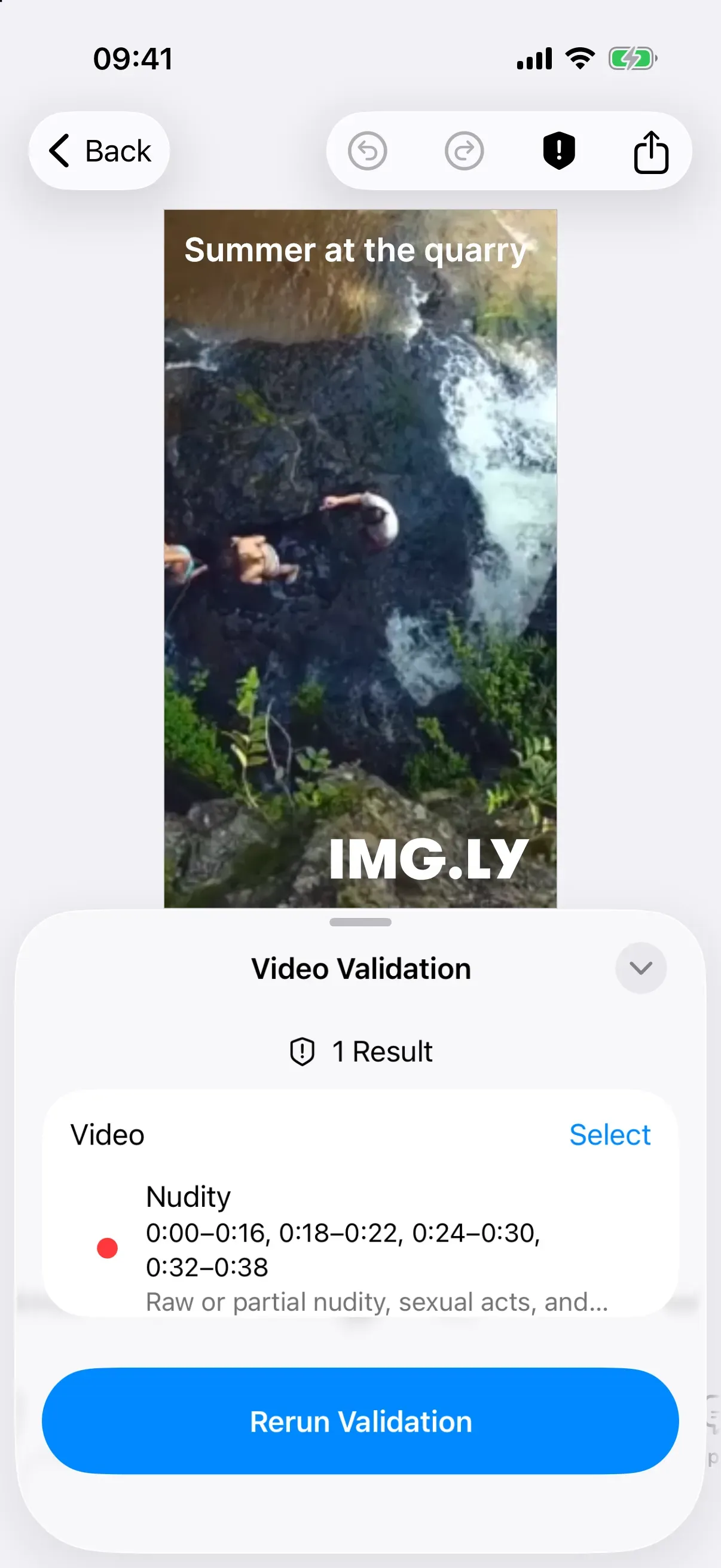
The editor opens with two remote clips on the timeline and a title over the first one. The gateway flags the first clip, so a moderation run returns results right away:
var body: some View { Editor(settings) .imgly.configuration { VideoModerationEditorConfiguration(moderation: moderation) }}Get Started#
Integrate the starter kit files into your existing iOS app.
Step 1: Add the IMG.LY Swift Package#
Add the CE.SDK dependency via Swift Package Manager:
- In Xcode, go to File → Add Package Dependencies…
- Enter the repository URL:
https://github.com/imgly/IMGLYUI-swift
- Select version
1.87.0and add theIMGLYEditorproduct to your target
Step 2: Copy the Starter Kit Files#
Download and extract the starter kit files into your project:
repo="starterkit-video-moderation-ios"version="1.87.0"curl -L "https://codeload.github.com/imgly/${repo}/tar.gz/refs/heads/v${version}" | tar -xz --strip-components=1 "${repo}-v${version}/StarterKit"Step 3: Add Files to Your Xcode Project#
Drag the StarterKit/ folder into your Xcode project. Make sure “Copy items if needed” is checked and the files are added to your app target. Keep the bundled video-moderation.scene, because defaultCreateScene force-unwraps its URL. To load your own scene instead, update defaultCreateScene.
Step 4: Launch the Editor From Your UI#
Present the editor from any SwiftUI view:
Editor(settings) .imgly.configuration { VideoModerationEditorConfiguration(moderation: moderation) }The full implementation of the starter kit lives in the StarterKit/ folder:
StarterKit/├── VideoModerationEditorStarterKit.swift # SwiftUI view that launches the editor├── VideoModerationEditorConfiguration.swift # Editor configuration (callbacks + UI components)├── callbacks/│ ├── OnCreate+VideoModeration.swift # Editor initialization and scene loading│ ├── OnExport+VideoModeration.swift # MP4 export, gated on the moderation result│ └── OnLoaded+VideoModeration.swift # Resets the verdict and tracks edits├── components/│ ├── BottomPanel+VideoModeration.swift # Timeline configuration│ ├── CanvasMenu+VideoModeration.swift # Canvas menu configuration│ ├── Dock+VideoModeration.swift # Dock configuration│ ├── InspectorBar+VideoModeration.swift # Inspector bar configuration│ └── NavigationBar+VideoModeration.swift # Navigation bar, incl. the validate button├── moderation/│ ├── VideoModerationTypes.swift # Result types and threshold mapping│ ├── VideoModerationService.swift # Service protocol + default implementation│ ├── VideoModerationScanner.swift # Scene scan, trim filter and selection│ ├── VideoModerationStore.swift # Shared validation state│ └── ui/ # Results panel, result row, status icon, export alert└── video-moderation.scene # Demo scene: two remote clips and a titleHow Moderation Works#
The starter kit adds validation at two points in the editing flow.
A shield button in the navigation bar opens the Video Moderation sheet. Opening the sheet does not start a check. The user runs it with the button at the bottom, so no request is made until they ask for one:
NavigationBar.Button(id: "my.app.navigationBar.button.validateContent") { context in guard let engine = context.engine else { return } context.eventHandler.send(.openSheet(style: .default(), content: { VideoModerationResultsPanel( store: moderation, engine: engine, eventHandler: context.eventHandler, ) }))} label: { _ in VideoModerationStatusLabel(store: moderation)} isEnabled: { context in context.engine != nil}The export handler exports without asking only when the last run checked every block of the unchanged video and flagged nothing, as Certain or Likely. In every other case an alert says why and offers Moderate now, Export anyway or Cancel: the last run failed, the video was never moderated, a clip, image or text changed since the last run, a block was flagged, or a block could not be checked. Moderate now opens the results panel and starts a run. Remove the Export anyway button in VideoModerationExportAlert.swift if an unmoderated or flagged video must never be exported:
if let reason = VideoModerationExportAlert.Reason.current(store: moderation, engine: engine) { eventHandler.send(.openSheet(style: .default(), content: { VideoModerationExportAlert( store: moderation, reason: reason, engine: engine, eventHandler: eventHandler, // `existing` is non-escaping, so the override path exports directly // instead of chaining. With no other export handler registered in // this kit the two are equivalent. onExportAnyway: { Task { do { try await exportVideo(engine: engine, eventHandler: eventHandler) } catch { eventHandler.send(.showErrorAlert(error)) } } }, ) })) return}A run finds every video clip, every graphic block with an image fill, and every text block and caption that is not blank. A clip whose file cannot load is listed as unchecked, and the other blocks are still checked:
- Images and text go first, up to four requests at a time. An image that lives on the device is uploaded first. Text needs no upload, because the string travels in the request body.
- Each video source file goes next, once and one at a time. The gateway answers a video request that overlaps another request with “busy”, so the scanner never sends two at once. A clip from the photo roll or the camera is uploaded first.
- For a video, the model scores a frame every two seconds of the whole source file.
- Each clip keeps only the frames that play. The scanner reads the clip’s trim and playback speed, so content the user trimmed away does not flag the clip. A split clip, or the same file on two tracks, is sent once.
The panel groups findings under the block they came from. The block’s name heads the group, with its flagged categories beneath it and one Select action. For a clip, each category shows the flagged times in clip time, for example 0:04–0:10, and Select moves the playhead to the first flagged moment. An image or a text has no time of its own, so Select selects it and moves the playhead to where it starts. Text blocks are named by a short excerpt of their content. Groups are sorted by severity, most severe first.
The navigation bar icon shows a checkmark shield only after a completed run that found nothing and left nothing unchecked. A video that was never validated, one that changed since its last run, one with findings, and one where a block could not be checked all show the warning shield. A run in flight shows a spinner.
Both failed results (red, Certain) and warning results (orange, Likely) make the export ask first. The result count in the panel and in the alert counts blocks with findings, not categories. A block that could not be checked makes the export ask too: it is unknown, not clean.
Results are cached per video source file, image URL or text for the lifetime of the service. A trim, a split or a move along the timeline only changes which frames count, so validating again after such an edit sends no new video request and costs no credits. A trim or a split still marks the video as needing another run, and so does any change to the clips, images or text. A move along the timeline changes no verdict, so it does not.
Content Categories#
The default service scores video frames and images against one category set and text against another, and maps confidence scores to a severity with the same thresholds for both. It reports only the categories the model returned a score for. A category the provider omits is unknown and left out, so a missing row is not an all-clear.
Video Frames and Images#
| Category | Description | Threshold |
|---|---|---|
| Weapons | Handguns, rifles, machine guns, threatening knives | >80% = failed, >40% = warning |
| Alcohol | Wine, beer, cocktails, champagne | >80% = failed, >40% = warning |
| Drugs | Cannabis, syringes, glass pipes, bongs, pills | >80% = failed, >40% = warning |
| Nudity | Raw or partial nudity, sexual acts and suggestive content | >80% = failed, >40% = warning |
| Offensive symbols | Nazi symbols, swastikas, confederate flags, offensive gestures | >80% = failed, >40% = warning |
| Gore | Blood, wounds, serious injuries, corpses, skulls | >80% = failed, >40% = warning |
Drugs spans two provider models: recreational_drug (cannabis and street drugs) and medical (pills, blisters, syringes). The category reports whichever scores higher.
Text#
| Category | Description | Threshold |
|---|---|---|
| Toxic Language | Language likely to make someone leave the conversation | >80% = failed, >40% = warning |
| Insulting Language | Insults, name-calling and demeaning remarks | >80% = failed, >40% = warning |
| Discriminatory Language | Language that demeans a group or protected characteristic | >80% = failed, >40% = warning |
| Violent Language | Threats of violence and calls to harm someone | >80% = failed, >40% = warning |
| Sexual Language | Sexually explicit or suggestive wording | >80% = failed, >40% = warning |
| Self-Harm | References to suicide, self-injury or eating disorders | >80% = failed, >40% = warning |
Thresholds live in VideoModerationThresholds. The kit ships strict, moderate (the default) and relaxed presets. Pass one to GatewayVideoModerationService(apiKey:thresholds:), or define your own with VideoModerationThresholds(failed:warning:).
Cost#
The gateway charges credits for each sampled video frame, so a longer clip costs more than a short one. An image or a text costs one request each. Because the service caches each source file, trimming, splitting or moving a clip and validating again costs nothing.
Configure the Moderation Service#
The default GatewayVideoModerationService runs the imgly/detection model through the IMG.LY AI Gateway. The gateway handles provider routing, credentials and billing, so the only thing you supply is your IMG.LY API key in Secrets.swift:
let secrets = Secrets( // ... gatewayApiKey: "sk_live_your_key_here",)The key must have access to imgly/detection and a credit balance. An API key shipped inside an app binary can be extracted, so keep it out of source control. For production, consider calling the gateway from your own backend instead.
Connect Your Own Service#
VideoModerationService has one required method and one that ships with a default, so swapping in your own backend usually means implementing only check(_:). It takes a VideoModerationContent: one video, one image or one string. For a video, return the sampled frames of the whole source file, with each frame’s position in seconds. For an image or a text, return a single frame at position 0:
struct MyVideoModerationService: VideoModerationService { func check(_ content: VideoModerationContent) async throws -> [VideoModerationFrame] { switch content { case let .video(url): try await checkVideo(url) // Your backend, one frame per sampled position. case let .image(url): [VideoModerationFrame(position: 0, checks: try await checkImage(url))] case let .text(text): [VideoModerationFrame(position: 0, checks: try await checkText(text))] } }}The scanner keeps only the frames inside the part of a clip that plays, so return frames for the whole file, not for one trimmed range. canCheck(_:) comes with a default implementation that accepts http(s) video and image URLs and non-empty text. Override it to decline whatever your backend cannot handle. A declined block is reported as unchecked, so the export asks first.
Install it in VideoModerationEditorStarterKit.swift, and apply rate limiting and authentication in your backend:
@StateObject private var moderation = VideoModerationStore( service: MyVideoModerationService(),)Set Up a Scene#
The scene setup logic is located in OnCreate+VideoModeration.swift as part of the defaultCreateScene callback. It loads the bundled demo scene: two remote clips, one that the gateway flags and one that it does not, and a title over the first clip:
#if SWIFT_PACKAGE let bundle = Bundle.module#else let bundle = Bundle(for: VideoModerationEditorConfiguration.self)#endiflet sceneURL = bundle.url(forResource: "video-moderation", withExtension: "scene")!try await engine.scene.load(from: sceneURL)Replace video-moderation.scene with your own scene, or load another one in defaultCreateScene.
Resetting the verdict and tracking edits happen in OnLoaded+VideoModeration.swift, because onLoaded runs once the engine and the scene exist. The subscription is registered through context.task, which the editor cancels when it closes.
Do not set onLoaded on the kit’s own configuration to add your own setup. configure(_:) resolves builder.onLoaded ?? onLoaded, so a builder handler replaces the kit’s handler, existing() chains to nothing, and the status icon stops noticing edits. Add a second configuration after the kit’s instead. Configurations apply in order, and each handler’s existing() runs the one registered before it:
.imgly.configuration { VideoModerationEditorConfiguration(moderation: moderation) EditorConfiguration { builder in builder.onLoaded { context, existing in try await existing() // Keeps the kit's reset and change tracking. // Your own setup. } }}Customize Assets#
The asset source setup is located in OnCreate+VideoModeration.swift as part of the defaultLoadAssetSources callback. Enable or disable individual sources:
let basePath = try engine.editor.getSettingString("basePath")guard let baseURL = URL(string: basePath) else { return }let sourceIDs = [  "ly.img.sticker", "ly.img.vector.shape", "ly.img.filter", "ly.img.color.palette",  "ly.img.effect", "ly.img.blur", "ly.img.typeface", "ly.img.crop.presets",  "ly.img.page.presets", "ly.img.text", "ly.img.text.styles", "ly.img.text.curves", "ly.img.text.components",  "ly.img.image", "ly.img.video", "ly.img.audio", "ly.img.caption.presets",]try await withThrowingTaskGroup(of: String.self) { group in  for id in sourceIDs {    group.addTask {      try await engine.asset.addLocalAssetSourceFromJSON(        baseURL.appendingPathComponent(id).appendingPathComponent("content.json"),      )    }  }  for try await _ in group {}}
let uploadSources: [(id: String, mimeTypes: [String])] = [  ("ly.img.image.upload", ["image/jpeg", "image/png", "image/svg+xml", "image/gif", "image/apng", "image/bmp"]),  ("ly.img.audio.upload", ["audio/mpeg", "audio/mp4", "audio/wav", "audio/x-wav", "audio/ogg", "audio/aac"]),  ("ly.img.video.upload", ["video/mp4", "video/quicktime"]),]for source in uploadSources {  try engine.asset.addLocalSource(sourceID: source.id, supportedMimeTypes: source.mimeTypes)}
try engine.asset.addSource(PhotoRollAssetSource(engine: engine))For production deployments, self-hosting assets is required. The IMG.LY CDN is intended for development only. See Serve Assets for downloading assets, configuring baseURL and excluding unused sources to optimize load times.
Customize Export Functionality#
Export handling logic is located in OnExport+VideoModeration.swift. Once the export gate lets it through, the default implementation exports the video as MP4, shows the progress, and opens the system share sheet:
guard let page = try engine.scene.getCurrentPage() else {  throw EditorError("No page was found.")}eventHandler.send(.exportProgress(.relative(0)))let mimeType: MIMEType = .mp4// videoBitrate: .auto derives a bounded bitrate from the resolution/framerate.let stream = try await engine.block.exportVideo(  page,  mimeType: mimeType,  options: VideoExportOptions(videoBitrate: .auto),) { _ in }
var lastReportedProgress = 0for try await export in stream {  try Task.checkCancellation()  switch export {  case let .progress(_, encodedFrames, totalFrames):    let progress = Int((Float(encodedFrames) / Float(totalFrames)) * 100)    if progress > lastReportedProgress {      lastReportedProgress = progress      eventHandler.send(.exportProgress(.relative(Float(progress) / 100)))    }  case let .finished(video: videoData):    let url = FileManager.default.temporaryDirectory.appendingPathComponent(      "Export",      conformingTo: mimeType.uniformType,    )    try videoData.write(to: url, options: [.atomic])    eventHandler.send(.exportCompleted { eventHandler.send(.shareFile(url)) })    return  }}try Task.checkCancellation()throw EditorError("Failed to export the content.")
Remove the validation gate if your workflow moderates content at a different point, such as on upload or in a review queue.
Customize (Optional)#
Color Scheme#
CE.SDK supports light and dark modes out of the box, plus automatic system preference detection. Apply SwiftUI’s .preferredColorScheme modifier to the Editor view to switch themes.
See Theming for more details.
Localization#
See Localization for supported languages, adding support for new languages, and replacing existing keys.
UI Layout#
All configurable components are located in the components/ folder:
BottomPanel+VideoModeration.swift: the timelineCanvasMenu+VideoModeration.swift: see Canvas Menu for full configuration optionsDock+VideoModeration.swift: see Dock for full configuration optionsInspectorBar+VideoModeration.swift: see Inspector Bar for full configuration optionsNavigationBar+VideoModeration.swift: see Navigation Bar for full configuration options
The validation sheet itself is plain SwiftUI in moderation/ui/, so you can restyle it or replace it.
Troubleshooting#
Validation returns no results#
- Check for moderatable blocks: Only video clips, graphic blocks with an image fill and non-empty text blocks are moderated
- Check the file URLs: A video or image whose URL no longer resolves is listed as “could not be checked” rather than clean
- Check Xcode console: Look for errors in the Xcode debug console
The moderation request fails#
- Check network connectivity: The device or simulator must reach the gateway
- Verify the API key: A missing or invalid
gatewayApiKeyinSecrets.swiftsurfaces as an authentication error - Check your credit balance: Each video frame, image and text consumes gateway credits. A depleted balance fails the request
- Wait for long clips: The gateway scores the whole source file before it answers, so a long clip can take a minute
Export asks before exporting#
- Moderate first: Export is gated. A video that was never moderated, changed since the last run, has findings, or has a block that could not be checked opens the export alert. Tap Moderate now, or Export anyway to export it as it is
Watermark appears in production#
- Add your license key: set
licenseKeyinSecrets.swift, the same file that holdsgatewayApiKey.VideoModerationEditorStarterKitpasses it toEngineSettings - Get a license: Contact us at img.ly/forms/contact-sales/
Next Steps#
- Moderate Content – Engine APIs for extracting content for moderation
- Configuration – Complete list of initialization options
- Serve Assets – Self-host engine assets for production
- Theming – Customize colors and appearance
- Localization – Add translations and language support