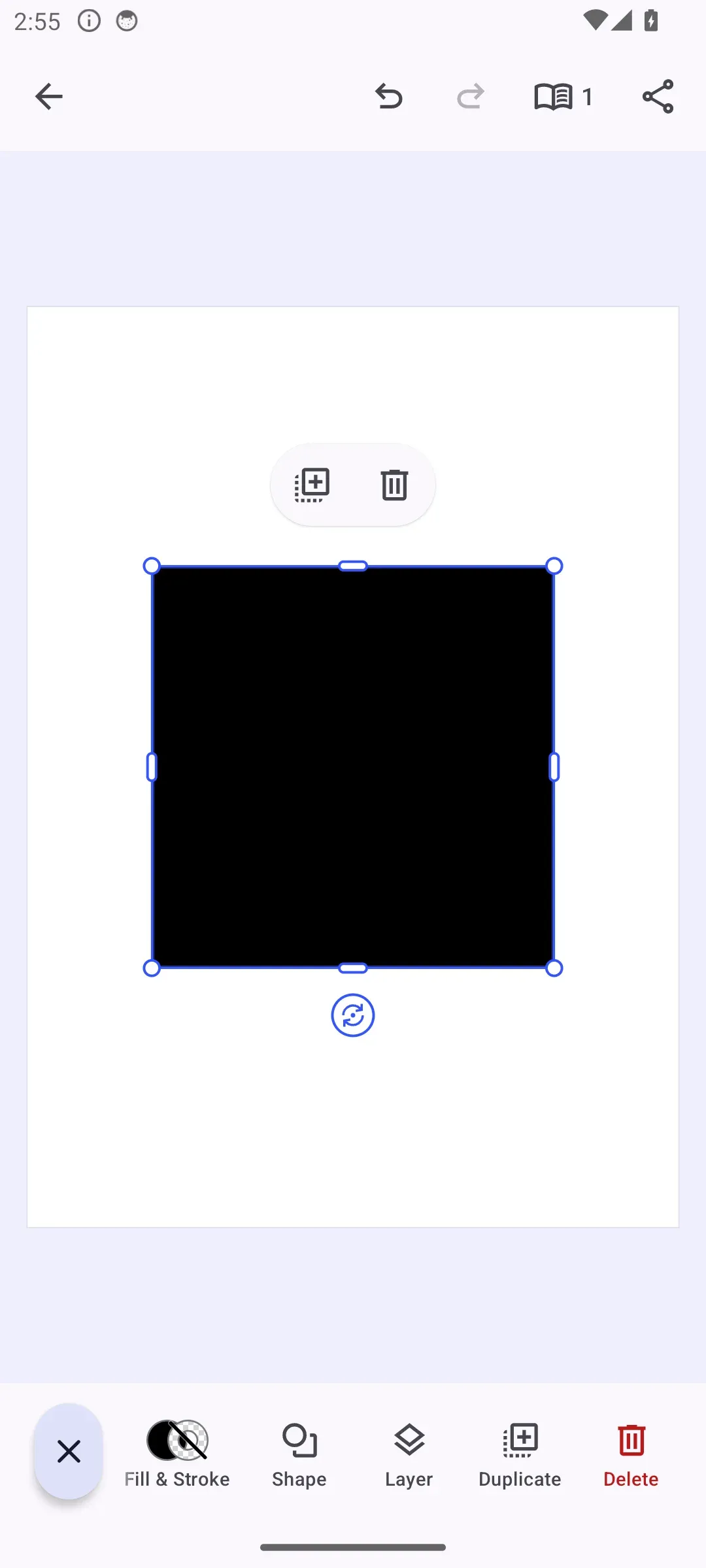
The canvas menu is the floating toolbar that appears next to a selected design block. Configure its item list, adjust existing entries, and add custom actions from your Android editor configuration.
Canvas Menu Architecture#
The canvas menu is an EditorComponent that the editor positions next to the current selection. It appears only when the editor state and selected block make quick actions relevant.
You assemble the menu from these component entries and related types:
CanvasMenu.Button- A button entry. Use predefined factories such asCanvasMenu.Button.rememberDuplicate()or create your own button.CanvasMenu.Divider- A visual separator between groups of related actions.EditorComponent- The base component type for fully custom canvas menu items.
The related CanvasMenu.Scope exposes the editor context, selected element, and helper state such as group membership or layer movement support to canvas menu configuration callbacks.
For a complete product surface, start from the Design Editor Starter Kit. This guide focuses on the canvas menu configuration that you can apply to your own editor setup.
Configuration#
Canvas menu customization lives in EditorConfiguration. The Editor composable owns Engine startup; these snippets use the existing editor context and configure only the canvas menu surface.
EditorConfiguration.remember { canvasMenu = { CanvasMenu.remember { listBuilder = { CanvasMenu.ListBuilder.remember { add { CanvasMenu.Button.rememberDuplicate() } add { CanvasMenu.Button.rememberDelete() } } } } }}CanvasMenu.remember keeps the default visibility and decoration unless you override them, but it does not add items on its own. Assign listBuilder to populate the menu. By default, the menu appears when a design block is selected, touch interaction is idle, no sheet is open, the selection is neither an audio block nor a page, the editor is not in text edit mode, the scene is paused, and the selected block is visible at the current playback time. The default decoration positions the toolbar near the selected block.
The Configuration guide covers editor setup more broadly; this page covers the canvas menu portion of that setup.
Declaring the Item List#
Use CanvasMenu.ListBuilder.remember to declare the complete list of canvas menu items. The order of add calls is the display order, and the list replaces the menu contents for this configuration.
CanvasMenu.ListBuilder.remember { add { CanvasMenu.Button.remember { id = { EditorComponentId("com.example.canvasMenu.button.review") } onClick = { Toast .makeText(editorContext.activity, "Review action", Toast.LENGTH_SHORT) .show() } vectorIcon = null textString = { "Review" } contentDescription = { "Review selected block" } } } add { CanvasMenu.Button.rememberSelectGroup() } if (editorContext.isSelectionInGroup) { add { CanvasMenu.Divider.remember() } } add { CanvasMenu.Button.rememberSendBackward() } add { CanvasMenu.Button.rememberBringForward() } if (editorContext.canSelectionMove) { add { CanvasMenu.Divider.remember() } } add { CanvasMenu.Button.rememberDuplicate() } add { CanvasMenu.Button.rememberDelete() }}- Predefined buttons include common actions such as duplicate, delete, layer reordering, and selecting a parent group.
CanvasMenu.Divider.remember()separates action groups.- Custom buttons can be placed alongside predefined items when the action belongs directly in the contextual toolbar.
Modify Canvas Menu Items#
Use modify when you already have a list builder and only need to add, replace, or remove a few entries. Call it on the builder instance you want to adjust.
existingListBuilder.modify { addFirst { CanvasMenu.Button.remember { id = { EditorComponentId("com.example.canvasMenu.button.first") } vectorIcon = null textString = { "First" } onClick = {} } } addLast { CanvasMenu.Button.remember { id = { EditorComponentId("com.example.canvasMenu.button.last") } vectorIcon = null textString = { "Last" } onClick = {} } } addAfter(id = CanvasMenu.Button.Id.bringForward, failIfNotFound = true) { CanvasMenu.Button.remember { id = { EditorComponentId("com.example.canvasMenu.button.afterBringForward") } vectorIcon = null textString = { "After Forward" } onClick = {} } } addBefore(id = CanvasMenu.Button.Id.sendBackward, failIfNotFound = true) { CanvasMenu.Button.remember { id = { EditorComponentId("com.example.canvasMenu.button.beforeSendBackward") } vectorIcon = null textString = { "Before Backward" } onClick = {} } } replace(id = CanvasMenu.Button.Id.duplicate, failIfNotFound = true) { CanvasMenu.Button.rememberDuplicate { vectorIcon = { IconPack.Music } } } remove(id = CanvasMenu.Button.Id.delete, failIfNotFound = true)}| Operation | Purpose |
|---|---|
addFirst |
Add an item at the beginning. |
addLast |
Add an item at the end. |
addAfter |
Insert an item after a target ID. |
addBefore |
Insert an item before a target ID. |
replace |
Replace the item with the target ID. |
remove |
Remove the item with the target ID. |
Canvas Menu Item Configuration#
Canvas menu entries are editor components. Each entry needs a unique EditorComponentId so the list builder can target it safely.
Predefined Buttons#
CE.SDK ships factory functions for common canvas actions. Use them when the built-in behavior matches the action you need, and see the full list of available factories below.
@Composablefun rememberPredefinedCanvasMenuButton() = CanvasMenu.Button.rememberDuplicate()Customize Predefined Buttons#
Pass a builder block to a predefined factory when you want to override selected properties while keeping the rest of the factory behavior.
@Composablefun rememberCustomizedDeleteButton() = CanvasMenu.Button.rememberDelete { textString = { "Remove" } contentDescription = { "Remove selected block" } enabled = { editorContext.selection.type != DesignBlockType.Text }}The default delete button is icon-only and is visible when the selected block allows lifecycle/destroy. This example keeps the delete action and default visibility gate, then adds a visible label, overrides the accessibility description, and sets a separate enabled predicate that disables the button for text blocks.
Create New Buttons#
Create a new CanvasMenu.Button when the action is specific to your app. Use a stable, unique ID and provide the action, icon, text, and accessibility description.
@Composablefun rememberReviewCanvasMenuButton() = CanvasMenu.Button.remember { id = { EditorComponentId("com.example.canvasMenu.button.review") } onClick = { Toast .makeText(editorContext.activity, "Review action", Toast.LENGTH_SHORT) .show() } vectorIcon = { IconPack.Music } textString = { "Review" } contentDescription = { "Review selected block" }}Use onClick for your app-specific behavior. The button still participates in the canvas menu’s visibility and item decoration like every other menu entry.
Dividers#
Use CanvasMenu.Divider.remember() to separate related actions. You can keep the default divider or customize its modifier, visibility, and decoration.
@Composablefun rememberCanvasMenuDivider() = CanvasMenu.Divider.remember { modifier = { remember(this) { Modifier .padding(horizontal = 8.dp) .size(width = 1.dp, height = 24.dp) } }}Create Custom Items#
Use EditorComponent.remember when a button or divider is not enough. A custom item owns its rendering through decoration, so it is responsible for layout, click handling, and accessibility behavior.
@Composablefun rememberCanvasMenuCustomItem() = EditorComponent.remember { id = { EditorComponentId("com.example.canvasMenu.customItem") } decoration = { Box( modifier = Modifier .fillMaxHeight() .clickable { Toast .makeText(editorContext.activity, "Custom item clicked", Toast.LENGTH_SHORT) .show() }, ) { Text( modifier = Modifier.align(Alignment.Center), text = "Review", ) } }}List of Available Canvas Menu Buttons#
The predefined buttons live in the CanvasMenu.Button namespace. Most predefined buttons are icon-only with accessibility descriptions, while CanvasMenu.Button.rememberSelectGroup() is text-only. Each factory also provides its default visibility and action behavior.
| Button | ID constant | Default behavior |
|---|---|---|
CanvasMenu.Button.rememberBringForward() |
CanvasMenu.Button.Id.bringForward |
Brings the selected block forward when layer movement is possible. Captions always render above the page, so layer movement is never possible for one. |
CanvasMenu.Button.rememberSendBackward() |
CanvasMenu.Button.Id.sendBackward |
Sends the selected block backward when layer movement is possible. Captions always render above the page, so layer movement is never possible for one. |
CanvasMenu.Button.rememberDuplicate() |
CanvasMenu.Button.Id.duplicate |
Duplicates the selected block when its lifecycle/duplicate scope is allowed. Hidden for a caption, whose copy would land outside the caption track. |
CanvasMenu.Button.rememberDelete() |
CanvasMenu.Button.Id.delete |
Deletes the selected block when its lifecycle/destroy scope is allowed. |
CanvasMenu.Button.rememberSelectGroup() |
CanvasMenu.Button.Id.selectGroup |
Selects the group that contains the selected block. |
API Reference#
| API | Category | Purpose |
|---|---|---|
EditorConfiguration.remember(builder=_) |
Config | Create the editor configuration that assigns canvasMenu. |
CanvasMenu.remember(builder=_) |
Config | Create and configure the canvas menu component. |
CanvasMenu.ListBuilder.remember(builder=_) |
Config | Declare a complete canvas menu item list. |
listBuilder.modify(builder=_) |
Config | Adjust an existing list builder instance. |
modify.addFirst(block=_) |
List operation | Add an item at the beginning. |
modify.addLast(block=_) |
List operation | Add an item at the end. |
modify.addAfter(id=_, failIfNotFound=_, block=_) |
List operation | Insert an item after a target ID. |
modify.addBefore(id=_, failIfNotFound=_, block=_) |
List operation | Insert an item before a target ID. |
modify.replace(id=_, failIfNotFound=_, block=_) |
List operation | Replace an item by ID. |
modify.remove(id=_, failIfNotFound=_) |
List operation | Remove an item by ID. |
CanvasMenu.Button.rememberBringForward(builder=_) |
Item | Create the predefined bring-forward button. |
CanvasMenu.Button.rememberSendBackward(builder=_) |
Item | Create the predefined send-backward button. |
CanvasMenu.Button.rememberDuplicate(builder=_) |
Item | Create the predefined duplicate button. |
CanvasMenu.Button.rememberDelete(builder=_) |
Item | Create the predefined delete button. |
CanvasMenu.Button.rememberSelectGroup(builder=_) |
Item | Create the predefined select-group button. |
CanvasMenu.Button.remember(builder=_) |
Item | Create a custom canvas menu button. |
CanvasMenu.Divider.remember(builder=_) |
Layout | Create a divider item. |
EditorComponent.remember(builder=_) |
Item | Create a fully custom menu item. |
engine.block.isAllowedByScope(block=_, key=_) |
Support check | Check whether the selected block allows a scope before enabling a custom action. |
Next Steps#
- Dock - Configure the bottom toolbar that opens asset libraries and sheets.
- Inspector Bar - Configure context-sensitive controls for the selected block.
- Navigation Bar - Configure the top bar with close, undo, and redo.
- Asset Library - Configure sources shared across editor components.