The navigation bar is the top editor toolbar for session actions, undo and redo, preview modes, page navigation, and export. Replace its item list or modify existing entries from your Android editor configuration.
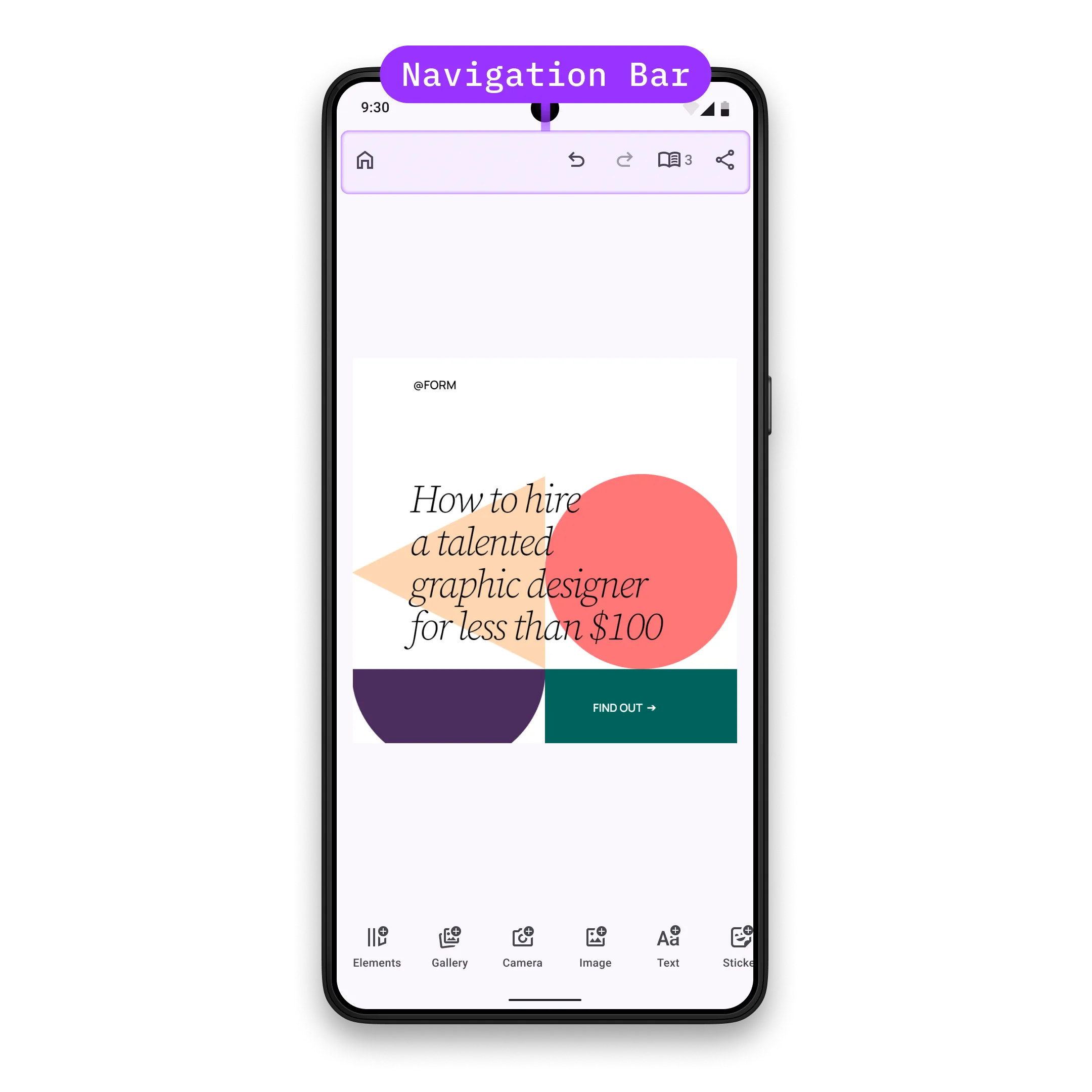
Navigation Bar Architecture#
The navigation bar is an EditorComponent that the editor renders as the top toolbar. It is selection-independent, and each item can decide its own visibility.
You assemble the navigation bar from these component entries and related types:
NavigationBar.Button- The built-in button implementation, with an action plus an icon and optional text.EditorComponent- The base component type for fully custom navigation bar items.
The related NavigationBar.Scope exposes the editor context, event handler, and engine to navigation bar configuration callbacks. Items can be organized into start, center, and end alignment groups when your layout needs multiple regions.
For a complete product surface, start from the Design Editor Starter Kit. This guide focuses on the navigation bar configuration that you can apply to your own editor setup.
Configuration#
Navigation bar customization lives in EditorConfiguration. The Editor composable owns Engine startup; these snippets use the existing editor context and configure only the navigation bar surface.
EditorConfiguration.remember { navigationBar = { NavigationBar.remember { scope = { remember(this) { NavigationBar.Scope(parentScope = this) } } visible = { true } modifier = { Modifier } enterTransition = { EnterTransition.None } exitTransition = { ExitTransition.None } decoration = { // Also available via NavigationBar.DefaultDecoration Box( modifier = Modifier .fillMaxWidth() .heightIn(min = 64.dp) .background(MaterialTheme.colorScheme.surface) .padding(PaddingValues(horizontal = 4.dp)), contentAlignment = Alignment.Center, ) { it() } } listBuilder = { NavigationBar.ListBuilder.remember { /* Add items */ } } horizontalArrangement = { Arrangement.SpaceEvenly } // Default value is { it() } itemDecoration = { Box(modifier = Modifier.padding(2.dp)) { it() } } } }}NavigationBar.remember keeps the default visibility and decoration unless you override them, but it does not add items on its own. Assign listBuilder to populate the bar. Supplying an empty NavigationBar.ListBuilder.remember { } hides all navigation bar items, while visible can hide or show the whole navigation bar component.
The Configuration guide covers editor setup more broadly; this page covers the navigation bar portion of that setup.
Declaring the Item List#
Use NavigationBar.ListBuilder.remember to declare the complete list of navigation bar items. The order of add calls inside an alignment group is the display order, and the list replaces the navigation bar contents for this configuration.
NavigationBar.ListBuilder.remember { aligned(alignment = Alignment.Start) { add { NavigationBar.Button.rememberCloseEditor() } } aligned(alignment = Alignment.CenterHorizontally) { add { NavigationBar.Button.remember { id = { EditorComponentId("my.package.navigationBar.button.custom") } vectorIcon = null textString = { "Custom Button" } onClick = {} } } } aligned( alignment = Alignment.End, arrangement = Arrangement.spacedBy(2.dp), ) { add { NavigationBar.Button.rememberExport() } add { NavigationBar.Button.rememberUndo() } add { NavigationBar.Button.rememberRedo() } }}- Predefined buttons include session, undo, redo, export, preview-mode, and page-navigation actions.
- Use
alignedgroups when the bar needs separate start, center, and end regions. - Custom buttons can sit alongside predefined items when the action belongs directly in the top toolbar.
Common predefined navigation bar buttons are listed below.
Modify Navigation Bar Items#
Use modify when you already have a list builder and only need to add, replace, or remove a few entries. Call it on the builder instance you want to adjust.
// Makes sense to use only with builders that are already available and cannot be modified by you directly.val existingListBuilder = NavigationBar.ListBuilder.remember { aligned(alignment = Alignment.End) { aligned(alignment = Alignment.Start) { add { NavigationBar.Button.rememberCloseEditor() } } aligned(alignment = Alignment.End) { add { NavigationBar.Button.rememberUndo() } add { NavigationBar.Button.rememberRedo() } add { NavigationBar.Button.rememberTogglePagesMode() } add { NavigationBar.Button.rememberExport() } } }}existingListBuilder.modify { addFirst(alignment = Alignment.End) { NavigationBar.Button.remember { id = { EditorComponentId("my.package.navigationBar.button.endAligned.first") } vectorIcon = { IconPack.Music } textString = { "First Button" } onClick = {} } } addLast(alignment = Alignment.End) { NavigationBar.Button.remember { id = { EditorComponentId("my.package.navigationBar.button.endAligned.last") } vectorIcon = { IconPack.Music } textString = { "Last Button" } onClick = {} } } addAfter(id = NavigationBar.Button.Id.redo, failIfNotFound = true) { NavigationBar.Button.remember { id = { EditorComponentId("my.package.navigationBar.button.afterRedo") } vectorIcon = { IconPack.Music } textString = { "After Redo" } onClick = {} } } addBefore(id = NavigationBar.Button.Id.undo, failIfNotFound = true) { NavigationBar.Button.remember { id = { EditorComponentId("my.package.navigationBar.button.beforeUndo") } vectorIcon = { IconPack.Music } textString = { "Before Undo" } onClick = {} } } replace(id = NavigationBar.Button.Id.export, failIfNotFound = true) { NavigationBar.Button.remember { id = { EditorComponentId("my.package.navigationBar.button.replacedExport") } vectorIcon = null textString = { "Replaced Export" } onClick = {} } } remove(id = NavigationBar.Button.Id.closeEditor, failIfNotFound = true)}| Operation | Purpose |
|---|---|
addFirst |
Add an item at the beginning of an alignment group. |
addLast |
Add an item at the end of an alignment group. |
addAfter |
Insert an item after a target ID. |
addBefore |
Insert an item before a target ID. |
replace |
Replace the item with the target ID. |
remove |
Remove the item with the target ID. |
NavigationBar.Item Configuration#
Each NavigationBar.Item is an EditorComponent. Its id must be unique which is a requirement for proper component management. Items must be organized within alignment groups when using the aligned layout system.
Predefined Buttons#
Start with predefined buttons which are provided as composable functions. All available predefined buttons are listed below.
Create New Buttons#
Create custom buttons when predefined options don’t meet your needs:
@Composablefun rememberNavigationBarButton() = NavigationBar.Button.remember { id = { EditorComponentId("my.package.navigationBar.button.newButton") } scope = { remember(this) { NavigationBar.ItemScope(parentScope = this) } } modifier = { Modifier } visible = { true } enterTransition = { EnterTransition.None } exitTransition = { ExitTransition.None } // Default value is { it() } decoration = { Surface(color = MaterialTheme.colorScheme.background) { it() } } onClick = { editorContext.eventHandler.send(EditorEvent.Sheet.Open(SheetType.Volume())) } // Default value is null icon = { Icon( imageVector = IconPack.Music, contentDescription = null, ) } // Default value is null text = { Text( text = "Hello World", ) } enabled = { true }}Required and optional properties:
-
id- the id of the button. Note that it is highly recommended that every uniqueEditorComponenthas a unique id. By default property contains a random value. -
scope- scope of this component. Every new value will trigger recomposition of allScopedPropertys such asvisible,enterTransition,exitTransitionetc. Consider using Composeandroidx.compose.runtime.Stateobjects in the lambdas for granular recompositions over updating the scope, since scope change triggers full recomposition of the component. Ideally, scope should be updated when the parent scope (scope of the parent component) is updated and when you want to observe changes from theEngine. By default the scope is updated only when the parent component scope is updated. -
modifier- Jetpack Compose modifier of this component. By default empty modifier is applied. -
visible- whether the button should be visible. Default value is always true. -
enterTransition- transition of the button when it enters the parent composable. Default value is always no enter transition. -
exitTransition- transition of the button when it exits the parent composable. Default value is always no exit transition. -
decoration- decoration of the button. Useful when you want to add custom background, foreground, shadow, paddings etc. Default value is always no decoration. -
onClick- the callback that is invoked when the button is clicked. By default it is a no-op. -
icon- the icon content of the button. If null, it will not be rendered. Default value is null. -
text- the text content of the button. If null, it will not be rendered. Default value is null. -
tint- the tint color of the content. By default it isMaterialTheme.colorScheme.onSurfaceVariant. -
enabled- whether the button is enabled. Default value is always true.
This gives full control over the content of the button. However, there are simpler configuration options if you do not want to fully customize text and icon composables. Let’s have a look at this example:
@Composablefun rememberNavigationBarButtonSimple() = NavigationBar.Button.remember { id = { EditorComponentId("my.package.navigationBar.button.newButton") } scope = { remember(this) { NavigationBar.ItemScope(parentScope = this) } } modifier = { Modifier } visible = { true } enterTransition = { EnterTransition.None } exitTransition = { ExitTransition.None } // Default value is { it() } decoration = { Surface(color = MaterialTheme.colorScheme.background) { it() } } onClick = { editorContext.eventHandler.send(EditorEvent.CloseEditor()) } // Default value is null vectorIcon = { IconPack.Music } // Default value is null textString = { "Hello World" } tint = { MaterialTheme.colorScheme.onSurfaceVariant } enabled = { true } contentDescription = null}It has three differences:
iconis replaced withvectorIconlambda, that returnsImageVectorinstead of drawing the icon content.textis replaced withtextStringlambda, that returnsStringinstead of drawing the text content.contentDescriptionproperty is added that is used by accessibility services to describe what the button does. Provide it whenever the button does not contain visible text explaining its action.
Create Custom Items#
For completely custom implementations, use EditorComponent.remember and render your custom UI inside decoration. To demonstrate the default values, all properties are assigned to their default values unless specified otherwise:
@Composablefun rememberNavigationBarCustomItem() = EditorComponent.remember { id = { EditorComponentId("my.package.navigationBar.newCustomItem") } scope = { remember(this) { NavigationBar.ItemScope(parentScope = this) } } modifier = { Modifier } visible = { true } enterTransition = { EnterTransition.None } exitTransition = { ExitTransition.None } decoration = { Box( modifier = Modifier .fillMaxHeight() .clickable { Toast .makeText(editorContext.activity, "Hello World Clicked!", Toast.LENGTH_SHORT) .show() }, ) { Text( modifier = Modifier.align(Alignment.Center), text = "Hello World", ) } }}Required and optional properties:
-
id- the unique id of the custom item. Note that it is highly recommended that every uniqueEditorComponenthas a unique id. By default it contains a random value. -
scope- scope of this component. Every new value will trigger recomposition of allScopedPropertys such asvisible,enterTransition,exitTransitionetc. Consider using Composeandroidx.compose.runtime.Stateobjects in the lambdas for granular recompositions over updating the scope, since scope change triggers full recomposition of the component. Ideally, scope should be updated when the parent scope (scope of the parent component) is updated and when you want to observe changes from theEngine. By default it is derived from the parent component scope. -
modifier- Jetpack Compose modifier of this component. By default empty modifier is applied. -
visible- whether the custom item should be visible. Default value is always true. -
enterTransition- transition of the custom item when it enters the parent composable. Default value is always no enter transition. -
exitTransition- transition of the custom item when it exits the parent composable. Default value is always no exit transition. -
decoration- render your custom item here. You are responsible for drawing the UI, handling clicks, and applying any custom styling. Default value is always no decoration.
List of Available NavigationBar.Buttons#
All predefined buttons are available as composable functions in the NavigationBar.Button namespace. Each function returns a NavigationBar.Button with default properties that you can customize as shown in the Create New Buttons section.
| Button | Id | Description |
|---|---|---|
NavigationBar.Button.rememberCloseEditor |
NavigationBar.Button.Id.closeEditor |
Triggers EditorConfiguration.onClose callback via EditorEvent.OnClose. |
NavigationBar.Button.rememberUndo |
NavigationBar.Button.Id.undo |
Does undo operation in the editor via EditorApi.undo engine API. |
NavigationBar.Button.rememberRedo |
NavigationBar.Button.Id.redo |
Does redo operation in the editor via EditorApi.redo engine API. |
NavigationBar.Button.rememberExport |
NavigationBar.Button.Id.export |
Triggers EditorConfiguration.onExport callback via EditorEvent.Export. |
NavigationBar.Button.rememberTogglePreviewMode |
NavigationBar.Button.Id.togglePreviewMode |
Updates editor view mode via EditorEvent.SetViewMode: when current view mode is EditorViewMode.Edit, then EditorViewMode.Preview is set and vice versa. Note that this button is intended to be used in Photo Editor, Apparel Editor and Postcard Editor and may cause unexpected behaviors when used in other solutions. |
NavigationBar.Button.rememberTogglePagesMode |
NavigationBar.Button.Id.togglePagesMode |
Updates editor view mode via EditorEvent.SetViewMode: when current view mode is EditorViewMode.Edit, then EditorViewMode.Pages is set and vice versa. Note that this button is intended to be used in Design Editor and may cause unexpected behaviors when used in other solutions. |
NavigationBar.Button.rememberPreviousPage |
NavigationBar.Button.Id.previousPage |
Navigates to the previous page via EditorEvent.Navigation.ToPreviousPage. |
NavigationBar.Button.rememberNextPage |
NavigationBar.Button.Id.nextPage |
Navigates to the next page via EditorEvent.Navigation.ToNextPage. |
API Reference#
| API | Category | Purpose |
|---|---|---|
EditorConfiguration.remember { navigationBar = { ... } } |
Config | Configure the navigation bar component for an editor instance. |
NavigationBar.remember { ... } |
Config | Create and configure a navigation bar component. |
NavigationBar.ListBuilder.remember { aligned { add { ... } } } |
Config | Build a complete navigation bar item list in aligned groups. |
add { ... } |
List operation | Append an item to an alignment group in a new list builder. |
existingListBuilder.modify { ... } |
Config | Adjust an existing list builder without rewriting the source list. |
addFirst { ... } / addLast { ... } |
List operation | Add items at the beginning or end of an alignment group. |
addAfter(id=_, failIfNotFound=_) / addBefore(id=_, failIfNotFound=_) |
List operation | Insert items next to a source item id. |
replace(id=_, failIfNotFound=_) |
List operation | Replace a source item by id. |
remove(id=_, failIfNotFound=_) |
List operation | Remove a source item by id. |
NavigationBar.Button.rememberCloseEditor() |
Item | Add the close-editor navigation button. |
NavigationBar.Button.rememberUndo() |
Item | Add the undo navigation button. |
NavigationBar.Button.rememberRedo() |
Item | Add the redo navigation button. |
NavigationBar.Button.rememberExport() |
Item | Add the export navigation button. |
NavigationBar.Button.remember { id; onClick; icon; text } |
Item | Create a custom navigation bar button. |
EditorComponent.remember { decoration = { ... } } |
Item | Create a fully custom navigation bar item. |
EditorComponentId("...") |
Item | Define stable ids for custom items and modify targets. |
editorContext.eventHandler.send(event=_) |
Event | Dispatch editor UI events from custom navigation bar item actions. |
Next Steps#
- Dock - Configure the bottom toolbar that opens asset libraries and sheets.
- Inspector Bar - Configure context-sensitive controls for the selected block.
- Canvas Menu - Customize the floating toolbar for the current selection.
- Asset Library - Configure sources shared across editor components.