Open a PowerPoint presentation in the editor as an editable scene, with one page per slide, from a template library or a file the user uploads.
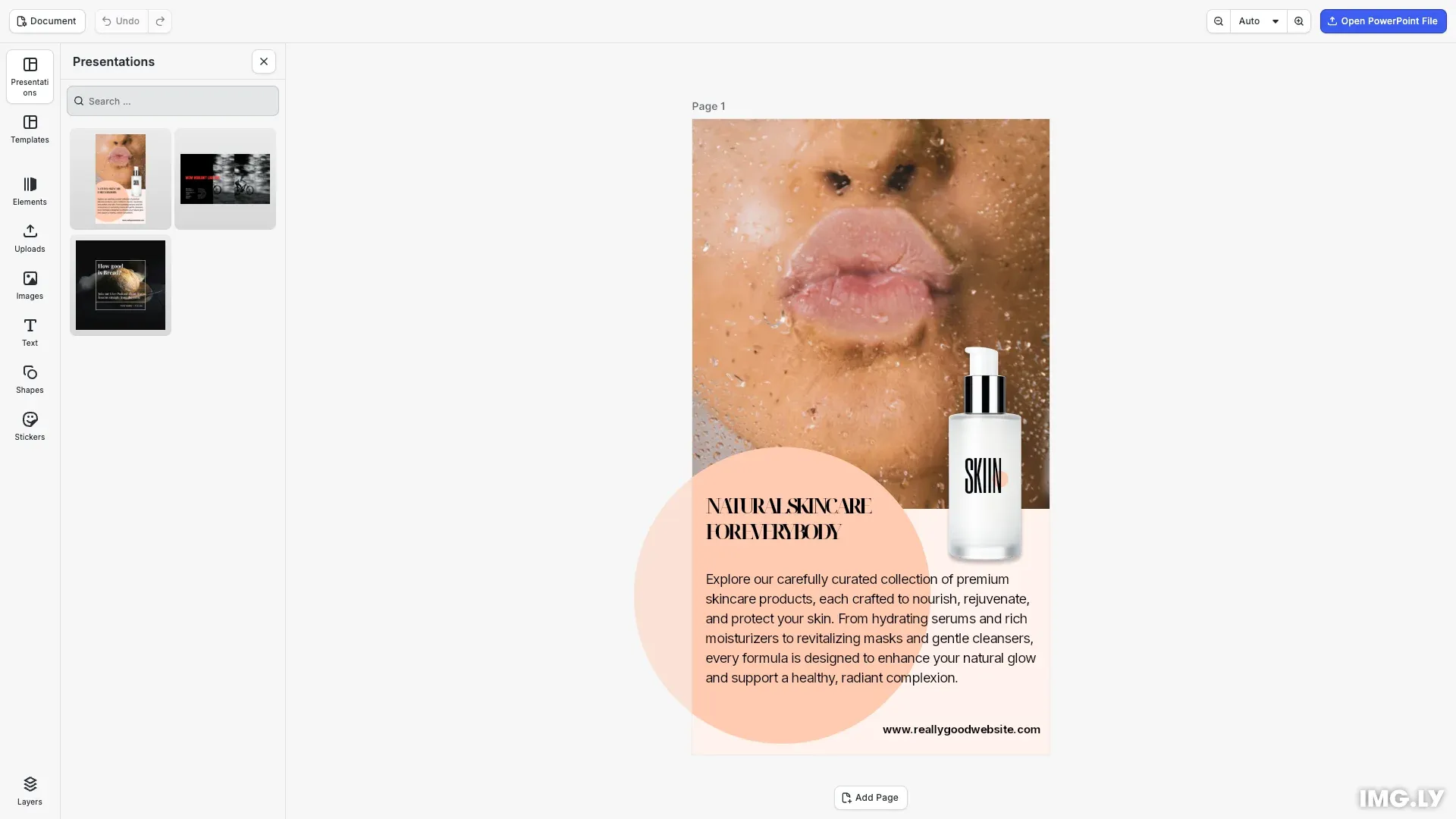
The @imgly/pptx-importer package converts a .pptx file into CE.SDK blocks: one page per slide, with the slide’s text, shapes and images as editable blocks. This guide imports presentations in the browser, straight into the editor the user is working in. To convert a library of presentations ahead of time, see the Node.js guide. The PowerPoint Template Import starter kit wraps the same importer in a complete app.
This guide covers how to parse a presentation into the editor, read the importer’s warnings, store the result, offer presentations in the asset library and let users upload their own file.
Install the Packages#
Install CE.SDK and the PowerPoint importer. The importer has its own version numbers, so we do not pin it to the CE.SDK version.
npm install @cesdk/cesdk-js@1.87.0 @imgly/pptx-importerImport Your First Presentation#
A presentation becomes a scene in three calls: fetch the file, create a parser on the editor’s engine and parse.
import CreativeEditorSDK from '@cesdk/cesdk-js';import { PPTXParser } from '@imgly/pptx-importer';
const cesdk = await CreativeEditorSDK.create('#container', {  license: 'YOUR_CESDK_LICENSE_KEY'});const engine = cesdk.engine;
const response = await fetch('https://example.com/presentation.pptx');const buffer = await response.arrayBuffer();
const parser = await PPTXParser.fromFile(engine, buffer);const result = await parser.parse();
console.log('Slides:', engine.scene.getPages().length);
parse() adds the slides to the scene the engine has open. The sections below add a new scene for each import, warnings, storage and a user interface around this core.
Supported Elements#
The importer keeps these slide elements:
- Text: font family, size and color, bold and italic, character spacing, line height, several runs with different formatting in one block, vertical alignment
- Shapes: rectangles with corner radius, ellipses, custom shapes as vector paths, solid and theme-color fills, strokes
- Images: embedded PNG, JPEG, GIF, BMP and WebP images, with their size and position
- Backgrounds: solid colors, linear or radial gradients, and images
- Layout: absolute positions, rotation, z-order, groups, and the decorative elements a slide inherits from its layout and master
Path and rectangular gradients import as radial gradients, and inner shadows as outer shadows. Both log a warning. Bullets and numbering import with basic formatting.
Set Up Font Matching#
The importer matches each slide font against the Google Fonts catalog, and replaces common proprietary fonts with a similar Google Font. PPTXParser.fromFile() registers both asset sources on the engine the first time it runs. We register them at startup instead, so the catalog is loaded before the user picks a file.
await cesdk.addPlugin(new DesignEditorConfig());
await cesdk.addPlugin(new BlurAssetSource());await cesdk.addPlugin(new ImageColorsAssetSource());await cesdk.addPlugin(new ColorPaletteAssetSource());await cesdk.addPlugin(new CropPresetsAssetSource());await cesdk.addPlugin(  new UploadAssetSources({ include: ['ly.img.image.upload'] }));await cesdk.addPlugin(  new DemoAssetSources({    include: ['ly.img.templates.presentation.*', 'ly.img.image.*']  }));await cesdk.addPlugin(new EffectsAssetSource());await cesdk.addPlugin(new FiltersAssetSource());await cesdk.addPlugin(new PagePresetsAssetSource());await cesdk.addPlugin(new StickerAssetSource());await cesdk.addPlugin(new TextAssetSource());await cesdk.addPlugin(new TextComponentAssetSource());await cesdk.addPlugin(new TypefaceAssetSource());await cesdk.addPlugin(new VectorShapeAssetSource());
// The importer matches slide fonts against the Google Fonts asset// library. `PPTXParser.fromFile()` registers it on the first import;// registering it here fetches the catalog before the user picks a file.await addGfontsAssetLibrary(engine);
The catalog is fetched from the IMG.LY CDN, so the first import needs a network connection. To use your own fonts, register typeface asset sources under both ids, ly.img.gfonts and ly.img.gfonts-fallbacks, before the first import: the importer skips a source that already exists, and its resolver needs both.
Parse the Presentation#
parse() adds pages to the current scene, so we create a new scene before each import. The importer sets the scene to 96 DPI, the resolution PowerPoint uses for its pixel sizes, and places each slide on a page of the slide’s size.
let buffer: ArrayBuffer;if (typeof source === 'string') {  const response = await fetch(source);  if (!response.ok) throw new Error(`Could not load ${name}`);  buffer = await response.arrayBuffer();} else {  buffer = source;}
// `fromFile()` validates the file before the user's design is touched.const parser = await PPTXParser.fromFile(engine, buffer);
// `parse()` adds the slides to the current scene, so we start a new// one. The importer sets the scene to 96 DPI, the resolution of// PowerPoint's own pixel sizes.engine.scene.create('VerticalStack');const result = await parser.parse();
const pages = engine.scene.getPages();console.log(`Imported ${pages.length} slide(s) from ${name}`);await cesdk.actions.run('zoom.toPage', { page: 'first', autoFit: true });
fromFile() reads and validates the file before the new scene is created, so a file that is not a presentation leaves the user’s design in place. A deck that passes validation and fails inside parse() leaves an empty scene. The parser needs the editor’s engine: the blocks it creates live in the engine that parsed them.
Check Import Warnings#
The result carries a logger. Each message has a stable code, a type of info, warning or error, and a readable message. Warnings name what the importer changed, such as a substituted font or a gradient type it replaced.
// Each message has a stable `code`, a `type` and a readable `message`.const messages: LogMessage[] = result.logger.getMessages();const warnings = messages.filter((m) => m.type === 'warning');const errors = messages.filter((m) => m.type === 'error');for (const message of [...errors, ...warnings]) { console.warn(`[${message.code}] ${message.message}`);}if (warnings.length > 0 || errors.length > 0) { cesdk.ui.showNotification( `Imported with ${warnings.length} warning(s) and ${errors.length} error(s). See the console.` );}Save as Archive#
An archive bundles the scene with the images the importer extracted from the presentation, so it is the simplest way to store the result.
// The archive bundles the scene with the images the importer extracted// from the presentation. Upload this Blob to your storage.const archive = await engine.scene.saveToArchive();console.log(`Scene archive: ${archive.size} bytes`);Load it later with engine.scene.load(), in the browser or in Node.js. See From Archive.
Save Scenes with Stable URLs#
The importer stores slide images under transient buffer:// URIs. An archive keeps them, but a scene string from engine.scene.saveToString() only references them, and the references break when the scene is loaded again. To store a scene string, upload each buffer first and point the scene at the uploaded file. The example keeps this out of the import, as a function to call when you store a scene string instead of the archive.
// Optional: save the scene as a string with stable URLs instead of an// archive. The importer stores slide images under transient `buffer://`// URIs, which only an archive keeps. For `saveToString()`, upload each// buffer first and point the scene at the uploaded file.export async function saveWithStableUrls(  engine: CreativeEngine): Promise<string> {  // Replace with the upload to your storage. Here an object URL stands  // in for the permanent URL.  const uploadToBackend = async (data: Uint8Array): Promise<string> => {    const blob = new Blob([new Uint8Array(data)]);    return URL.createObjectURL(blob);  };
  // The list holds every transient resource, so keep only the importer's  // `buffer://` URIs, the slide images.  for (const resource of engine.editor.findAllTransientResources()) {    const { URL: bufferUri, size } = resource;    if (!bufferUri.startsWith('buffer://')) continue;    const data = engine.editor.getBufferData(bufferUri, 0, size);    const permanentUrl = await uploadToBackend(data);    engine.editor.relocateResource(bufferUri, permanentUrl);  }  return engine.scene.saveToString();}
findAllTransientResources() lists every transient resource, so the loop keeps only the importer’s buffer:// URIs, the slide images. getBufferData() reads one, and relocateResource() replaces the URI in every block that uses it. After the loop, saveToString() produces a scene that loads anywhere. The object URL in the example stands in for the URL your storage returns. The Google Fonts in the scene string point to the IMG.LY CDN. To serve fonts from your own host, register your own typeface asset sources, as described under font matching.
Offer Presentations in the Asset Library#
A custom asset source lists presentations as assets with a thumbnail. When the user clicks one, the editor calls applyAsset, which imports the file. The import replaces the scene, so applyAsset returns no block.
engine.asset.addSource({  id: PPTX_SOURCE_ID,
  async findAssets(queryData) {    let assets = SAMPLE_PRESENTATIONS;    if (queryData.query) {      const query = queryData.query.toLowerCase();      assets = assets.filter((asset) =>        asset.label?.toLowerCase().includes(query)      );    }    return {      assets,      total: assets.length,      currentPage: queryData.page,      nextPage: undefined    };  },
  // Replaces the scene, so no block is returned.  async applyAsset(asset) {    const uri = asset.meta?.uri;    if (typeof uri !== 'string') return undefined;    try {      await importPptx(uri, asset.label ?? asset.id);    } catch (error) {      cesdk.ui.showNotification(        `Import failed: ${(error as Error).message}`      );    }    return undefined;  }});
Add the Library to the Dock#
We give the source a label, add an asset library entry for it, and put that entry first in the dock.
cesdk.i18n.setTranslations({ en: { [`libraries.${PPTX_SOURCE_ID}.label`]: 'Presentations', 'libraries.pptx-library-entry.label': 'Presentations' }});cesdk.ui.addAssetLibraryEntry({ id: 'pptx-library-entry', sourceIds: [PPTX_SOURCE_ID], previewLength: 3, previewBackgroundType: 'contain', gridBackgroundType: 'contain', gridColumns: 2});cesdk.ui.setComponentOrder({ in: 'ly.img.dock' }, [ { id: 'ly.img.assetLibrary.dock', key: 'pptx-library-dock', label: 'Presentations', icon: '@imgly/Template', entries: ['pptx-library-entry'] }, ...cesdk.ui.getComponentOrder({ in: 'ly.img.dock' })]);See Customize the Asset Library for more entry options.
Add a File Upload Button#
A button in the navigation bar opens the file picker. cesdk.utils.loadFile() returns the chosen file as an ArrayBuffer, which goes to the same import function.
cesdk.ui.registerComponent('pptx.uploadButton', ({ builder }) => { builder.Button('pptx.uploadButton', { label: 'Open PowerPoint File', icon: '@imgly/Upload', variant: 'regular', color: 'accent', onClick: async () => { let buffer: ArrayBuffer; try { buffer = await cesdk.utils.loadFile({ accept: `.pptx,${PPTX_MIME_TYPE}`, returnType: 'arrayBuffer' }); } catch { // `loadFile()` rejects when the user cancels the dialog or the // browser cannot read the file. return; } try { await importPptx(buffer, 'uploaded.pptx'); } catch (error) { cesdk.ui.showNotification( `Import failed: ${(error as Error).message}` ); } } });});cesdk.ui.setComponentOrder({ in: 'ly.img.navigation.bar' }, [ ...cesdk.ui.getComponentOrder({ in: 'ly.img.navigation.bar' }), 'pptx.uploadButton']);Parser Options#
PPTXParser.fromFile() takes an options object as its third argument.
| Option | Default | Effect |
|---|---|---|
applyFontMetricsCorrection |
true |
Moves top-aligned text blocks so the first baseline sits where PowerPoint puts it. Needs the font files, so it runs after the fonts load. |
autoCorrectTextOverflow |
true |
Reduces the letter spacing of a text block that overflows its frame, because the matched font is wider than the original. |
textOverflowCorrectionOptions |
{ step: 0.001, maxSteps: 500 } |
Step size in em and the number of steps the overflow correction tries. |
API Reference#
| API | Description |
|---|---|
PPTXParser.fromFile(engine, buffer, options?) |
Reads the presentation and registers the Google Fonts asset sources. Throws for a file that is not a .pptx or has no slides. |
parser.parse() |
Adds one page per slide to the current scene. Returns { logger }. |
parser.getSlideCount() |
The number of slides in the file. |
result.logger.getMessages() |
The import messages, each with code, type and message. |
addGfontsAssetLibrary(engine) |
Registers the Google Fonts catalog and the proprietary-font aliases as asset sources. |
fontResolver(params, engine) |
The default font resolver, exported for use in your own font logic. |
Limitations#
- Tables, charts and SmartArt are dropped without a warning, so check the deck for them. Ungroup a table in PowerPoint before you save the file, so it imports as shapes and text.
- Animations, transitions, audio, video, comments and notes are not imported.
- Text keeps its basic formatting. Bullets and numbering import with basic formatting only.
These are the highlights. The @imgly/pptx-importer page on npm keeps the complete list of supported features and limitations.
Troubleshooting#
fromFile()throws “Failed to parse PPTX file”: the file is not a ZIP, so not a.pptx. Older.pptfiles are not supported. Open the file in PowerPoint and save it as.pptx.fromFile()throws “PPTX file missing presentation.xml”: the file is a ZIP but not a presentation, such as a.docx.fromFile()throws “PPTX file has no slides”: the presentation is empty.addGfontsAssetLibrary()rejects with a network error: the Google Fonts catalog could not be fetched from the IMG.LY CDN. Without the startup call,fromFile()reports the same error on the first import. The import needs a network connection, or your own typeface sources under the idsly.img.gfontsandly.img.gfonts-fallbacks.- Text uses a different font: the font is not in the Google Fonts catalog and was substituted. The logger reports it as
FONT_NOT_FOUND. Register your own typeface sources, as described under font matching, to supply the font. - A table, chart or SmartArt graphic is missing: these elements are not supported, and the importer logs nothing for them.
- The slides appear after the pages of the previous design:
parse()adds to the current scene. Create a new scene before you parse.
Next Steps#
- PowerPoint Template Import is a complete app around this importer.
- From PowerPoint in Node.js converts presentations ahead of time.
- From Photoshop and From InDesign import other design files the same way.