Save and serialize designs in CE.SDK for later retrieval, sharing, or storage using string or archive formats.
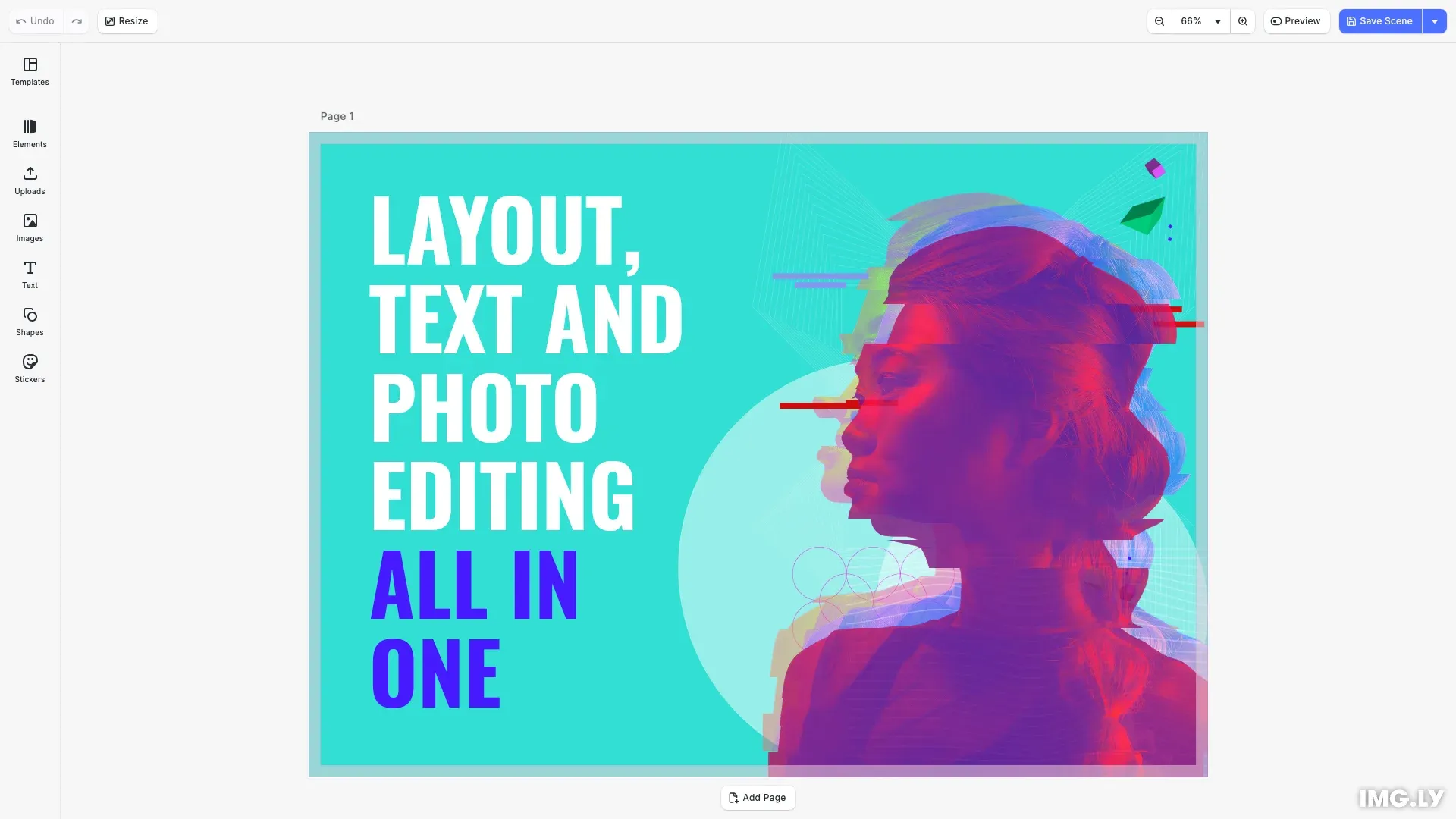
CE.SDK provides two formats for persisting designs. Choose the format based on your storage and portability requirements.
Save Format Comparison#
| Format | Method | Assets | Best For |
|---|---|---|---|
| String | saveToString() |
Referenced by URL | Database storage, cloud sync |
| Archive | saveToArchive() |
Embedded in ZIP | Offline use, file sharing |
String format produces a lightweight Base64-encoded string where assets remain as URL references. Use this when asset URLs will remain accessible.
Archive format creates a self-contained ZIP with all assets embedded. Use this for portable designs that work offline.
Both formats are saved as .imgly files — use this extension when persisting them. Either kind loads back through the same engine.scene.load() call, which detects the format automatically; .scene and .zip files also load.
Archive Preview Image#
Scene and block archives containing a page automatically include a root preview.png as the first ZIP entry. The PNG is stored without ZIP compression. Its local ZIP header records its byte length. Clients can read the preview without fetching the document, resources, or central directory. It shows the first exported page at its playback position when saving starts (0 for static scenes). Video pages use the exact frame at that captured time. Scene archives use scene page order. Block archives use export-root order, then depth-first hierarchy order.
The PNG preserves the page background and transparency. Preview generation starts after every archive resource has loaded, and uses fast lossless PNG compression. Both dimensions are capped at 512 px. Pages that fit within 512 × 512 px keep their dimensions without upscaling. Larger pages are scaled down proportionally: a 1920 × 1080 page produces 512 × 288 px, while a 320 × 180 page stays 320 × 180 px. Larger outputs may be resampled from the thumbnail pipeline’s internal render resolution.
Rendering or encoding failures and unsupported dimensions cause the engine to omit the preview. Archives without a page also omit it. The engine ignores the exact root preview.png when loading and regenerates it on each archive save.
External tools can extract this image from the ZIP without loading the design. File explorers require a compatible preview handler to display it automatically.
Save to String#
Serialize the current scene to a Base64-encoded string suitable for database storage.
const sceneString = await engine.scene.saveToString();The string contains the complete scene structure but references assets by their original URLs.
The default allowedResourceSchemes do not include data, so a scene that holds a data: URI fails to save with SCENE.DISALLOWED_SCHEMES. Add 'data' to keep those URIs in the string:
// The default schemes have no 'data', so a data: URI fails the save.// Add 'data' to keep data: URIs in the string.const sceneWithDataURIs = await engine.scene.saveToString({ allowedResourceSchemes: [ 'blob', 'bundle', 'data', 'file', 'http', 'https', 'opfs' ]});An archive needs no option: it bundles every resource, data: URIs included.
Save to Archive#
Create a self-contained ZIP file with the scene and all embedded assets.
const archiveBlob = await engine.scene.saveToArchive();The archive includes all pages, elements, and asset data in a single portable file.
Compare Saved Scenes#
Saving writes the scene as it is laid out at that moment. While a font loads, its text is laid out with another font. When the size of a text follows its content, a scene saved before the font arrives can differ from the same scene saved after it.
To compare two saved scenes, for example by a hash, load the fonts first with await engine.block.forceLoadResources([engine.scene.get()!]). The promise rejects when a resource fails to load, and you can still save the scene then. To compare two archives, compare the scene.scene files inside them, because each archive entry stores the time of the save.
Compression Options#
Saved scenes are compressed with Zstd by default, which makes them much smaller and speeds up both saving and loading. Pass a format explicitly to change the level, or to turn compression off.
import { CompressionFormat, CompressionLevel } from '@cesdk/cesdk-js';
// Save a scene string with Zstd compressionconst compressed = await cesdk.engine.scene.saveToString({  compression: {    format: CompressionFormat.Zstd,    level: CompressionLevel.Default  }});
// Save an archive whose scene is compressedconst archive = await cesdk.engine.scene.saveToArchive({  compression: {    format: CompressionFormat.Zstd,    level: CompressionLevel.Default  }});
Compression Formats:
CompressionFormat.Zstd- Zstandard compression (default)CompressionFormat.None- No compression
Compression Levels:
CompressionLevel.Fastest- Fastest compression, larger outputCompressionLevel.Default- Balanced speed and size (recommended)CompressionLevel.Best- Best compression, noticeably slower
A compressed scene string stays a plain string, so you can still store it in a text column or send it as JSON. It carries a UBQ2 prefix instead of UBQ1; load accepts both.
In an archive, compression applies to the scene only. Bundled images, video and fonts are stored as they are, because they already are compressed formats — so the saving depends on how much of your archive is scene rather than media.
Download to User Device#
Use cesdk.utils.downloadFile() to trigger a browser download with the correct MIME type.
For scene strings, convert to a Blob first:
const sceneBlob = new Blob([sceneString], { type: 'application/octet-stream'});await cesdk.utils.downloadFile(sceneBlob, 'text/plain;charset=UTF-8');For archive blobs, pass directly to the download utility:
await cesdk.utils.downloadFile(archiveBlob, 'application/zip');This utility handles creating and revoking object URLs automatically.
Load Scene from File#
Use the built-in importScene action to open a file picker for scene files (.imgly or .scene). This restores a previously saved design from its serialized string format.
const handleLoadScene = async () => { await cesdk.actions.run('importScene', { format: 'scene' });};Scene files are lightweight but require the original asset URLs to remain accessible.
Load Archive from File#
Load a self-contained .imgly archive (the .zip extension also works) that includes all embedded assets.
const handleLoadArchive = async () => { await cesdk.actions.run('importScene', { format: 'archive' });Archives are portable and work offline since all assets are bundled within the file.
Built-in Save Action#
CE.SDK includes a built-in saveScene action that integrates with the navigation bar.
Running an Action#
Trigger the default save behavior programmatically using actions.run():
await cesdk.actions.run('saveScene');This executes the registered handler for saveScene, which by default downloads the scene file named with the .imgly extension.
Customizing an Action#
Override the default behavior by registering a custom handler:
cesdk.actions.register('saveScene', async () => { const sceneString = await engine.scene.saveToString(); // Send to your backend API console.log('Custom save:', sceneString.length, 'bytes');});The registered handler runs when the built-in save button is clicked or when the action is triggered via actions.run().
API Reference#
| Method | Description |
|---|---|
engine.scene.saveToString() |
Serialize scene to Base64 string |
engine.scene.saveToArchive() |
Save scene with assets as ZIP blob |
engine.scene.load() |
Load scene or archive from URL or string |
cesdk.utils.downloadFile() |
Download blob or string to user device |
cesdk.actions.run() |
Execute a registered action with parameters |
cesdk.actions.register() |
Register or override an action handler |
Next Steps#
- Export Overview - Export designs to image, PDF, and video formats
- Load Scene - Load scenes from remote URLs and archives
- Store Custom Metadata - Attach metadata like tags or version info to designs
- Partial Export - Export individual blocks or selections