Open a PDF in the editor as an editable scene, with one page per PDF page, from a template library or a file the user uploads.
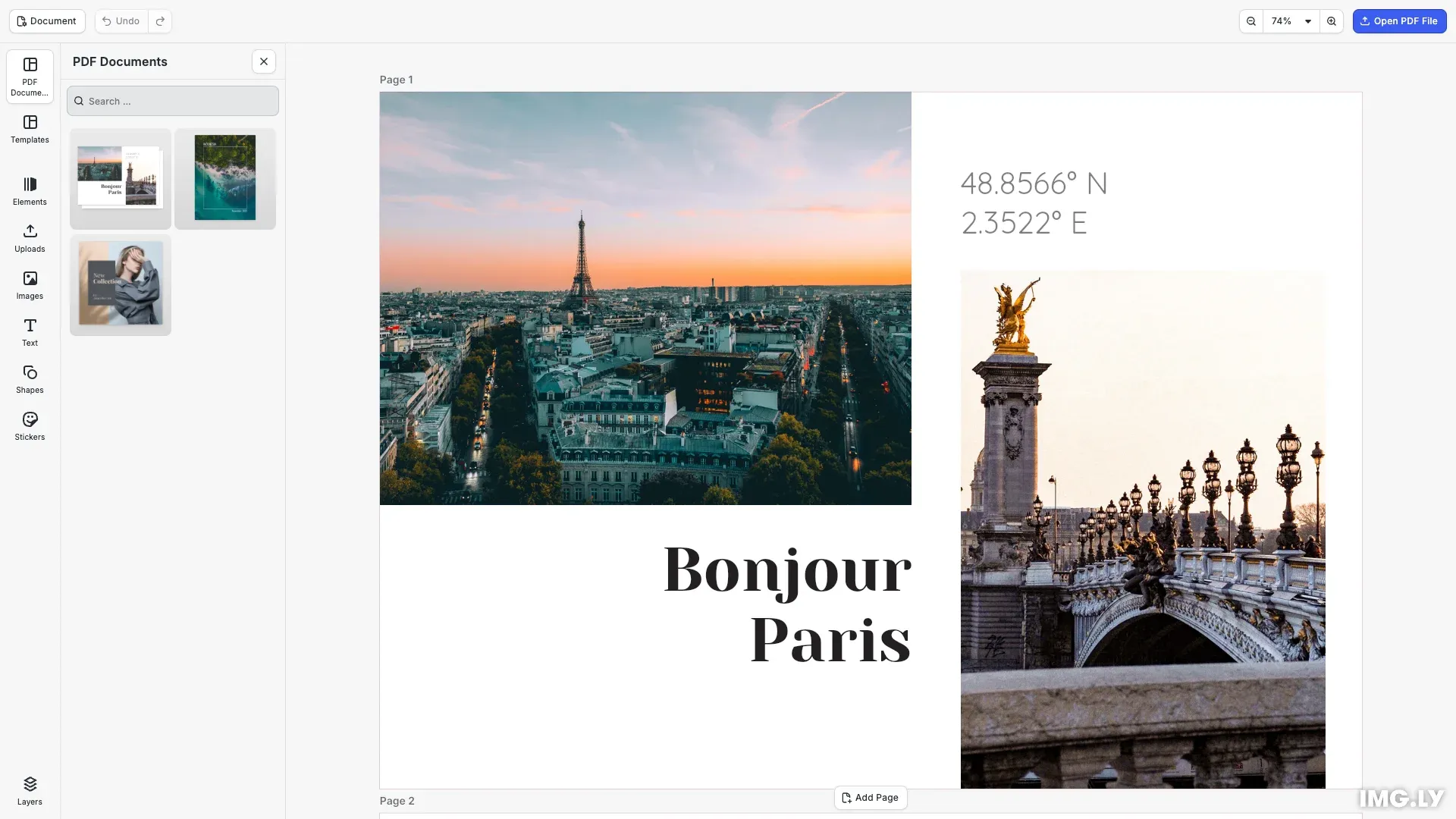
The @imgly/pdf-importer package has two ways to bring in a PDF. parse() replaces the scene with the whole document, one page per PDF page, with the page’s text, vector paths and images as editable blocks. loadAsBlocks() leaves the open scene as it is and returns single pages as groups, which Place PDF Pages in a Design covers. This guide uses parse() in the browser, straight into the editor the user is working in. To convert a library of documents ahead of time, see the Node.js guide. The PDF Template Import starter kit wraps the same importer in a complete app.
This guide covers how to parse a PDF into the editor, choose how fonts are matched, read the importer’s warnings, store the result, offer documents in the asset library and let users upload their own file.
Install the Packages#
Install CE.SDK and the PDF importer. The importer has its own version numbers, so we do not pin it to the CE.SDK version.
npm install @cesdk/cesdk-js@1.87.0 @imgly/pdf-importerThe importer loads its pdf.js worker from a file next to its own module. With Vite, exclude it from dependency pre-bundling, otherwise the worker URL breaks:
import { defineConfig } from 'vite';
export default defineConfig({  optimizeDeps: {    exclude: ['@imgly/pdf-importer']  }});
Import Your First PDF#
A PDF becomes a scene in four calls: register the font library, fetch the file, create a parser on the editor’s engine and parse.
import CreativeEditorSDK from '@cesdk/cesdk-js';import { PDFParser, addGfontsAssetLibrary } from '@imgly/pdf-importer';
const cesdk = await CreativeEditorSDK.create('#container', {  license: 'YOUR_CESDK_LICENSE_KEY'});const engine = cesdk.engine;await addGfontsAssetLibrary(engine);
const response = await fetch('https://example.com/document.pdf');const buffer = await response.arrayBuffer();
const parser = await PDFParser.fromFile(engine, buffer);await parser.parse();
console.log('Pages:', engine.scene.getPages().length);
The sections below add font strategies, warnings, storage and a user interface around this core.
Supported Elements#
The importer keeps these PDF elements:
- Text: editable text blocks, one per line, with font family, weight and style matched through the font strategy. Neighboring lines with the same font and size become one block
- Vector paths: shapes, strokes and clipping paths as vector path blocks
- Images: embedded raster images as graphic blocks, re-encoded as PNG, soft masks included
- Colors: solid colors, linear and radial gradients. CMYK values stay CMYK, and spot colors are registered on the document
- Layout: positions, rotation and paint order, with pages sized to the PDF’s trim box
Set Up Font Matching#
The importer resolves PDF fonts through the Google Fonts asset library, so we register it with addGfontsAssetLibrary() before the first import. The library also maps common proprietary fonts to a similar Google Font.
await cesdk.addPlugin(new DesignEditorConfig());
await cesdk.addPlugin(new BlurAssetSource());await cesdk.addPlugin(new ImageColorsAssetSource());await cesdk.addPlugin(new ColorPaletteAssetSource());await cesdk.addPlugin(new CropPresetsAssetSource());await cesdk.addPlugin(  new UploadAssetSources({ include: ['ly.img.image.upload'] }));await cesdk.addPlugin(  new DemoAssetSources({    include: ['ly.img.templates.print.*', 'ly.img.image.*']  }));await cesdk.addPlugin(new EffectsAssetSource());await cesdk.addPlugin(new FiltersAssetSource());await cesdk.addPlugin(new PagePresetsAssetSource());await cesdk.addPlugin(new StickerAssetSource());await cesdk.addPlugin(new TextAssetSource());await cesdk.addPlugin(new TextComponentAssetSource());await cesdk.addPlugin(new TypefaceAssetSource());await cesdk.addPlugin(new VectorShapeAssetSource());
// Keep glyphs such as ♥ or ★ in the font the PDF embeds, instead of the// emoji font the engine substitutes by default.engine.editor.setSetting('forceSystemEmojis', false);
// The importer resolves PDF fonts through the Google Fonts asset// library, so we register it before the first import.await addGfontsAssetLibrary(engine);
The catalog is fetched from the IMG.LY CDN, so the first import needs a network connection.
By default the engine draws every symbol that Unicode lists as a pictograph, such as ♥ or ★, with the emoji font, even when the PDF’s own font has a glyph for it. The forceSystemEmojis setting set to false keeps the PDF’s glyph. The setting applies to every scene the engine loads. See Emojis for the emoji font itself.
Choose a Font Strategy#
A PDF embeds a subset of each font it uses, and that font is often not in the asset library. The font strategy decides what the importer does then. Three presets ship with the package:
| Strategy | Order | Use it for |
|---|---|---|
editableFirstStrategy (default) |
library typeface, then the embedded subset, then a substitute, then vector outlines | General import. Text stays editable wherever possible. |
exactFidelityStrategy |
library typeface, then the embedded subset, then vector outlines | Print. Nothing is substituted, unmatched text is no longer editable. |
assetLibraryStrategy |
library typeface, then a substitute, then vector outlines | Brand-locked tools where only your fonts may appear. |
// `editableFirstStrategy`, the default, prefers a typeface from the asset// library, then the font embedded in the PDF, then a substitute.// `exactFidelityStrategy` never substitutes and draws unmatched text as// vector outlines instead.const fontStrategy = editableFirstStrategy;Pass the strategy to PDFParser.fromFile() in its options. createFontStrategy() builds your own from the same stages.
Parse the PDF#
parse() replaces the current scene with the document and fits the camera to the first page. The scene uses inches as its design unit, because a PDF measures in points, and each page gets the size of the PDF page’s trim box.
let buffer: ArrayBuffer;if (typeof source === 'string') {  const response = await fetch(source);  if (!response.ok) throw new Error(`Could not load ${name}`);  buffer = await response.arrayBuffer();} else {  buffer = source;}
// `parse()` replaces the current scene with the PDF and fits the camera// to the first page.const parser = await PDFParser.fromFile(engine, buffer, { fontStrategy });const { logger } = await parser.parse();
const pages = engine.scene.getPages();console.log(`Imported ${pages.length} page(s) from ${name}`);
The parser needs the editor’s engine: the blocks it creates live in the engine that parsed them.
Check Import Warnings#
The result carries a logger. Each message has a stable code, a type of info, warning or error, and a readable message. Warnings name what the importer changed or skipped, such as a substituted font or an unsupported blend mode.
// Each message has a stable `code`, a `type` and a readable `message`.const messages = logger.getMessages();const warnings = messages.filter((m) => m.type === 'warning');const errors = messages.filter((m) => m.type === 'error');for (const message of [...errors, ...warnings]) { console.warn(`[${message.code}] ${message.message}`);}if (warnings.length > 0 || errors.length > 0) { cesdk.ui.showNotification( `Imported with ${warnings.length} warning(s) and ${errors.length} error(s). See the console.` );}Save as Archive#
An archive bundles the scene with the images and fonts the importer extracted from the PDF, so it is the simplest way to store the result.
// The archive bundles the scene with the images and fonts the importer// extracted from the PDF. Upload this Blob to your storage.const archive = await engine.scene.saveToArchive();console.log(`Scene archive: ${archive.size} bytes`);Load it later with engine.scene.load(), in the browser or in Node.js. See From Archive.
Save Scenes with Stable URLs#
The importer stores extracted images and embedded fonts under transient buffer:// URIs. An archive keeps them, but a scene string from engine.scene.saveToString() only references them, and the references break when the scene is loaded again. To store a scene string, upload each buffer first and point the scene at the uploaded file. The example keeps this out of the import, as a function to call when you store a scene string instead of the archive.
// Optional: save the scene as a string with stable URLs instead of an// archive. The importer stores extracted images and embedded fonts under// transient `buffer://` URIs, which only an archive keeps. For// `saveToString()`, upload each buffer first and point the scene at the// uploaded file.export async function saveWithStableUrls(  engine: CreativeEngine): Promise<string> {  // Replace with the upload to your storage. Here an object URL stands  // in for the permanent URL.  const uploadToBackend = async (data: Uint8Array): Promise<string> => {    const blob = new Blob([new Uint8Array(data)]);    return URL.createObjectURL(blob);  };
  // The list holds every transient resource, so keep only the importer's  // `buffer://` URIs, embedded fonts included.  for (const resource of engine.editor.findAllTransientResources()) {    const { URL: bufferUri, size } = resource;    if (!bufferUri.startsWith('buffer://')) continue;    const data = engine.editor.getBufferData(bufferUri, 0, size);    const permanentUrl = await uploadToBackend(data);    engine.editor.relocateResource(bufferUri, permanentUrl);  }  return engine.scene.saveToString();}
findAllTransientResources() lists every transient resource, so the loop keeps only the importer’s buffer:// URIs, embedded fonts included. getBufferData() reads one, and relocateResource() replaces the URI in every block that uses it. After the loop, saveToString() produces a scene that loads anywhere. The object URL in the example stands in for the URL your storage returns. Fonts from the Google Fonts library point to the IMG.LY CDN. To serve fonts from your own host, register your own typeface asset source and a font resolver that finds them.
Offer Documents in the Asset Library#
A custom asset source lists documents as assets with a thumbnail. When the user clicks one, the editor calls applyAsset, which imports the file. The import replaces the scene, so applyAsset returns no block.
engine.asset.addSource({  id: PDF_SOURCE_ID,
  async findAssets(queryData) {    let assets = SAMPLE_DOCUMENTS;    if (queryData.query) {      const query = queryData.query.toLowerCase();      assets = assets.filter((asset) =>        asset.label?.toLowerCase().includes(query)      );    }    return {      assets,      total: assets.length,      currentPage: queryData.page,      nextPage: undefined    };  },
  // Replaces the scene, so no block is returned.  async applyAsset(asset) {    const uri = asset.meta?.uri;    if (typeof uri !== 'string') return undefined;    try {      await importPdf(uri, asset.label ?? asset.id);    } catch (error) {      cesdk.ui.showNotification(        `Import failed: ${(error as Error).message}`      );    }    return undefined;  }});
Add the Library to the Dock#
We give the source a label, add an asset library entry for it, and put that entry first in the dock.
cesdk.i18n.setTranslations({ en: { [`libraries.${PDF_SOURCE_ID}.label`]: 'PDF Documents', 'libraries.pdf-library-entry.label': 'PDF Documents' }});cesdk.ui.addAssetLibraryEntry({ id: 'pdf-library-entry', sourceIds: [PDF_SOURCE_ID], previewLength: 3, previewBackgroundType: 'contain', gridBackgroundType: 'contain', gridColumns: 2});cesdk.ui.setComponentOrder({ in: 'ly.img.dock' }, [ { id: 'ly.img.assetLibrary.dock', key: 'pdf-library-dock', label: 'PDF Documents', icon: '@imgly/Template', entries: ['pdf-library-entry'] }, ...cesdk.ui.getComponentOrder({ in: 'ly.img.dock' })]);See Customize the Asset Library for more entry options.
Add a File Upload Button#
A button in the navigation bar opens the file picker. cesdk.utils.loadFile() returns the chosen file as an ArrayBuffer, which goes to the same import function.
cesdk.ui.registerComponent('pdf.uploadButton', ({ builder }) => { builder.Button('pdf.uploadButton', { label: 'Open PDF File', icon: '@imgly/Upload', variant: 'regular', color: 'accent', onClick: async () => { let buffer: ArrayBuffer; try { buffer = await cesdk.utils.loadFile({ accept: '.pdf,application/pdf', returnType: 'arrayBuffer' }); } catch { // `loadFile()` rejects when the user cancels the dialog or the // browser cannot read the file. return; } try { await importPdf(buffer, 'uploaded.pdf'); } catch (error) { cesdk.ui.showNotification( `Import failed: ${(error as Error).message}` ); } } });});cesdk.ui.setComponentOrder({ in: 'ly.img.navigation.bar' }, [ ...cesdk.ui.getComponentOrder({ in: 'ly.img.navigation.bar' }), 'pdf.uploadButton']);API Reference#
| API | Description |
|---|---|
PDFParser.fromFile(engine, file, options?) |
Creates a parser from a Blob, File or ArrayBuffer. Options: fontStrategy, fontResolver, pageBounds ('trim', the default, sizes the page to the TrimBox; 'media' keeps the page’s visible size, the CropBox, and does not shift the content) and preserveWhitePageBackground. |
parser.parse() |
Replaces the scene with the document, one page per PDF page. Returns { scene, logger }. |
parser.getPageCount() |
The number of pages. Parses the file once; later calls reuse the result. |
parser.loadAsBlocks(options) |
Returns single pages as groups without replacing the scene. See Place PDF Pages in a Design. |
result.logger.getMessages() |
The import messages, each with code, type and message. |
addGfontsAssetLibrary(engine) |
Registers the Google Fonts catalog and the proprietary-font aliases as asset sources. Call it before the first parse. |
editableFirstStrategy, exactFidelityStrategy, assetLibraryStrategy |
The three font strategy presets. |
createFontStrategy({ cascade, emission }) |
Builds a custom font strategy. |
Limitations#
- Linked images are not resolved. Only embedded images import.
- Annotations, form fields and other interactive elements are not imported.
- Transparency groups with advanced blend modes may not render the same.
- Complex clipping paths and compound shapes may show minor distortion.
- Pages with 1,000 or more vector paths combine neighboring opaque fills of the same color into shared vector blocks, to save memory. Those shapes are edited together.
- Every image is stored as PNG, so an archive of a photo-heavy PDF is larger than the PDF.
These are the highlights. The @imgly/pdf-importer page on npm keeps the complete list of supported features and limitations.
Troubleshooting#
- The import fails with a worker or module error under Vite: the importer’s pdf.js worker was pre-bundled. Add
@imgly/pdf-importertooptimizeDeps.exclude. - Text uses a different font: the font is not in the asset library, and the PDF embeds no usable subset of it, so the importer substituted it. The logger reports
FONT_SUBSTITUTIONS. Register your own typeface source with the font, or useexactFidelityStrategyto get vector outlines instead of a substitute. - Text is not editable: the strategy fell through to vector outlines, because no typeface matched and the PDF embeds no usable font for it.
- An image is missing: the PDF links to it instead of embedding it. Embed the image in the PDF.
- A form or a comment is missing: annotations and form fields are not imported. Flatten them in the PDF before you import.
Next Steps#
- Place PDF Pages in a Design adds single PDF pages to a design that is already open.
- PDF Template Import is a complete app around this importer.
- From PDF in Node.js converts documents ahead of time.
- From Photoshop and From InDesign import other design files the same way.