Photo/video editing capabilities with CE.SDK without mounting an editor. Explore five applications, edit sandboxed JavaScript, and see your changes exported automatically.
Prerequisites#
Use Node.js 22 or later and a supported browser with WebGL. The engine runs in the browser and requires a DOM even though it mounts no editor UI. Request a license from IMG.LY.
Step 1: Clone the Starter Kit#
Start with the complete TypeScript demo:
npx degit imgly/starterkit-headless-ts-web starterkit-headless
cd starterkit-headless
npm install
npx degit imgly/starterkit-headless-ts-web starterkit-headless
cd starterkit-headless
npm installStep 1: Copy the Integration#
From your application’s root, copy the reusable workflow and the optional demo controls:
git clone https://github.com/imgly/starterkit-headless-ts-web.git .headless-starterkit
mkdir -p src
cp -R .headless-starterkit/src/imgly src/imgly
cp .headless-starterkit/src/demo.ts .headless-starterkit/src/presets.ts .headless-starterkit/src/highlight-code.ts .headless-starterkit/src/style.css src/
mkdir -p public
cp -R .headless-starterkit/public/designs public/designs
npm install @cesdk/engine@1.86.0
git clone https://github.com/imgly/starterkit-headless-ts-web.git .headless-starterkit
mkdir -p src
cp -R .headless-starterkit/src/imgly src/imgly
cp .headless-starterkit/src/demo.ts .headless-starterkit/src/presets.ts .headless-starterkit/src/highlight-code.ts .headless-starterkit/src/style.css src/
mkdir -p public
cp -R .headless-starterkit/public/designs public/designs
npm install @cesdk/engine@1.86.0For the complete demo, add <main></main> to your HTML and use the starter kit’s
src/index.ts as your client entry. To keep your own interface, copy only src/imgly/.
Step 2: Serve Engine Assets#
The kit uses baseURL: '/assets' in exportDesign in both imgly/index.ts
and the editable example in presets.ts. Copy the matching engine assets below.
Adjust both URLs if your application uses a deployment prefix.
Copy the installed engine’s matching assets to serve them at /assets:
mkdir -p public
cp -R node_modules/@cesdk/engine/assets public/assets
mkdir -p public
cp -R node_modules/@cesdk/engine/assets public/assetsStep 3: Configure the Engine#
Set your license in src/demo.ts. The demo passes it to exportDesign(license).
The asset location stays inside exportDesign in src/imgly/index.ts:
const config = { license: license, baseURL: '/assets'};The export function receives the license as its argument and uses it in this configuration. Each export creates a fresh engine and releases it when the operation finishes.
Step 4: Run the Demo#
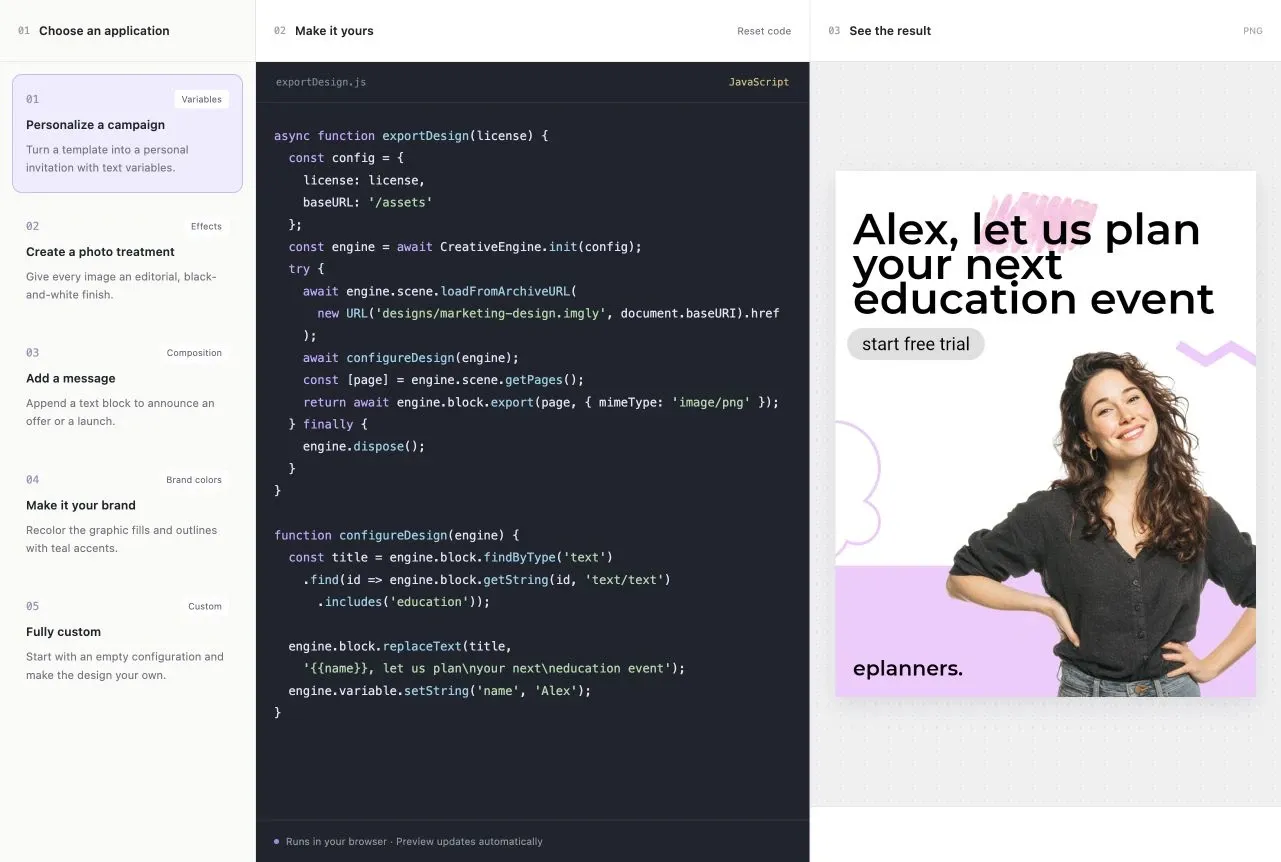
npm run devnpm run devOpen the local application. Choose one of the five presets: personalize a campaign,
apply photo effects, append a text block, change brand colors, or start fully custom
with an empty configureDesign(engine). Edit the JavaScript
in the single middle-panel editor. Both exportDesign(license) and
configureDesign(engine) are editable together with JavaScript syntax highlighting.
The preview exports automatically when the demo opens, when you select an application,
and when you reset the code. Code edits trigger export after a 400ms pause.
The export function includes engine creation and disposal in finally.
Switching applications loads its complete example; Reset code restores both functions.
Only one export runs at a time. New changes replace the pending source; an active run
finishes and disposes its engine before the latest source runs. Superseded results
and errors are discarded. The right panel shows the exported design.
Every export starts from the original template, so edits do not accumulate.
Customize the Headless Workflow#
For the editable demo, set your license in demo.ts. The runner passes it to
exportDesign(license) so the code editor contains no embedded license key. Edit
the asset and design URLs inside the export function; update exportDesignCode in
presets.ts to persist those defaults. When using the reusable TypeScript workflow
outside the playground, pass your license to exportDesign(license) directly.
The demo interface belongs to demo.ts. It passes the complete edited source to
imgly/run-design.ts, which executes the source in the browser and calls
exportDesign(license). CreativeEngine is provided to the edited code;
use plain JavaScript without imports or TypeScript annotations. The default export
function mirrors the reusable TypeScript workflow in
imgly/index.ts, which has no framework dependency:
import CreativeEngine from '@cesdk/engine';import { configureDesign } from './configure-design';

export async function exportDesign(license: string): Promise<Blob> { const config = { license: license, baseURL: '/assets' }; const engine = await CreativeEngine.init(config); try { await engine.scene.loadFromArchiveURL( new URL('designs/marketing-design.imgly', document.baseURI).href ); await configureDesign(engine); const [page] = engine.scene.getPages(); return await engine.block.export(page, { mimeType: 'image/png' }); } finally { engine.dispose(); }}exportDesign(license) receives the license as a string argument. The asset location
and design URL remain explicit inside the function. It loads the archive into a fresh engine, calls
await configureDesign(engine), and exports its first page as a PNG. The
configureDesign implementation reads the demo textarea (#code), executes its
JavaScript in the browser, and awaits the configuration before export. The included marketing design comes from the Design Editor
starter kit. It bundles its images and fonts in public/designs/marketing-design.imgly.
Keep that directory available next to the application’s entry URL. For nested routes
or subpath hosting, change the URL literal inside exportDesign(license) to the public
archive location. Packaged Electron renderers should use an absolute HTTP(S) URL.
The Personalize a campaign preset supplies this configuration. It replaces the
headline with {{name}}, let us plan your next education event and sets name to Alex:
function configureDesign(engine) {  const title = engine.block.findByType('text')    .find(id => engine.block.getString(id, 'text/text')      .includes('education'));
  engine.block.replaceText(title,    '{{name}}, let us plan\nyour next\neducation event');  engine.variable.setString('name', 'Alex');}
presets.ts contains five editable examples. Each defines configureDesign(engine),
which can be async and receives the current engine instance. The edited JavaScript
runs in the page’s browser context, with access to browser APIs. It uses the regular
engine API without an additional engine sandbox or execution limits.
If your application sets a Content Security Policy, the editable demo needs
'unsafe-eval' in script-src to compile the JavaScript entered in the textarea.
A fixed configuration function can be called directly without runtime compilation.
The function awaits export before disposing the engine in finally. Loading,
script, and export failures reject its promise. The demo displays the thrown message
as plain text below the preview and lets the user edit and retry. A failed run leaves the
previous result available. Editing code or switching presets automatically retries with
the latest source. Errors from superseded runs are discarded.
For your own interface, copy src/imgly/, set the asset configuration and archive
URL, and replace the #code textarea lookup in imgly/configure-design.ts with your
JavaScript source string.
Call exportDesign(license) from your export handler, handle rejection, and consume the Blob. The complete demo also needs
demo.ts, presets.ts, highlight-code.ts, style.css, and public/designs/. It retains the latest
export promise as window.headlessExport for inspection.
Build and Deploy#
Build your application with its normal production command. Serve the generated files and matching engine assets over HTTP(S). Configure a license for the deployment origin. See Serve Assets for asset-hosting guidance.
This kit uses @cesdk/engine. It does not load @cesdk/cesdk-js or its editor UI.
A DOM-free server needs a server engine package instead; see
Headless Mode for runtime choices.
Troubleshooting#
-
Keep both function names, return a PNG Blob from
exportDesign(license), and preserve engine disposal infinally. -
Read the error below the preview and fix the code or asset configuration. The preview retries automatically after editing.
-
Keep the
configureDesignfunction name. Syntax errors and thrown messages appear below the preview.