Build a photobook from spreads: a cover with a spine, and inside spreads of two facing pages. Place a photo across the fold, copy pages between spreads, show one spread at a time, and export the book for print.
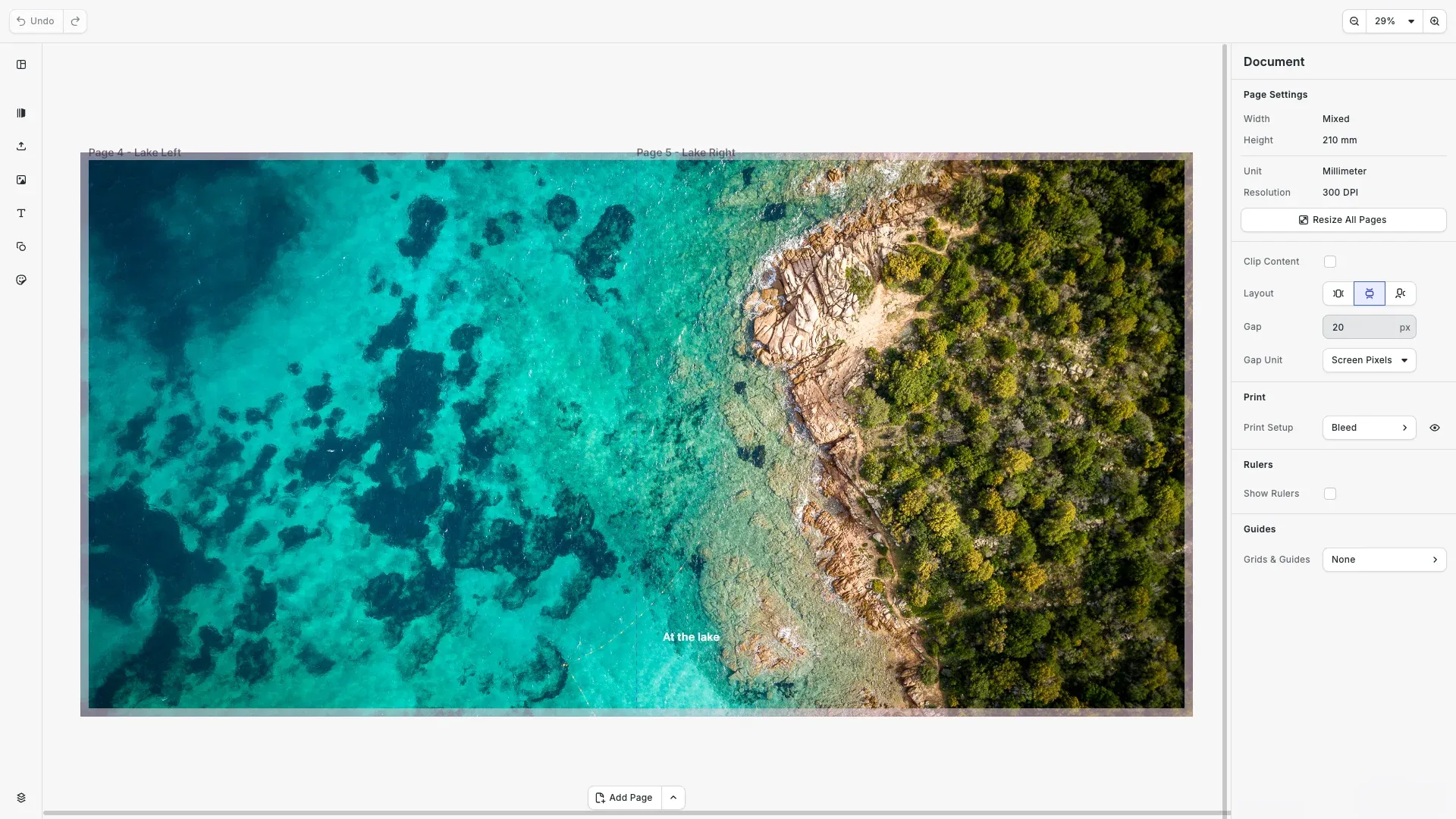
We build a square photobook with a cover and three inside spreads. We place one photo across the fold of the first inside spread. We copy a page into the second spread and duplicate a page in the third. Then we export the cover and the inside pages, and show only the first inside spread. For a complete photobook app, see the Photobook Editor starter kit.
This guide covers:
- How spreads make a photobook
- Building a cover with a spine, and inside spreads
- Placing a photo across the fold
- Copying a page into another spread, and duplicating a page
- Exporting the cover and the inside pages for a print shop
- Showing one spread at a time in single page mode
How a Photobook Is Built#
A photobook is a cover and a stack of inside spreads. CE.SDK builds each spread as one page with page slices, and the folds lie between the page slices.
- The cover holds three page slices in a row: the back cover, the spine and the front cover.
- An inside spread usually holds two page slices: the left and the right page.
- A spread can hold any number of page slices.
- All page slices of a row share one height.
- The content of a spread is a child of the page, in the coordinates of the whole spread. The origin is the top-left corner of the trim. The bleed starts at x = -3 mm and y = -3 mm.
Folded Products and Spreads explains the model, the size rules and the ownership rules of page slices.
Set Up the Editor#
The advanced editor shows each spread with its pages. Load its configuration as a plugin:
// The advanced editor shows a page with page slices as a spread.await cesdk.addPlugin(new AdvancedEditorConfig());const engine = cesdk.engine;Create the Scene#
Create a design scene with a vertical stack, so the spreads show one under the other in reading order. Set the design unit to millimeters, so all sizes in this guide are in millimeters. Give the stack a spacing of 20 screen pixels, so the pages do not touch and each page label has room above its page.
const scene = engine.scene.create('VerticalStack');engine.scene.setDesignUnit('Millimeter');const [stack] = engine.block.findByType('stack');// Without a spacing, the pages touch and their labels sit on the trim edge.engine.block.setFloat(stack, 'stack/spacing', 20);engine.block.setBool(stack, 'stack/spacingInScreenspace', true);Create a Spread#
A spread is a page that holds one page slice per book page. To build one:
- Create a page and add it to the stack.
- Turn on its margin, which CE.SDK uses as the bleed, and set 3 mm on each side.
- Add one page slice per book page, each 210 mm high, with its own width and name.
The helper below puts these steps together:
type SpreadPage = { name: string; width: number };
function createSpread(  engine: CreativeEngine,  stack: DesignBlockId,  pages: SpreadPage[]): DesignBlockId {  const spread = engine.block.create('page');  engine.block.appendChild(stack, spread);
  // A 3 mm bleed on every side of the spread  engine.block.setBool(spread, 'page/marginEnabled', true);  for (const side of ['top', 'bottom', 'left', 'right']) {    engine.block.setFloat(spread, `page/margin/${side}`, 3);  }
  for (const { name, width } of pages) {    const pageSlice = engine.block.create('pageSlice');    // Size the page slice before it joins the spread.    engine.block.setWidth(pageSlice, width);    engine.block.setHeight(pageSlice, 210);    engine.block.setName(pageSlice, name);    engine.block.appendChild(spread, pageSlice);  }  return spread;}
The spread takes its size from its page slices, so we never size the page. The engine lays out the spread on its next update, which in the browser is the next frame. Calls such as getOwningPageSlice, duplicate and export lay out the spread themselves.
Build the Cover Spread#
Two covers of 210 × 210 mm and a 12 mm spine make a cover sheet of 432 × 210 mm. The spine is a page slice like the covers. A clipped spine stops a title that is longer or wider than the spine at its folds.
To put a title on the spine:
- Create a text block of 120 × 8 mm as a child of the cover spread. Center its text in both directions.
- Turn it by 90 degrees with
setRotation. The turn keeps the center of the block, but moves its position. - Set the position after the turn. The position is then the top-right corner of the turned frame. So x is the right edge of the title, and y is its top edge.
For a 12 mm spine, x = 210 + 12 / 2 + 8 / 2 = 220 mm and y = (210 - 120) / 2 = 45 mm. If you set the position first, the turn moves the title off the spine. For a title that reads from bottom to top, turn it by -90 degrees. Then x is the left edge of the title and y is its bottom edge.
The print shop gives the spine width for a page count and a paper. Keep it in one value, such as spineWidth, and compute the title position from it. To change the spine of an existing cover:
- Call
setWidthon the spine page slice. The front cover and its content move by the change of the width. - A block on the spine does not move. Set the x of the title again to 210 + spineWidth / 2 + 4 mm.
- The new sizes show after the next update.
// The print shop gives the spine width for a page count and a paper.const spineWidth = 12;const cover = createSpread(engine, stack, [  { name: 'Back Cover', width: 210 },  { name: 'Spine', width: spineWidth },  { name: 'Front Cover', width: 210 }]);const [, spine] = engine.block.getPageSlices(cover);// A title longer or wider than the spine stops at its folds.engine.block.setClipped(spine, true);
const spineTitle = engine.block.create('text');engine.block.appendChild(cover, spineTitle);engine.block.replaceText(spineTitle, 'Summer 2026');engine.block.setTextFontSize(spineTitle, 14, { unit: 'Point' });const titleWidth = 120;const titleHeight = 8;engine.block.setWidth(spineTitle, titleWidth);engine.block.setHeight(spineTitle, titleHeight);engine.block.setEnum(spineTitle, 'text/horizontalAlignment', 'Center');engine.block.setEnum(spineTitle, 'text/verticalAlignment', 'Center');// setRotation keeps the center and moves the position. After the turn,// the position is the top-right corner of the turned frame.engine.block.setRotation(spineTitle, Math.PI / 2);engine.block.setPositionX(  spineTitle,  210 + spineWidth / 2 + titleHeight / 2);engine.block.setPositionY(spineTitle, (210 - titleWidth) / 2);
Build the Inside Spreads#
An inside spread holds a left and a right page of 210 × 210 mm. We build the first inside spread with both pages. The second and the third start with their left page only. They get their right pages from a copy and a duplicate. We append the spreads after the cover, so the stack holds the book in reading order.
const firstSpread = createSpread(engine, stack, [ { name: 'Lake Left', width: 210 }, { name: 'Lake Right', width: 210 }]);// The second spread gets its right page from a copy, the third from a// duplicate.const secondSpread = createSpread(engine, stack, [ { name: 'Trip Left', width: 210 }]);const thirdSpread = createSpread(engine, stack, [ { name: 'Notes Left', width: 210 }]);const [lakeLeft, lakeRight] = engine.block.getPageSlices(firstSpread);Place a Photo Across the Fold#
A photo across the fold is one graphic block with an image fill. It covers both pages of the spread and the bleed. It is 426 × 216 mm and starts at x = -3 mm and y = -3 mm. Its center is on the fold.
- The page slice under the center of the photo owns it. On the fold, the earlier page slice owns it, so
getOwningPageSlicereturns the left page. - A clipped page slice cuts the blocks that it owns at its folds and at the page edges with their bleed. The inside page slices stay unclipped, so the photo crosses the fold.
// One photo over both pages, bleed included, centered on the foldconst photo = engine.block.create('graphic');engine.block.setShape(photo, engine.block.createShape('rect'));const photoFill = engine.block.createFill('image');engine.block.setString(  photoFill,  'fill/image/imageFileURI',  'https://img.ly/static/ubq_samples/sample_1.jpg');engine.block.setFill(photo, photoFill);engine.block.appendChild(firstSpread, photo);engine.block.setPositionX(photo, -3);engine.block.setPositionY(photo, -3);engine.block.setWidth(photo, 426);engine.block.setHeight(photo, 216);
// On the fold, the earlier page slice owns the photo.const photoOwner = engine.block.getOwningPageSlice(photo);console.log('The photo belongs to the left page:', photoOwner === lakeLeft);
Copy a Page Into Another Spread#
We give the right page of the first inside spread a dark fill and a white caption. Then we copy that page into the second inside spread, as its right page. On the first spread, the photo hides the dark fill. The left page owns the photo, so the copy takes the fill and the caption, but not the photo.
To copy a page into another spread:
- Save the page slice with
saveToString. The string holds its fill and the blocks that it owns on its page. - Load the string back as a block. The loaded page slice keeps its content until it joins a spread.
- Insert the loaded page slice into the other spread with
insertChild. The next update puts the content onto that spread, at the new place of the page slice.
insertChild runs no update itself. An inserted page slice takes the largest height of its row. So a taller copy makes the whole spread taller, and a shorter copy takes the height of the spread. Copy pages between spreads of one page size.
In code:
// A page slice fill and the blocks that a page slice owns go with a copy.const pageFill = engine.block.createFill('color');engine.block.setColor(pageFill, 'fill/color/value', {  r: 0.1,  g: 0.2,  b: 0.3,  a: 1});engine.block.setFill(lakeRight, pageFill);const caption = engine.block.create('text');engine.block.appendChild(firstSpread, caption);engine.block.replaceText(caption, 'At the lake');engine.block.setTextFontSize(caption, 12, { unit: 'Point' });engine.block.setTextColor(caption, { r: 1, g: 1, b: 1, a: 1 });engine.block.setWidth(caption, 190);engine.block.setHeight(caption, 10);engine.block.setPositionX(caption, 220);engine.block.setPositionY(caption, 180);
const saved = await engine.block.saveToString([lakeRight]);const [copy] = await engine.block.loadFromString(saved);engine.block.setName(copy, 'Trip Right');// The copy becomes the right page. The next update puts the caption on it.engine.block.insertChild(secondSpread, copy, 1);
Duplicate a Page With Its Content#
To make two facing pages with one layout, we build the left page and duplicate it. Here, we put a note on the left page of the third inside spread and duplicate that page.
const note = engine.block.create('text');engine.block.appendChild(thirdSpread, note);engine.block.replaceText(note, 'Notes');engine.block.setTextFontSize(note, 18, { unit: 'Point' });engine.block.setWidth(note, 190);engine.block.setHeight(note, 12);engine.block.setPositionX(note, 10);engine.block.setPositionY(note, 20);
// The duplicate goes right after the left page, with a copy of the note.const [leftPage] = engine.block.getPageSlices(thirdSpread);const rightPage = engine.block.duplicate(leftPage);engine.block.setName(rightPage, 'Notes Right');console.log(  'Pages in the third spread:',  engine.block.getPageSlices(thirdSpread).length);
duplicate on a page slice puts the duplicate right after the original in the same spread. The duplicate takes a copy of each block that the original owns, at the same place on the duplicate.
- The page slices after the duplicate move right by its width, with their content.
- The spread grows by the width of the duplicate.
- The new positions show after the next update.
Export the Photobook for Print#
Print shops usually ask for two files: the cover as one sheet, and the inside pages.
- Export the cover page for the cover file. It gives one PDF page with a TrimBox of 432 × 210 mm.
exportPdfWithCropMarksandexportPdfWithFoldMarksdraw the cut and the two spine folds.printMarkOffsetset to the bleed starts the marks at the edge of the bleed. - For the inside pages, hide the cover with
setVisibleand export the scene withexportPdfPageSlicesturned on. A hidden page is left out of the export. The canvas does not show the cover until you make it visible again. setIncludedInExportturned off on the cover does not do the same. It keeps three empty PDF pages for the cover.- Each page slice gives one PDF page, in reading order, with the bleed on all four sides. A page of 210 × 210 mm gives a PDF page of 216 × 216 mm. At the fold, the bleed shows the facing page.
- Without
exportPdfPageSlices, the export gives one PDF page per spread. exportPdfWithHighCompatibilityis on by default and rasterizes the photos at the export resolution.pdfImageQualitybelow 1 stores them as JPEG, which keeps the file much smaller.- Ask the print shop whether the first inside page is a left or a right page. To start with a right page, begin with a spread of one page slice.
- Without a license, each export carries a watermark.
Export to PDF describes the TrimBox, the BleedBox and the printer’s marks. Export for Printing describes CMYK output.
// The cover as one sheet, with crop marks and the two spine foldsconst coverPdf = await engine.block.export(cover, { mimeType: 'application/pdf', exportPdfWithCropMarks: true, exportPdfWithFoldMarks: true, printMarkOffset: 3, pdfImageQuality: 0.9});// The inside pages: one PDF page per page slice, without the cover// A hidden page is left out of a scene export.engine.block.setVisible(cover, false);let insidePdf: Blob;try { insidePdf = await engine.block.export(scene, { mimeType: 'application/pdf', exportPdfPageSlices: true, pdfImageQuality: 0.9 });} finally { engine.block.setVisible(cover, true);}// Upload or download the Blobs in your app.console.log('Cover PDF bytes:', coverPdf.size);console.log('Inside PDF bytes:', insidePdf.size);Show One Spread at a Time#
Single page mode shows only the pages that you name. The setting features/singlePageModeEnabled turns it on, and setCurrentPages also accepts page slices.
engine.editor.setSetting('features/singlePageModeEnabled', true);// Two page slices of one spread form a facing pair.engine.scene.setCurrentPages([lakeLeft, lakeRight]);console.log('Shown pages:', engine.scene.getCurrentPages().length);// The camera does not move by itself.await engine.scene.zoomToBlock(firstSpread, { padding: 40 });- One page slice shows only that page of its spread.
- Two neighboring page slices of one spread show a facing pair. The engine does not check that they are neighbors.
getCurrentPagesreturns what single page mode shows, or an empty list while the setting is off.- The camera does not move to the shown pages. Call
zoomToBlockon the spread as the last step. - The scene does not save the shown pages. Set them again after you load a scene.
- An export of the scene holds every page, including the pages that single page mode hides.
Troubleshooting#
- The photo across the fold is cut in half. The page slice that owns the photo is clipped. Turn its clip off.
- The spine title is off center after a spine change. A block on the spine does not move with it. Set its position again.
- A copied page shows no content. The copy has not joined a spread, or no update ran yet. Insert it into a spread and let the engine update.
- Single page mode shows all spreads. The setting
features/singlePageModeEnabledis off. Turn it on, then callsetCurrentPages. - Single page mode shows an empty canvas. The camera points at another part of the scene. Call
zoomToBlockon the shown spread.
API Reference#
| API | Purpose |
|---|---|
engine.scene.create('VerticalStack') |
Create a scene that shows the spreads in reading order. |
engine.scene.setDesignUnit('Millimeter') |
Work in millimeters. |
engine.block.create('page') |
Create a spread. |
engine.block.appendChild(parent, child) |
Add a spread to the stack, or a page slice to a spread. |
engine.block.setBool(spread, 'page/marginEnabled', true) |
Turn on the bleed of a spread. |
engine.block.setFloat(spread, 'page/margin/top', 3) |
Set the bleed on one side of a spread. |
engine.block.create('pageSlice') |
Create a page of a spread, or the spine. |
engine.block.setWidth(pageSlice, width) |
Size a page slice before it joins a spread, or change the spine width. |
engine.block.getPageSlices(page) |
Get the pages of a spread in reading order. |
engine.block.setClipped(pageSlice, clipped) |
Cut the blocks of a page slice at its folds and at the page edges with their bleed. |
engine.block.setRotation(block, radians) |
Turn the spine title. |
engine.block.getOwningPageSlice(block) |
Get the page slice that owns a block, or null. |
engine.block.duplicate(pageSlice) |
Duplicate a page with its content in the same spread. |
engine.block.saveToString([pageSlice]) |
Save a page slice with the blocks that it owns. |
engine.block.loadFromString(saved) |
Load the saved page slice. |
engine.block.insertChild(spread, pageSlice, index) |
Insert the loaded page slice into a spread. |
engine.block.export(cover, { mimeType, exportPdfWithCropMarks, exportPdfWithFoldMarks, printMarkOffset, pdfImageQuality }) |
Export the cover as one sheet with marks. |
engine.block.setVisible(cover, visible) |
Leave the cover out of a scene export. |
engine.block.export(scene, { mimeType, exportPdfPageSlices, pdfImageQuality }) |
Export one PDF page per page slice. |
engine.editor.setSetting('features/singlePageModeEnabled', true) |
Turn on single page mode. |
engine.scene.setCurrentPages(pageSlices) |
Show one page or a facing pair. |
engine.scene.getCurrentPages() |
Get what single page mode shows. |
engine.scene.zoomToBlock(spread) |
Bring the shown spread into view. |
Next Steps#
- Folded Products and Spreads: ownership, page moves and the error codes.
- Folded Cards: bi-fold and tri-fold cards with clipped panels.
- Photobook Editor: a complete photobook app.
- Export to PDF: one PDF page per page slice, the TrimBox and the BleedBox.