Add pages of a PDF to the design a user is editing, as editable groups they can click or drag in from the asset library.
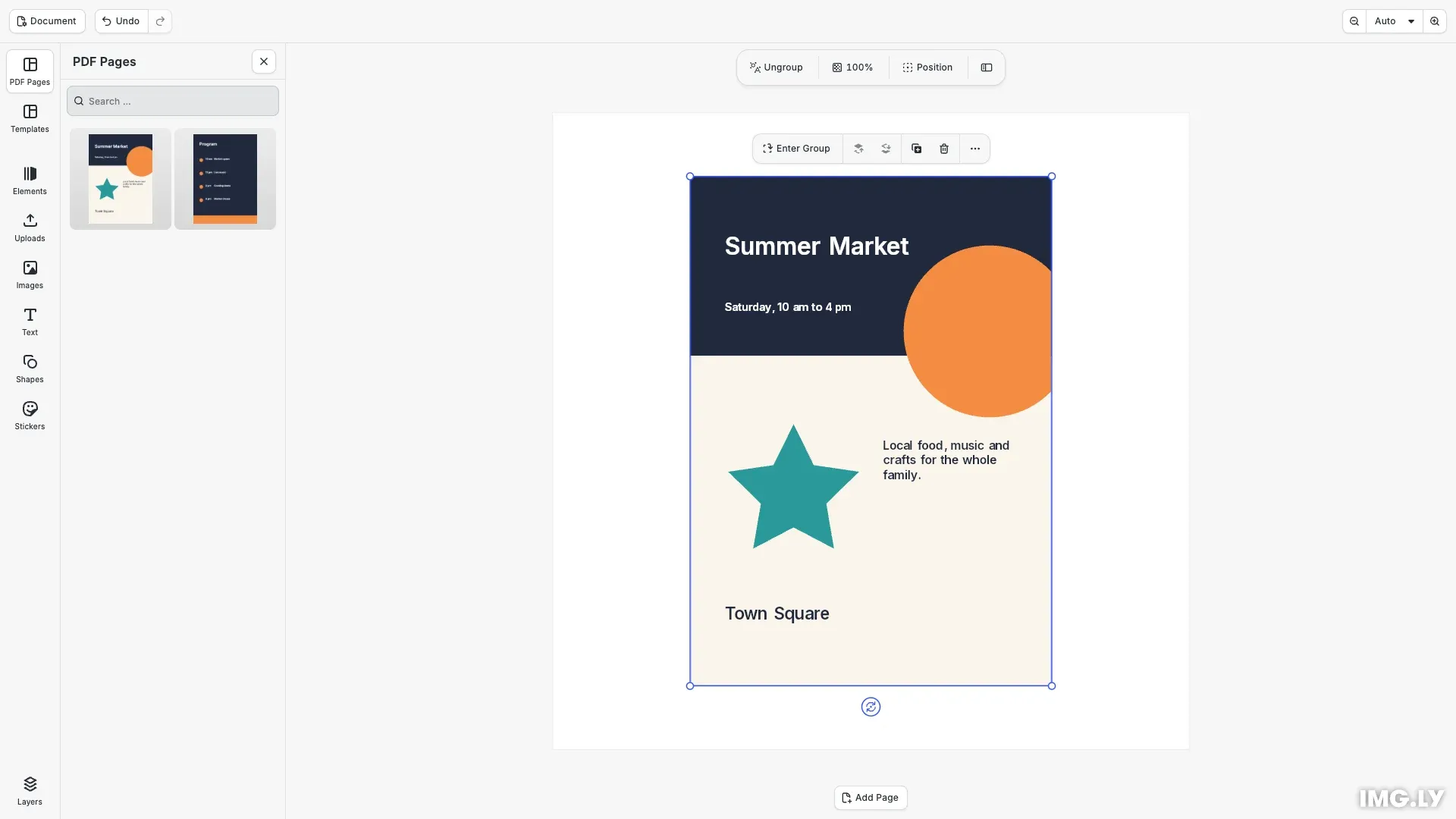
The PDF importer has two ways to bring in a PDF. parse() replaces the scene with the whole document, as the PDF Template Import starter kit does. loadAsBlocks() leaves the open scene as it is and returns one group per PDF page, with the page’s text, shapes and images as editable children. You decide where each group goes.
This guide covers how to create the parser, list PDF pages in a custom asset library, place a page into the current design, and handle warnings and failed imports.
Install the Packages#
Install CE.SDK and the PDF importer. loadAsBlocks() with units: 'scene' needs @imgly/pdf-importer 0.3.0 or later. The importer has its own version numbers, so we do not pin it to the CE.SDK version.
npm install @cesdk/cesdk-js@1.86.0 @imgly/pdf-importerThe importer loads its pdf.js worker from a file next to its own module. With Vite, exclude it from dependency pre-bundling, otherwise the worker URL breaks:
import { defineConfig } from 'vite';
export default defineConfig({  optimizeDeps: {    exclude: ['@imgly/pdf-importer']  }});
Set Up the Editor#
We load the design editor configuration and a few asset sources, then create a square design. This scene stands for the design your user already has open.
await cesdk.addPlugin(new DesignEditorConfig());await cesdk.addPlugin(new ColorPaletteAssetSource());await cesdk.addPlugin(new DemoAssetSources());await cesdk.addPlugin(new PagePresetsAssetSource());await cesdk.addPlugin(new TextAssetSource());await cesdk.addPlugin(new TypefaceAssetSource());await cesdk.addPlugin(new VectorShapeAssetSource());
await cesdk.actions.run('scene.create', {  page: { width: 1080, height: 1080, unit: 'Pixel' }});const engine = cesdk.engine;
Create the Parser#
The importer resolves PDF fonts through the Google Fonts asset library, so we register it first. Then we fetch the PDF and create the parser on the editor’s engine. The groups that loadAsBlocks() returns live in the engine that parsed them, so a separate headless engine cannot hand them to the editor.
// The importer resolves PDF fonts through the Google Fonts asset library.await addGfontsAssetLibrary(engine);
const pdfURL = new URL(  `${import.meta.env.BASE_URL}summer-market.pdf`,  document.baseURI);const response = await fetch(pdfURL);if (!response.ok) throw new Error('Could not load the PDF');
// Create the parser on the editor's engine: the blocks it returns live// in that engine. The importer bundles its own engine types, hence the cast.const parser = await PDFParser.fromFile(  engine as any,  await response.arrayBuffer());
List the PDF Pages#
getPageCount() parses the PDF on its first call. Later calls to getPageCount() and loadAsBlocks() reuse the result, so the parse happens once.
We make one asset per page. The engine returns asset meta values as strings, so we store the page index as a string and convert it back when the asset is applied. The thumbnails in this example are images we rendered in advance. They are in the example’s public/ folder, next to the PDF. In your application, render them on your server or after upload.
// The first call parses the PDF. Later calls reuse the parsed document.const pageCount = await parser.getPageCount();const pdfPages = Array.from({ length: pageCount }, (_, pageIndex) => ({ id: `summer-market-page-${pageIndex + 1}`, label: `Page ${pageIndex + 1}`, meta: { pageIndex: String(pageIndex), thumbUri: new URL( `${import.meta.env.BASE_URL}summer-market-page-${pageIndex + 1}.png`, document.baseURI ).href }}));Place a Page#
When the user clicks or drags a page in the library, the editor calls the source’s applyAsset. We call loadAsBlocks() with the page index.
async applyAsset(asset) { // The engine returns asset metadata as strings. const pageIndex = Number(asset.meta?.pageIndex); const { blocks, logger, dispose } = await parser.loadAsBlocks({ units: 'scene', pageIndex, maxBlocks: 10000 });units: 'scene' converts the content to the scene’s design unit, DPI and font-size unit, so the group keeps the physical size of the PDF page. Without units, the importer uses the deprecated legacy mode: inch values for geometry, whatever the scene’s unit is. maxBlocks rejects the import of a page that needs more blocks than the limit.
Check the Result#
The result has blocks, logger and dispose. The parser keeps one logger for the parse and all imports. We count the messages we already printed, so each import prints only the new ones, and the first import also prints the warnings of the parse. A page without content produces no group, so we handle an empty blocks array.
for (const message of logger.getMessages().slice(printedMessages)) { if (message.type !== 'info') { console.warn(`[${message.code}] ${message.message}`); }}printedMessages = logger.getMessages().length;// A page without content produces no group.const group = blocks[0];if (group === undefined) { cesdk.ui.showNotification(`PDF page ${pageIndex + 1} is empty.`); return undefined;}An index outside the document also returns no blocks, and logs the PAGE_INDEX_OUT_OF_RANGE warning.
Fit the Group to the Page#
We append the group to the current page before we scale it: engine.block.scale() throws for a block that is not in the scene yet. Then we scale the group to 80% of the page and center it. scale() resizes the group’s children with it.
const page = engine.scene.getCurrentPage();if (page === null) { dispose(); return undefined;}try { // Attach the group first: `scale()` throws for a block that is // not laid out in the scene yet. engine.block.appendChild(page, group); const pageWidth = engine.block.getWidth(page); const pageHeight = engine.block.getHeight(page); const factor = Math.min( (pageWidth * 0.8) / engine.block.getWidth(group), (pageHeight * 0.8) / engine.block.getHeight(group) ); engine.block.scale(group, factor); engine.block.setPositionX( group, (pageWidth - engine.block.getWidth(group)) / 2 ); engine.block.setPositionY( group, (pageHeight - engine.block.getHeight(group)) / 2 );} catch (error) { // Remove the imported blocks and their unused images. dispose(); throw error;}// Select the group, so the user sees which block was added.engine.block.select(group);// A custom `applyAsset` records no undo step on its own.engine.editor.addUndoStep();return group;If placement fails, dispose() destroys the imported groups and releases their unused images and spot colors. Call it only before the groups are part of the undo history. After a successful placement, we select the group, so the user sees what was added. Then we add an undo step, because the editor records none for a custom applyAsset.
A custom applyAsset does not receive the drop position from a drag. The group goes where your code puts it, here the page center.
Add the Library to the Dock#
We give the source a label, add an asset library entry for it, and put that entry first in the dock.
cesdk.i18n.setTranslations({ en: { [`libraries.${PDF_SOURCE_ID}.label`]: 'PDF Pages', 'libraries.pdf-pages-entry.label': 'PDF Pages' }});cesdk.ui.addAssetLibraryEntry({ id: 'pdf-pages-entry', sourceIds: [PDF_SOURCE_ID], previewLength: 2, previewBackgroundType: 'contain', gridBackgroundType: 'contain', gridColumns: 2});cesdk.ui.setComponentOrder({ in: 'ly.img.dock' }, [ { id: 'ly.img.assetLibrary.dock', key: 'pdf-pages-dock', label: 'PDF Pages', icon: '@imgly/Template', entries: ['pdf-pages-entry'] }, ...cesdk.ui.getComponentOrder({ in: 'ly.img.dock' })]);See Customize the Asset Library for more entry options.
Place a Page from Code#
engine.asset.apply() runs the same applyAsset, so code and the library place pages the same way. The example places page 1 when it starts.
// Place the first PDF page through the same source, as a click would.await engine.asset.apply(PDF_SOURCE_ID, pdfPages[0]);Troubleshooting#
- Scaling throws “Block hasn’t been laid out yet”: you scaled the group before you appended it. Append it to a page first.
- Nothing is placed and no warning appears: the page index is not a number. Convert values from asset
metawithNumber(). - The import rejects with “The scene changed during PDF import” or “The scene or its units changed during PDF import”: the user loaded another scene, or changed the design unit, while the PDF was importing. Run the import again in the current scene.
- Text uses a different font: the importer substituted a font that is not in the asset library. The logger reports
FONT_SUBSTITUTIONS. - Imported content is very small: you used the legacy unit mode. Pass
units: 'scene'.
Next Steps#
- PDF Template Import opens a whole PDF as a new scene.
- Import from InDesign uses
loadAsBlocks()for PDF files embedded in IDML documents. - Import EPS Artwork places EPS files as groups with the same API.