Let users download the design they edit as a Figma file, with a frame for each page.
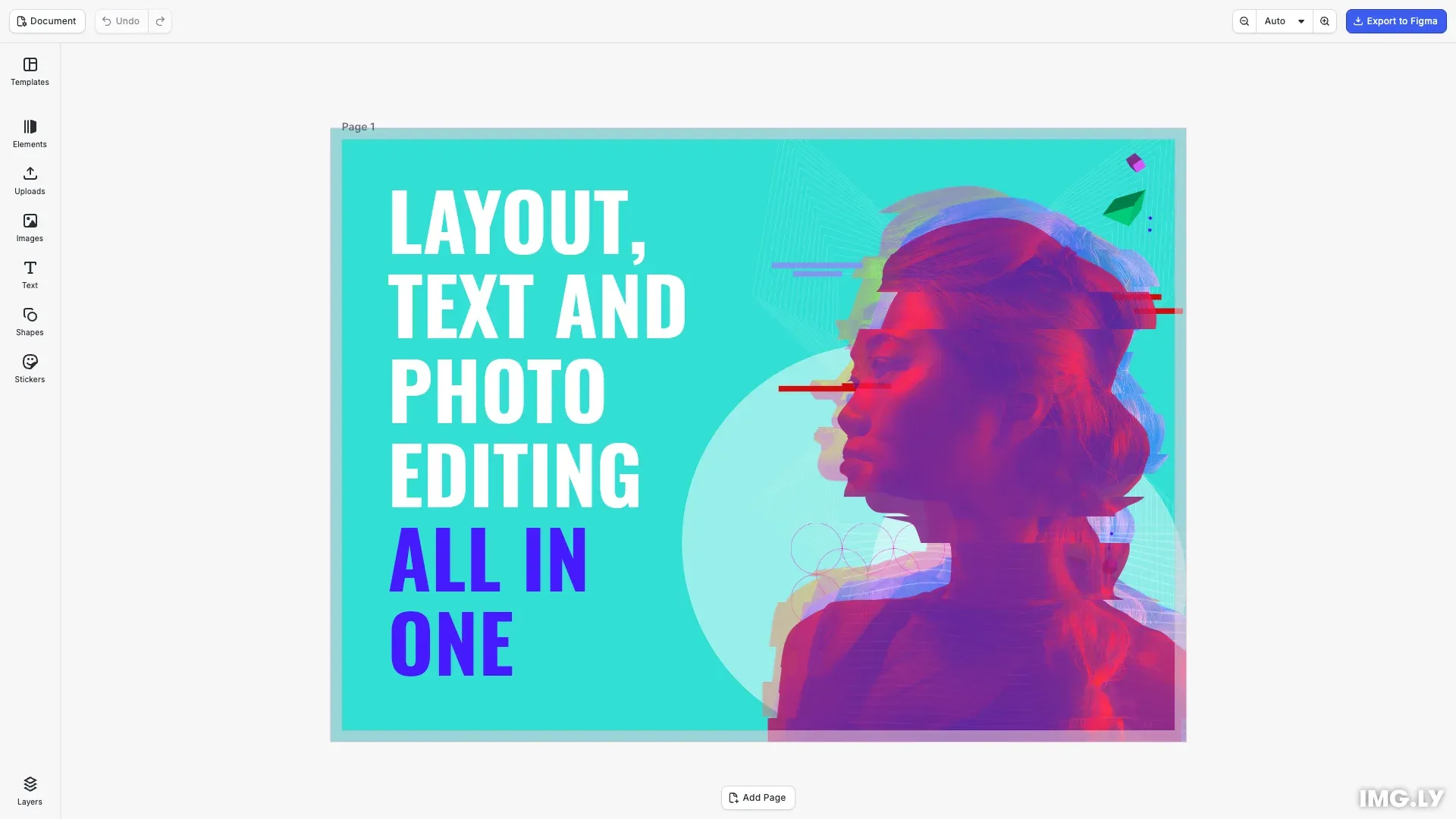
The @imgly/figma-exporter package converts the editor’s scene into a .fig file in the browser. It exports scenes created in CE.SDK as well as scenes imported from Figma, so a design needs no Figma data to export. To export on a server, see the Node.js guide.
This guide covers how to export the scene, download the file, report the conversion notes, add an export button and check the result in Figma.
Install the Packages#
Install CE.SDK and the Figma exporter. The exporter has its own version numbers, so we do not pin it to the CE.SDK version.
npm install @cesdk/cesdk-js@1.87.0 @imgly/figma-exporterThe exporter’s exportFig() takes the editor’s cesdk.engine.
import { exportFig } from '@imgly/figma-exporter';Prepare the Scene#
The example loads a CE.SDK postcard template and zooms to its page. Any scene the user opens or edits exports the same way.
await engine.scene.loadFromURL(TEMPLATE_URL);await cesdk.actions.run('zoom.toPage', { page: 'first', autoFit: true });Export the File#
exportFig() returns the .fig bytes and a logger. fileName sets the name that Figma shows for the file. The optional thumbnail takes PNG bytes for Figma’s file browser.
// The export reads the current scene, so it includes the user's edits.const { fig, logger } = await exportFig(engine, { fileName: 'CE.SDK design'});One scene becomes one Figma canvas. Each CE.SDK page becomes a frame with the page’s name, size, fill and clipping, so a design with several pages exports as one file. A page imported from a Figma frame goes back to that frame’s canvas position. Layers from the importer’s extra page go back onto the canvas, unless that page is empty, clipped or restyled. The export leaves the scene unchanged. It reads the scene while it runs, so the example blocks the editor with a dialog until the file is ready. Without that dialog, a property that the user edits during the export, such as a color or a text, can have its old or its new value in the file. When the export ends, it compares the scene with its start. It fails if the user added, deleted or rearranged layers, opened another scene, or changed the design unit or the resolution of a scene in millimetres or inches. A change that the user undoes before the export ends can still leave the file wrong.
Download the File#
fig is a Uint8Array, so it can go straight into a Blob. We create an object URL for it and click a temporary link with a download name. We revoke the URL a second later, after the browser has started the download.
const url = URL.createObjectURL(new Blob([fig]));const link = document.createElement('a');link.href = url;link.download = 'design.fig';document.body.append(link);link.click();link.remove();// Keep the URL until the browser has started the download.setTimeout(() => URL.revokeObjectURL(url), 1000);Review Conversion Notes#
logger.getMessages() lists what the export changed. Each message has a type of info, warning or error, a stable code and a readable message. We log every message and summarize the codes in a notification, which stays open when a message needs review.
// Each message has a `type`, a stable `code` and a readable `message`.const messages = logger.getMessages();const counts = new Map<string, number>();for (const message of messages) { console.info(`${message.type}: [${message.code}] ${message.message}`); counts.set(message.code, (counts.get(message.code) ?? 0) + 1);}const needsReview = messages.some((message) => message.type !== 'info');const summary = [...counts] .map(([code, count]) => `${code} (${count})`) .join(', ');cesdk.ui.showNotification({ type: needsReview ? 'warning' : 'success', message: messages.length > 0 ? `Downloaded design.fig. Conversion notes: ${summary}.` : 'Downloaded design.fig.', duration: needsReview ? 'infinite' : 'long'});Supported text, shapes, images, gradients, strokes and effects become editable Figma layers. Some content changes on the way:
- Rendered fallbacks: a graphic without a native
.figform is written as its CE.SDK render (BLOCK_RASTERIZED). It is no longer editable as a shape in Figma. - Effects: an effect without a
.figequivalent turns a graphic into its render, and other blocks lose the effect (EFFECT_UNSUPPORTED). - Skipped content: a block type without a
.figequivalent is left out (UNSUPPORTED_BLOCK_TYPE). - Fonts: Figma finds fonts by name. A typeface without a known Figma name is written as-is, and Figma can replace it (
FONT_UNRESOLVED,FONT_NAME_UNVERIFIED).
A scene imported with Import From Figma carries x-figma/… metadata. The exporter uses it to restore the Figma properties CE.SDK has no field for. For properties that CE.SDK maps, the current scene wins, so the user’s edits stay. Preservation is best effort and does not guarantee an identical Figma file or render.
Connect the Export Button#
We register a button with cesdk.ui.registerComponent() and append it to the navigation bar. While an export runs, cesdk.utils.showLoadingDialog() blocks the editor and builder state disables the button. A failed export shows an error notification.
cesdk.ui.registerComponent('figma.export', ({ builder, state }) => { const exporting = state('exporting', false); builder.Button('figma.export', { label: 'Export to Figma', icon: '@imgly/Download', variant: 'regular', color: 'accent', isLoading: exporting.value, isDisabled: exporting.value, onClick: async () => { exporting.setValue(true); // The export reads the scene while it runs, so the dialog blocks // the editor until the file is ready. const dialog = cesdk.utils.showLoadingDialog({ title: 'Exporting to Figma', message: 'You can edit the design again when the download starts.', progress: 'indeterminate' }); try { await exportToFigma(); } catch (error) { cesdk.ui.showNotification({ type: 'error', message: `Export failed: ${error instanceof Error ? error.message : String(error)}` }); } finally { dialog.close(); exporting.setValue(false); } } });});cesdk.ui.setComponentOrder({ in: 'ly.img.navigation.bar' }, [ ...cesdk.ui.getComponentOrder({ in: 'ly.img.navigation.bar' }), 'figma.export']);Verify in Figma#
Import the downloaded design.fig through Figma’s file browser and open it in the editor. Figma computes text layout when it opens a file. Compare each frame with the design in CE.SDK, including text, fonts, images, stacking and clipping. Figma’s REST API has no endpoint to upload a .fig file, so opening the file in Figma is a manual step.
API Reference#
| API | Description |
|---|---|
exportFig(engine, options?) |
Exports the current scene. Returns { fig, logger }. |
options.fileName |
The file name that Figma shows. |
options.thumbnail |
PNG bytes for the thumbnail in Figma’s file browser. |
fig |
The .fig file as a Uint8Array. |
logger.getMessages() |
The conversion notes, each with type, code and message. |
cesdk.ui.registerComponent(id, render) |
Registers the export button. |
cesdk.utils.showLoadingDialog(options) |
Blocks the editor while the export runs. |
cesdk.ui.showNotification(options) |
Reports the result and the notes. |
Troubleshooting#
- The export fails with a Content Security Policy error: the page blocks WebAssembly compilation or generated code. Add
'wasm-unsafe-eval'and'unsafe-eval'toscript-src. - “Cannot load the Zstandard WebAssembly codec”: the browser has no WebAssembly SIMD, such as Safari before 16.4, or the page blocks WebAssembly. Use a newer browser, or add
'wasm-unsafe-eval'toscript-src. - An object is no longer editable in Figma: the exporter wrote its render. Check the
BLOCK_RASTERIZEDnotes. - An object is missing in Figma: its block type has no
.figequivalent. Check theUNSUPPORTED_BLOCK_TYPEnotes. - “Layers were added, deleted or rearranged during the export”: the user or your code changed the layers while the export ran. Block the editor during the export, and export again.
- “The scene’s design unit or resolution changed during the export”: the user changed the design unit, or the resolution of a scene in millimetres or inches, while the export ran. Export again.
- “The editor loaded another scene during the export”: the user opened another design while the export ran. Export again.
- Text looks different in Figma: Figma does not have the font, or it lays the text out with other metrics. Install the font in Figma and check the font notes.
- Text is missing from a render that Figma’s API returns: Figma computes text layout when a file opens. Open the file in Figma’s editor before you request a render.
Next Steps#
- Import From Figma brings a Figma file into the editor.
- Export to Figma in Node.js exports archives on a server.
- From Archive opens a saved CE.SDK design.