Load custom typefaces into CE.SDK and apply them through the Android editor UI or the CreativeEngine Block API.
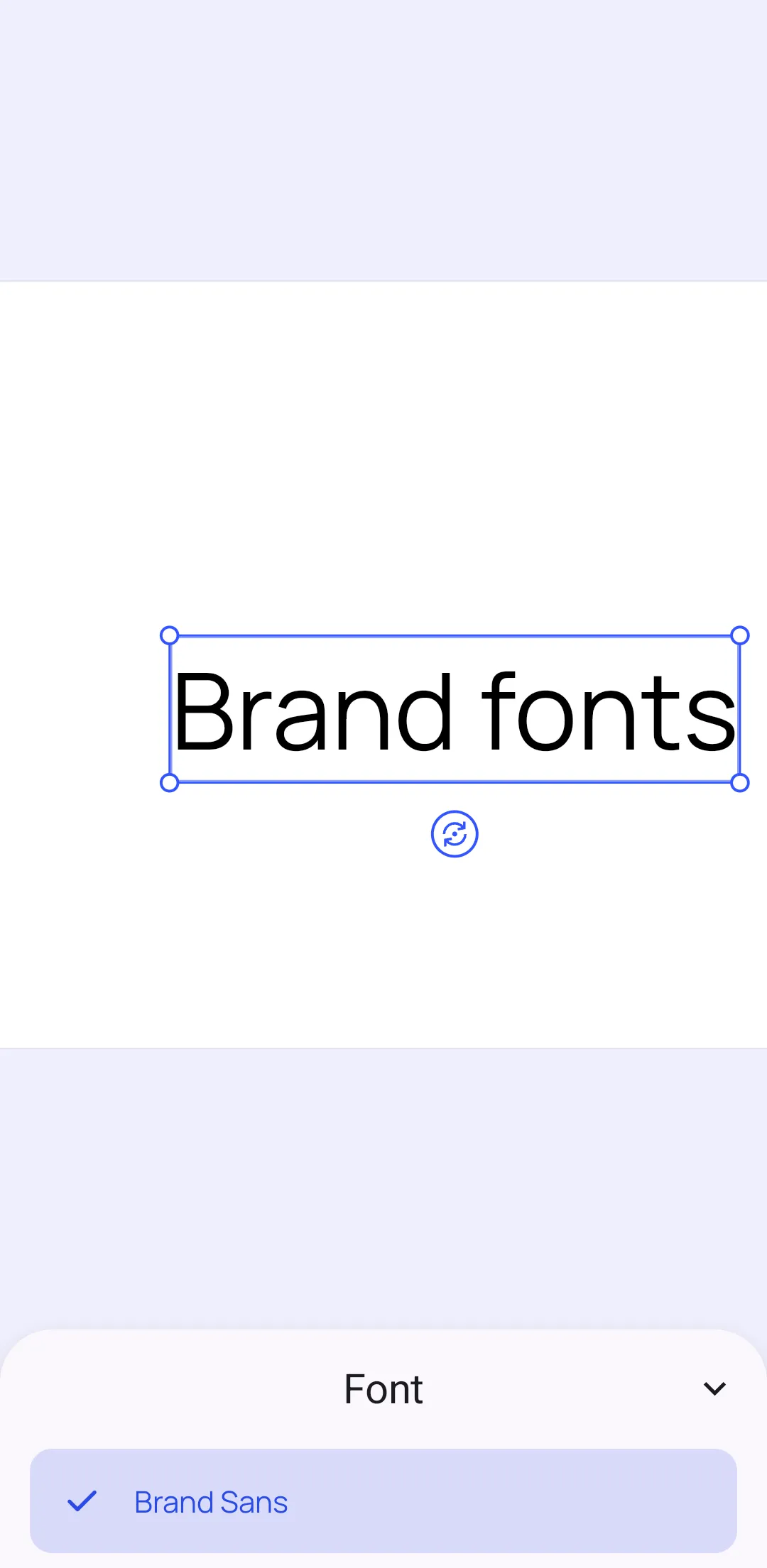
CE.SDK ships with default typefaces, but you can replace or extend them with font files from your own app bundle, CDN, or asset host. On Android, typefaces are regular asset payloads: define the font family, register it in an asset source, then pass the typeface asset IDs to the editor font sheet or query them from your own code.
This guide shows how to:
- Define a two-weight typeface and register it as an Android asset source
- Add an uploaded font file from its font info
- Expose the typeface to the CE.SDK editor UI
- Apply it to a text block programmatically
Typeface and Font Structure#
A Typeface represents one font family. Its fonts list contains the concrete variants that CE.SDK can choose from when text is regular, bold, italic, or another supported weight.
Each Font needs:
uri- a reachable font file, such as a bundled asset or HTTPS URLsubFamily- the display name of the variant, such asRegularorBoldweight- one of the AndroidFontWeightenum valuesstyle-FontStyle.NORMALorFontStyle.ITALIC
private const val CUSTOM_TYPEFACE_SOURCE_ID = "my-custom-typefaces"private const val BRAND_TYPEFACE_ASSET_ID = "ly.img.typeface.brand_sans"private const val BRAND_SANS_REGULAR_FILE = "BrandSans-Regular.ttf"private const val BRAND_SANS_BOLD_FILE = "BrandSans-Bold.ttf"private const val UPLOADED_FONT_URI = "https://fonts.gstatic.com/s/codystar/v19/FwZY7-Q1xVk-40qxOt6A.ttf"
private fun brandFontUri(fileName: String): Uri = "file:///android_asset"    .let(Uri::parse)    .buildUpon()    .appendEncodedPath("custom-fonts")    .appendEncodedPath(fileName)    .build()
private fun brandTypeface(): Typeface = Typeface(    name = "Brand Sans",    fonts = listOf(        Font(            uri = brandFontUri(BRAND_SANS_REGULAR_FILE),            subFamily = "Regular",            weight = FontWeight.NORMAL,            style = FontStyle.NORMAL,        ),        Font(            uri = brandFontUri(BRAND_SANS_BOLD_FILE),            subFamily = "Bold",            weight = FontWeight.BOLD,            style = FontStyle.NORMAL,        ),    ),)
The sample uses neutral BrandSans demo assets bundled with the Android example. Replace those asset URIs with font files your app owns.
Create a Custom Typeface Asset Source#
Add the typeface to the asset system with engine.asset.addLocalSource() and engine.asset.addAsset(). The important part is the AssetPayload(typeface = ...) value, which marks the asset as a typeface asset.
private fun brandTypefaceAsset() = AssetDefinition( id = BRAND_TYPEFACE_ASSET_ID, label = mapOf("en" to "Brand Sans"), tags = mapOf("en" to listOf("brand", "sans", "headline")), payload = AssetPayload( typeface = brandTypeface(), ),)Register the source and notify CE.SDK that its contents changed:
private fun createCustomTypefaceSource( engine: Engine, sourceId: String = CUSTOM_TYPEFACE_SOURCE_ID,) { if (sourceId in engine.asset.findAllSources()) { engine.asset.removeSource(sourceId = sourceId) } engine.asset.addLocalSource( sourceId = sourceId, supportedMimeTypes = emptyList(), ) engine.asset.addAsset( sourceId = sourceId, asset = brandTypefaceAsset(), ) engine.asset.assetSourceContentsChanged(sourceId = sourceId)}The sample removes an existing source with the same ID before adding it again so repeated editor launches stay deterministic.
Register an Uploaded Font#
When a user uploads a font file, you do not know its family name, weight or style in advance. engine.editor.getFontInfo() reads them from the file. It is a suspend function that takes the URI of a TTF, OTF, WOFF or WOFF2 file as a string and returns a FontInfo.
Build the typeface asset from that info alone and add it to the custom typeface source:
private suspend fun addFontFileToSource( engine: Engine, sourceId: String, fontFileUri: Uri,): Typeface { val info = engine.editor.getFontInfo(fontFileUri = fontFileUri.toString()) val typeface = Typeface( name = info.family, fonts = listOf( Font( uri = fontFileUri, subFamily = info.subFamily, weight = info.fontWeight, style = info.style, ), ), ) engine.asset.addAsset( sourceId = sourceId, asset = AssetDefinition( id = fontFileUri.toString(), label = mapOf("en" to info.family), payload = AssetPayload(typeface = typeface), ), ) engine.asset.assetSourceContentsChanged(sourceId = sourceId) return typeface}familyis the typographic family name of the font. The sample uses it as the typefacenameand the asset label.subFamilyandstylefill theFontentry directly.fontWeightis theFontWeightvalue that is closest to the numericweightof the file.- The sample uses the font file URI as the asset ID, so each file gets its own asset.
The sample registers the Codystar Regular file from Google Fonts this way in customFonts(). The typeface name comes from the name table in the file, not from the file name.
For a variable font, isVariable is true and variationAxes lists each axis with its tag, minValue, defaultValue and maxValue. The other fields describe the default instance of the font. getFontInfo() throws an EngineException with the code EngineErrorCode.EDITOR_FONT_INFO_EXTRACT_FAILED when the file is not a font. It throws EngineErrorCode.EDITOR_FONT_LOAD_FAILED when the URI is not reachable.
Update the Typeface Source#
The Android editor font sheet resolves typeface assets from AssetSourceType.Typeface.sourceId. Register your curated typeface asset under that source ID when you want the standard font sheet to be able to load it.
private fun replaceEditorTypefaceSource(engine: Engine) { createCustomTypefaceSource( engine = engine, sourceId = AssetSourceType.Typeface.sourceId, )}This source registration does not change which rows the built-in sheet shows. When you open SheetType.Font, pass the custom asset IDs through fontFamilies; otherwise the sheet uses its default fixed font-family filter and hides custom typefaces that are not in that list.
@OptIn(UnstableEditorApi::class)private fun EditorScope.openBrandTypefaceSheet(text: DesignBlock) { editorContext.eventHandler.send( EditorEvent.Sheet.Open( SheetType.Font( designBlock = text, fontFamilies = listOf(BRAND_TYPEFACE_ASSET_ID), ), ), )}To extend the default typefaces, add your assets to the existing AssetSourceType.Typeface.sourceId source without removing it first and include both default and custom asset IDs in fontFamilies. If you only apply fonts programmatically, use any source ID and query that source directly.
Set Up the Editor#
Wire the typeface source update into the editor configuration before the sample scene is created. The same runnable setup creates a text block in onCreate, selects it after loading, and opens the font sheet with the custom typeface ID in fontFamilies.
@Composablefun CustomFontsEditorSolution(    license: String,    onClose: (Throwable?) -> Unit,) {    Editor(        license = license,        configuration = {            EditorConfiguration.remember {                onCreate = {                    val engine = editorContext.engine                    replaceEditorTypefaceSource(                        engine = engine,                    )                    val typeface = brandTypeface()                    val scene = engine.scene.create()                    val page = engine.block.create(blockType = DesignBlockType.Page)                    engine.block.setWidth(block = page, value = 1080F)                    engine.block.setHeight(block = page, value = 1080F)                    engine.block.appendChild(parent = scene, child = page)
                    val text = engine.block.create(blockType = DesignBlockType.Text)                    engine.block.replaceText(block = text, text = "Brand fonts")                    engine.block.setWidthMode(block = text, mode = SizeMode.AUTO)                    engine.block.setHeightMode(block = text, mode = SizeMode.AUTO)                    engine.block.setTextFontSize(block = text, fontSize = 36F)                    engine.block.setPositionX(block = text, value = 240F)                    engine.block.setPositionY(block = text, value = 500F)                    engine.block.appendChild(parent = page, child = text)
                    applyBrandTypefaceToText(                        engine = engine,                        text = text,                        typeface = typeface,                    )                    inspectTextRendering(engine, text)                    engine.block.setSelected(block = text, selected = true)                    engine.scene.zoomToBlock(                        block = page,                        paddingLeft = 80F,                        paddingTop = 80F,                        paddingRight = 80F,                        paddingBottom = 80F,                    )                }                onLoaded = {                    val text = editorContext.engine.block.findByType(DesignBlockType.Text).firstOrNull()                    if (text != null) {                        editorContext.engine.block.setSelected(block = text, selected = true)                        // Let the editor publish the new selection before opening the contextual font sheet.                        delay(500)                        openBrandTypefaceSheet(text = text)                    }                }            }        },        onClose = onClose,    )}
Apply Fonts Programmatically#
Use engine.block.setFont() when you want to set the font file for the whole text block and reset existing text formatting. Use engine.block.setTypeface() when you want CE.SDK to preserve the current formatting as far as the new family supports it.
private fun applyBrandTypefaceToText(    engine: Engine,    text: DesignBlock,    typeface: Typeface,) {    val regularFont = typeface.fonts.firstOrNull {        it.subFamily == "Regular" &&            it.weight == FontWeight.NORMAL &&            it.style == FontStyle.NORMAL    } ?: error("Brand Sans Regular font is missing.")
    engine.block.setFont(        block = text,        fontFileUri = regularFont.uri,        typeface = typeface,    )    engine.block.setTypeface(        block = text,        typeface = typeface,        from = 0,        to = 5,    )
    val currentTypeface = engine.block.getTypeface(block = text)    val rangeTypefaces = engine.block.getTypefaces(block = text, from = 0, to = 5)
    check(currentTypeface.name == typeface.name)    check(rangeTypefaces.any { it.name == typeface.name })}
The from and to parameters use UTF-16 code unit offsets. In the sample, 0 to 5 covers the word Brand in Brand fonts.
Saved Content and Reader Compatibility#
The first concrete typeface definition for a family keeps the family name as its asset ID. If another definition uses that name with different font files or cuts, the engine saves it under a separate ID. Font requests also use their own identity keys. This applies to scenes, archives and saved blocks.
text/typeface can hold an ID that is not the family name. Read the name with block.getTypeface(id).name.
Earlier engines can render text from its stored font files, but cannot read a typeface or change its weight and style when the saved ID differs from the family name. Content with one concrete definition per family and no font requests stays editable in earlier engines.
Upgrade engines that must edit content with these separate identities. The updated reader still accepts older content. Keep original files before re-saving content that older applications must continue to edit.
Change the Fonts of a Registered Typeface#
When a font family changes, register its typeface again in your local asset source: remove the old asset, then add one with the current fonts. A typeface counts as registered again when it has the same name and at least one of the same font files.
A weight or style that the new typeface no longer has stays in the scene while text uses it, so that text keeps its look. Once no text uses it, the scene drops it, the font style menu stops offering it, and saved scenes no longer store it. To move text off a removed weight, set an available weight or style on that text.
A typeface with the same name but other font files, such as one that a template brings, keeps all its fonts.
Preserve Requested Font Identity#
private suspend fun applyStoredFontRequest( engine: Engine, text: DesignBlock, typeface: Typeface, sourceId: String,) { val font = typeface.fonts.first() engine.editor.setTypefaceResolver { request -> if (request.family == typeface.name) FontResolverResult(typeface, font) else null } try { val request = FontRequest( family = typeface.name, subFamily = font.subFamily, weight = font.weight, style = font.style, assetSourceId = sourceId, assetId = BRAND_TYPEFACE_ASSET_ID, ) engine.block.setFontRequest(text, request) engine.block.forceLoadResources(listOf(text)) check(engine.block.getFontRequests(text) == listOf(request)) } finally { engine.editor.setTypefaceResolver(null) }}A font request preserves the intended family, cut, weight, style and optional asset identity through scene and archive round trips, even when that font is unavailable. setFontRequest() stores this identity and starts asynchronous resolution. getFontRequests() returns the unique stored requests in source order, rather than the fonts currently used for rendering.
The request fields below use TypeScript names. Swift uses assetSourceID and assetID for the asset identifiers.
| Field | Purpose and default |
|---|---|
family |
Required, nonempty family name. |
subFamily |
Optional cut name; defaults to an empty string. |
weight |
Requested weight; defaults to normal. |
style |
Requested style; defaults to normal. |
postScriptName |
Optional exact identity checked against the loaded font’s PostScript name. |
assetSourceId |
Optional source identifier that limits asset lookup. |
assetId |
Optional asset identifier within that source; requires assetSourceId. |
Returned requests include the default subfamily, weight and style. Supplied optional identifiers must be nonempty.
Calling the setter without a range replaces the request for the whole block, even when text is selected. Calling the getter without a range reads the current selection, or the whole text when there is no selection. Explicit ranges follow the platform’s editable-text convention. These ranges can differ from the rendered UTF-16 ranges returned by diagnostics after case conversion or template substitution.
By default, the engine searches registered local asset sources for matching typeface definitions, reading at most 100 pages of each source. Identical requests share a pending lookup. Other sources are queried only when the request names an assetSourceId; an assetId selects one asset directly. To retry unresolved requests after registering a source, call editor.setTypefaceResolver() again. Applications with an external font catalog can also install editor.setTypefaceResolver(). The provider returns the concrete typeface and chosen font, or no result when unavailable. Configure it on each engine before loading a scene that needs it; the callback itself is not saved in the scene.
When the provider returns no result, throws or rejects, the engine uses the default font, and the request reports substituted. It reports unresolved only when the default font cannot load either. Replacing the provider starts resolution again; completions from replaced providers, superseded requests or disposed engines are ignored. Removing the provider restores registered-source resolution.
Await block.forceLoadResources() when subsequent work needs settled font resources. A new request or provider replacement can move a ready text block back to pending. Block-state subscriptions let your application observe readiness changes; read the current state when notified. Resource failure rejects the resource-loading call and can still leave a fallback layout to inspect.
getTextRenderDiagnostics() retains the stored request alongside the actual loaded font and effective size. A fallback does not replace the stored identity, and substitution can change line breaks and dimensions. A resolved request alone does not guarantee that every glyph is present.
Existing setFont() and setTypeface() calls continue to apply concrete font choices and clear requests for the affected text. Use them when you already have the concrete definition. Use a font request when the design should retain its intended identity while availability changes.
Inspect Rendered Text#
Call engine.block.getTextRenderDiagnostics() to check which fonts shaped the returned text, identify missing glyphs, and inspect layout. The example waits for resources with forceLoadResources() before reading the snapshot and prints the result to the console.
private suspend fun inspectTextRendering( engine: Engine, text: DesignBlock,) { // Wait for font resources when the application needs a settled snapshot. engine.block.forceLoadResources(listOf(text)) val diagnostics = engine.block.getTextRenderDiagnostics(text) println("Rendered text: ${diagnostics.fontUsage.text}; state: ${diagnostics.fontUsage.state}") diagnostics.fontUsage.runs.forEach { run -> println( "[${run.from}, ${run.to}): ${run.requestedFontFileUri} -> ${run.actualFontFileUri}; " + "${run.status}; effective font size: ${run.effectiveFontSize}", ) } println("Missing glyph ranges: ${diagnostics.missingGlyphRanges}") diagnostics.layout?.let { layout -> println( "Lines: ${layout.visibleLineCount}/${layout.totalLineCount} visible, " + "${layout.clippedLineCount} clipped; required height: ${layout.requiredHeight}; " + "font scale: ${layout.fontScale}; overshoot: ${layout.overshoot}", ) }}The call updates pending layout and returns a snapshot without waiting for font downloads. Call it again after resources finish loading.
fontUsage contains the rendered text, its block state, and font runs. Each run names the requested font file and the loaded font file, when available.
| Run status | Meaning |
|---|---|
resolved |
The requested font loaded for the run. |
substituted |
A different font loaded, including fallback or emoji fonts. |
unresolved |
No usable font loaded for the run. |
Each run’s effectiveFontSize reports the shaped size in the scene’s font unit. It includes automatic fitting and superscript or subscript scaling.
The block state separately reports resource loading or failure. A failed font can produce a current fallback layout. Pending resources produce no runs or layout. If no current shape exists after a loading failure, the snapshot omits stale text and measurements.
A resolved run does not guarantee that every glyph is available. These diagnostics describe shaped text; they do not confirm that a frame was drawn or exported.
All ranges use half-open UTF-16 offsets into fontUsage.text, after case conversion and template substitution. Font runs return from and exclusive to values on every platform. Missing-glyph ranges use the same endpoints; Swift represents these ranges as Range<Int>. These offsets can differ from offsets used to edit the original text.
missingGlyphRanges identifies glyphs that remain missing after fallback. Ignored controls and trailing whitespace do not count as missing glyphs. This field remains available for curved text.
When present, layout contains:
totalLineCount: All laid-out lines, including hidden lines.visibleLineCount: Lines visible with the block’s clipping configuration, independent of temporary editing visibility.clippedLineCount: Lines hidden by that clipping configuration.requiredHeight: The full Auto-height result at the current effective sizes, even when no line fits the frame.fontScale: The common automatic fitting scale applied to authored font sizes.overshoot: Nonnegative distances that glyph ink extends beyond the frame’s left, top, right, and bottom edges.
requiredHeight and overshoot use local scene design units before block transformations, stroke, effects, or animations. Overshoot includes ink on hidden lines. Intentional glyph overhang can produce nonzero overshoot; choose limits that suit your design.
Curved text omits planar layout measurements. An absent layout means those measurements are unavailable; it does not mean the text passed verification.
Troubleshooting#
- The font is not visible in the editor UI: Register the asset under
AssetSourceType.Typeface.sourceId, callengine.asset.assetSourceContentsChanged(), and openSheetType.FontwithfontFamiliescontaining your custom typeface asset ID. - The font file does not load: Check that the URI is reachable from the device and points to a valid TTF, OTF, WOFF, or WOFF2 file.
- An uploaded font file is rejected:
getFontInfo()throwsEDITOR.FONT_INFO_EXTRACT_FAILEDwhen the file is not a TTF, OTF, WOFF, or WOFF2 font. Ask the user for a different file. - Font info does not load:
getFontInfo()throwsEDITOR.FONT_LOAD_FAILEDwhen the font URI is not reachable from the device. - Bold or italic is unavailable: Add a
Fontentry with the matchingFontWeightandFontStyle. getTypeface()fails on a new text block: Apply a font first withsetFont()orsetTypeface()so the block has an explicit typeface.
API Reference#
| Method | Purpose |
|---|---|
engine.asset.findAllSources() |
Check whether a typeface source is already registered |
engine.asset.removeSource(sourceId=_) |
Remove an existing source before replacing the typeface library |
engine.asset.addLocalSource(sourceId=_, supportedMimeTypes=_) |
Create a local source for custom typeface assets |
engine.asset.addAsset(sourceId=_, asset=_) |
Add the typeface asset definition to a local source |
engine.asset.assetSourceContentsChanged(sourceId=_) |
Notify CE.SDK after changing the local source contents |
engine.asset.findAssets(sourceId=_, query=_) |
Query typeface assets from a source |
engine.editor.getFontInfo(fontFileUri=_) |
Read the family, subfamily, weight, style, and variation axes of a font file |
editorContext.eventHandler.send(event=_) |
Dispatch editor UI events from an editor configuration callback or component |
EditorEvent.Sheet.Open(type=_) |
Open a bottom sheet in the CE.SDK editor UI |
SheetType.Font(designBlock=_, fontFamilies=_) |
Configure the font sheet for a text block and filter it to custom typeface asset IDs |
engine.scene.create() |
Create a scene for the sample editor setup |
engine.block.create(blockType=_) |
Create the page and text blocks used by the sample scene |
engine.block.setWidth(block=_, value=_) |
Set the sample page width |
engine.block.setHeight(block=_, value=_) |
Set the sample page height |
engine.block.appendChild(parent=_, child=_) |
Add the page to the scene and the text block to the page |
engine.block.replaceText(block=_, text=_) |
Set the text block contents |
engine.block.setWidthMode(block=_, mode=_) |
Let the text block fit its content width |
engine.block.setHeightMode(block=_, mode=_) |
Let the text block fit its content height |
engine.block.setTextFontSize(block=_, fontSize=_) |
Set the text size in the sample scene |
engine.block.setPositionX(block=_, value=_) |
Position the text block on the x-axis |
engine.block.setPositionY(block=_, value=_) |
Position the text block on the y-axis |
engine.block.findByType(type=_) |
Find the text block whose font sheet should open |
engine.block.setSelected(block=_, selected=_) |
Select the text block before opening the contextual font sheet |
engine.block.setFont(block=_, fontFileUri=_, typeface=_) |
Set a font file for the entire text block and reset formatting |
engine.block.setTypeface(block=_, typeface=_, from=_, to=_) |
Apply a typeface while preserving compatible text formatting |
engine.block.getTypeface(block=_) |
Read the base typeface of a text block |
engine.block.getTypefaces(block=_, from=_, to=_) |
Read unique typefaces in a text range |
engine.block.setFontRequest(block=_, request=_, from=_, to=_) |
Store font identity for later resolution. |
engine.block.getFontRequests(block=_, from=_, to=_) |
Read unique stored font requests. |
engine.editor.setTypefaceResolver(resolver=_) |
Supply an application font provider or restore registered-source resolution. |
engine.block.getTextRenderDiagnostics(block=_) |
Inspect rendered font runs, effective font sizes, missing glyphs, and planar layout |
engine.block.forceLoadResources(blocks=_) |
Wait for the text block’s font resources before reading a settled snapshot |
Next Steps#
- Text Styling — Apply fonts, colors, alignment, and other styling options to customize text appearance.
- Add Text — Insert text blocks into your CE.SDK scene.
- Text Decorations — Add underline, strikethrough, and overline decorations to text with customizable styles, colors, and thickness.