Load and configure custom fonts in CE.SDK to match brand guidelines or provide users with a curated font selection.
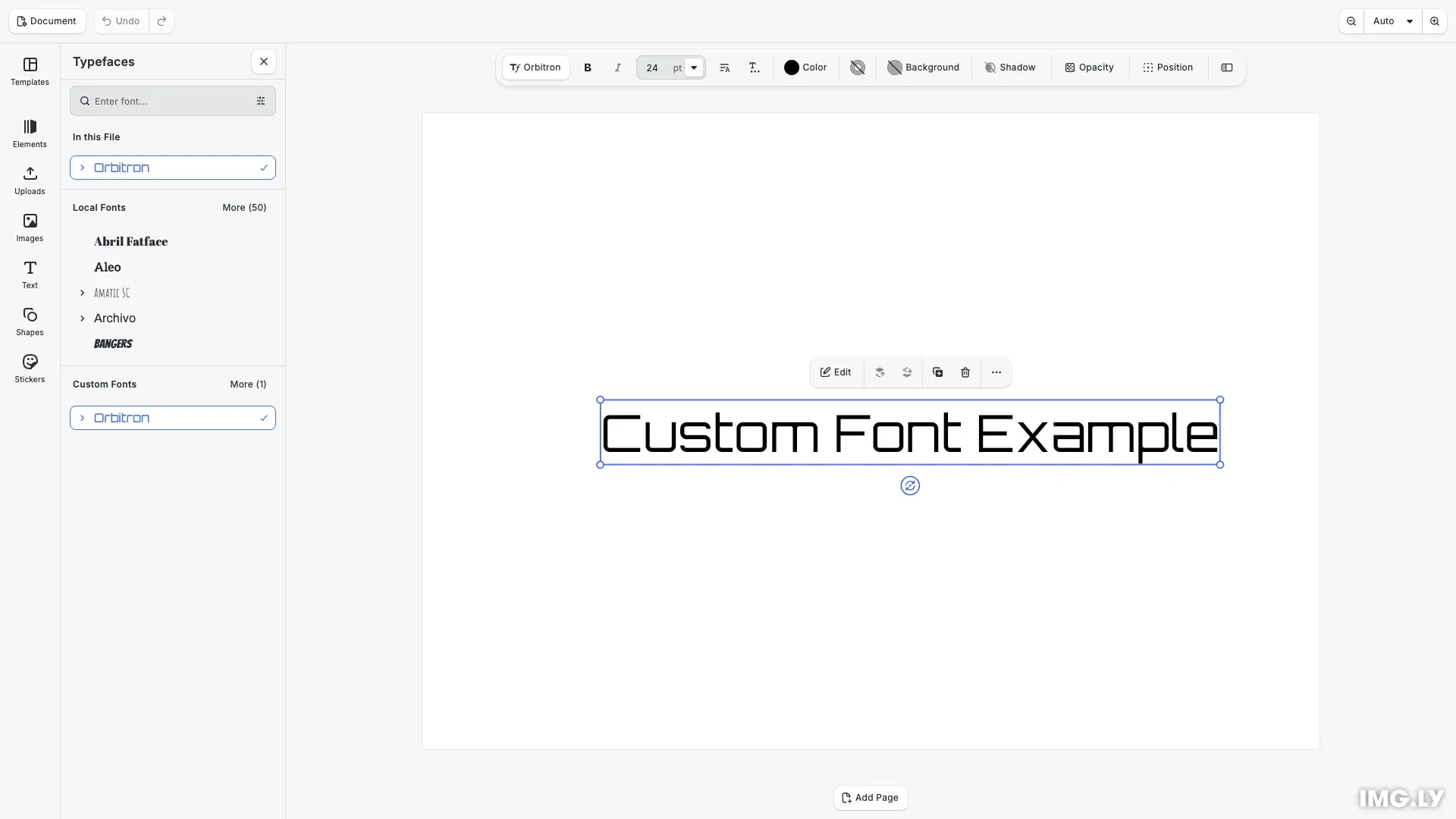
CE.SDK includes a set of default typefaces, but you can customize the available fonts by creating custom asset sources with your own typeface definitions. Fonts are managed through the asset system and displayed in the editor UI via the typeface library.
This guide covers how to define typefaces with multiple font weights and styles, create a custom typeface asset source, update the typeface library in the editor UI, and apply fonts programmatically to text blocks.
Typeface and Font Structure#
A typeface in CE.SDK represents a font family containing multiple font variants. Each typeface has a name property displayed in the UI and a fonts array containing individual font definitions.
Each font in the array requires:
uri- Path to the font file (TTF, OTF, WOFF, or WOFF2)subFamily- Display name for this font variant (e.g., “Regular”, “Bold”, “Italic”)weight- Font weight:thin,extraLight,light,normal,medium,semiBold,bold,extraBold, orheavystyle- Font style:normaloritalic
interface TypefaceFont {  uri: string;  subFamily: string;  weight:    | 'thin'    | 'extraLight'    | 'light'    | 'normal'    | 'medium'    | 'semiBold'    | 'bold'    | 'extraBold'    | 'heavy';  style: 'normal' | 'italic';}
interface Typeface {  name: string;  fonts: TypefaceFont[];}
Create a Custom Typeface Asset Source#
To make custom fonts available in the editor, we create a local asset source and add typeface assets to it. Each asset must include a payload.typeface property containing the typeface definition.
We first create the source with engine.asset.addLocalSource(), then add typeface assets with engine.asset.addAssetToSource():
const sourceId = 'my-custom-typefaces';engine.asset.addLocalSource(sourceId);
await engine.asset.addAssetToSource(sourceId, {  id: 'orbitron',  meta: { languages: 'latin' },  payload: {    typeface: orbitronTypeface  }});
The name property defines how the typeface appears in the typeface library:
name: 'Orbitron',The fonts array defines each available font variant. Here we add both Regular and Bold weights:
fonts: [ { uri: buildFontUri('Orbitron-Regular.ttf'), subFamily: 'Regular', weight: 'normal', style: 'normal' }, { uri: buildFontUri('Orbitron-Bold.ttf'), subFamily: 'Bold', weight: 'bold', style: 'normal' }]Update the Typeface Library#
After creating the custom typeface source, we update the typeface library entry to control which fonts appear in the editor’s typeface library. Use cesdk.ui.updateAssetLibraryEntry() with the ly.img.typefaces entry ID.
To show your custom fonts alongside the default typefaces, include both source IDs:
cesdk.ui.updateAssetLibraryEntry('ly.img.typefaces', { sourceIds: ['ly.img.typeface', 'my-custom-typefaces']});Keeping the default ly.img.typeface source next to your own shows both in the panel and is what surfaces the library’s source and language filters.
To replace the default typefaces entirely with only your custom fonts, list just your source:
cesdk.ui.updateAssetLibraryEntry('ly.img.typefaces', { sourceIds: ['my-custom-typefaces']});The order in sourceIds determines the display order in the UI.
Group Typefaces by Language#
Each typeface asset declares the subsets it covers with a meta.languages string—a comma-separated list of subset names. The Orbitron asset created earlier uses 'latin'. The typeface library reads meta.languages to populate its language filter, letting users narrow the list to the subset they need.
Built-in subsets such as latin, cyrillic, greek, and hebrew show localized labels in the filter, and other tokens appear as written. A typeface without meta.languages still appears by default. It only drops out once a user selects a specific subset in the filter, so set meta.languages on your custom fonts to keep them discoverable.
By default each source renders as a flat, filterable list. To show a grouped overview with one section per subset instead, enable showGroupOverview on the entry:
cesdk.ui.updateAssetLibraryEntry('ly.img.typefaces', { sourceIds: ['ly.img.typeface', 'my-custom-typefaces'], showGroupOverview: true});Apply Fonts Programmatically#
You can apply fonts to text blocks without relying on the UI using the block API. CE.SDK provides two methods with different behaviors:
setFont - Sets the font for an entire text block and resets all text formatting:
engine.block.setFont(textBlock, fontFileUri, typeface);setTypeface - Applies a typeface to a text range while preserving existing formatting:
engine.block.setTypeface(textBlock, typeface, from, to);To query the current font applied to a text block:
// Get the base typeface of a text blockconst typeface = engine.block.getTypeface(textBlock);
// Get unique typefaces within a text rangeconst typefaces = engine.block.getTypefaces(textBlock, from, to);
Here’s a complete example that creates a text block and applies a custom font:
// Create a text block and apply the custom fontconst page = engine.block.findByType('page')[0];if (page) {  const textBlock = engine.block.create('text');  engine.block.appendChild(page, textBlock);
  // Set the text content  engine.block.replaceText(textBlock, 'Custom Font Example');
  // Configure auto-sizing so the block adjusts to content  engine.block.setWidthMode(textBlock, 'Auto');  engine.block.setHeightMode(textBlock, 'Auto');
  // Apply the custom font to the text block  const fontUri = orbitronTypeface.fonts[0].uri;  engine.block.setFont(textBlock, fontUri, orbitronTypeface);
  // Set font size  engine.block.setTextFontSize(textBlock, 24);
  // Center the text block on the page  centerBlockOnPage(engine, textBlock, page);
// Select the text block engine.block.select(textBlock);}Troubleshooting#
Font not appearing in UI: Verify the asset source is registered with engine.asset.addLocalSource() and that updateAssetLibraryEntry is called with the correct source ID.
Font not loading: Check that the font file URI is accessible and returns a valid font file with the correct MIME type. Use browser developer tools to verify the network request.
Font weight/style not available: Ensure the typeface definition includes font entries for the requested weight and style combinations. If you only define Regular and Bold, Italic variants won’t be available.
getTypeface() throws error: New text blocks don’t have an explicit typeface until setFont() is called. Handle this case in your code.
API Reference#
| Method | Purpose |
|---|---|
engine.asset.addLocalSource(sourceId) |
Create a local asset source for custom typefaces |
engine.asset.addAssetToSource(sourceId, asset) |
Add a typeface asset to the source |
cesdk.ui.updateAssetLibraryEntry(entryId, options) |
Update which sources appear in the typeface library |
engine.block.setFont(block, fontUri, typeface) |
Set font for entire text block, resets formatting |
engine.block.setTypeface(block, typeface, from, to) |
Apply typeface to text range, preserves formatting |
engine.block.getTypeface(block) |
Get the base typeface of a text block |
engine.block.getTypefaces(block, from, to) |
Get unique typefaces within a text range |