Create and configure text blocks in CE.SDK with custom fonts, rich text styling, and dynamic sizing options.
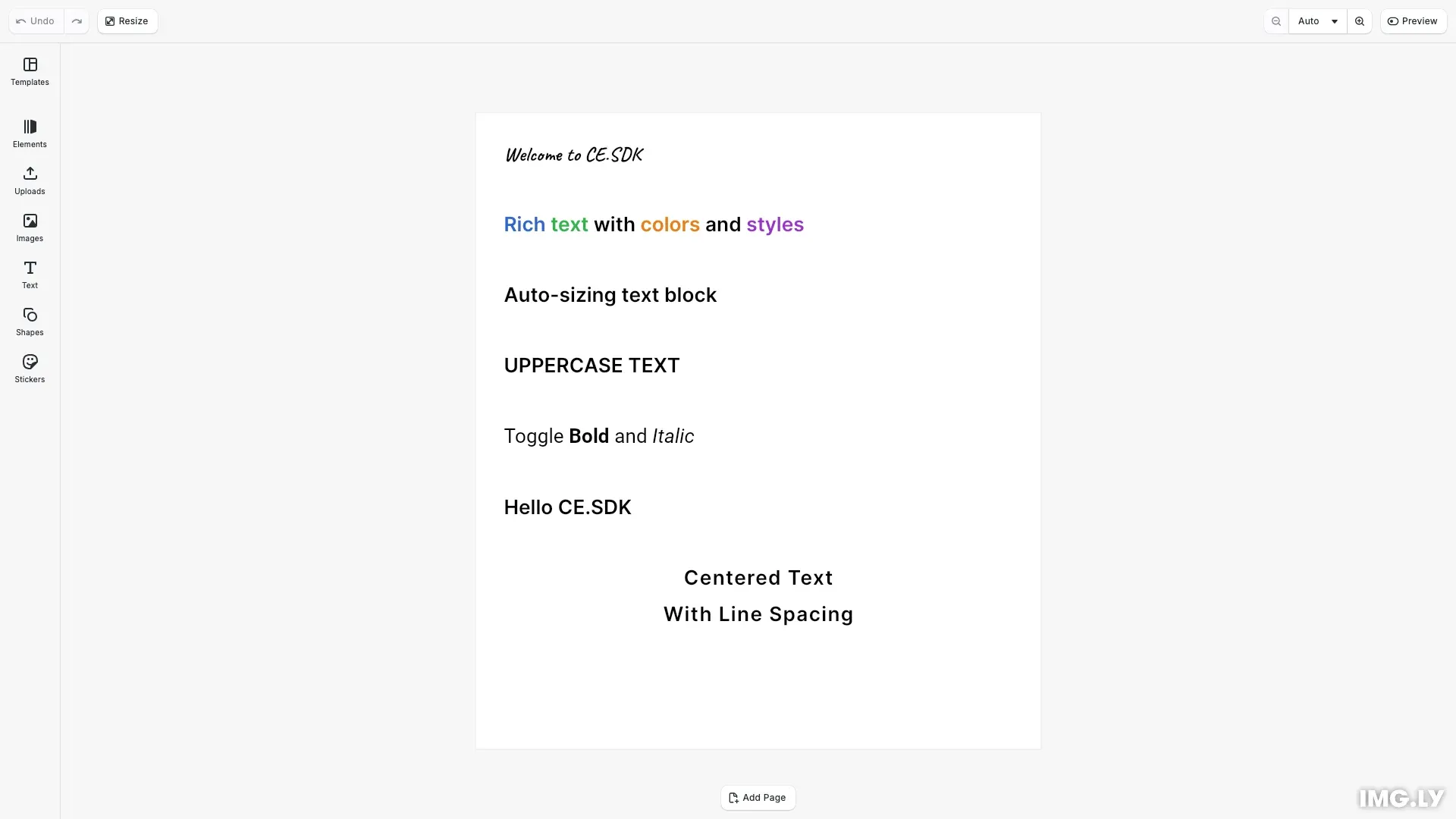
Text blocks are fundamental design elements for displaying titles, captions, labels, and body text. CE.SDK provides a range-based styling system that allows different formatting within a single text block, enabling rich text with multiple colors, font weights, and styles.
This guide covers how to create text blocks, apply fonts and typefaces, style text ranges with colors and weights, configure auto-sizing, and apply text transformations.
Create Text Blocks#
We create a text block using engine.block.create('text') and add it to the page hierarchy. The replaceText() method sets the initial content.
// Create a title text blockconst titleBlock = engine.block.create('text');engine.block.appendChild(page, titleBlock);
// Set the text content using replaceTextengine.block.replaceText(titleBlock, 'Welcome to CE.SDK');
// Configure auto-sizing so the block adjusts to contentengine.block.setWidthMode(titleBlock, 'Auto');engine.block.setHeightMode(titleBlock, 'Auto');
// Position at top of documentengine.block.setPositionX(titleBlock, margin);engine.block.setPositionY(titleBlock, margin);
Text blocks default to auto-sizing, where both width and height adjust to fit the content. We position the block using setPositionX() and setPositionY().
Apply Fonts and Typefaces#
We set fonts for text blocks using setFont(), which requires a font file URI and a typeface configuration object. The typeface describes the font family and available variants.
// Apply a custom font to the title// Font URIs point to hosted font files (TTF, OTF, WOFF, WOFF2)const fontUri =  'https://cdn.img.ly/packages/imgly/cesdk-js/latest/assets/extensions/ly.img.cesdk.fonts/fonts/Caveat/Caveat-Bold.ttf';const typeface = {  name: 'Caveat',  fonts: [    {      uri: fontUri,      subFamily: 'Bold',      weight: 'bold' as const,      style: 'normal' as const    }  ]};engine.block.setFont(titleBlock, fontUri, typeface);
// Set font size (80pt for visibility)engine.block.setTextFontSize(titleBlock, fontSize);
CE.SDK supports TTF, OTF, WOFF, and WOFF2 font formats. The typeface object includes a name, and a fonts array describing each variant with its URI, weight, style, and sub-family.
Style Text Ranges#
We apply rich text formatting to specific character ranges using range-based APIs. Each method accepts start and end indices to target specific portions of the text.
// Create a text block with rich text styling (multiple colors and weights)const richTextBlock = engine.block.create('text');engine.block.appendChild(page, richTextBlock);engine.block.replaceText(richTextBlock, 'Rich text with colors and styles');
// Position below titleengine.block.setPositionX(richTextBlock, margin);engine.block.setPositionY(richTextBlock, margin + lineSpacing);engine.block.setWidthMode(richTextBlock, 'Auto');engine.block.setHeightMode(richTextBlock, 'Auto');engine.block.setTextFontSize(richTextBlock, fontSize);
// Apply different colors to specific ranges// "Rich" (0-4) in blueengine.block.setTextColor(  richTextBlock,  { r: 0.2, g: 0.4, b: 0.8, a: 1.0 },  0,  4);
// "text" (5-9) in greenengine.block.setTextColor(  richTextBlock,  { r: 0.2, g: 0.7, b: 0.3, a: 1.0 },  5,  9);
// "colors" (15-21) in orangeengine.block.setTextColor(  richTextBlock,  { r: 0.9, g: 0.5, b: 0.1, a: 1.0 },  15,  21);
// "styles" (26-32) in purpleengine.block.setTextColor(  richTextBlock,  { r: 0.6, g: 0.2, b: 0.8, a: 1.0 },  26,  32);
The range indices use UTF-16 code unit positions. We can apply:
- Colors with
setTextColor(block, color, from, to) - Font weights with
setTextFontWeight(block, weight, from, to) - Font styles with
setTextFontStyle(block, style, from, to) - Font sizes with
setTextFontSize(block, size, from, to)
Configure Auto-Sizing#
We control how text blocks resize using width and height modes. Setting setHeightMode(block, 'Auto') allows the block height to adjust based on content, while a fixed width causes text to wrap.
// Create a text block demonstrating auto-sizing with fixed widthconst autoSizeBlock = engine.block.create('text');engine.block.appendChild(page, autoSizeBlock);engine.block.replaceText(autoSizeBlock, 'Auto-sizing text block');
// Position below rich textengine.block.setPositionX(autoSizeBlock, margin);engine.block.setPositionY(autoSizeBlock, margin + lineSpacing * 2);
// Set fixed width but auto height - text wraps and height adjustsengine.block.setWidth(autoSizeBlock, pageWidth - margin * 2);engine.block.setWidthMode(autoSizeBlock, 'Absolute');engine.block.setHeightMode(autoSizeBlock, 'Auto');engine.block.setTextFontSize(autoSizeBlock, fontSize);
Available sizing modes include:
- ‘Auto’ - Dimension adjusts to fit content
- ‘Absolute’ - Dimension uses the explicit pixel value
- ‘Percent’ - Dimension uses a percentage of the parent
Apply Text Case Transformations#
We transform text appearance without changing the underlying content using setTextCase(). This applies visual transformations while preserving the original text.
// Create a text block demonstrating text case transformationsconst caseBlock = engine.block.create('text');engine.block.appendChild(page, caseBlock);engine.block.replaceText(caseBlock, 'uppercase text');
// Position below auto-size blockengine.block.setPositionX(caseBlock, margin);engine.block.setPositionY(caseBlock, margin + lineSpacing * 3);engine.block.setWidthMode(caseBlock, 'Auto');engine.block.setHeightMode(caseBlock, 'Auto');engine.block.setTextFontSize(caseBlock, fontSize);
// Transform the entire text to uppercase without changing the sourceengine.block.setTextCase(caseBlock, 'Uppercase');
Available text cases include ‘Normal’, ‘Uppercase’, ‘Lowercase’, and ‘Titlecase’.
Set Text Alignment and Spacing#
We configure text layout properties using setEnum() for alignment and setFloat() for spacing values.
// Create a centered text block with custom spacingconst alignedBlock = engine.block.create('text');engine.block.appendChild(page, alignedBlock);engine.block.replaceText(alignedBlock, 'Centered Text\nWith Line Spacing');
// Position at bottom of documentengine.block.setPositionX(alignedBlock, margin);engine.block.setPositionY(alignedBlock, margin + lineSpacing * 6);
// Set explicit dimensions for centered alignmentengine.block.setWidth(alignedBlock, pageWidth - margin * 2);engine.block.setWidthMode(alignedBlock, 'Absolute');engine.block.setHeightMode(alignedBlock, 'Auto');engine.block.setTextFontSize(alignedBlock, fontSize);
// Set horizontal alignment to centerengine.block.setEnum(alignedBlock, 'text/horizontalAlignment', 'Center');
// Adjust line height (1.5 = 150% of font size)engine.block.setFloat(alignedBlock, 'text/lineHeight', 1.5);
// Adjust letter spacing (0.05 = 5% of font size)engine.block.setFloat(alignedBlock, 'text/letterSpacing', 0.05);
Horizontal alignment options include ‘Left’, ‘Center’, ‘Right’, and ‘Auto’. Line height is a multiplier of the font size (1.5 = 150%), and letter spacing is a proportion of the font size.
Toggle Bold and Italic#
We use convenience methods to toggle bold and italic formatting. These methods switch between the normal and formatted states.
// Create a text block demonstrating bold/italic toggleconst toggleBlock = engine.block.create('text');engine.block.appendChild(page, toggleBlock);engine.block.replaceText(toggleBlock, 'Toggle Bold and Italic');
// Position below case blockengine.block.setPositionX(toggleBlock, margin);engine.block.setPositionY(toggleBlock, margin + lineSpacing * 4);engine.block.setWidthMode(toggleBlock, 'Auto');engine.block.setHeightMode(toggleBlock, 'Auto');engine.block.setTextFontSize(toggleBlock, fontSize);
// Set a font that supports bold/italic variantsconst robotoTypeface = {  name: 'Roboto',  fonts: [    {      uri: 'https://cdn.img.ly/packages/imgly/cesdk-js/latest/assets/extensions/ly.img.cesdk.fonts/fonts/Roboto/Roboto-Regular.ttf',      subFamily: 'Regular',      weight: 'normal' as const,      style: 'normal' as const    },    {      uri: 'https://cdn.img.ly/packages/imgly/cesdk-js/latest/assets/extensions/ly.img.cesdk.fonts/fonts/Roboto/Roboto-Bold.ttf',      subFamily: 'Bold',      weight: 'bold' as const,      style: 'normal' as const    },    {      uri: 'https://cdn.img.ly/packages/imgly/cesdk-js/latest/assets/extensions/ly.img.cesdk.fonts/fonts/Roboto/Roboto-Italic.ttf',      subFamily: 'Italic',      weight: 'normal' as const,      style: 'italic' as const    }  ]};engine.block.setFont(  toggleBlock,  'https://cdn.img.ly/packages/imgly/cesdk-js/latest/assets/extensions/ly.img.cesdk.fonts/fonts/Roboto/Roboto-Regular.ttf',  robotoTypeface);
// Toggle bold for "Bold" (7-11)engine.block.toggleBoldFont(toggleBlock, 7, 11);
// Toggle italic for "Italic" (16-22)engine.block.toggleItalicFont(toggleBlock, 16, 22);
The toggleBoldFont() and toggleItalicFont() methods check if the font supports the variant before toggling. Use canToggleBoldFont() and canToggleItalicFont() to verify availability.
Modify Text Content#
We replace or remove text using range-based operations. The replaceText() method substitutes text at specific positions while preserving surrounding formatting.
// Create a text block to demonstrate text modificationconst modifyBlock = engine.block.create('text');engine.block.appendChild(page, modifyBlock);engine.block.replaceText(modifyBlock, 'Hello World');
// Position below toggle blockengine.block.setPositionX(modifyBlock, margin);engine.block.setPositionY(modifyBlock, margin + lineSpacing * 5);engine.block.setWidthMode(modifyBlock, 'Auto');engine.block.setHeightMode(modifyBlock, 'Auto');engine.block.setTextFontSize(modifyBlock, fontSize);
// Replace "World" with "CE.SDK" (range 6-11)engine.block.replaceText(modifyBlock, 'CE.SDK', 6, 11);// Result: "Hello CE.SDK"
When range parameters are omitted, replaceText() replaces the entire text content. The removeText() method deletes text within a specified range.
Troubleshooting#
Text Not Displaying#
- Verify text content is set with
replaceText()notsetString()for text property - Check the block is added to the page hierarchy with
appendChild() - Ensure the text block has sufficient width for content to render
Font Not Loading#
- Verify the font URI is accessible and returns a valid font file
- Check that the typeface configuration matches the font file’s metadata
- Confirm the font format is supported (TTF, OTF, WOFF, WOFF2)
Range Styling Not Applying#
- Verify range indices are valid UTF-16 code unit positions
- Check that the
fromindex is less than thetoindex - Confirm the font supports the requested weight or style variant
API Reference#
| Method | Description |
|---|---|
engine.block.create('text') | Create a new text block |
engine.block.replaceText(block, text, from, to) | Set or replace text content |
engine.block.removeText(block, from, to) | Remove text range |
engine.block.setFont(block, uri, typeface) | Set font for entire block |
engine.block.setTextColor(block, color, from, to) | Set color for range |
engine.block.setTextFontWeight(block, weight, from, to) | Set font weight for range |
engine.block.setTextFontStyle(block, style, from, to) | Set font style for range |
engine.block.setTextFontSize(block, size, from, to) | Set font size for range |
engine.block.setTextCase(block, case, from, to) | Set text case transformation |
engine.block.toggleBoldFont(block, from, to) | Toggle bold weight |
engine.block.toggleItalicFont(block, from, to) | Toggle italic style |
engine.block.setHeightMode(block, mode) | Set height sizing mode |
engine.block.setWidthMode(block, mode) | Set width sizing mode |
engine.block.setEnum(block, property, value) | Set enum property (alignment) |
engine.block.setFloat(block, property, value) | Set float property (spacing) |
Next Steps#
- Style Text - Apply fills, strokes, and backgrounds to text
- Auto-Size Text - Configure text blocks to resize dynamically
- Adjust Text Spacing - Fine-tune letter and line spacing
- Add Emojis - Display emoji characters with custom fonts
- Add Text Effects - Apply visual effects to text blocks