Import Adobe InDesign (IDML) files into CE.SDK, converting them into editable scenes while preserving text, shapes, images, and positioning.
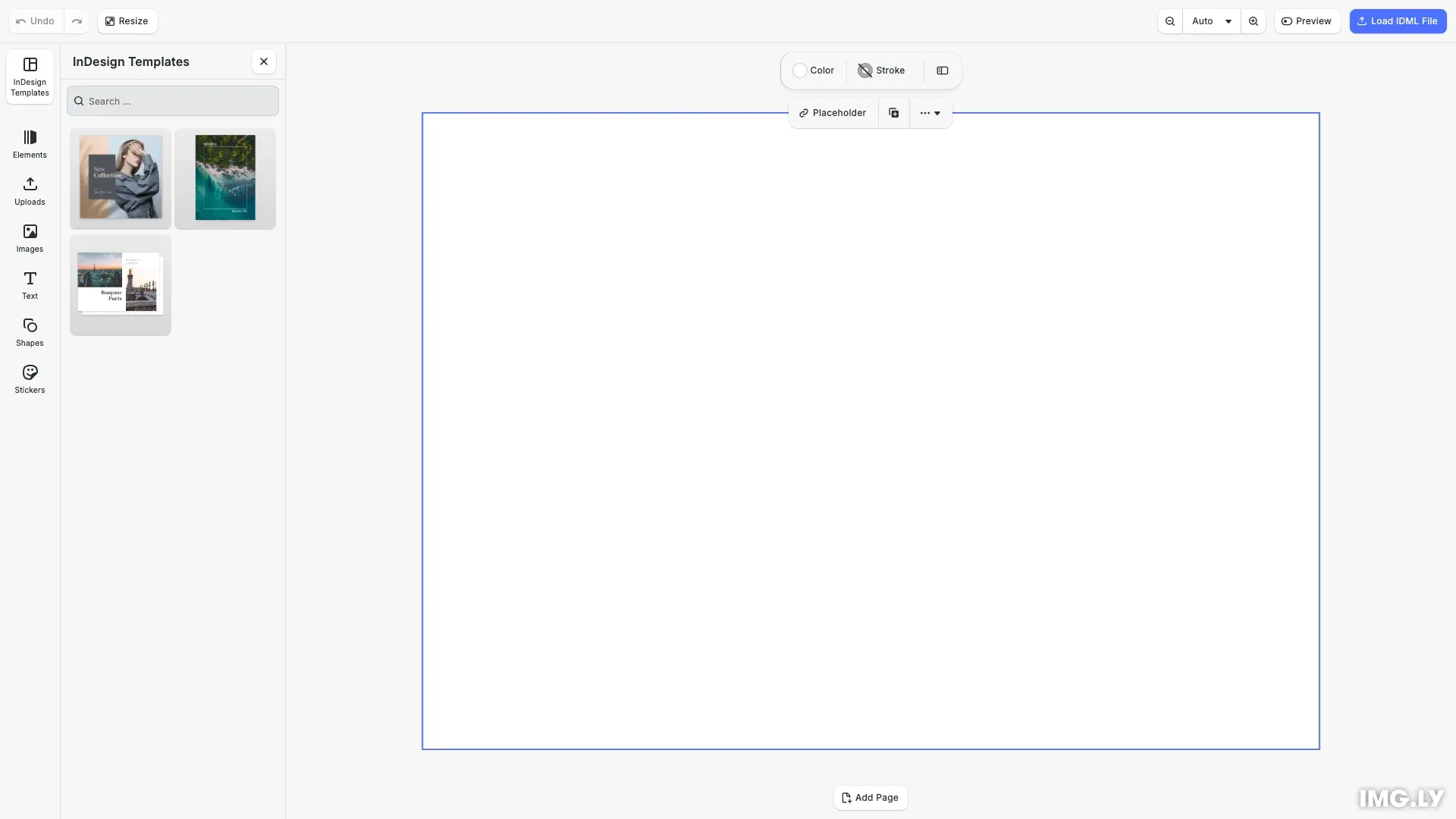
The @imgly/idml-importer package converts InDesign IDML files into CE.SDK scene format, preserving design structure for editing or export. This guide focuses on enabling end-users to upload their own IDML files directly in the browser and load them into the CE.SDK editor. For batch conversion of template libraries at build-time, see the server guide.
Installation#
Install the @imgly/idml-importer package alongside CE.SDK:
npm install @imgly/idml-importer @cesdk/cesdk-jsThe browser environment uses the native DOMParser API for XML parsing, which requires no additional dependencies.
Supported Elements#
The IDML importer preserves the following InDesign elements:
- Layer structure - Element grouping and hierarchy
- Positioning - X/Y coordinates, rotation, and transparency
- Text elements - Font family, bold/italic styles
- Shapes - Rectangles, ovals, polygons, lines
- Fills - Solid color fills and gradients
- Strokes - Color, weight, and alignment
- Images - Embedded images only (linked images require embedding before export)
Setting Up Font Matching#
Text elements in IDML files reference fonts that may not be available in CE.SDK. Use addGoogleFontsAssetLibrary() to register Google Fonts as a font source before parsing:
// Initialize CE.SDK with Google Fonts support for IDML text matchingawait cesdk.addPlugin(new DesignEditorConfig());
// Add asset source pluginsawait cesdk.addPlugin(new BlurAssetSource());await cesdk.addPlugin(new ColorPaletteAssetSource());await cesdk.addPlugin(new CropPresetsAssetSource());await cesdk.addPlugin(new UploadAssetSources({ include: ['ly.img.image.upload'] }));await cesdk.addPlugin(  new DemoAssetSources({    include: [      'ly.img.templates.blank.*',      'ly.img.templates.presentation.*',      'ly.img.templates.print.*',      'ly.img.templates.social.*',      'ly.img.image.*'    ]  }));await cesdk.addPlugin(new EffectsAssetSource());await cesdk.addPlugin(new FiltersAssetSource());await cesdk.addPlugin(new PagePresetsAssetSource());await cesdk.addPlugin(new StickerAssetSource());await cesdk.addPlugin(new TextAssetSource());await cesdk.addPlugin(new TextComponentAssetSource());await cesdk.addPlugin(new TypefaceAssetSource());await cesdk.addPlugin(new VectorShapeAssetSource());
// Register Google Fonts before parsing IDML files for best font matchingawait addGoogleFontsAssetLibrary(engine);
Call this function on the engine before parsing IDML files. The importer attempts to match fonts from the IDML with available Google Fonts. For fonts not found, the importer uses a fallback font.
Parsing the IDML File#
Use IDMLParser.fromFile() with the browser’s native DOMParser for XML parsing. After parsing, the scene is immediately available in the engine:
// Get buffer from URL or use directlylet buffer: ArrayBuffer;if (typeof source === 'string') {  const response = await fetch(source);  buffer = await response.arrayBuffer();} else {  buffer = source;}
// Parse the IDML file using the IDML importer// The addGoogleFontsAssetLibrary() call above enables automatic font matching// For custom font mapping, pass fontResolver as 4th parameter (see customFontResolver example)const parser = await IDMLParser.fromFile(  engine,  buffer,  (content: string) =>    new DOMParser().parseFromString(content, 'text/xml')  // Optional: customFontResolver for advanced font mapping);await parser.parse();
The parser creates a new scene in the engine with all supported IDML elements converted to CE.SDK blocks.
Checking Import Results#
Verify the import succeeded by checking the page count. If no pages were imported, the IDML file may have contained only unsupported elements:
// Verify pages were imported successfullyconst pages = engine.scene.getPages();if (pages.length === 0) { console.error('No pages imported from IDML'); throw new Error('No pages could be imported from the IDML file');}console.log(`Successfully imported ${pages.length} page(s)`);Log warnings about any unsupported features to help users understand what couldn’t be converted.
Saving as Archive#
After parsing, save the imported scene as an archive. This creates a portable bundle containing the scene and all its assets:
// Save the imported scene as an archive for editor loadingconst sceneArchive = await engine.scene.saveToArchive();const archiveUrl = URL.createObjectURL(sceneArchive);Archives can be stored, shared, or loaded later using loadFromArchiveURL().
Saving Scenes with Stable URLs#
By default, the IDML importer creates internal buffer:// URLs for imported images. These are transient resources that work well when saving to an archive (engine.scene.saveToArchive()), which bundles all assets together.
However, if you want to save scenes as JSON strings (engine.scene.saveToString()) with stable, permanent URLs (e.g., for storing in a database or referencing CDN-hosted assets), you need to relocate the transient resources first.
Why Relocate?#
- Scene Archives (
saveToArchive): Include all assets in a single ZIP file. Transientbuffer://URLs work fine. - Scene Strings (
saveToString): Only contain references to assets. Transient URLs won’t work when reloading the scene later. You need permanent URLs (e.g.,https://).
How to Relocate Transient Resources#
After parsing the IDML file, use CE.SDK’s native APIs to find and relocate all transient resources:
// Optional: Save scene as JSON string with stable URLs instead of archive// This is useful when storing scenes in a database or referencing CDN-hosted assets// By default, IDML images use transient buffer:// URLs that only work with saveToArchive()// To use saveToString(), relocate transient resources to permanent URLs first:
// Mock upload function - replace with your actual backend upload logicconst uploadToBackend = async (data: Uint8Array): Promise<string> => {  // In production, upload the data to your CDN/storage and return the permanent URL  // For this example, we create a blob URL to demonstrate the workflow  const blob = new Blob([data], { type: 'image/png' });  return URL.createObjectURL(blob);};
const transientResources = engine.editor.findAllTransientResources();for (const resource of transientResources) {  const { URL: bufferUri, size } = resource;  const data = engine.editor.getBufferData(bufferUri, 0, size);  const permanentUrl = await uploadToBackend(data);  engine.editor.relocateResource(bufferUri, permanentUrl);}const sceneString = await engine.scene.saveToString();
The relocation workflow:
- Find all transient resources using
engine.editor.findAllTransientResources() - Extract binary data for each resource using
engine.editor.getBufferData() - Upload the data to your backend or CDN
- Relocate the resource URL using
engine.editor.relocateResource() - Save to string with
engine.scene.saveToString()- all URLs will now be permanent
Note on Font URLs#
When using the default font resolver with Google Fonts, the resulting scene string will contain Google CDN URLs for fonts. If you need fonts hosted on your own infrastructure, configure a custom font resolver instead of using the default Google Fonts integration.
Loading into the Editor#
Load the archived scene into the CE.SDK editor for user editing:
// Load the archived scene into the editorawait cesdk.engine.scene.loadFromArchiveURL(archiveUrl);
// Verify scene loaded correctlyconst loadedPages = engine.scene.getPages();console.log(  `IDML imported successfully with ${loadedPages.length} page(s)`);
// Zoom to fit the imported pageawait cesdk.actions.run('zoom.toPage', { page: 'first', autoFit: true });
After loading, verify the scene contains at least one page. The imported design is now ready for editing in the CE.SDK editor.
API Reference#
The @imgly/idml-importer package exports the following key APIs:
| API | Description |
|---|---|
IDMLParser.fromFile(engine, buffer, xmlParser) | Creates a parser instance from an IDML file buffer. The xmlParser function converts XML strings to DOM documents. |
parser.parse() | Parses the IDML file and creates a CE.SDK scene. Returns when parsing is complete. |
addGoogleFontsAssetLibrary(engine) | Registers Google Fonts as a font source for text element matching. Call before parsing. |
Limitations#
The IDML importer has the following limitations:
- Linked images - Only embedded images are supported. Linked images become placeholders. Embed all images in InDesign before exporting to IDML.
- Text flow - Text that flows between multiple text frames is not supported and may appear duplicated.
- Image fitting - Images shrunk inside their frames may not render as expected.
- PDF content - Embedded PDF content is replaced with placeholders.
- Page sizes - Different page sizes within the same document are not supported. All pages use the first page’s dimensions.
- Advanced text - Complex text formatting beyond bold/italic may not be preserved.
Pre-Import Checklist#
Before exporting from InDesign:
- Embed all images - File > Links, select linked images, and choose “Embed Link” from the panel menu
- Flatten complex effects - Some effects may not translate to CE.SDK
- Use standard fonts - Consider using Google Fonts for better compatibility
- Export as IDML - File > Export > InDesign Markup (IDML)
Troubleshooting#
Import fails silently: Check the console for error messages. Verify the file is a valid IDML file exported correctly from InDesign.
Missing images: Ensure images were embedded in InDesign before exporting. Linked images are replaced with placeholders.
Text appears with wrong font: Ensure addGoogleFontsAssetLibrary() is called before parsing. If the original font isn’t available in Google Fonts, a fallback is used.
Text is duplicated: This can happen when text flows between multiple frames. The IDML importer doesn’t support linked text frames.
Pages have wrong size: All pages use the first page’s dimensions. Ensure consistent page sizes in the InDesign document.