The CreativeEditor provides a scaling feature to edit videos in your web app, to render an intended composition. Explore the different scaling options within CE.SDK, and learn how to embed it both from the UI and the API.
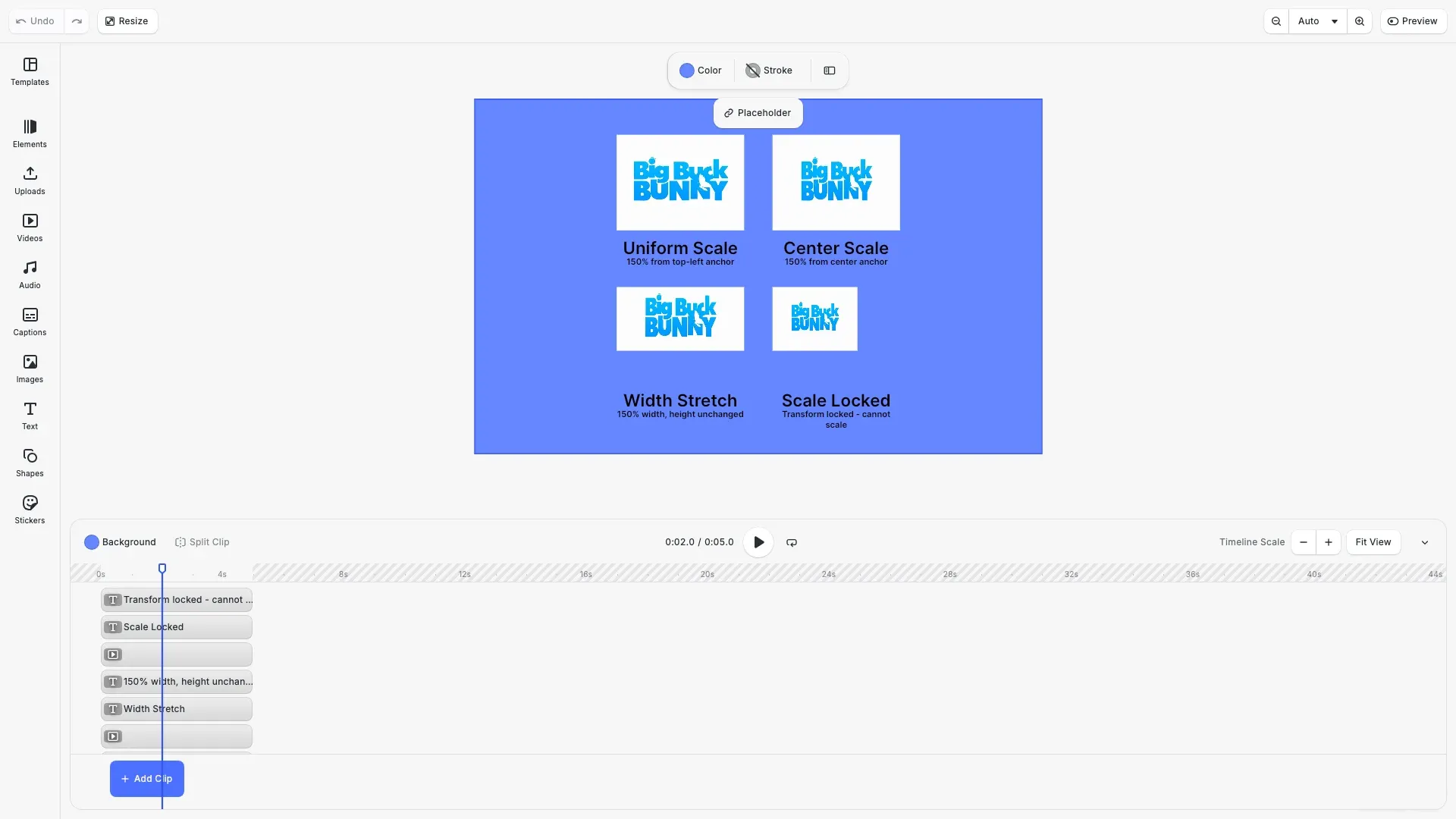
What You’ll Learn#
- Scale videos through JavaScript.
- Scale proportionally or non-uniformly.
- Group elements to scale them together.
- Apply or lock scaling constraints in templates.
When to Use#
Use scaling to:
- Emphasize or de-emphasize a clip in a composition.
- Fit footage to a free-form layout without cropping.
- Drive zoom gestures or responsive designs.
How Scaling Works#
Scaling uses the scale(block, scale, anchorX, anchorY) function, with the following parameters:
| Parameter | Description | Values |
|---|---|---|
block | Handle (ID) of the block to scale. | number |
scale | Scale factor to apply. | 1.0 keeps the original size. >1.0 enlarges the block. < 1.0 shrinks it. |
anchorX anchorY | Origin point of scale along the width and height | Top/Left = 0, Center = 0.5, Bottom/Right = 1. Defaults = 0 |
For example:
- A value of
1.0sets the original block’s size. - A value of
2.0makes the block twice as large.
Scale a Video Uniformly#
To change the clip size without distorting its proportions, use uniform scaling. Uniform scaling multiplies both width and height by the same factor to keep the frame’s aspect ratio intact.
Scaling a video uniformly allows you to:
- Enlarge or shrink footage without altering the content.
- Maintain per-pixel sharpness.
- Align with layout constraints.
CE.SDK lets you use the same high-level API on all graphic blocks, videos included. To scale any block, use engine.block.scale():
const uniformVideo = await engine.block.addVideo(  'https://img.ly/static/ubq_video_samples/bbb.mp4',  120,  90);engine.block.appendChild(page, uniformVideo);engine.block.setPositionX(uniformVideo, leftColumnX);engine.block.setPositionY(uniformVideo, topRowY);
// Scale the video to 150% from the default top-left anchorengine.block.scale(uniformVideo, 1.5);
The preceding code:
- Scales the video to 150% of its original size.
- Doesn’t change the origin anchor point.
As a result, the video expands down and to the right.
Anchor Point#
The anchor point is the point around which a layer scales. All changes happen around the anchor’s point position. By default, any block’s anchor point is the top left.
To change the anchor point, the scale function has two optional parameters:
anchorXto move the anchor point along the width.anchorYto move the anchor point along the height.
Both can have values between 0.0 and 1.0. For example, to scale from the center:
const centerVideo = await engine.block.addVideo(  'https://img.ly/static/ubq_video_samples/bbb.mp4',  120,  90);engine.block.appendChild(page, centerVideo);// Position compensates for center scaling shift so final position aligns with gridengine.block.setPositionX(centerVideo, rightColumnX + centerScaleOffsetX);engine.block.setPositionY(centerVideo, topRowY + centerScaleOffsetY);
// Scale from center anchor (0.5, 0.5)engine.block.scale(centerVideo, 1.5, 0.5, 0.5);
This function:
- Scales the video to 150% of its original size.
- Sets the origin anchor point at the center with
0.5, 0.5.
This way, the video expands from the center equally in all directions.
Scale Videos Non-Uniformly#
You might need to stretch a video only horizontally or vertically. To stretch or compress only one axis, thus distorting a video, use the width or height functions.
const stretchVideo = await engine.block.addVideo(  'https://img.ly/static/ubq_video_samples/bbb.mp4',  120,  90);engine.block.appendChild(page, stretchVideo);engine.block.setPositionX(stretchVideo, leftColumnX);engine.block.setPositionY(stretchVideo, bottomRowY);
// Stretch only the width by 1.5xengine.block.setWidthMode(stretchVideo, 'Absolute');const currentWidth = engine.block.getWidth(stretchVideo);engine.block.setWidth(stretchVideo, currentWidth * 1.5, true);
The preceding code:
- Sets the width mode to
'Absolute'to edit the video using a fixed pixel value instead of a relative layout mode. - Reads the current width.
- Multiplies it by 1.5 to compute a new width that’s 150% of the original.
- Writes the new width back to the block with
maintainCropset totrue.
Use this to:
- Create panoramic crops.
- Compensate for aspect ratios during automation.
Respect the Existing Crop#
The crop defines which part of the clip stays visible. Stretching the block without preserving its crop might:
- Reveal unwanted areas.
- Cut off the focal point.
The maintainCrop parameter (third argument to setWidth) keeps the visible region intact and avoids distortion. Consider using maintainCrop if a template already uses cropping to frame a subject or hide a watermark.
Scale Clips Together#
Grouping blocks is a useful way of scaling them proportionally. Use engine.block.group() to combine blocks into a group, then scale the group as a single unit:
const groupId = engine.block.group([videoBlockId, textBlockId]);engine.block.scale(groupId, 1.5, 0.5, 0.5);The preceding code scales the entire group to 150% from the center anchor.
Lock Scaling in Templates#
To preserve a template’s layout, consider locking the scaling option. This is useful for:
- Brand assets
- Campaign creatives
- Collaboration workflows
- Fixed dimensions swapping editors
const lockedVideo = await engine.block.addVideo(  'https://img.ly/static/ubq_video_samples/bbb.mp4',  120,  90);engine.block.appendChild(page, lockedVideo);engine.block.setPositionX(lockedVideo, rightColumnX);engine.block.setPositionY(lockedVideo, bottomRowY);
// Lock all transforms to prevent scalingengine.block.setTransformLocked(lockedVideo, true);
Disable Resize Scope#
Disable the layer/resize scope when working with templates to prevent users from scaling blocks:
engine.block.setScopeEnabled(blockId, 'layer/resize', false);Lock All Transformations#
To lock all transformations (move, resize, rotate), use setTransformLocked:
engine.block.setTransformLocked(blockId, true);To check if scaling is currently allowed:
const canResize = engine.block.isScopeEnabled(blockId, 'layer/resize');console.log('layer/resize scope enabled?', canResize);Troubleshooting#
Video Not Scaling#
Check if transforms are locked using engine.block.isTransformLocked(block). Ensure the block exists and is a valid design block.
Unexpected Position After Scale#
Verify the anchor point coordinates. Default anchor (0, 0) causes expansion to the right and down. Use (0.5, 0.5) for center-based scaling.
Crop Region Shifting#
When using setWidth or setHeight, pass true as the third parameter to maintain the crop region.
Recap#
| Usage | How To |
|---|---|
| Uniform scaling | engine.block.scale(blockId, scaleFactor) + optional anchor |
| Stretching an axis | Set width mode to 'Absolute', then use setWidth() or setHeight() |
| Group scaling | 1. Group with engine.block.group([blockId_1, blockId_2]) 2. Scale the group |
| Constraints | Adjust scopes or lock transforms to protect templates |
API Reference#
| API | Usage |
|---|---|
block.scale | Performs uniform or anchored scaling on blocks and groups. |
block.setWidthMode | Enables absolute sizing before changing a single axis. |
block.getWidth | Reads the current width before non-uniform scaling. |
block.setWidth | Writes the adjusted width after single-axis scaling. |
block.setHeightMode | Enables absolute sizing for height changes. |
block.getHeight | Reads the current height before non-uniform scaling. |
block.setHeight | Writes the adjusted height after single-axis scaling. |
block.group | Group blocks so they scale together. |
block.setScopeEnabled | Toggles the layer/resize scope to lock scaling in templates. |
block.setTransformLocked | Locks all transform scopes when templates must stay fixed. |
block.isScopeEnabled | Checks whether scaling is currently permitted on a block. |
block.isTransformLocked | Checks whether all transforms are locked on a block. |