The CreativeEditor SDK (CE.SDK) provides a video resizing feature. This guide offers a complete overview of the resizing feature, from using it in the default UI to locking resizing to safeguard layouts.
What You’ll Learn#
- Resize a single video block with the default UI.
- Resize clips using JavaScript and the CE.SDK API.
- Resize groups of video blocks uniformly.
- Lock or restrict a user’s ability to resize.
When to Use#
Resize videos to:
-
Fit template areas.
-
Insert videos into reusable layouts.
-
Keep aspect ratios consistent for:
- Social media posts (like reels)
- Ads
-
Create automation workflows in JavaScript.
-
Combine with trimming or cropping.
Resize a Video Block with the UI#
When using the default CE.SDK UI:
- Select the video.
- The resize handles appear.
- Drag one of the handles to resize the video until you set the desired size.
The editor provides two kinds of handles:
- Corner scale handles: keep the video’s aspect ratio.

- Edge handles: stretch only the width or the height independently.

Any embedded audio remains synchronous, because resizing affects only the block’s frame, not the timeline.
Hide the Resize Handles in the UI#
To prevent manual resizing in the UI, hide the resize edge handles using the EditorAPI:
- Call the
setSettingfunction. - Include the
"controlGizmo/showResizeHandles"key. - Set the value to
false.
// Hide resize handles if you want to prevent manual resizingengine.editor.setSetting("controlGizmo/showResizeHandles", false);Resize a Video Block with JavaScript#
When developing a custom UI use the CreativeEngine BlockAPI to edit a video’s size. Two methods exist: choose the one that best suits your project.
Set Absolute Sizing#
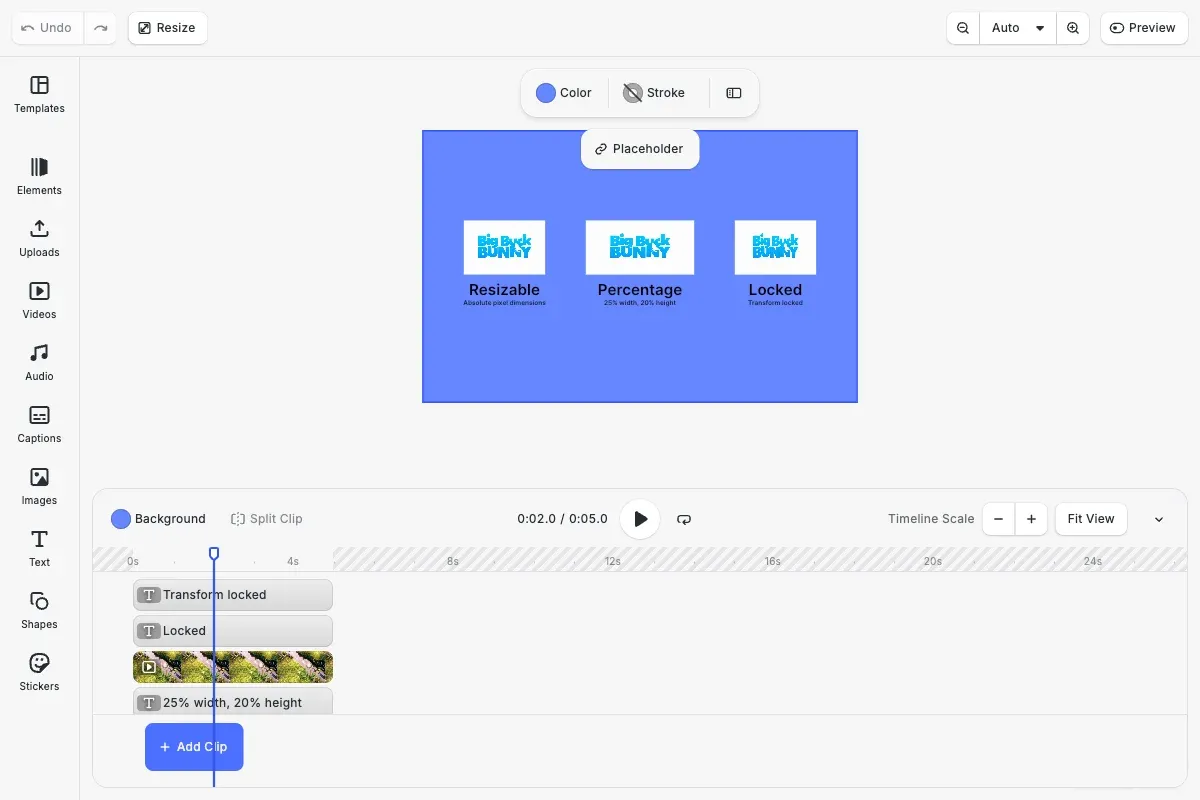
Set the video’s absolute size with setWidth and setHeight. First, create the video block with addVideo, then set explicit pixel dimensions:
const resizableVideo = await engine.block.addVideo( 'https://img.ly/static/ubq_video_samples/bbb.mp4', videoWidth, videoHeight);engine.block.appendChild(page, resizableVideo);engine.block.setPositionX(resizableVideo, col1VideoX);engine.block.setPositionY(resizableVideo, startY);Set Relative Sizing#
Set the video’s size relative to its parent (for example, to the page):
- Set the size mode with
setWidthModeandsetHeightMode. - Define the mode as
'Percent'. - Set the size in normalized values, with
1being full-width.
// Set size mode to percentage (0.0 to 1.0)engine.block.setWidthMode(percentVideo, 'Percent');engine.block.setHeightMode(percentVideo, 'Percent');// Set to 25% width, 20% height of parentengine.block.setWidth(percentVideo, 0.25);engine.block.setHeight(percentVideo, 0.2);The preceding code:
- Sets the clip to 25% width of its parent.
- Makes the clip 20% as tall.
- Stays responsive to the parent’s size changes.

This method allows for the clip to follow the parent’s size changes while maintaining proportional dimensions.
Get Current Dimensions#
Read current size values using getWidth and getHeight. Values are returned in the current size mode (absolute pixels or percentage 0.0-1.0):
// Get current dimensionsconst currentWidth = engine.block.getWidth(resizableVideo);const currentHeight = engine.block.getHeight(resizableVideo);Check Size Mode#
Query the current size mode using getWidthMode and getHeightMode:
// Check size modeconst widthMode = engine.block.getWidthMode(percentVideo);const heightMode = engine.block.getHeightMode(percentVideo);Maintain Aspect Ratio#
If the block’s fill is a video (FillType.video), the engine preserves the footage’s native aspect ratio. To force a different ratio, you must:
- Calculate the ratio
- Adjust one side, or add constraints (see Locking below).
Resize Videos Together#
To resize several videos at once, instead of resizing each video individually:
- Group the videos with
engine.block.group. - Set the size for the entire group.
// Group multiple video clipsconst group = engine.block.group([clipA, clipB, clipC]);
// Resize the entire group - height scales proportionallyengine.block.setWidth(group, 400);
To ensure consistent layout, groups of videos:
- Always scale uniformly on both axes.
- Show only scale and rotate gizmos in the UI, never individual resize handles.
Lock or Constrain Resizing#
Use the BlockAPI to define if your app allows resizing for a specific block:
- Tell the engine that each block has its own resize policy with
setGlobalScope. - Call
setScopeEnabled. - Include the video block ID.
- Set the boolean’s value for
locked:trueenables resizing.falsedeactivates resizing.
// Disable only resize for this specific blockengine.editor.setGlobalScope('layer/resize', 'Defer');engine.block.setScopeEnabled(videoBlock, 'layer/resize', false);
// The block can still be moved and rotated, but not resized via UI
Resize actions remain available through code, but not via the UI.
Lock all transforms entirely to prevent resizing, repositioning, and rotation:
// Lock the transform to prevent resizingengine.block.setTransformLocked(lockedVideo, true);The preceding code deactivates all transform actions, resize included:
- Manual actions from the UI
- Automated actions through code.
Create templates with finer-grained scope keys to allow rotation or movement while forbidding size changes.
Notes on Resizing with CE.SDK#
| Topic | What you want to do | What happens |
|---|---|---|
| Timeline length | Resize the block’s on-canvas frame. | No need to retime; duration and trims stay untouched. |
| Content fill | Switch the block to .contain or .cover. | Update it with setContentFillMode (see common crop APIs). |
| Performance | Work on large canvases such as 4K. | Plan around GPU limits and the Video Editor 4K constraints. |
Next Steps#
Now that you understand how to resize with the CE.SDK, take time to dive into other related features:
- Create a template to enforce design rules.
- Use other transforms available with the CreativeEditor.
- Add captions to videos.