Control audio playback volume using CE.SDK’s timeline UI and the programmatic volume control API, from silent (0.0) to full volume (1.0).
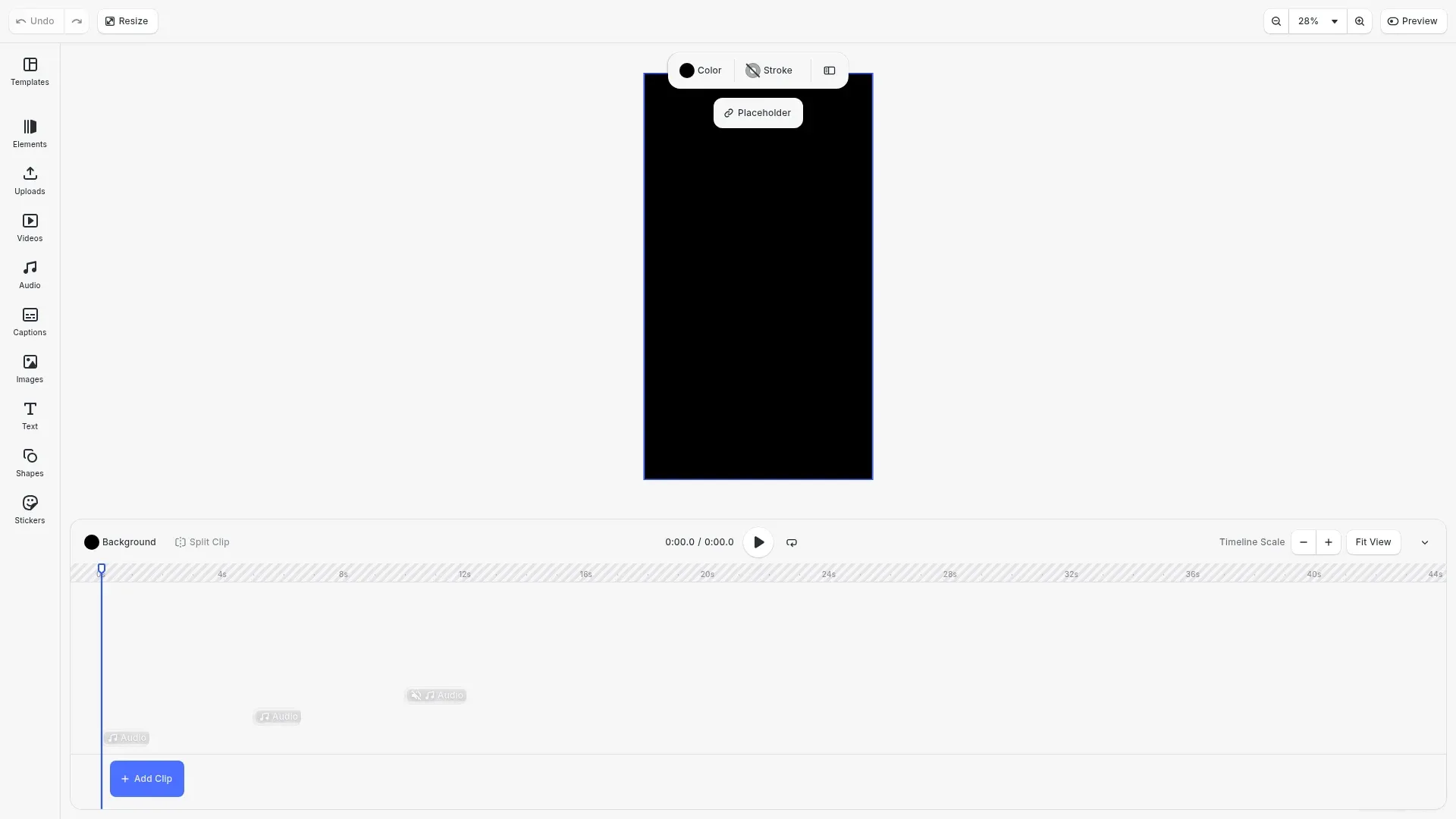
Volume control adjusts how loud or quiet audio plays during playback. CE.SDK uses a normalized 0.0-1.0 range where 0.0 is completely silent and 1.0 is full volume. This applies to both audio blocks and video fills with embedded audio. Volume settings are commonly used for balancing multiple audio sources, creating fade effects, and allowing users to adjust playback levels.
This guide covers how to adjust audio volume programmatically using the Engine API, mute and unmute audio, and query volume and mute states.
Understanding Volume Concepts#
CE.SDK supports volume levels from 0.0 (silent) to 1.0 (full volume), with 1.0 as the default for new audio blocks. Values in between represent proportional volume levels—0.5 is half volume, 0.25 is quarter volume.
Volume vs Muting: Setting volume to 0.0 makes audio silent, but muting with setMuted() is preferred when you want to temporarily silence audio without losing the volume setting. Unmuting restores the previous volume level.
Common use cases: Background music mixing (0.3-0.5 under voiceover), user volume controls, audio balancing for multi-track projects, fade effects (gradually adjusting volume over time), and accessibility features.
Setting Up Audio for Volume Control#
Enabling Audio Features#
Before working with audio, we need to enable the required features in CE.SDK.
// Enable audio and video features in CE.SDKcesdk.feature.enable('ly.img.video');cesdk.feature.enable('ly.img.audio');cesdk.feature.enable('ly.img.timeline');cesdk.feature.enable('ly.img.playback');These features enable video mode (required for audio timeline), audio support, the timeline UI for visual audio editing, and playback controls.
Loading Audio Files#
We create an audio block and load an audio file by setting its fileURI property.
// Create an audio block and load the audio fileconst audioBlock = engine.block.create('audio');engine.block.setString(audioBlock, 'audio/fileURI', audioUri);
// Wait for audio resource to loadawait engine.block.forceLoadAVResource(audioBlock);
Unlike video or image blocks which use fills, audio blocks store the file URI directly on the block itself using the audio/fileURI property. The forceLoadAVResource call ensures CE.SDK has downloaded the audio file and loaded its metadata before we manipulate it.
Adjusting Volume#
Setting Volume#
We can set volume using setVolume() with a value between 0.0 and 1.0.
// Set volume to 80% (0.8 on a 0.0-1.0 scale)const fullVolumeAudio = engine.block.duplicate(audioBlock);engine.block.appendChild(page, fullVolumeAudio);engine.block.setTimeOffset(fullVolumeAudio, 0);engine.block.setVolume(fullVolumeAudio, 0.8);Setting volume to 0.8 (80%) is useful when you want prominent audio that isn’t at maximum level, leaving headroom for other audio sources or preventing distortion.
Setting Low Volume for Background Audio#
For background music that should be audible but not prominent, use lower volume levels.
// Set volume to 30% for background musicconst lowVolumeAudio = engine.block.duplicate(audioBlock);engine.block.appendChild(page, lowVolumeAudio);engine.block.setTimeOffset(lowVolumeAudio, 5);engine.block.setVolume(lowVolumeAudio, 0.3);At 0.3 (30%) volume, the audio is clearly audible but stays in the background. This is a common level for background music under voiceover or dialogue.
Muting Audio#
Mute and Unmute#
Use setMuted() to mute audio without changing its volume setting. This is useful for toggle controls.
// Mute an audio block (preserves volume setting)const mutedAudio = engine.block.duplicate(audioBlock);engine.block.appendChild(page, mutedAudio);engine.block.setTimeOffset(mutedAudio, 10);engine.block.setVolume(mutedAudio, 1.0);engine.block.setMuted(mutedAudio, true);When you mute an audio block, the volume setting (1.0 in this case) is preserved. Unmuting later with setMuted(block, false) restores playback at the same volume level.
Querying Volume and Mute States#
You can query the current volume and mute states at any time.
// Query current volume and mute statesconst currentVolume = engine.block.getVolume(fullVolumeAudio);const isMuted = engine.block.isMuted(mutedAudio);const isForceMuted = engine.block.isForceMuted(mutedAudio);
console.log(`Full volume audio: ${(currentVolume * 100).toFixed(0)}%`);console.log(  `Low volume audio: ${(    engine.block.getVolume(lowVolumeAudio) * 100  ).toFixed(0)}%`);console.log(  `Muted audio - isMuted: ${isMuted}, isForceMuted: ${isForceMuted}`);
Use getVolume() to read the current volume level, isMuted() to check if the block is muted by the user, and isForceMuted() to check if the engine has automatically muted the block due to playback rules.
Mixing Multiple Audio Sources#
Balancing Tracks#
When working with multiple audio sources, use different volume levels to create a balanced mix. A common approach is to keep voiceover or dialogue at higher levels (0.8-1.0) and background music at lower levels (0.3-0.5).
Common Mixing Patterns#
Voiceover prominent: Set background music to 0.3 and voiceover to 1.0 for clear narration with musical accompaniment.
Balanced dialogue and music: Set both to 0.6-0.7 when both elements are equally important.
Sound effects as accents: Set sound effects to 0.5-0.8 depending on how prominent they should be in the mix.
Building Volume Controls#
Volume Slider#
When building a volume slider UI, map the slider value directly to the 0.0-1.0 range. Display percentages (0-100%) for user-friendly labels.
// Example: Update volume from slider (0-100)const sliderValue = 75; // User drags slider to 75%const volume = sliderValue / 100; // Convert to 0.0-1.0engine.block.setVolume(audioBlock, volume);Mute Toggle#
Implement mute buttons using setMuted() and indicate the current state using isMuted(). Show a different icon when isForceMuted() returns true to indicate the engine has automatically muted the audio.
// Example: Toggle mute stateconst currentlyMuted = engine.block.isMuted(audioBlock);engine.block.setMuted(audioBlock, !currentlyMuted);
// Check if engine force-muted (e.g., high playback speed)if (engine.block.isForceMuted(audioBlock)) { // Show "force muted" indicator}Troubleshooting#
Volume Changes Not Audible#
Check if the block is muted with isMuted() or force muted with isForceMuted(). Also verify the audio resource has loaded successfully.
Force Muted State#
Video fills at playback speeds above 3.0x are automatically force muted by the engine. Reduce the playback speed to restore audio output.
Volume Not Persisting#
Ensure you’re setting volume on the correct block ID. Volume settings are block-specific and don’t propagate to duplicates or other instances.