Group multiple blocks to move, scale, and transform them as a single unit; ungroup to edit them individually.
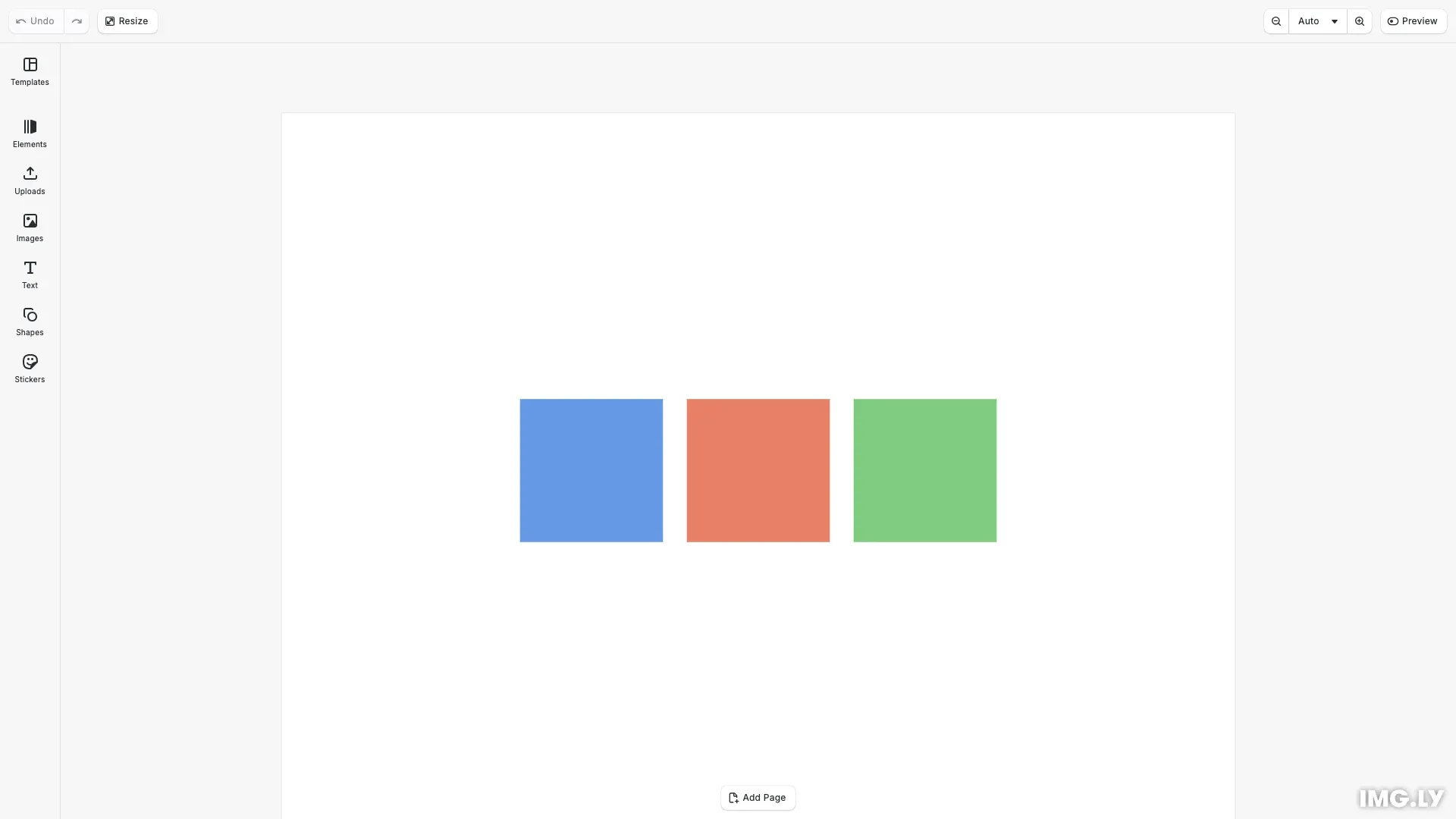
Groups let you treat multiple blocks as a cohesive unit. Grouped blocks move, scale, and rotate together while maintaining their relative positions. Groups can contain other groups, enabling hierarchical compositions.
This guide covers how to check if blocks can be grouped, create and dissolve groups, navigate into groups to select individual members, and find existing groups in a scene.
Understanding Groups#
Groups are blocks with type 'group' that contain child blocks as members. Transformations applied to a group affect all members proportionally—position, scale, and rotation cascade to all children.
Groups can be nested, meaning a group can contain other groups. This enables complex hierarchical structures where multiple logical units can be combined and manipulated together.
Create the Blocks#
We first create several graphic blocks that we’ll group together. Each block has a different color fill to make them visually distinct.
// Create a graphic block with a colored rectangle shapeconst block1 = engine.block.create('graphic');const shape1 = engine.block.createShape('rect');engine.block.setShape(block1, shape1);engine.block.setWidth(block1, 120);engine.block.setHeight(block1, 120);engine.block.setPositionX(block1, 200);engine.block.setPositionY(block1, 240);const fill1 = engine.block.createFill('color');engine.block.setColor(fill1, 'fill/color/value', { r: 0.4, g: 0.6, b: 0.9, a: 1.0});engine.block.setFill(block1, fill1);engine.block.appendChild(page, block1);Check If Blocks Can Be Grouped#
Before grouping, verify that the selected blocks can be grouped using engine.block.isGroupable(). This method returns true if all blocks can be grouped together, or false if any block is a scene or already belongs to a group.
// Check if the blocks can be grouped togetherconst canGroup = engine.block.isGroupable([block1, block2, block3]);console.log('Blocks can be grouped:', canGroup);Create a Group#
Use engine.block.group() to combine multiple blocks into a new group. The method returns the ID of the newly created group block. The group inherits the combined bounding box of its members.
// Group the blocks togetherif (canGroup) {  const groupId = engine.block.group([block1, block2, block3]);  console.log('Created group with ID:', groupId);
  // Select the group to show it in the UI  engine.block.setSelected(groupId, true);
Navigate Group Selection#
CE.SDK provides methods to navigate into and out of groups while editing.
Enter a Group#
When a group is selected, use engine.block.enterGroup() to enter editing mode for that group. This allows you to select and modify individual members within the group.
// Enter the group to select individual membersengine.block.enterGroup(groupId);
// Select a specific member within the groupengine.block.setSelected(block2, true);console.log('Selected member inside group');
Exit a Group#
When editing a member inside a group, use engine.block.exitGroup() to return selection to the parent group. This method takes a member block ID and selects its parent group.
// Exit the group to return selection to the parent groupengine.block.exitGroup(block2);console.log('Exited group, group is now selected');Find and Inspect Groups#
Discover groups in a scene and inspect their contents using engine.block.findByType(), engine.block.getType(), and engine.block.getChildren().
// Find all groups in the sceneconst allGroups = engine.block.findByType('group');console.log('Number of groups in scene:', allGroups.length);
// Check the type of the group blockconst groupType = engine.block.getType(groupId);console.log('Group block type:', groupType);
// Get the members of the groupconst members = engine.block.getChildren(groupId);console.log('Group has', members.length, 'members');
Use engine.block.findByType('group') to get all group blocks in the current scene. Use engine.block.getType() to check if a specific block is a group (returns '//ly.img.ubq/group'). Use engine.block.getChildren() to get the member blocks of a group.
Ungroup Blocks#
Use engine.block.ungroup() to dissolve a group and release its children back to the parent container. The children maintain their current positions in the scene.
// Ungroup the blocks to make them independent againengine.block.ungroup(groupId);console.log('Ungrouped blocks');
// Verify blocks are no longer in a groupconst groupsAfterUngroup = engine.block.findByType('group');console.log('Groups after ungrouping:', groupsAfterUngroup.length);Troubleshooting#
Blocks Cannot Be Grouped#
If engine.block.isGroupable() returns false:
- Check if any of the blocks is a scene block (scenes cannot be grouped)
- Check if any block is already part of a group (use
engine.block.getParent()to verify) - Ensure all block IDs are valid
Enter Group Has No Effect#
If engine.block.enterGroup() doesn’t change selection:
- Verify the block is a group using
engine.block.getType() - Ensure the
'editor/select'scope is enabled
Group Not Visible After Creation#
If a newly created group is not visible:
- Check that the member blocks were visible before grouping
- Verify the group’s opacity using
engine.block.getOpacity()
API Reference#
| Method | Description |
|---|---|
engine.block.isGroupable(ids) | Check if blocks can be grouped together |
engine.block.group(ids) | Create a group from multiple blocks |
engine.block.ungroup(id) | Dissolve a group and release its children |
engine.block.enterGroup(id) | Enter group editing mode (select member) |
engine.block.exitGroup(id) | Exit group editing mode (select parent group) |
engine.block.findByType(type) | Find all blocks of a specific type |
engine.block.getType(id) | Get the type string of a block |
engine.block.getParent(id) | Get the parent block |
engine.block.getChildren(id) | Get child blocks of a container |
Next Steps#
Explore related topics:
- Layer Management - Control z-order and visibility of blocks
- Position and Align - Arrange blocks precisely on the canvas
- Lock Design - Prevent modifications to specific elements