Work with blocks—the fundamental building units for all visual elements in CE.SDK designs.
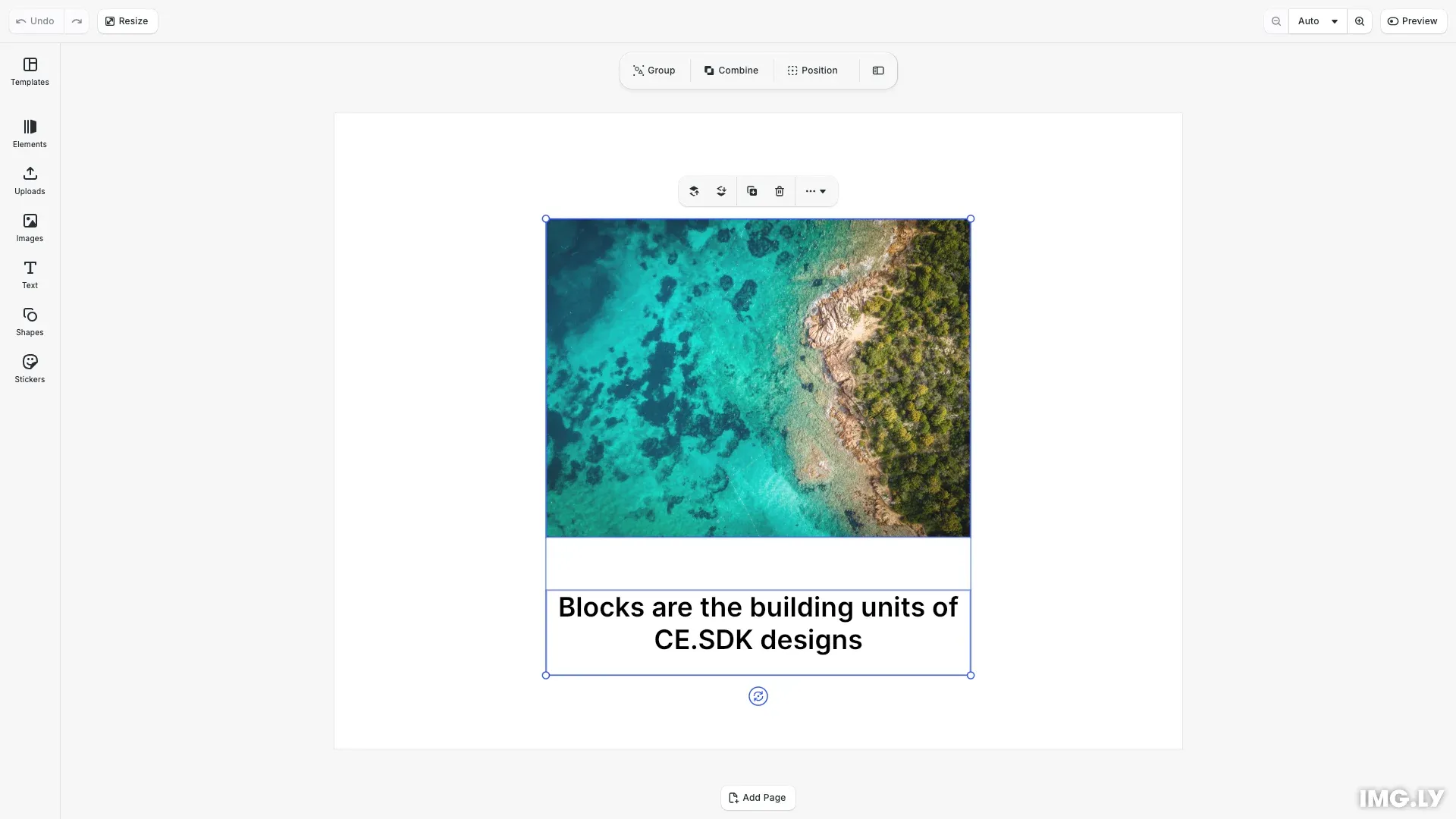
Every visual element in CE.SDK—images, text, shapes, and audio—is represented as a block. Blocks are organized in a tree structure within scenes and pages, where parent-child relationships determine rendering order and visibility. Each block has properties you can read and modify, a Type that defines its core behavior, and an optional Kind for custom categorization.
This guide covers block types and their uses, how to create and manage blocks programmatically, how to work with block properties using the reflection system, and how to handle selection, visibility, and state changes.
Block Types#
CE.SDK provides several block types, each designed for specific content:
- graphic (
//ly.img.ubq/graphic): Visual blocks for images, shapes, and graphics - text (
//ly.img.ubq/text): Text content with typography controls - audio (
//ly.img.ubq/audio): Audio content for video scenes - page (
//ly.img.ubq/page): Container blocks representing canvases or artboards - cutout (
//ly.img.ubq/cutout): Blocks for masking operations
We query a block’s type using getType() and find blocks of a specific type with findByType():
// Get the current scene and pageconst scene = engine.scene.get();if (scene === null) {  throw new Error('No scene available');}
// Find the page block - pages contain all design elementsconst pages = engine.block.findByType('page');const page = pages[0];
// Query the block type - returns the full type pathconst pageType = engine.block.getType(page);console.log('Page block type:', pageType); // '//ly.img.ubq/page'
Block types are immutable—once created, a block’s type cannot change. This distinguishes type from kind.
Type vs Kind#
Type and kind serve different purposes. The type is determined at creation and defines core behavior. The kind is a custom string label you assign for application-specific categorization.
// Type is immutable, determined at creation// Kind is a custom label you can set and changeengine.block.setKind(page, 'main-canvas');const pageKind = engine.block.getKind(page);console.log('Page kind:', pageKind); // 'main-canvas'
// Find blocks by kindconst mainCanvasBlocks = engine.block.findByKind('main-canvas');console.log('Blocks with kind "main-canvas":', mainCanvasBlocks.length);
Use kind to tag blocks for your application’s logic. You can set it with setKind(), query it with getKind(), and find blocks by kind with findByKind().
Block Hierarchy#
Blocks form a tree structure where scenes contain pages, and pages contain design elements.
// Blocks form a tree: scene > page > elements// Append the graphic to the page to make it visibleengine.block.appendChild(page, graphic);
// Query parent-child relationshipsconst graphicParent = engine.block.getParent(graphic);console.log('Graphic parent is page:', graphicParent === page); // true
const pageChildren = engine.block.getChildren(page);console.log('Page has children:', pageChildren.length);
Only blocks that are direct or indirect children of a page block are rendered. A scene without any page children won’t display content in the editor. Use appendChild() to add blocks to parents, getParent() to query a block’s parent, and getChildren() to get a block’s children.
Block Lifecycle#
Create new blocks with create(), duplicate existing blocks with duplicate(), and remove blocks with destroy(). After destroying a block, isValid() returns false for that block ID.
// Create a graphic block for an imageconst graphic = engine.block.create('graphic');
// Duplicate creates a copy with a new UUIDconst graphicCopy = engine.block.duplicate(graphic);
// Destroy removes a block - the duplicate is no longer neededengine.block.destroy(graphicCopy);
// Check if a block ID is still valid after operationsconst isOriginalValid = engine.block.isValid(graphic);const isCopyValid = engine.block.isValid(graphicCopy);console.log('Original valid:', isOriginalValid); // trueconsole.log('Copy valid after destroy:', isCopyValid); // false
When duplicating a block, all children are included, and the duplicate receives a new UUID.
Working with Fills#
Graphic blocks display content through fills. We create a fill, attach it to a block, and configure its source.
// Create a rect shape to define the graphic's boundsconst rectShape = engine.block.createShape('rect');engine.block.setShape(graphic, rectShape);
// Position and size the graphic (centered horizontally on 800px page)engine.block.setPositionX(graphic, 200);engine.block.setPositionY(graphic, 100);engine.block.setWidth(graphic, 400);engine.block.setHeight(graphic, 300);
// Create an image fill and attach it to the graphicconst imageFill = engine.block.createFill('image');engine.block.setString(  imageFill,  'fill/image/imageFileURI',  'https://img.ly/static/ubq_samples/sample_1.jpg');engine.block.setFill(graphic, imageFill);
// Set content fill mode so the image fills the block boundsengine.block.setEnum(graphic, 'contentFill/mode', 'Cover');
CE.SDK supports several fill types including image, video, color, and gradient fills. See the Fills guide for details on available fill types.
Creating Text Blocks#
Text blocks display formatted text content. We create a text block, position it, and set its content.
// Create a text block with contentconst textBlock = engine.block.create('text');engine.block.appendChild(page, textBlock);
// Position the text block (centered horizontally on 800px page)engine.block.setPositionX(textBlock, 200);engine.block.setPositionY(textBlock, 450);engine.block.setWidth(textBlock, 400);engine.block.setHeight(textBlock, 80);
// Set text contentengine.block.setString(  textBlock,  'text/text',  'Blocks are the building units of CE.SDK designs');
// Set font size to 72ptengine.block.setFloat(textBlock, 'text/fontSize', 72);
// Center-align the textengine.block.setEnum(textBlock, 'text/horizontalAlignment', 'Center');
// Check the text block typeconst textType = engine.block.getType(textBlock);console.log('Text block type:', textType); // '//ly.img.ubq/text'
Text blocks support extensive typography controls covered in the Text guides.
Block Properties#
The reflection system lets you discover and manipulate any block property dynamically. Use findAllProperties() to get all available properties for a block—they’re prefixed by category like shape/star/points or text/fontSize.
// Use reflection to discover available propertiesconst graphicProperties = engine.block.findAllProperties(graphic);console.log('Graphic block has', graphicProperties.length, 'properties');
// Get property type informationconst opacityType = engine.block.getPropertyType('opacity');console.log('Opacity property type:', opacityType); // 'Float'
// Check if properties are readable/writableconst isOpacityReadable = engine.block.isPropertyReadable('opacity');const isOpacityWritable = engine.block.isPropertyWritable('opacity');console.log(  'Opacity readable:',  isOpacityReadable,  'writable:',  isOpacityWritable);
Query property types with getPropertyType(). Returns include Bool, Int, Float, Double, String, Color, Enum, or Struct. For enum properties, use getEnumValues() to get allowed values.
Property Accessors#
Use type-specific getters and setters matching the property type:
// Use type-specific getters and setters// Float propertiesengine.block.setFloat(graphic, 'opacity', 0.9);const opacity = engine.block.getFloat(graphic, 'opacity');console.log('Graphic opacity:', opacity);
// Bool propertiesengine.block.setBool(page, 'page/marginEnabled', false);const marginEnabled = engine.block.getBool(page, 'page/marginEnabled');console.log('Page margin enabled:', marginEnabled);
// Enum properties - get allowed values firstconst blendModes = engine.block.getEnumValues('blend/mode');console.log(  'Available blend modes:',  blendModes.slice(0, 3).join(', '),  '...');
engine.block.setEnum(graphic, 'blend/mode', 'Multiply');const blendMode = engine.block.getEnum(graphic, 'blend/mode');console.log('Graphic blend mode:', blendMode);
Using the wrong accessor type for a property will cause an error. Always check getPropertyType() if you’re unsure which accessor to use.
UUID, Names, and Identity#
Each block has a UUID that remains stable across save and load operations. Block names are mutable labels for organization.
// Each block has a stable UUID across save/load cyclesconst graphicUUID = engine.block.getUUID(graphic);console.log('Graphic UUID:', graphicUUID);
// Block names are mutable labels for organizationengine.block.setName(graphic, 'Hero Image');engine.block.setName(textBlock, 'Caption');
const graphicName = engine.block.getName(graphic);console.log('Graphic name:', graphicName); // 'Hero Image'
Use getUUID() when you need a persistent identifier for a block. Names are useful for user-facing labels and can be changed freely with setName().
Selection#
Control which blocks are selected programmatically. Use select() to select a single block (deselecting others) or setSelected() to modify selection without affecting other blocks.
// Select a block programmaticallyengine.block.select(graphic); // Selects graphic, deselects others
// Check selection stateconst isGraphicSelected = engine.block.isSelected(graphic);console.log('Graphic is selected:', isGraphicSelected); // true
// Add to selection without deselecting othersengine.block.setSelected(textBlock, true);
// Get all selected blocksconst selectedBlocks = engine.block.findAllSelected();console.log('Selected blocks count:', selectedBlocks.length); // 2
// Subscribe to selection changesconst unsubscribeSelection = engine.block.onSelectionChanged(() => {  const selected = engine.block.findAllSelected();  console.log(    'Selection changed, now selected:',    selected.length,    'blocks'  );});
Subscribe to selection changes with onSelectionChanged() to update your UI when the selection state changes.
Visibility#
Control whether blocks appear on the canvas and are included in exports.
// Control block visibilityengine.block.setVisible(graphic, true);const isVisible = engine.block.isVisible(graphic);console.log('Graphic is visible:', isVisible);
// Control export inclusionengine.block.setIncludedInExport(graphic, true);const inExport = engine.block.isIncludedInExport(graphic);console.log('Graphic included in export:', inExport);
A block with isVisible() returning true may still not appear if it hasn’t been added to a parent, the parent is hidden, or another block obscures it.
Clipping#
Clipping determines whether a block’s content is constrained to its parent’s bounds. When setClipped(block, true) is set, any portion of the block extending beyond its parent’s boundaries is hidden. When clipping is disabled, the block renders fully even if it overflows its parent container.
// Control clipping behaviorengine.block.setClipped(graphic, false);const isClipped = engine.block.isClipped(graphic);console.log('Graphic is clipped:', isClipped);Block State#
Blocks track loading progress and error conditions through a state system with three possible states:
- Ready: Normal state, no pending operations
- Pending: Operation in progress with optional progress value (0-1)
- Error: Operation failed (
ImageDecoding,VideoDecoding,FileFetch,AudioDecoding,Unknown)
// Query block state - indicates loading statusconst graphicState = engine.block.getState(graphic);console.log('Graphic state:', graphicState.type); // 'Ready', 'Pending', or 'Error'
// Subscribe to state changes (useful for loading indicators)const unsubscribeState = engine.block.onStateChanged(  [graphic],  (changedBlocks) => {    for (const blockId of changedBlocks) {      const state = engine.block.getState(blockId);      console.log(`Block ${blockId} state changed to:`, state.type);      if (state.type === 'Pending' && state.progress !== undefined) {        console.log(          'Loading progress:',          Math.round(state.progress * 100) + '%'        );      }    }  });
Subscribe to state changes with onStateChanged() to show loading indicators or handle errors in your UI.
Serialization#
Save blocks to strings for persistence and restore them later.
// Save blocks to a string for persistence// Include 'bundle' scheme to allow serialization of blocks with bundled fontsconst savedString = await engine.block.saveToString(  [graphic, textBlock],  ['buffer', 'http', 'https', 'bundle']);console.log('Blocks saved to string, length:', savedString.length);
// Alternatively, blocks can also be saved with their assets to an archive// const savedBlocksArchive = await engine.block.saveToArchive([//   graphic,//   textBlock// ]);
// Load blocks from string (creates new blocks, not attached to scene)const loadedBlocks = await engine.block.loadFromString(savedString);console.log('Loaded blocks from string:', loadedBlocks.length);
// Alternatively, blocks can also be loaded from an archive// const loadedBlocks = await engine.block.loadFromArchiveURL(//   'https://cdn.img.ly/assets/demo/v3/ly.img.template/templates/cesdk_postcard_1_blocks.zip'// );// console.log('Loaded blocks from archive URL:', loadedBlocks.length);
// Alternatively, blocks can be loaded from an extracted zip file created with block.saveToArchive// const loadedBlocks = await engine.block.loadFromURL(//   'https://cdn.img.ly/assets/v6/ly.img.text.components/box/blocks.blocks'// );// console.log('Loaded blocks from URL:', loadedBlocks.length);
// Loaded blocks must be parented to appear in the scene// For demo purposes, we won't add them to avoid duplicatesfor (const block of loadedBlocks) {  engine.block.destroy(block);}
Use saveToString() for lightweight serialization or saveToArchive() to include all referenced assets.
Blocks can be loaded with loadFromString(), loadFromArchiveURL(), or loadFromURL().
For loadFromArchiveURL(), the URL should point to the zipped archive file previously saved with saveToArchive(),
whereas for loadFromURL(), it should point to a blocks file within an unzipped archive directory.
Loaded blocks are not automatically attached to the scene—you must parent them with appendChild() to make them visible.
Troubleshooting#
Block not visible: Ensure the block is a child of a page that’s a child of the scene.
Property setter fails: Verify the property type matches the setter method used. Use getPropertyType() to check.
Block ID invalid after destroy: Use isValid() before operations on potentially destroyed blocks.
State stuck in Pending: Check network connectivity for remote resources or use state change events to monitor progress.