Apply solid colors to design elements like shapes, text, and backgrounds using CE.SDK’s color system with support for RGB, CMYK, and spot colors.
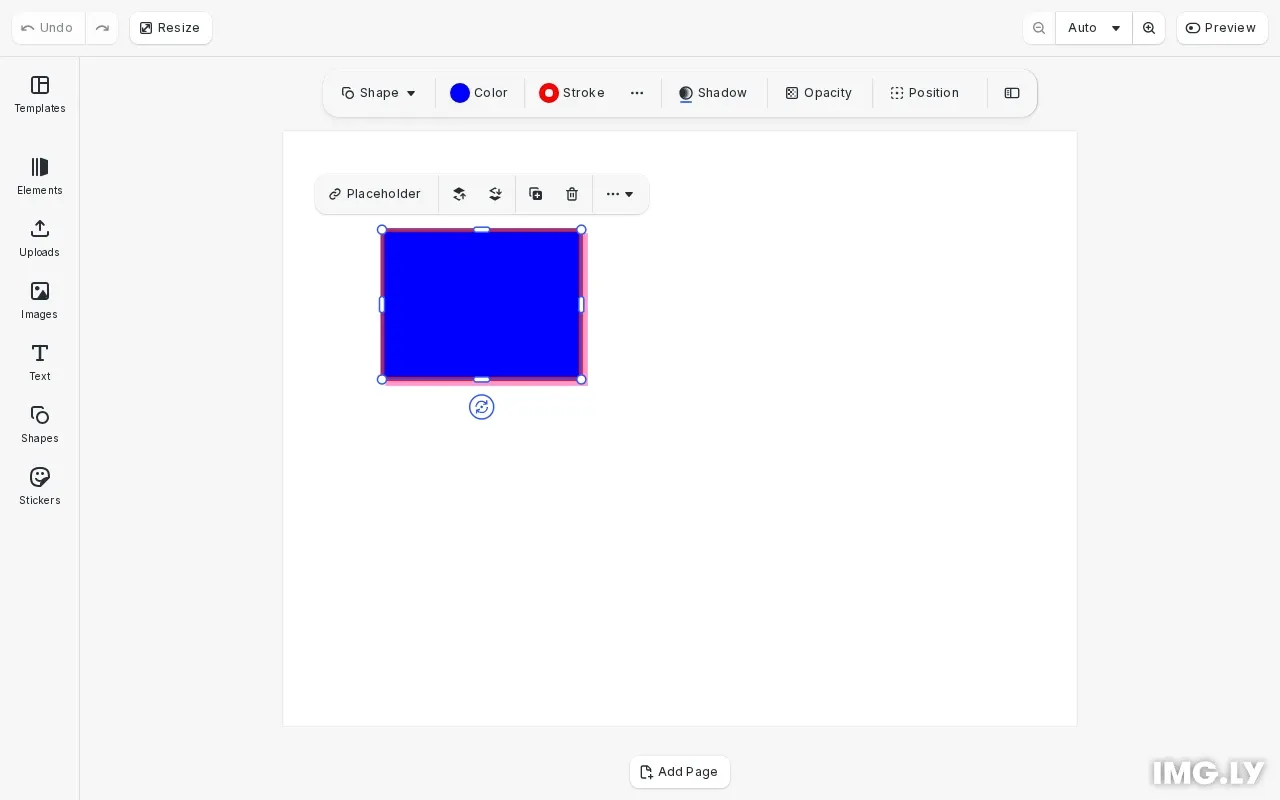
Colors in CE.SDK are applied to block properties like fill, stroke, and shadow using engine.block.setColor(). The engine supports three color spaces: sRGB for screen display, CMYK for print production, and spot colors for specialized printing requirements.
This guide covers how to create color objects in different color spaces, apply colors to fill, stroke, and shadow properties, work with spot colors including defining and managing them, and convert colors between color spaces.
Create Color Objects#
CE.SDK represents colors as JavaScript objects with properties specific to each color space. We create color objects that match our target output—RGB for screens, CMYK for print, or spot colors for precise color matching.
// Create RGB color (values 0.0-1.0)const rgbaBlue: RGBAColor = { r: 0.0, g: 0.0, b: 1.0, a: 1.0 };
// Create CMYK color (cyan, magenta, yellow, black, tint)const cmykRed = { c: 0.0, m: 1.0, y: 1.0, k: 0.0, tint: 1.0 };
// Create spot color referenceconst spotPink = {  name: 'Pink-Flamingo',  tint: 1.0,  externalReference: 'Pantone'};
RGB colors use { r, g, b, a } with values from 0.0 to 1.0 for each channel, where a is alpha (opacity). CMYK colors use { c, m, y, k, tint } where tint controls the overall intensity. Spot colors use { name, tint, externalReference } to reference a defined spot color by name.
Define Spot Colors#
Before applying a spot color, we must define its screen preview approximation. The engine needs to know how to display the color since spot colors represent inks that can’t be directly rendered on screens.
// Define spot colors with screen preview approximationsengine.editor.setSpotColorRGB('Pink-Flamingo', 1.0, 0.41, 0.71);engine.editor.setSpotColorCMYK('Corporate-Blue', 1.0, 0.5, 0.0, 0.2);Use engine.editor.setSpotColorRGB() to define the RGB approximation with red, green, and blue values from 0.0 to 1.0. Use engine.editor.setSpotColorCMYK() for the CMYK approximation with cyan, magenta, yellow, black, and tint values. A spot color can have both RGB and CMYK approximations defined.
Apply Fill Colors#
To set a block’s fill color, we first get the fill block using engine.block.getFill(), then apply the color using engine.block.setColor() with the 'fill/color/value' property.
// Apply RGB color to fillconst fill = engine.block.getFill(block);engine.block.setColor(fill, 'fill/color/value', rgbaBlue);
// Read the current fill colorconst currentFillColor = engine.block.getColor(fill, 'fill/color/value');console.log('Current fill color:', currentFillColor);
The fill block is a separate entity from the design block. We can read the current color using engine.block.getColor() with the same property path.
Apply Stroke Colors#
Stroke colors are applied directly to the design block using the 'stroke/color' property. We enable the stroke first using engine.block.setStrokeEnabled().
// Enable and apply stroke colorengine.block.setStrokeEnabled(block, true);engine.block.setStrokeWidth(block, 4);engine.block.setColor(block, 'stroke/color', cmykRed);The stroke renders around the edges of the block with the specified color. Set the stroke width using engine.block.setStrokeWidth() to control the line thickness.
Apply Shadow Colors#
Drop shadow colors use the 'dropShadow/color' property on the design block. Enable shadows first using engine.block.setDropShadowEnabled().
// Enable and apply drop shadow colorengine.block.setDropShadowEnabled(block, true);engine.block.setDropShadowOffsetX(block, 5);engine.block.setDropShadowOffsetY(block, 5);engine.block.setColor(block, 'dropShadow/color', spotPink);Control the shadow position using setDropShadowOffsetX() and setDropShadowOffsetY(). Spot colors work with shadows just like RGB or CMYK colors.
Convert Between Color Spaces#
Use engine.editor.convertColorToColorSpace() to convert any color to a different color space. This is useful when you need to output designs in a specific color format.
// Convert colors between color spacesconst cmykFromRgb = engine.editor.convertColorToColorSpace(  rgbaBlue,  'CMYK');console.log('CMYK from RGB:', cmykFromRgb);
const rgbFromCmyk = engine.editor.convertColorToColorSpace(cmykRed, 'sRGB');console.log('RGB from CMYK:', rgbFromCmyk);
Pass the source color object and target color space ('sRGB' or 'CMYK'). Spot colors convert to their defined approximation in the target space. Note that color conversions are approximations—CMYK has a smaller color gamut than sRGB.
List Defined Spot Colors#
Query all spot colors currently defined in the editor using engine.editor.findAllSpotColors(). This returns an array of spot color names.
// List all defined spot colorsconst allSpotColors = engine.editor.findAllSpotColors();console.log('Defined spot colors:', allSpotColors);This is useful for building color pickers or validating that required spot colors are defined before export.
Update Spot Color Definitions#
Redefine a spot color’s approximation by calling setSpotColorRGB() or setSpotColorCMYK() with the same name. All blocks using that spot color automatically update their rendered appearance.
// Update a spot color definitionengine.editor.setSpotColorRGB('Pink-Flamingo', 1.0, 0.6, 0.8);console.log('Updated Pink-Flamingo spot color');This allows you to adjust how spot colors appear on screen without modifying every block that uses them.
Remove Spot Color Definitions#
Remove a spot color definition using engine.editor.removeSpotColor(). Blocks still referencing that color fall back to the default magenta approximation.
// Remove a spot color definition (falls back to magenta)engine.editor.removeSpotColor('Corporate-Blue');console.log('Removed Corporate-Blue spot color');This is useful when cleaning up unused spot colors or when you need to signal that a spot color is no longer valid.
Troubleshooting#
Spot Color Appears Magenta#
The spot color wasn’t defined before use. Call setSpotColorRGB() or setSpotColorCMYK() with the exact spot color name before applying it to blocks.
Stroke or Shadow Color Not Visible#
The effect isn’t enabled. Call setStrokeEnabled(block, true) or setDropShadowEnabled(block, true) before setting the color.
Color Looks Different After Conversion#
Color space conversions are approximations. CMYK has a smaller gamut than sRGB, so vibrant colors may appear muted after conversion.
Can’t Apply Color to Fill#
Apply colors to the fill block obtained from getFill(), not the parent design block. The fill is a separate entity with its own color property.
API Reference#
| Method | Description |
|---|---|
block.setColor(block, property, color) | Set a color property on a block |
block.getColor(block, property) | Get a color property from a block |
block.getFill(block) | Get the fill block of a design block |
block.setStrokeEnabled(block, enabled) | Enable or disable stroke on a block |
block.setDropShadowEnabled(block, enabled) | Enable or disable drop shadow on a block |
editor.setSpotColorRGB(name, r, g, b) | Define a spot color with RGB approximation |
editor.setSpotColorCMYK(name, c, m, y, k) | Define a spot color with CMYK approximation |
editor.findAllSpotColors() | List all defined spot colors |
editor.removeSpotColor(name) | Remove a spot color definition |
editor.convertColorToColorSpace(color, colorSpace) | Convert a color to a different color space |