Programmatically apply crop presets to enforce specific aspect ratios or dimensions on design blocks using the applyForceCrop API.
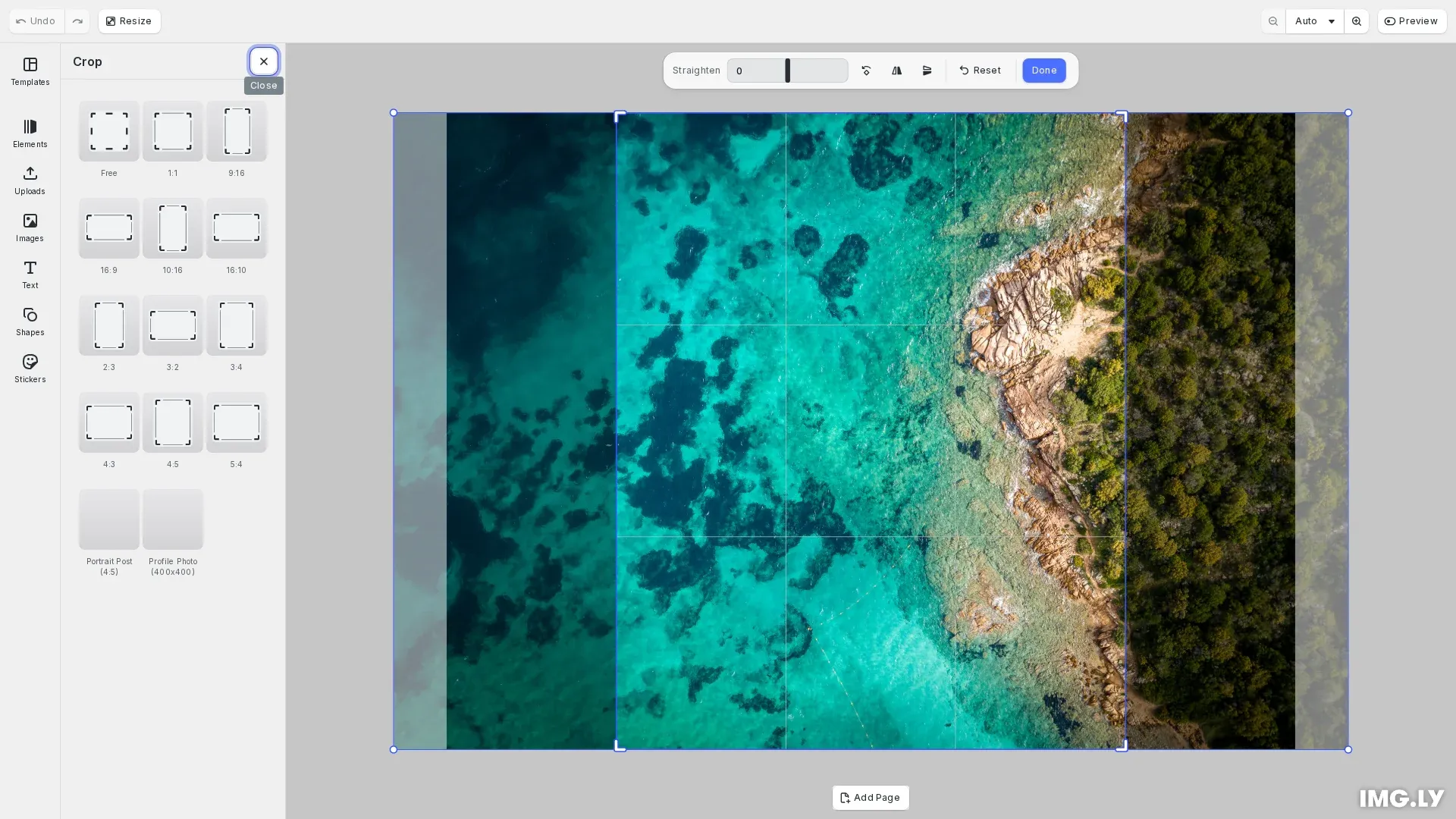
The applyForceCrop API lets you enforce specific dimensions or aspect ratios on blocks that support cropping. This is useful when building integrations that require content to match specific formats, such as Instagram portrait posts, LinkedIn profile photos, or Facebook shared images. You can control whether the crop UI appears after applying a preset through three different modes.
This guide covers how to apply crop presets programmatically, create custom presets with fixed aspect ratios or dimensions, and control the crop mode behavior.
Applying a Crop Preset#
The cesdk.ui.applyForceCrop() method takes a block ID and an options object containing sourceId, presetId, and mode. The sourceId identifies the asset source containing crop presets, presetId specifies which preset to apply, and mode determines whether the crop UI appears.
// Apply force crop with 'ifNeeded' mode// This will only enter crop mode if dimensions differ from targetawait cesdk.ui.applyForceCrop(imageBlock, { sourceId: 'ly.img.crop.presets', presetId: 'instagram-portrait', mode: 'ifNeeded'});CE.SDK ships with default crop presets in the ly.img.crop.presets source. Common ratios like 1:1, 4:3, and 16:9 are available without additional configuration.
Creating Custom Crop Presets#
You can create custom crop presets by adding assets to the ly.img.crop.presets source using engine.asset.addAssetToSource(). Two preset types are available: fixed aspect ratio and fixed size.
Fixed Aspect Ratio Presets#
Fixed aspect ratio presets maintain a ratio but allow flexible dimensions. Set type: 'FixedAspectRatio' with width and height values representing the ratio.
// Create a custom crop preset with a fixed aspect ratio (4:5 for portrait)engine.asset.addAssetToSource('ly.img.crop.presets', { id: 'instagram-portrait', label: { en: 'Portrait Post (4:5)' }, payload: { transformPreset: { type: 'FixedAspectRatio', width: 4, height: 5, designUnit: 'Pixel' } }});Fixed Size Presets#
Fixed size presets enforce exact pixel dimensions. Set type: 'FixedSize' with specific width and height values.
// Create a custom crop preset with fixed dimensionsengine.asset.addAssetToSource('ly.img.crop.presets', { id: 'profile-photo', label: { en: 'Profile Photo (400x400)' }, payload: { transformPreset: { type: 'FixedSize', width: 400, height: 400, designUnit: 'Pixel' } }});Understanding Crop Modes#
The mode parameter controls how the editor responds after applying a crop preset.
Silent Mode#
Silent mode applies the crop without any UI feedback. The editor remains in its current mode. Use this for batch operations or when cropping should be invisible to the user.
// Example of silent mode - applies crop without showing UI// await cesdk.ui.applyForceCrop(imageBlock, {// sourceId: 'ly.img.crop.presets',// presetId: 'profile-photo',// mode: 'silent'// });Always Mode#
Always mode applies the crop and opens crop mode for user adjustment. Dimension inputs are hidden to prevent changing the preset.
// Example of always mode - always enters crop mode// await cesdk.ui.applyForceCrop(imageBlock, {// sourceId: 'ly.img.crop.presets',// presetId: 'instagram-portrait',// mode: 'always'// });If Needed Mode#
If needed mode applies the crop only if dimensions differ from the target. The crop mode opens only when changes occur. This prevents unnecessary user interaction when content already fits the required dimensions.
// If Needed mode - only enters crop mode when dimensions differ// await cesdk.ui.applyForceCrop(imageBlock, {// sourceId: 'ly.img.crop.presets',// presetId: 'instagram-portrait',// mode: 'ifNeeded'// });Applying Force Crop to Pages#
When applying force crop to page blocks, the API automatically enables page resize interaction during the operation. In silent mode, resize interaction is disabled after completion. In always and ifNeeded modes, it remains enabled while crop mode is open.
API Reference#
| Method | Description |
|---|---|
cesdk.ui.applyForceCrop(blockId, options) | Apply a crop preset to a block |
engine.asset.addAssetToSource(sourceId, asset) | Add an asset to a source |
engine.asset.findAllSources() | List available asset sources |
engine.block.supportsCrop(blockId) | Check if block supports cropping |