Configure and populate the Template Library in CE.SDK so users can browse and select predefined design templates.
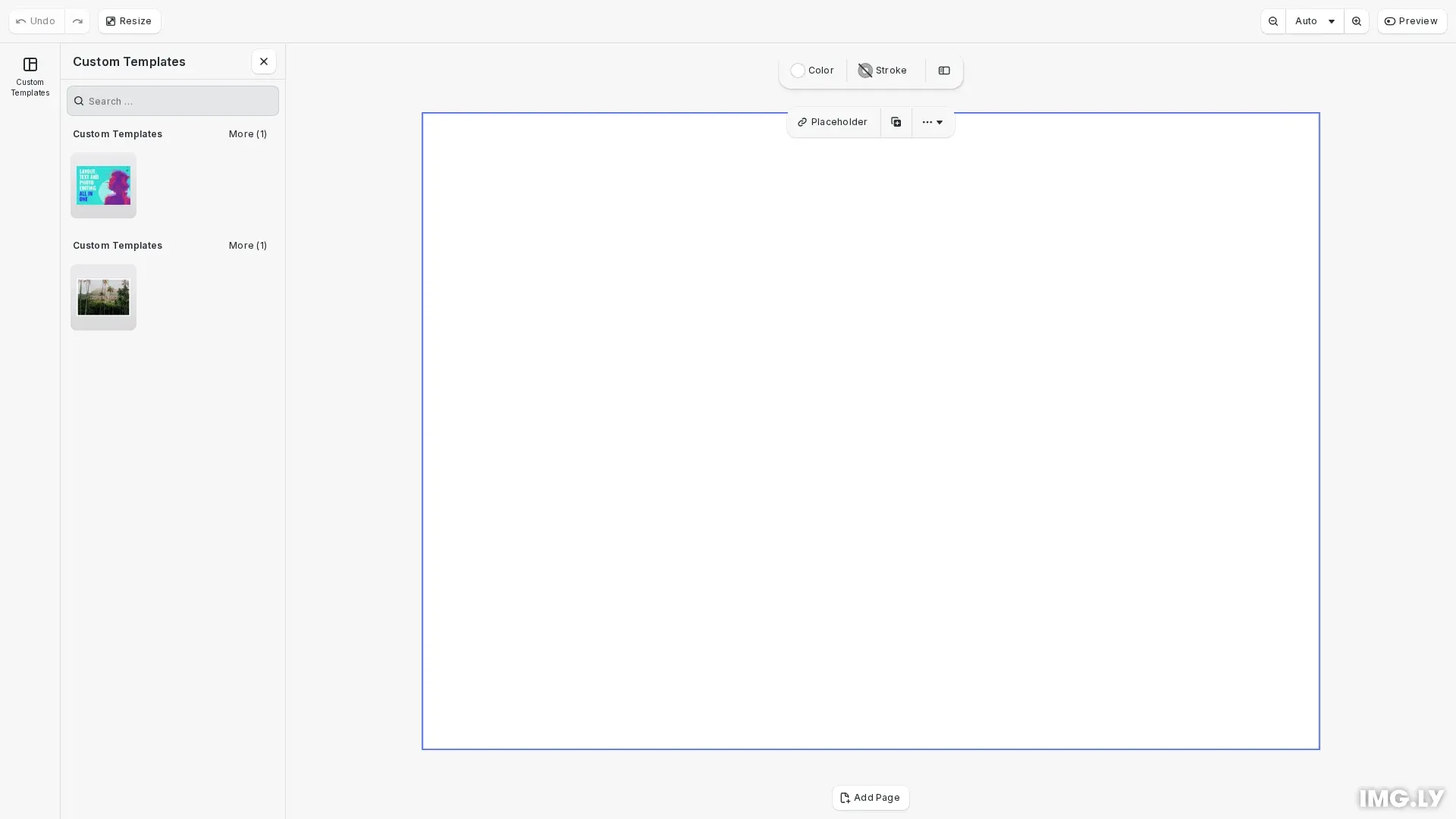
Templates in CE.SDK are pre-designed scenes stored as assets within asset sources. They contain complete scene definitions that users can load and customize. The Template Library provides a centralized way to organize, browse, and access these templates through both the built-in UI and programmatic APIs.
This guide covers how to create custom template sources, handle template application, query templates programmatically, and manage template sources.
Setup#
Before creating custom template sources, load the default asset sources to ensure fonts and other base assets are available. Then create a design scene to work with.
// Create a design scene to work with    await cesdk.addPlugin(new DesignEditorConfig());
// Add asset source pluginsawait cesdk.addPlugin(new BlurAssetSource());await cesdk.addPlugin(new ColorPaletteAssetSource());await cesdk.addPlugin(new CropPresetsAssetSource());await cesdk.addPlugin(new UploadAssetSources({ include: ['ly.img.image.upload'] }));await cesdk.addPlugin(  new DemoAssetSources({    include: [      'ly.img.templates.blank.*',      'ly.img.templates.presentation.*',      'ly.img.templates.print.*',      'ly.img.templates.social.*',      'ly.img.image.*'    ]  }));await cesdk.addPlugin(new EffectsAssetSource());await cesdk.addPlugin(new FiltersAssetSource());await cesdk.addPlugin(new PagePresetsAssetSource());await cesdk.addPlugin(new StickerAssetSource());await cesdk.addPlugin(new TextAssetSource());await cesdk.addPlugin(new TextComponentAssetSource());await cesdk.addPlugin(new TypefaceAssetSource());await cesdk.addPlugin(new VectorShapeAssetSource());
await cesdk.actions.run('scene.create', { page: { sourceId: 'ly.img.page.presets', assetId: 'ly.img.page.presets.print.iso.a6.landscape' } });
Using the Built-in Template UI#
The CE.SDK editor UI includes a template panel where users can browse and select templates. The panel displays thumbnails organized by groups, allowing users to filter templates by category.
To access templates in the UI:
- Open the asset library panel
- Navigate to the Templates section
- Browse templates with thumbnail previews
- Click a template to apply it to the current design
The template panel automatically displays templates from all registered template sources.
Creating Custom Template Sources#
You can create custom template sources to provide your own branded templates. We use engine.asset.addLocalSource() to create a source with an apply callback, then engine.asset.addAssetToSource() to add template assets.
// Create a custom template source with an apply callback// The callback handles what happens when a user clicks a templateengine.asset.addLocalSource('my.custom.templates', undefined, async (asset) => {  const sceneUri = asset.meta?.uri;  const scene = engine.scene.get();  if (!sceneUri || scene == null) return undefined;
  const sceneUrl = new URL(sceneUri, window.location.href);  await engine.scene.applyTemplateFromURL(sceneUrl.href);
  return scene;});
// Add template assets to the source// Each asset needs meta.uri pointing to a .scene fileengine.asset.addAssetToSource('my.custom.templates', {  id: 'postcard-1',  label: { en: 'Postcard Design' },  tags: { en: ['postcard', 'card'] },  groups: ['cards'],  meta: {    thumbUri:      'https://cdn.img.ly/assets/demo/v3/ly.img.template/thumbnails/cesdk_postcard_1.jpg',    uri: 'https://cdn.img.ly/packages/imgly/cesdk-js/latest/assets/templates/cesdk_postcard_1.scene'  }});
engine.asset.addAssetToSource('my.custom.templates', {  id: 'postcard-2',  label: { en: 'Business Card' },  tags: { en: ['business', 'card'] },  groups: ['business'],  meta: {    thumbUri:      'https://cdn.img.ly/assets/demo/v3/ly.img.template/thumbnails/cesdk_postcard_2.jpg',    uri: 'https://cdn.img.ly/packages/imgly/cesdk-js/latest/assets/templates/cesdk_postcard_2.scene'  }});
The addLocalSource() method creates the source and registers a callback that handles template application when users click a template. The callback:
- Extracts the scene URI from
asset.meta.uri - Resolves the URI to an absolute URL
- Applies the template using
engine.scene.applyTemplateFromURL() - Returns the scene ID to indicate successful application
Each template asset added with addAssetToSource() can include:
id- Unique identifier for the templatelabel- Localized display name (e.g.,{ en: 'Business Card' })tags- Searchable keywords for filteringgroups- Categories for organizationmeta.uri- URL to the.scenefile (required for template application)meta.thumbUri- Thumbnail image URL
From Remote URI#
For production use, you can load templates from a hosted JSON file using engine.asset.addLocalAssetSourceFromJSONURI(). The parent directory of the JSON URI becomes the base path for resolving relative URLs within the JSON.
const sourceId = await engine.asset.addLocalAssetSourceFromJSONURI( 'https://cdn.example.com/templates/content.json');Querying Templates Programmatically#
We use engine.asset.findAssets() to search and retrieve templates from a source. You can query by groups, tags, or search text to find specific templates.
// Query templates with filtering optionsconst queryResult = await engine.asset.findAssets('my.custom.templates', {  page: 0,  perPage: 20,  groups: ['cards']});console.log(  'Templates in "cards" group:',  queryResult.assets.map((t) => t.id));
// Query all templates from custom sourceconst allCustomTemplates = await engine.asset.findAssets(  'my.custom.templates',  {    page: 0,    perPage: 100  });console.log('Total custom templates:', allCustomTemplates.total);
The query options include:
pageandperPage- Pagination controlsgroups- Filter by group names (e.g.,['business', 'cards'])tags- Filter by tagsquery- Text search across labels and tags
The result object contains:
assets- Array of template assets matching the querytotal- Total number of matching templatescurrentPage- Current page indexnextPage- Next page index (if available)
Managing Template Sources#
CE.SDK provides APIs to manage the lifecycle of template sources, including listing, monitoring, and removing sources.
// List all registered asset sourcesconst allSources = engine.asset.findAllSources();const templateSources = allSources.filter(  (id) => id.includes('template') || id === 'my.custom.templates');console.log('Template sources:', templateSources);
// Get available groups from a sourceconst groups = await engine.asset.getGroups('my.custom.templates');console.log('Available groups:', groups);
// Subscribe to source changesconst unsubscribeAdd = engine.asset.onAssetSourceAdded((sourceId) => {  console.log('Asset source added:', sourceId);});
const unsubscribeRemove = engine.asset.onAssetSourceRemoved((sourceId) => {  console.log('Asset source removed:', sourceId);});
// Clean up subscriptions when done (for demonstration)setTimeout(() => {  unsubscribeAdd();  unsubscribeRemove();}, 10000);
Key management methods:
engine.asset.findAllSources()- Lists all registered asset source IDsengine.asset.getGroups(sourceId)- Gets available groups from a sourceengine.asset.removeSource(sourceId)- Removes an asset sourceengine.asset.onAssetSourceAdded(callback)- Subscribe to source additionsengine.asset.onAssetSourceRemoved(callback)- Subscribe to source removals
Troubleshooting#
Common issues when working with the Template Library:
-
Templates not appearing in UI: Verify the source is registered by checking
engine.asset.findAllSources(). Ensure the source ID matches what you expect. -
Thumbnails not loading: Check that
thumbUrivalues are accessible URLs with proper CORS headers enabled. -
Scene files not loading: Ensure
meta.urivalues point to valid.scenefiles that are accessible from the browser.