Add outlines around shapes, text, and graphics to enhance visual definition and create decorative effects.
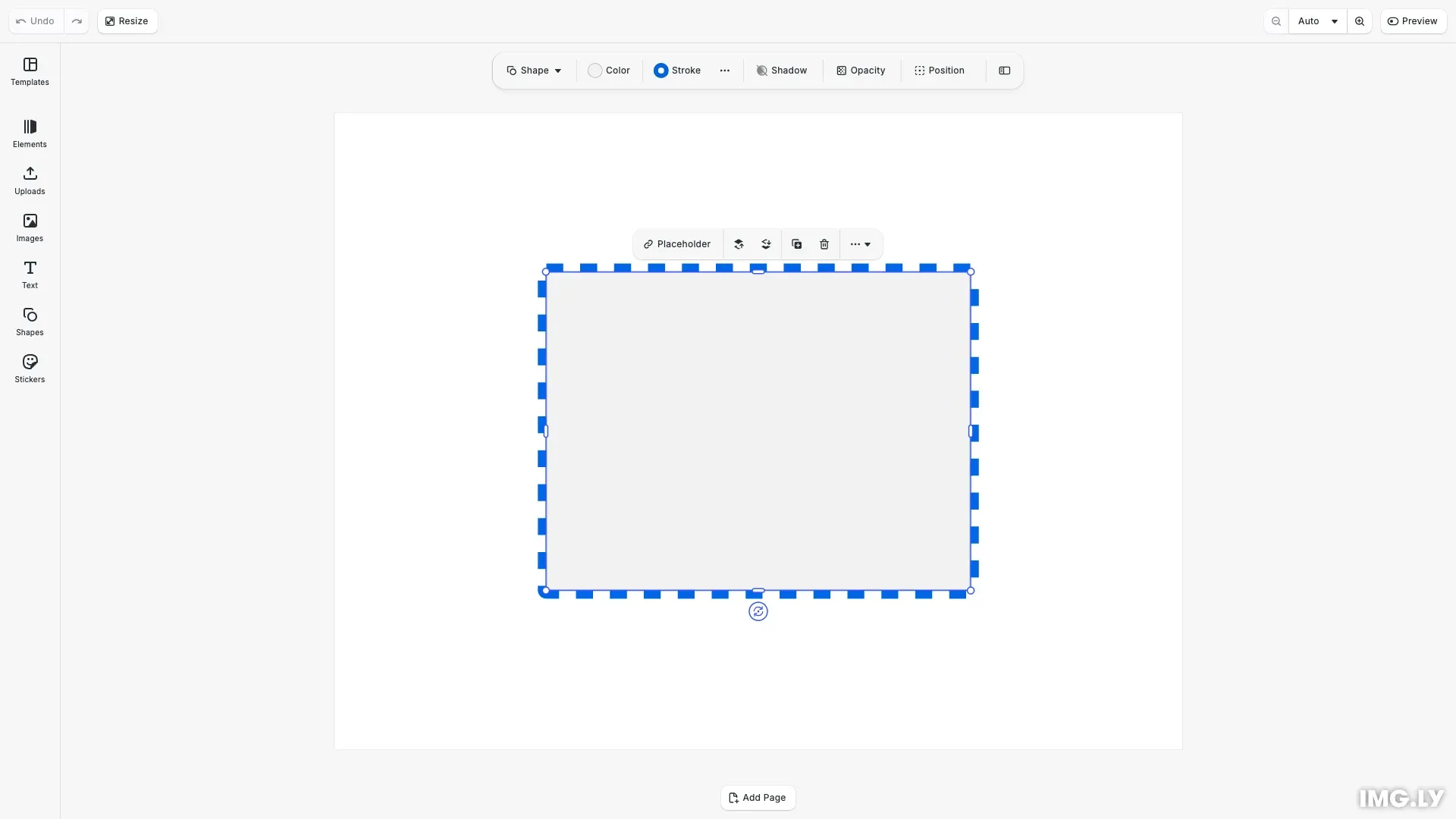
Strokes add visual outlines that define block boundaries. You can customize their color, width, line style (solid, dashed, dotted), position relative to the block edge, and corner treatment. CE.SDK provides both built-in UI controls and programmatic APIs for stroke management.
This guide covers how to use the stroke inspector panel for interactive editing and how to apply and manage strokes programmatically using the block API.
Using the Built-in Stroke UI#
The CE.SDK editor includes a stroke inspector panel for interactive stroke editing. When you select a block that supports strokes, the inspector displays stroke controls:
- Enable toggle - Turn strokes on or off for the selected block
- Color picker - Choose the stroke color with full RGBA support
- Width control - Adjust stroke thickness using a slider or input field
- Style dropdown - Select from solid, dashed, or dotted line patterns
- Position options - Choose where the stroke renders relative to the block edge (inner, center, or outer)
These controls provide a visual interface for users to customize strokes without writing code.
Checking Stroke Support#
Before applying strokes programmatically, verify the block supports them using supportsStroke(). Not all block types have stroke capabilities.
// Check if block supports strokesconst canHaveStroke = engine.block.supportsStroke(block);console.log('Block supports stroke:', canHaveStroke);Enabling Strokes#
Enable strokes on a block using setStrokeEnabled(). You can check the current state with isStrokeEnabled().
// Enable stroke on the blockengine.block.setStrokeEnabled(block, true);const strokeIsEnabled = engine.block.isStrokeEnabled(block);console.log('Stroke enabled:', strokeIsEnabled);Setting Stroke Color#
Control stroke color using setStrokeColor() with an RGBA color object. Color values range from 0.0 to 1.0. Retrieve the current color with getStrokeColor().
// Set stroke color to blueengine.block.setStrokeColor(block, { r: 0.0, g: 0.4, b: 0.9, a: 1.0 });const strokeColor = engine.block.getStrokeColor(block);console.log('Stroke color:', strokeColor);Setting Stroke Width#
Set stroke thickness in design units using setStrokeWidth(). Larger values create more prominent outlines. Get the current width with getStrokeWidth().
// Set stroke widthengine.block.setStrokeWidth(block, 8);const strokeWidth = engine.block.getStrokeWidth(block);console.log('Stroke width:', strokeWidth);Stroke Styles#
Control the line pattern using setStrokeStyle(). Available styles include:
- Solid - Continuous line
- Dashed - Square-ended dashes with gaps
- DashedRound - Round-ended dashes with gaps
- Dotted - Circular dots
- LongDashed - Longer square-ended dashes
- LongDashedRound - Longer round-ended dashes
// Apply a dashed stroke styleengine.block.setStrokeStyle(block, 'Dashed');const strokeStyle = engine.block.getStrokeStyle(block);console.log('Stroke style:', strokeStyle);Stroke Position#
Control where the stroke renders relative to the block edge using setStrokePosition():
- Center - Stroke centered on the edge (default)
- Inner - Stroke rendered inside the block boundary
- Outer - Stroke rendered outside the block boundary
Position affects how strokes interact with adjacent elements and overall layout dimensions. Inner strokes stay within the block bounds, while outer strokes extend beyond them.
// Set stroke position to outerengine.block.setStrokePosition(block, 'Outer');const strokePosition = engine.block.getStrokePosition(block);console.log('Stroke position:', strokePosition);Stroke Corner Geometry#
Control how stroke corners are rendered using setStrokeCornerGeometry(). This is particularly visible on rectangular shapes:
- Miter - Sharp pointed corners (default)
- Round - Smoothly curved corners
- Bevel - Flat cut corners
// Set corner geometry to roundengine.block.setStrokeCornerGeometry(block, 'Round');const strokeCornerGeometry = engine.block.getStrokeCornerGeometry(block);console.log('Stroke corner geometry:', strokeCornerGeometry);Troubleshooting#
If strokes don’t appear as expected, check these common issues:
- Stroke not visible - Verify stroke is enabled with
isStrokeEnabled()and width is greater than 0 - Stroke color appears wrong - Ensure color values are in the 0.0-1.0 range, not 0-255
- Stroke affects layout unexpectedly - Use Inner position to keep strokes within bounds, or Outer if you want strokes to extend beyond the block
- Block doesn’t support strokes - Use
supportsStroke()to verify capability before applying stroke properties
API Reference#
| Method | Description |
|---|---|
block.supportsStroke(block) | Check if a block supports strokes |
block.setStrokeEnabled(block, enabled) | Enable or disable stroke on a block |
block.isStrokeEnabled(block) | Check if stroke is enabled |
block.setStrokeColor(block, color) | Set stroke color (RGBA, values 0.0-1.0) |
block.getStrokeColor(block) | Get current stroke color |
block.setStrokeWidth(block, width) | Set stroke thickness in design units |
block.getStrokeWidth(block) | Get current stroke width |
block.setStrokeStyle(block, style) | Set line pattern (Solid, Dashed, Dotted, etc.) |
block.getStrokeStyle(block) | Get current stroke style |
block.setStrokePosition(block, position) | Set stroke position (Center, Inner, Outer) |
block.getStrokePosition(block) | Get current stroke position |
block.setStrokeCornerGeometry(block, type) | Set corner rendering (Miter, Round, Bevel) |
block.getStrokeCornerGeometry(block) | Get current corner geometry |