Import Adobe Photoshop (PSD) files into CE.SDK, converting them into editable scenes while preserving layers, text, shapes, and positioning.
The @imgly/psd-importer package converts Photoshop files into CE.SDK scene format, preserving design structure for editing or export. This guide focuses on enabling end-users to upload their own PSD files directly in the browser and load them into the CE.SDK editor. For batch conversion of template libraries at build-time, see the server guide.
Installation#
Install the @imgly/psd-importer package alongside CE.SDK:
npm install @imgly/psd-importer @cesdk/cesdk-jsThe browser environment uses createWebEncodeBufferToPNG() for PNG encoding, which requires no additional dependencies.
Import Your First PSD#
Parse a PSD file and load it into CE.SDK with just a few lines of code:
import CreativeEditorSDK from '@cesdk/cesdk-js';import { PSDParser, createWebEncodeBufferToPNG } from '@imgly/psd-importer';
// Initialize CE.SDKconst cesdk = await CreativeEditorSDK.create('#container', {  license: 'YOUR_LICENSE_KEY'});const engine = cesdk.engine;
// Fetch and parse a PSD fileconst response = await fetch('https://example.com/design.psd');const buffer = await response.arrayBuffer();
// Parse the PSD - creates a scene in the engineconst parser = await PSDParser.fromFile(engine, buffer, createWebEncodeBufferToPNG());await parser.parse();
// The PSD is now loaded as an editable sceneconsole.log('Pages:', engine.scene.getPages().length);
This minimal example fetches a PSD from a URL and converts it into an editable CE.SDK scene. The following sections cover font handling, user uploads, and additional features.
Supported Elements#
The PSD importer preserves the following Photoshop elements:
- Layer structure - Groups and layer hierarchy
- Positioning - X/Y coordinates, rotation, and transparency
- Text elements - Font family, bold/italic styles (single style per layer)
- Shapes - Rectangles, ovals, polygons, lines, and custom shapes
- Fills - Solid color fills and strokes (weight, color, alignment)
- Images - Raster image layers (without cropping)
Setting Up Font Matching#
Text elements in PSD files reference fonts that may not be available in CE.SDK. Use addGoogleFontsAssetLibrary() to register Google Fonts as a font source before parsing:
// Initialize CE.SDK with Google Fonts support for PSD text matchingawait cesdk.addPlugin(new DesignEditorConfig());
// Add asset source pluginsawait cesdk.addPlugin(new BlurAssetSource());await cesdk.addPlugin(new ColorPaletteAssetSource());await cesdk.addPlugin(new CropPresetsAssetSource());await cesdk.addPlugin(new UploadAssetSources({ include: ['ly.img.image.upload'] }));await cesdk.addPlugin(  new DemoAssetSources({    include: [      'ly.img.templates.blank.*',      'ly.img.templates.presentation.*',      'ly.img.templates.print.*',      'ly.img.templates.social.*',      'ly.img.image.*'    ]  }));await cesdk.addPlugin(new EffectsAssetSource());await cesdk.addPlugin(new FiltersAssetSource());await cesdk.addPlugin(new PagePresetsAssetSource());await cesdk.addPlugin(new StickerAssetSource());await cesdk.addPlugin(new TextAssetSource());await cesdk.addPlugin(new TextComponentAssetSource());await cesdk.addPlugin(new TypefaceAssetSource());await cesdk.addPlugin(new VectorShapeAssetSource());
// Register Google Fonts before parsing PSD files for best font matchingawait addGoogleFontsAssetLibrary(engine);
Call this function on the engine before parsing PSD files. The importer attempts to match fonts from the PSD with available Google Fonts. For fonts not found, the importer uses a fallback font.
Checking Import Warnings#
Display warnings from the import result to inform users about unsupported features. Filter the logger messages and show appropriate notifications:
// Check for import warnings and errorsconst messages = result.logger.getMessages();const warnings = messages.filter((m) => m.type === 'warning');const errors = messages.filter((m) => m.type === 'error');
if (errors.length > 0) {  console.error('Import errors:', errors);}if (warnings.length > 0) {  console.warn(    'Import warnings:',    warnings.map((w) => w.message)  );}
Common warnings include unsupported blend modes, font substitutions, and features that couldn’t be converted. Errors indicate critical issues that prevented parts of the PSD from being imported.
Adding a File Upload Button#
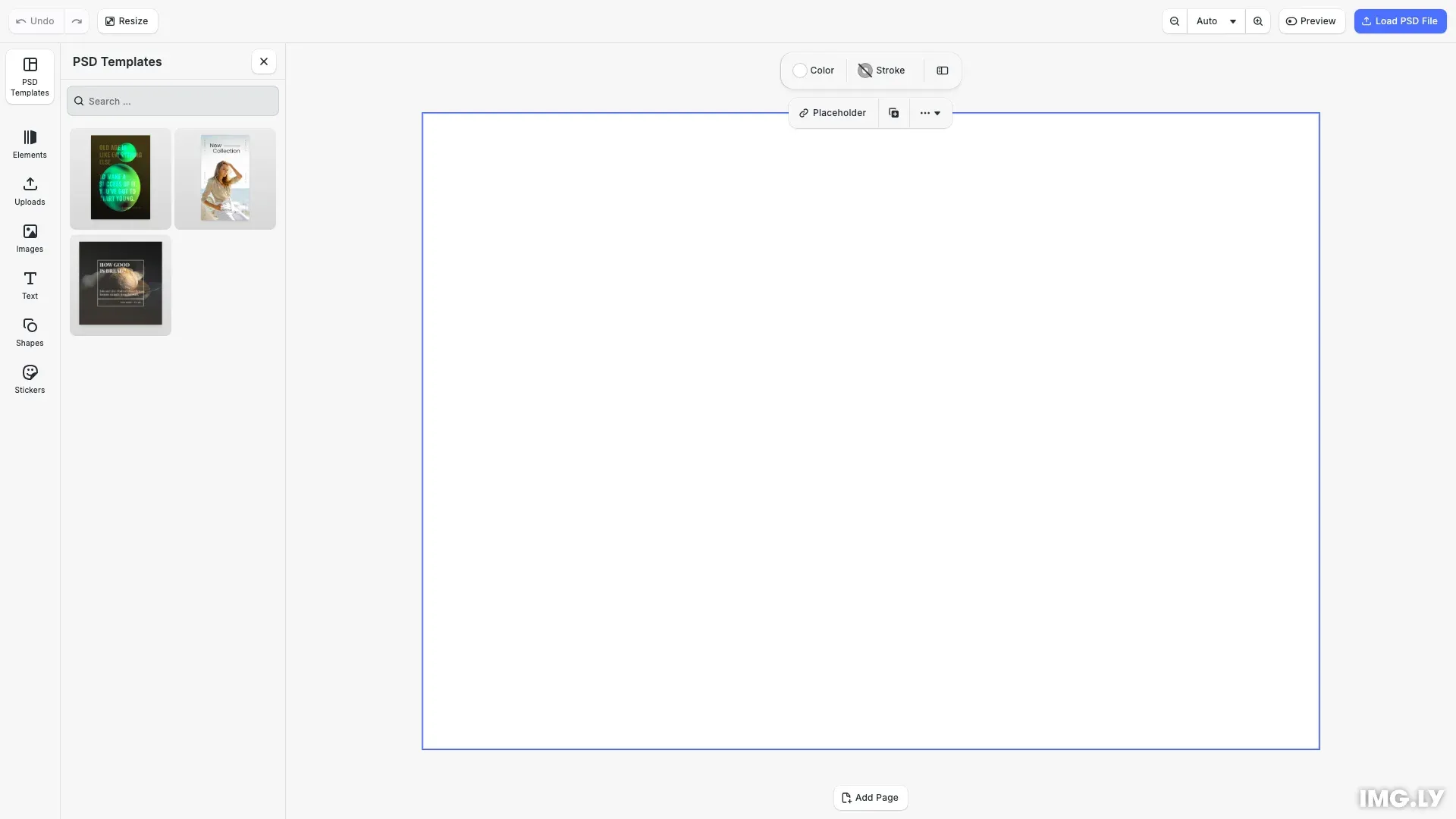
Add a custom button to the navigation bar that allows users to upload and import PSD files directly. The button uses cesdk.utils.loadFile() to open the file picker and immediately imports the selected file:
// Add a custom nav bar button for uploading and importing PSD files// Uses cesdk.utils.loadFile() to open the browser's file pickercesdk.ui.registerComponent('psd.uploadButton', ({ builder }) => {  builder.Button('psd.uploadButton', {    label: 'Load PSD File',    icon: '@imgly/Upload',    variant: 'regular',    color: 'accent',    onClick: async () => {      const buffer = await cesdk.utils.loadFile({        accept: '.psd,application/x-photoshop,image/vnd.adobe.photoshop',        returnType: 'arrayBuffer'      });      await importPsd(buffer, 'uploaded.psd');    }  });});
// Add the upload button to the right side of the navigation barcesdk.ui.setComponentOrder({ in: 'ly.img.navigation.bar' }, [  ...cesdk.ui.getComponentOrder({ in: 'ly.img.navigation.bar' }),  'psd.uploadButton']);
// Open the PSD Templates library by defaultcesdk.ui.openPanel('//ly.img.panel/assetLibrary', {  payload: {    entries: ['psd-library-entry'],    title: 'PSD Templates'  }});
This registers a custom button component that uses cesdk.utils.loadFile() to handle file selection. When clicked, the button opens the system file picker, reads the selected file as an ArrayBuffer, and passes it directly to the PSD parser for immediate import into the editor.
Parsing the PSD File#
Use PSDParser.fromFile() with createWebEncodeBufferToPNG() for browser environments. After parsing, the scene is immediately available in the engine:
// Get buffer from URL or use directlylet buffer: ArrayBuffer;if (typeof source === 'string') {  const response = await fetch(source);  buffer = await response.arrayBuffer();} else {  buffer = source;}
// Parse the PSD file using the PSD importer// The addGoogleFontsAssetLibrary() call above enables automatic font matching// For custom font mapping, pass fontResolver in options (see customFontResolver example)const parser = await PSDParser.fromFile(  engine,  buffer,  createWebEncodeBufferToPNG()  // Optional: { fontResolver: customFontResolver } for advanced font mapping);const result = await parser.parse();
The parser creates a new scene in the engine with all supported PSD elements converted to CE.SDK blocks. The result object contains a logger with messages about the import process.
Saving as Archive#
After parsing, save the imported scene as an archive. This creates a portable bundle containing the scene and all its assets:
// Save the imported scene as an archive for editor loadingconst sceneArchive = await engine.scene.saveToArchive();const archiveUrl = URL.createObjectURL(sceneArchive);Archives can be stored, shared, or loaded later using loadFromArchiveURL().
Saving Scenes with Stable URLs#
By default, the PSD importer creates internal buffer:// URLs for imported images. These are transient resources that work well when saving to an archive (engine.scene.saveToArchive()), which bundles all assets together.
However, if you want to save scenes as JSON strings (engine.scene.saveToString()) with stable, permanent URLs (e.g., for storing in a database or referencing CDN-hosted assets), you need to relocate the transient resources first.
Why Relocate?#
- Scene Archives (
saveToArchive): Include all assets in a single ZIP file. Transientbuffer://URLs work fine. - Scene Strings (
saveToString): Only contain references to assets. Transient URLs won’t work when reloading the scene later. You need permanent URLs (e.g.,https://).
How to Relocate Transient Resources#
After parsing the PSD file, use CE.SDK’s native APIs to find and relocate all transient resources:
// Optional: Save scene as JSON string with stable URLs instead of archive// This is useful when storing scenes in a database or referencing CDN-hosted assets// By default, PSD images use transient buffer:// URLs that only work with saveToArchive()// To use saveToString(), relocate transient resources to permanent URLs first:
// Mock upload function - replace with your actual backend upload logicconst uploadToBackend = async (data: Uint8Array): Promise<string> => {  // In production, upload the data to your CDN/storage and return the permanent URL  // For this example, we create a blob URL to demonstrate the workflow  const blob = new Blob([data], { type: 'image/png' });  return URL.createObjectURL(blob);};
const transientResources = engine.editor.findAllTransientResources();for (const resource of transientResources) {  const { URL: bufferUri, size } = resource;  const data = engine.editor.getBufferData(bufferUri, 0, size);  const permanentUrl = await uploadToBackend(data);  engine.editor.relocateResource(bufferUri, permanentUrl);}const sceneString = await engine.scene.saveToString();
The relocation workflow:
- Find all transient resources using
engine.editor.findAllTransientResources() - Extract binary data for each resource using
engine.editor.getBufferData() - Upload the data to your backend or CDN
- Relocate the resource URL using
engine.editor.relocateResource() - Save to string with
engine.scene.saveToString()- all URLs will now be permanent
Note on Font URLs#
When using the default font resolver with Google Fonts, the resulting scene string will contain Google CDN URLs for fonts. If you need fonts hosted on your own infrastructure, configure a custom font resolver instead of using the default Google Fonts integration.
Loading into the Editor#
Load the archived scene into the CE.SDK editor for user editing:
// Load the archived scene into the editorawait cesdk.engine.scene.loadFromArchiveURL(archiveUrl);
// Verify scene loaded correctlyconst pages = engine.scene.getPages();console.log(`PSD imported successfully with ${pages.length} page(s)`);
// Zoom to fit the imported pageawait cesdk.actions.run('zoom.toPage', { page: 'first', autoFit: true });
After loading, verify the scene contains at least one page. The imported design is now ready for editing in the CE.SDK editor.
Creating a PSD Template Library#
Add a custom asset source that provides PSD templates users can select from a library panel. This allows users to browse and apply pre-defined PSD designs directly from the editor UI:
// Add custom asset source for PSD templatesengine.asset.addSource({  id: PSD_SOURCE_ID,
  async findAssets(    queryData: AssetQueryData  ): Promise<AssetsQueryResult<AssetResult>> {    let assets = SAMPLE_PSD_FILES;
    // Filter by query if provided    if (queryData.query) {      const query = queryData.query.toLowerCase();      assets = assets.filter(        (a) =>          a.label?.toLowerCase().includes(query) ||          a.tags?.some((t) => t.toLowerCase().includes(query))      );    }
    return {      assets,      total: assets.length,      currentPage: queryData.page,      nextPage: undefined    };  },
  async applyAsset(asset: AssetResult): Promise<number | undefined> {    if (!asset.meta?.uri) {      console.error('Asset has no URI');      return undefined;    }
    await importPsd(asset.meta.uri as string, asset.label || asset.id);    return undefined; // Scene replaced, no new block created  }});
The asset source implements findAssets() to return a list of available PSD templates with thumbnails, and applyAsset() to import the selected PSD when users click on a template. The imported scene replaces the current editor content.
Custom Font Resolution#
For advanced use cases, create a custom font resolver to control how PSD fonts map to available typefaces. This is useful when you need to:
- Map proprietary fonts - Replace Photoshop fonts with specific alternatives (e.g., Arial to Open Sans)
- Use enterprise fonts - Integrate with custom font libraries or brand-specific typefaces
- Implement fallback logic - Define priority-based font matching with graceful degradation
- Validate fonts - Ensure only approved fonts are used in imported designs
// Optional: Create a custom font resolver for advanced font mapping// Use this when you need to map Photoshop fonts to specific alternatives,// use enterprise fonts, or implement custom fallback logicconst customFontResolver: TypefaceResolver = async (fontParams, eng) => {  const { family, style, weight } = fontParams;
  // Define font mappings from Photoshop fonts to available alternatives  const fontMappings: Record<string, string> = {    Arial: 'Open Sans',    Helvetica: 'Inter',    'Helvetica Neue': 'Inter',    'Times New Roman': 'Lora',    Georgia: 'Merriweather'  };
  // Use mapped font or original family name  const targetFamily = fontMappings[family] || family;
  // Search for the font in available typefaces  const result = await eng.asset.findAssets('ly.img.typeface', {    query: targetFamily,    page: 0,    perPage: 10  });
  if (result.assets.length === 0) {    console.warn(`Font "${family}" not found, using default fallback`);    return null; // Let the parser use its default fallback  }
  // Get the typeface from the asset payload  const asset = result.assets[0];  const typeface = asset.payload?.typeface;  if (!typeface) return null;
  // Find the best matching font variant (weight and style)  const matchingFont =    typeface.fonts.find(      (f: { weight?: string; style?: string }) =>        f.weight === weight && f.style === style    ) ||    typeface.fonts.find((f: { weight?: string }) => f.weight === weight) ||    typeface.fonts[0];
  return { typeface, font: matchingFont };};
The font resolver receives font parameters (family, style, weight) from each text element in the PSD and returns a matching typeface and font from your available assets. Return null to let the parser use its default fallback behavior.
Pass the custom resolver to PSDParser.fromFile() via the options parameter. When both addGoogleFontsAssetLibrary() and a custom resolver are used, the custom resolver takes precedence for font matching decisions.
API Reference#
The @imgly/psd-importer package exports the following key APIs:
| API | Description |
|---|---|
PSDParser.fromFile(engine, buffer, encoder, options?) | Creates a parser instance from a PSD file buffer. Returns a parser with a parse() method. |
createWebEncodeBufferToPNG() | Creates a PNG encoder for browser environments using the Canvas API. |
addGoogleFontsAssetLibrary(engine) | Registers Google Fonts as a font source for text element matching. Call before parsing. |
TypefaceResolver | Type for custom font resolver functions. Receives font parameters and returns a matching typeface/font pair. |
options.fontResolver | TypefaceResolver - Custom function to resolve fonts from the PSD to available typefaces. |
result.logger.getMessages() | Returns an array of import messages with type (‘warning’ or ‘error’) and message properties. |
Limitations#
The PSD importer has the following limitations:
- Groups - Limited support, especially for single-member groups
- Text - No multiple font sizes or families within a single text layer; no text justification
- Images - Image cropping not supported
- Fills - Gradient fills not supported (solid colors only)
- Blend modes - PassThrough, Dissolve, LinearBurn, DarkerColor, LinearDodge, LighterColor, VividLight, LinearLight, PinLight, HardMix, Subtract, Divide not supported
- Advanced text - Kerning, ligatures, strikethrough, underline, baseline shift not fully supported
Troubleshooting#
Import fails silently: Check the logger messages for errors using result.logger.getMessages().
Text appears with wrong font: Ensure addGoogleFontsAssetLibrary() is called before parsing. Verify the font exists in Google Fonts. If not available, a fallback font is used.
Missing layers: Some layer types or blend modes may not be supported. Check the import warnings for details about which layers couldn’t be converted.
Large file handling: Files over 900MB may encounter memory constraints. The importer gracefully skips problematic elements and continues with the rest of the file.