Add audio files to video projects using CE.SDK’s audio block system for background music, sound effects, and voiceovers.
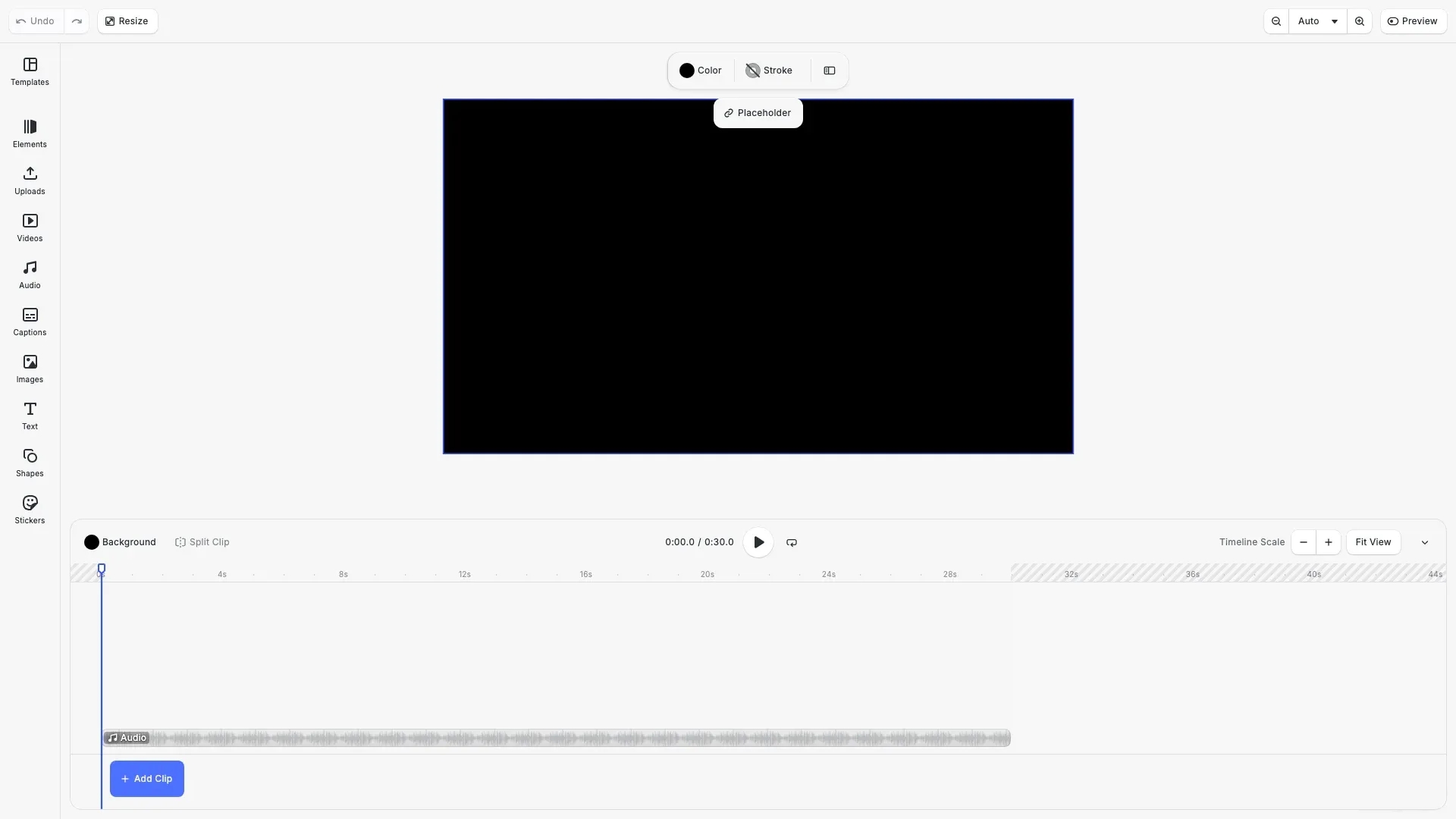
Audio blocks are timeline elements that play sound alongside video content. Unlike video fills that attach to graphic blocks, audio blocks exist independently on the timeline with their own duration, position, and volume controls. Audio requires Video scene mode.
This guide covers creating audio blocks, configuring timeline properties, controlling playback settings, and managing audio blocks in your scene.
Creating an Audio Block#
We create audio blocks using engine.block.create('audio') and set the source file with the audio/fileURI property. Audio blocks must be appended to a page to appear on the timeline.
const audioBlock = engine.block.create('audio');engine.block.setString(audioBlock, 'audio/fileURI', audioUri);engine.block.appendChild(page, audioBlock);CE.SDK supports WAV and MP4 audio formats (including .m4a files). The source URI can point to any accessible URL.
Configuring Timeline Position#
Audio blocks have timeline properties that control when and how long they play. We use setTimeOffset() for the start position and setDuration() for playback length.
engine.block.setTimeOffset(audioBlock, 0);engine.block.setDuration(audioBlock, Math.min(totalDuration, 30));The forceLoadAVResource() method loads the audio file so we can access its total duration. Use getAVResourceTotalDuration() to get the full length of the source audio for timeline calculations.
Adjusting Volume#
We set volume using setVolume() with values from 0.0 (silent) to 1.0 (full volume). This affects both preview playback and the final exported output.
engine.block.setVolume(audioBlock, 0.8);const currentVolume = engine.block.getVolume(audioBlock);Muting Audio#
To temporarily silence audio without removing it, use setMuted(). This preserves all other properties while stopping sound output.
engine.block.setMuted(audioBlock, false);const isMuted = engine.block.isMuted(audioBlock);Looping Audio#
Enable continuous playback with setLooping(). When enabled, the audio repeats until the end of the block’s duration on the timeline.
engine.block.setLooping(audioBlock, false);const isLooping = engine.block.isLooping(audioBlock);Finding Audio Blocks#
Use findByType('audio') to retrieve all audio blocks in the scene. This is useful for building audio management interfaces or performing batch operations.
const allAudioBlocks = engine.block.findByType('audio');Removing Audio#
To remove an audio block, call destroy(). This removes the block from the scene and frees its resources.
engine.block.destroy(tempAudioBlock);API Reference#
| Method | Description |
|---|---|
engine.block.create('audio') | Create a new audio block |
engine.block.setString(block, 'audio/fileURI', uri) | Set the audio source file |
engine.block.appendChild(parent, child) | Add audio block to page/timeline |
engine.block.forceLoadAVResource(block) | Force load the audio file |
engine.block.getAVResourceTotalDuration(block) | Get total audio duration in seconds |
engine.block.setTimeOffset(block, seconds) | Set timeline start position |
engine.block.setDuration(block, seconds) | Set playback duration |
engine.block.setVolume(block, volume) | Set volume (0.0-1.0) |
engine.block.getVolume(block) | Get current volume |
engine.block.setMuted(block, muted) | Mute or unmute audio |
engine.block.isMuted(block) | Check if audio is muted |
engine.block.setLooping(block, loop) | Enable/disable looping |
engine.block.isLooping(block) | Check if looping is enabled |
engine.block.findByType('audio') | Find all audio blocks |
engine.block.destroy(block) | Remove audio block from scene |
Next Steps#
Insert Media Overview - Learn about adding different media types to your projects
Split Video - Split video clips on the timeline
Load Scene - Save and reload your scenes with audio
Store Custom Metadata - Save custom data with your scenes