Learn how to load images, videos, and audio from your backend servers into CE.SDK for integration with CMS, DAM, or custom asset management systems.
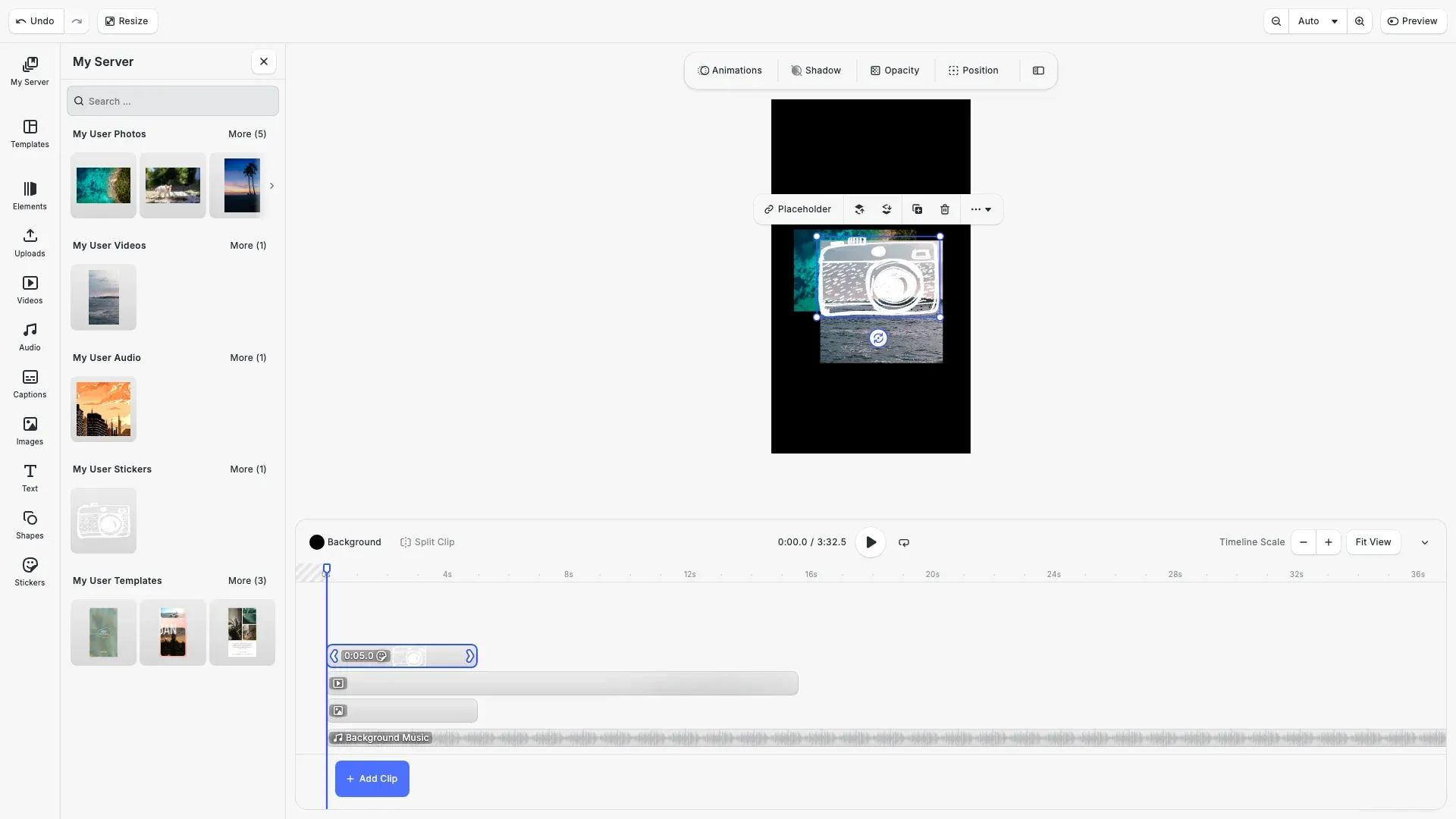
CE.SDK provides multiple ways to load assets from your servers. Static libraries like stickers and icons use JSON manifests hosted on a CDN. Dynamic libraries like user photos and DAM content require API endpoints backed by databases.
This guide covers creating custom asset sources with API integration, serving images, videos, audio, stickers, and templates with correct metadata, configuring the asset library UI, and handling common integration issues.
Understanding Asset Source Types#
CE.SDK supports two primary patterns for loading server assets.
Custom Asset Sources work best for database-backed content like user uploads, DAM integrations, and CMS media. Your API endpoint returns assets and handles filtering, pagination, and search. Register with engine.asset.addSource() providing a findAssets callback.
JSON Asset Sources work best for static assets that don’t change frequently, such as stickers, icons, templates, and brand elements. Host a JSON manifest on a CDN alongside the assets. CE.SDK’s default libraries use this pattern. Use engine.asset.addLocalAssetSourceFromJSONURI().
Serving Different Media Types#
Custom asset sources connect CE.SDK to your backend API. The findAssets callback receives query parameters and returns paginated results. Asset metadata varies by media type—configure the correct blockType and fillType for each.
Image Assets#
Image assets use a graphic block with image fill. Include width and height for proper aspect ratio handling.
// Register a custom asset source for images from your backend APIengine.asset.addSource({  id: 'my-server-images',  async findAssets(queryData) {    // Replace with your API: fetch(`/api/images?page=${queryData.page}&q=${queryData.query}`)    const filtered = filterByQuery(MOCK_IMAGES, queryData.query);    const paginated = paginate(filtered, queryData.page, queryData.perPage);
    return {      assets: paginated.items.map((item) => ({        id: item.id,        label: item.title,        meta: {          uri: item.url,          thumbUri: item.thumbnail,          blockType: '//ly.img.ubq/graphic',          fillType: '//ly.img.ubq/fill/image',          width: item.width,          height: item.height        }      })),      total: filtered.length,      currentPage: queryData.page,      nextPage: paginated.nextPage    };  }});
The findAssets callback receives a queryData object containing query (search term), page, perPage, locale, and tags. Return an object with assets (the current page), total (complete count), currentPage, and nextPage (next page number or undefined when exhausted).
Each asset requires an id and a meta object. Set blockType to //ly.img.ubq/graphic and fillType to //ly.img.ubq/fill/image. The thumbUri provides the thumbnail shown in the asset library, while uri is the full-resolution image loaded onto the canvas.
Video Assets#
Video assets use a graphic block with video fill. Include duration for timeline display and thumbUri for the library thumbnail.
// Register a custom source for video assetsengine.asset.addSource({  id: 'my-server-videos',  async findAssets(queryData) {    const filtered = filterByQuery(MOCK_VIDEOS, queryData.query);
    return {      assets: filtered.map((item) => ({        id: item.id,        label: item.title,        meta: {          uri: item.url,          thumbUri: item.thumbnail,          blockType: '//ly.img.ubq/graphic',          fillType: '//ly.img.ubq/fill/video',          duration: String(item.duration)        }      })),      total: filtered.length,      currentPage: queryData.page,      nextPage: undefined    };  }});
The fillType tells CE.SDK how to render the asset. Use //ly.img.ubq/fill/video for video content. The duration metadata enables proper timeline display when working with video scenes.
Audio Assets#
Audio assets require the mimeType property for the asset library to display the play button overlay.
// Register a custom source for audio assetsengine.asset.addSource({  id: 'my-server-audio',  async findAssets(queryData) {    const filtered = filterByQuery(MOCK_AUDIO, queryData.query);
    return {      assets: filtered.map((item) => ({        id: item.id,        label: item.title,        meta: {          uri: item.url,          thumbUri: item.thumbnail,          blockType: '//ly.img.ubq/audio',          mimeType: item.mimeType,          duration: String(item.duration)        }      })),      total: filtered.length,      currentPage: queryData.page,      nextPage: undefined    };  }});
Set blockType to //ly.img.ubq/audio for audio content. The mimeType (e.g., audio/x-m4a or audio/mpeg) is required for preview playback in the asset library. Include duration for timeline display.
Sticker Assets#
Stickers are image overlays that users can place on the canvas. They use the same structure as images but include kind: 'sticker' to differentiate them in the UI.
// Register a custom source for sticker assets (PNG/SVG overlays)engine.asset.addSource({  id: 'my-server-stickers',  async findAssets(queryData) {    const filtered = filterByQuery(MOCK_STICKERS, queryData.query);
    return {      assets: filtered.map((item) => ({        id: item.id,        label: item.title,        meta: {          uri: item.url,          thumbUri: item.thumbnail,          blockType: '//ly.img.ubq/graphic',          fillType: '//ly.img.ubq/fill/image',          kind: 'sticker',          width: item.width,          height: item.height        }      })),      total: filtered.length,      currentPage: queryData.page,      nextPage: undefined    };  }});
The kind property tells CE.SDK to treat this asset as a sticker rather than a regular image. Stickers typically don’t support cropping and have limited editing options compared to images.
Template Assets#
Templates are complete scenes that users can load as starting points. Use a local source with a custom applyAsset function to load scenes from URLs.
// Register a custom source for scene templatesengine.asset.addLocalSource(  'my-server-templates',  undefined,  async (asset) => {    if (asset.meta?.uri) {      await engine.scene.loadFromURL(asset.meta.uri as string);    }    return undefined;  });
// Add video templates to the sourcefor (const template of MOCK_TEMPLATES) {  engine.asset.addAssetToSource('my-server-templates', {    id: template.id,    label: { en: template.title },    meta: { uri: template.url, thumbUri: template.thumbnail }  });}
Templates require a custom applyAsset callback because they replace the entire scene rather than adding a block. The meta.uri should point to a .scene file, and meta.thumbUri provides the preview thumbnail.
Loading Assets from JSON#
For static asset collections that don’t change frequently, load assets from a JSON manifest file hosted on your CDN.
// Load static assets from a JSON manifest fileawait engine.asset.addLocalAssetSourceFromJSONURI( 'https://cdn.img.ly/assets/v1/ly.img.sticker/content.json');The JSON file should contain asset definitions with id and meta properties. Use the {{base_url}} placeholder in URLs to resolve paths relative to the JSON file’s location. This pattern works well for brand assets, stickers, icons, and templates.
Displaying Assets in the UI#
Connect your asset sources to the CE.SDK asset library panel using the UI API.
Add an Asset Library Entry#
Create a library entry that combines one or more asset sources into a single panel tab.
// Add a custom entry to the asset library panelcesdk.ui.addAssetLibraryEntry({  id: 'my-server-assets',  sourceIds: [    'my-server-images',    'my-server-videos',    'my-server-audio',    'my-server-stickers',    'my-server-templates'  ],  title: ({ sourceId }) => SOURCE_TITLES[sourceId ?? ''] ?? 'My Server',  gridColumns: 3,  gridItemHeight: 'square'});
// Add a dock button for "My Server" as the first item with a separatorcesdk.ui.setComponentOrder({ in: 'ly.img.dock' }, [  'my-server-assets.dock',  'ly.img.separator',  ...cesdk.ui.getComponentOrder({ in: 'ly.img.dock' })]);
cesdk.ui.registerComponent(  'my-server-assets.dock',  ({ builder: { Button } }) => {    Button('my-server-dock-button', {      label: 'My Server',      onClick: () => {        cesdk.ui.openPanel('//ly.img.panel/assetLibrary', {          payload: { entries: ['my-server-assets'] }        });      }    });  });
The sourceIds array lists which asset sources appear in this library entry. Use a title function to display descriptive names for each source. Configure gridColumns and gridItemHeight to control the thumbnail grid layout.
The code also adds a custom dock button using cesdk.ui.registerComponent() that opens the asset library panel with your custom entry. Use cesdk.ui.setComponentOrder({ in: 'ly.img.dock' }, order) to place the button at the start of the dock with a separator, preserving all default icons (Templates, Videos, Audio, Images, etc.).
Server Architecture Considerations#
Backend configuration affects asset loading reliability and performance.
CORS Configuration: Configure CORS headers to allow requests from your editor domain. Both asset URLs and API endpoints need CORS headers. For development, allow localhost. For production, restrict to your editor’s domain.
Authentication: Pass authentication tokens in the findAssets callback via custom headers. For protected assets, use signed URLs that include temporary access tokens in the URL itself.
Thumbnail Strategy: Generate 512px width thumbnails server-side for optimal library performance. Return the thumbnail URL in meta.thumbUri. The full-resolution asset goes in meta.uri.
CDN and Caching: Use a CDN for asset delivery to minimize latency. Set appropriate cache headers for thumbnails (long TTL) and dynamic content (shorter TTL or revalidation).
Troubleshooting#
Common issues when serving assets from your server.
Assets Not Appearing: Verify findAssets returns the correct structure with assets, total, currentPage, and nextPage. Check that each asset has a valid id and meta.uri. Ensure the source is connected to the UI via cesdk.ui.addAssetLibraryEntry().
Images Not Loading: Check CORS headers include your editor domain. Verify meta.uri URLs are accessible from the browser. Open the browser network tab to see specific error responses.
Search Not Working: Confirm findAssets reads queryData.query and forwards the search term to your backend. The callback runs on every keystroke, so debounce server requests if needed.
Pagination Issues: Set nextPage to undefined when there are no more results. Ensure total reflects the complete result count, not just the current page. Verify perPage matches your API’s page size.
API Reference#
| Method | Purpose |
|---|---|
engine.asset.addSource() | Register custom source with findAssets |
engine.asset.addLocalSource() | Register source with custom applyAsset |
engine.asset.addLocalAssetSourceFromJSONURI() | Load assets from hosted JSON manifest |
cesdk.ui.addAssetLibraryEntry() | Add entry to asset library panel |
cesdk.ui.registerComponent() | Register custom dock button component |
cesdk.ui.setComponentOrder({ in: 'ly.img.dock' }, order) | Configure dock button order |
| Metadata Property | Purpose |
|---|---|
meta.uri | Full asset URL for canvas |
meta.thumbUri | Thumbnail URL for asset library |
meta.blockType | Block type (graphic, audio) |
meta.fillType | Fill type (image, video) |
meta.kind | Asset kind (sticker) |
meta.mimeType | MIME type (required for audio) |
meta.duration | Duration for video/audio timeline |
meta.width / meta.height | Dimensions for aspect ratio |
Next Steps#
- User Upload — Handle file uploads with progress tracking
- Asset Concepts — Asset sources and metadata architecture
- Thumbnails — Configure thumbnail display and preview URIs
- Customize Asset Library — UI customization options