Export CE.SDK designs to JPEG format—ideal for photographs, social media, and web content where file size matters more than transparency.
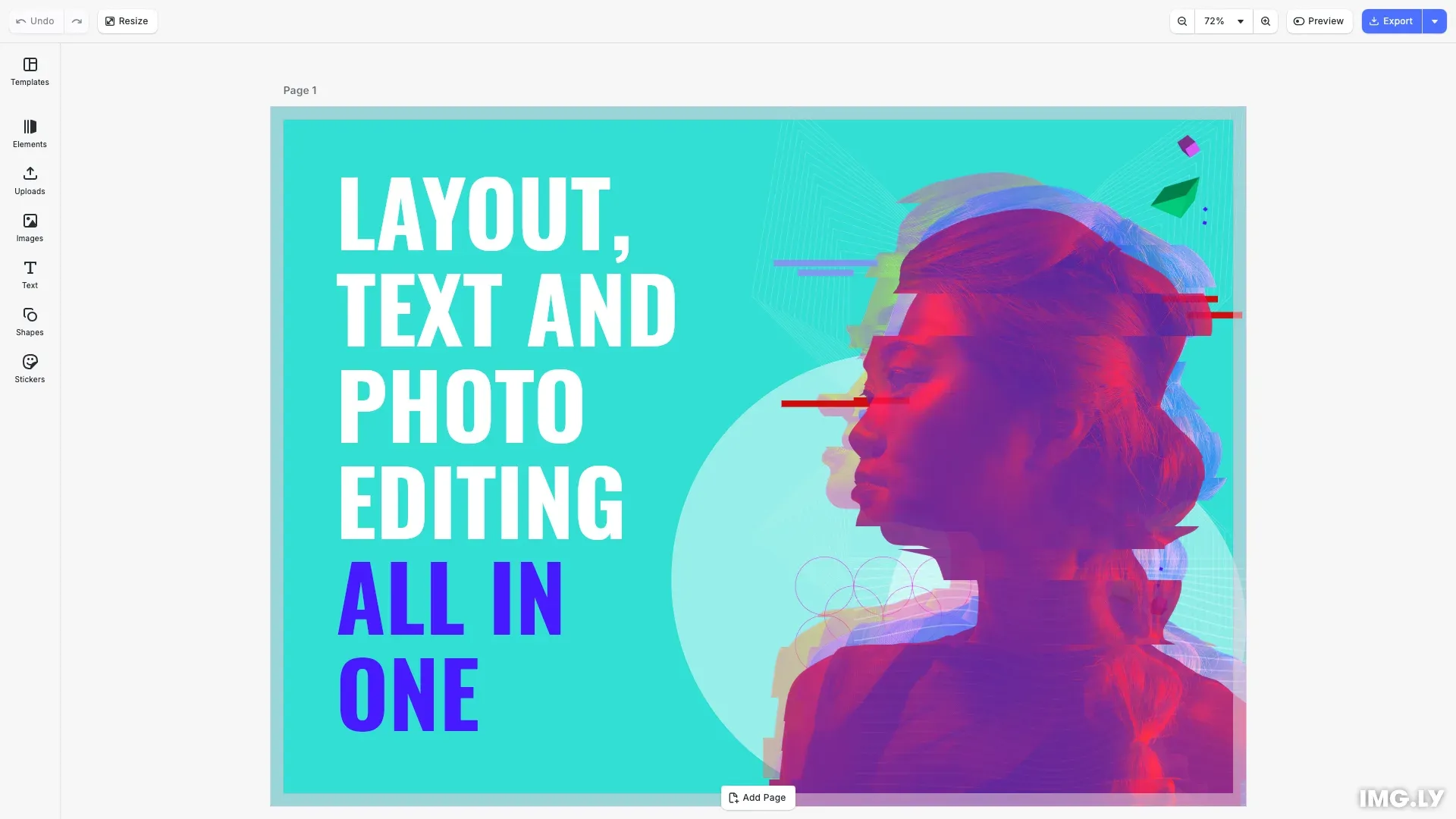
JPEG uses lossy compression optimized for photographs and smooth color gradients. Unlike PNG, JPEG does not support transparency—transparent areas render with a solid background.
This guide covers exporting to JPEG, configuring quality and dimensions, and integrating CE.SDK’s built-in export action.
Export to JPEG#
Export a design block to JPEG by calling engine.block.export() with mimeType: 'image/jpeg'. Use cesdk.utils.downloadFile() to trigger a browser download.
const exported = await engine.block.export(currentPage, { mimeType: 'image/jpeg', jpegQuality: 0.9});await cesdk.utils.downloadFile(exported, 'image/jpeg');The jpegQuality parameter accepts values from greater than 0 to 1. Higher values produce better quality at larger file sizes. The default is 0.9.
Export Options#
JPEG export supports these configuration options:
| Option | Type | Default | Description |
|---|---|---|---|
mimeType | string | 'image/png' | Set to 'image/jpeg' for JPEG |
jpegQuality | number | 0.9 | Quality from >0 to 1 |
targetWidth | number | — | Output width in pixels |
targetHeight | number | — | Output height in pixels |
Quality Control#
Set jpegQuality to 1.0 for maximum quality with minimal compression artifacts. This is useful for archival or print preparation.
const exported = await engine.block.export(currentPage, { mimeType: 'image/jpeg', jpegQuality: 1.0});await cesdk.utils.downloadFile(exported, 'image/jpeg');For web delivery, values around 0.8 balance quality and file size effectively.
Target Dimensions#
Specify targetWidth and targetHeight to export at exact dimensions. The output fills the target size while maintaining aspect ratio.
const exported = await engine.block.export(currentPage, { mimeType: 'image/jpeg', targetWidth: 1920, targetHeight: 1080});await cesdk.utils.downloadFile(exported, 'image/jpeg');Built-in Export Action#
CE.SDK includes a built-in export button you can add to the navigation bar. This provides a familiar export experience without additional code.
{ id: 'ly.img.action.navigationBar', onClick: async () => { await cesdk.actions.run('exportDesign', { mimeType: 'image/jpeg', jpegQuality: 0.9 }); }, key: 'export-action', label: 'Export', icon: '@imgly/Download',},The button triggers the exportDesign action when clicked. You can customize what happens by registering your own handler.
Customize Export Behavior#
Override the exportDesign action to control the export format, quality, and download behavior.
cesdk.actions.register('exportDesign', async () => { const currentPage = engine.scene.getCurrentPage()!; const jpeg = await engine.block.export(currentPage, { mimeType: 'image/jpeg', jpegQuality: 0.9 }); await cesdk.utils.downloadFile(jpeg, 'image/jpeg');});When you register exportDesign, the built-in export button uses your custom handler instead of the default.
When to Use JPEG#
JPEG works well for:
- Photographs and images with gradual color transitions
- Social media posts and web content
- Scenarios where file size matters more than perfect quality
Troubleshooting#
Output looks blurry — Increase jpegQuality toward 1.0, or use PNG for graphics with hard edges.
File size too large — Decrease jpegQuality to 0.7–0.8, or reduce dimensions with targetWidth and targetHeight.
Unexpected background — JPEG does not support transparency. Use PNG or WebP for transparent content.
API Reference#
| Method | Description |
|---|---|
engine.block.export(block, options) | Export a block to the specified format |
cesdk.utils.downloadFile(blob, mimeType) | Trigger browser download |
cesdk.actions.register(name, handler) | Register or override an action |
cesdk.ui.insertOrderComponent() | Add components to navigation bar |
engine.scene.zoomToBlock(block) | Zoom camera to fit a block |
Next Steps#
- Export Overview — Compare all available export formats
- Export to PDF — Export for print and document workflows
- Partial Export — Export specific regions or elements
- Size Limits — Handle large exports and memory constraints