Set up a two-surface integration where template creators have full editing access while template adopters can only modify designated areas.
Many integrations need two different editing experiences: one for designers who build templates, and one for end users who customize them. The Creator and Adopter roles make this possible—same CE.SDK, different permissions based on who’s using it. For detailed scope configuration patterns, see Lock Content.
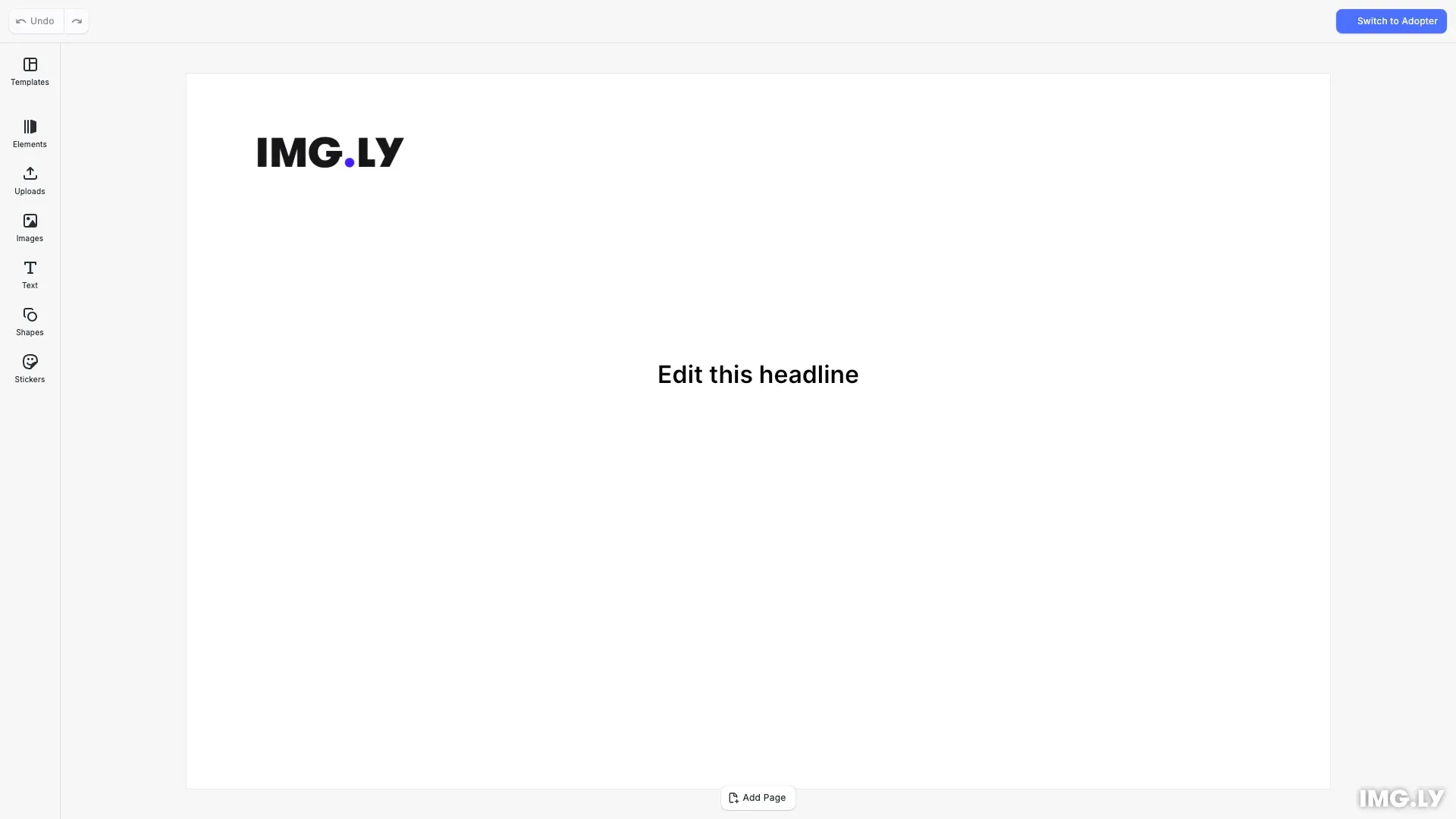
In the live example, the headline text is pre-selected and the Placeholder panel is open, showing the scope settings that control what Adopters can edit. Toggle the role to Adopter and try selecting the logo to see the restrictions in action.
This guide covers how to understand the two-surface pattern, configure roles for different user groups, and set up scope restrictions that control what Adopters can edit.
Understanding the Two-Surface Pattern#
Template-based workflows typically involve two distinct user groups with different needs:
| Surface | Users | Role | What they can do |
|---|---|---|---|
| Creator Surface | Designers, admins | Creator | Full editing—build templates, set locks |
| Adopter Surface | End users, marketers | Adopter | Restricted editing—only modify unlocked areas |
This separation protects design intent while enabling customization. The Creator role ignores all locks, giving full access. The Adopter role respects locks, restricting users to what’s explicitly allowed.
Setting Up the Creator Surface#
The Creator surface is where templates are built. We use engine.editor.setRole('Creator') to give designers unrestricted access.
// The Creator role ignores all scope restrictionsengine.editor.setRole('Creator');In Creator mode, all operations are permitted regardless of scope settings. This is where designers build the template layout, configure which elements should be editable, set scope restrictions using engine.block.setScopeEnabled(), and save the template for distribution.
Setting Up the Adopter Surface#
The Adopter surface is where templates are used. Call engine.editor.setRole('Adopter') to enforce the restrictions configured by creators. In Adopter mode, users can only interact with blocks that have the appropriate scopes enabled. The Adopter role respects all lock configurations, ensuring brand consistency and design intent are maintained.
When to Use This Pattern#
This two-surface approach works well for:
- Brand template systems: Marketing teams customize approved templates
- Design approval workflows: Creators build, reviewers can’t accidentally modify
- Self-service customization: End users personalize within guardrails
- White-label products: Customers can only edit designated areas
For simpler use cases where all users have the same permissions, you may not need separate surfaces.
Configuring What Users Can Edit#
The scope system controls what Adopters can modify. In Creator mode, we enable specific scopes on blocks that should be editable.
// Configure which elements Adopters can edit// Enable selection and text editing on the headlineengine.block.setScopeEnabled(headlineBlock, 'editor/select', true);engine.block.setScopeEnabled(headlineBlock, 'text/edit', true);
// Leave all scopes disabled on the logo (default state)// This prevents Adopters from selecting or modifying the logo
When Adopters load this template, they can edit the headline text but nothing else. The editor/select scope must be enabled for users to interact with a block at all. For comprehensive scope configuration patterns, see Lock Content.
Configuring Scopes in the Editor UI#
Designers can also configure scopes visually without writing code. In Creator mode, select any block and open the Placeholder panel in the inspector. This panel provides toggles for each scope:
- Allow selecting (
editor/select): Users can click to select the block - Allow editing text (
text/edit): Users can modify text content - Allow changing fill (
fill/change): Users can swap images or change colors - Allow moving (
layer/move): Users can reposition the block - Allow deleting (
lifecycle/destroy): Users can remove the block
Changes made in the Placeholder panel are equivalent to calling engine.block.setScopeEnabled() programmatically. When the template is saved, these settings persist and apply when Adopters load the template.
Adding a Role Toggle#
Add a segmented control to the navigation bar that switches between Creator and Adopter modes. Engine calls inside the builder are automatically reactive—the component re-renders when the role changes.
// Add a role toggle to the navigation bar (engine calls are reactive)cesdk.ui.registerComponent(  'ly.img.roleToggle.navigationBar',  ({ builder }) => {    const role = engine.editor.getRole();    builder.ButtonGroup('role-toggle', {      children: () => {        builder.Button('creator', {          label: 'Creator',          isActive: role === 'Creator',          onClick: () => engine.editor.setRole('Creator')        });        builder.Button('adopter', {          label: 'Adopter',          isActive: role === 'Adopter',          onClick: () => {            // Close the placeholder panel since Adopters can't configure scopes            cesdk.ui.closePanel(              '//ly.img.panel/inspector/placeholderSettings'            );            engine.editor.setRole('Adopter');          }        });      }    });  });
cesdk.ui.setComponentOrder({ in: 'ly.img.navigation.bar' }, [ 'ly.img.undoRedo.navigationBar', 'ly.img.spacer', 'ly.img.roleToggle.navigationBar', 'ly.img.spacer']);Troubleshooting#
| Issue | Cause | Solution |
|---|---|---|
| Adopter can edit everything | Wrong role or scopes not configured | Verify role is Adopter and scopes are set in Creator mode |
| Adopter can’t edit anything | editor/select scope not enabled | Enable editor/select on blocks users should interact with |
| Creator can’t set locks | Wrong role | Switch to Creator role before configuring scopes |
| Changes not persisting | Template not saved after scope changes | Save template after configuring scopes in Creator mode |
API Reference#
| Method | Description |
|---|---|
engine.editor.setRole(role) | Set the editing role ('Creator', 'Adopter', or 'Viewer') |
engine.editor.getRole() | Get the current editing role |
engine.block.setScopeEnabled(block, scope, enabled) | Enable or disable a scope on a block |
engine.block.isScopeEnabled(block, scope) | Check if a scope is enabled on a block |
cesdk.ui.registerComponent(id, renderFn) | Register a custom UI component |
builder.ButtonGroup(id, { children }) | Create a segmented control |
builder.Button(id, { label, isActive, onClick }) | Create a button |
Common Scopes#
| Scope | Description |
|---|---|
'editor/select' | Allow selecting the block (required for any interaction) |
'fill/change' | Allow changing the block’s fill (images, colors) |
'text/edit' | Allow editing text content |
'text/character' | Allow changing text formatting (font, size, color) |
'layer/move' | Allow moving the block |
'layer/resize' | Allow resizing the block |
'layer/rotate' | Allow rotating the block |
'layer/crop' | Allow cropping the block |
'lifecycle/destroy' | Allow deleting the block |