Generate sound effects programmatically using buffers with arbitrary audio data. Create notification chimes, alert tones, and melodies without external files.
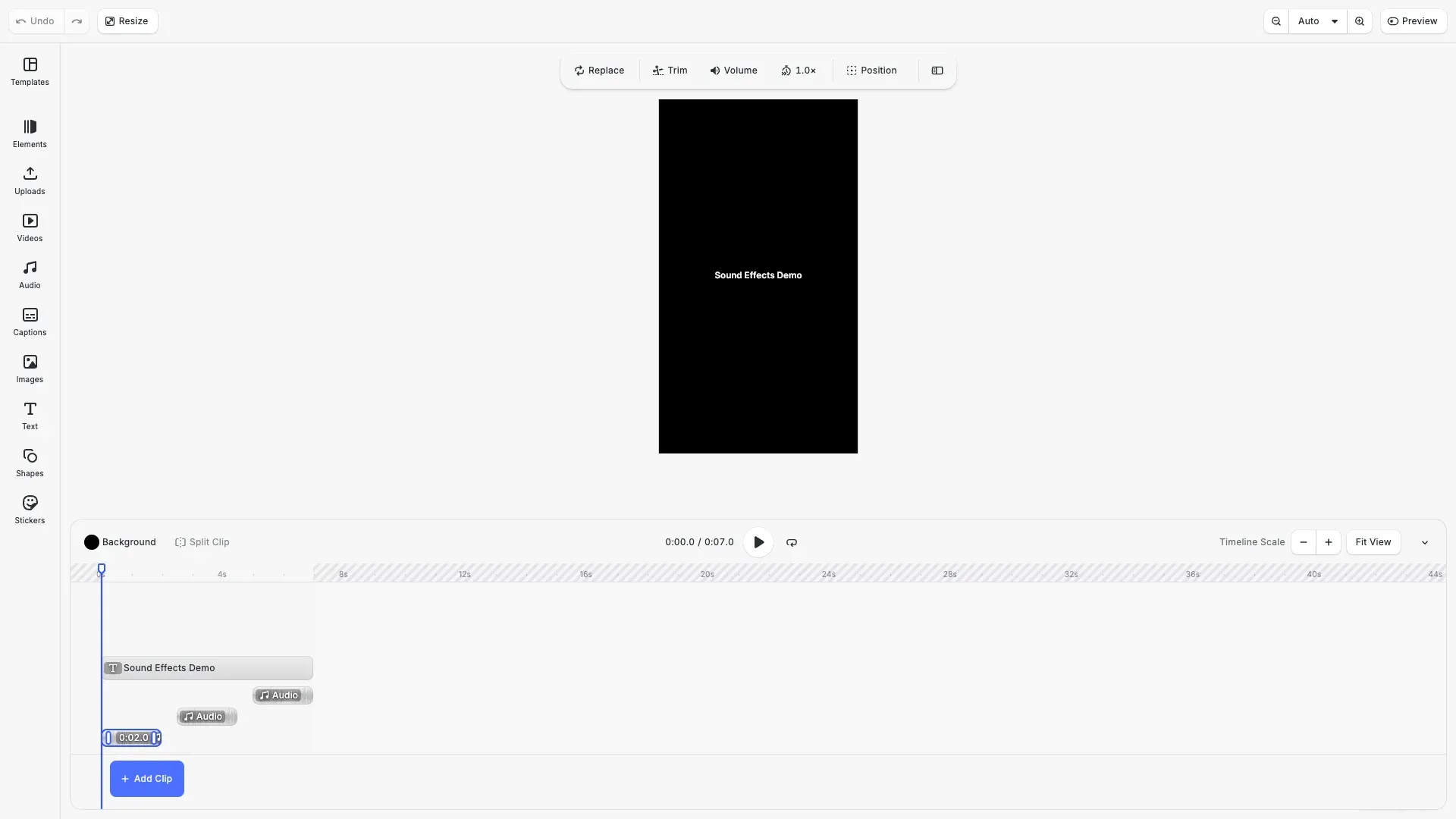
CE.SDK lets you create audio from code using buffers. This approach generates sound effects dynamically without external files—useful for notification tones, procedural audio, or any scenario where you need to synthesize audio at runtime.
This guide covers working with buffers to create audio data and position it on the timeline.
Working with Buffers#
CE.SDK provides a buffer API for creating and managing arbitrary binary data in memory. Use buffers when you need to generate content programmatically rather than loading from files.
Creating a Buffer#
Create a buffer with createBuffer(), which returns a URI you can use to reference the buffer:
// Create the "notification melody" sound effectconst melodyBuffer = engine.editor.createBuffer();Writing Data#
Write data to a buffer using setBufferData(). The offset parameter specifies where to start writing:
engine.editor.setBufferData(melodyBuffer, 0, melodyWav);Reading Data#
Read data back from a buffer:
const length = engine.editor.getBufferLength(buffer);const data = engine.editor.getBufferData(buffer, 0, length);Adding an Audio Track#
Create an audio block and assign the buffer URI to its audio/fileURI property. Append it to the page to add it to the timeline:
// Starts at 2.5s (after 2s effect + 0.5s gap)const melodyBlock = engine.block.create('audio');engine.block.appendChild(page, melodyBlock);engine.block.setString(melodyBlock, 'audio/fileURI', melodyBuffer);Cleanup#
Destroy buffers when no longer needed (buffers are also cleaned up automatically with the scene):
engine.editor.destroyBuffer(buffer);Generating Audio Data#
To use buffers for audio, you need valid audio data. The WAV format is straightforward to generate: a 44-byte header followed by raw PCM samples.
const bitsPerSample = 16;const channels = 2; // Stereo outputconst numSamples = Math.floor(durationSeconds * sampleRate);const dataSize = numSamples * channels * (bitsPerSample / 8);
// Create WAV file buffer (44-byte header + audio data)const wavBuffer = new ArrayBuffer(44 + dataSize);const view = new DataView(wavBuffer);
// RIFF chunk descriptorview.setUint32(0, 0x52494646, false); // "RIFF"view.setUint32(4, 36 + dataSize, true); // File size - 8view.setUint32(8, 0x57415645, false); // "WAVE"
// fmt sub-chunkview.setUint32(12, 0x666d7420, false); // "fmt "view.setUint32(16, 16, true); // Sub-chunk size (16 for PCM)view.setUint16(20, 1, true); // Audio format (1 = PCM)view.setUint16(22, channels, true); // Number of channelsview.setUint32(24, sampleRate, true); // Sample rateview.setUint32(28, sampleRate * channels * (bitsPerSample / 8), true);view.setUint16(32, channels * (bitsPerSample / 8), true); // Block alignview.setUint16(34, bitsPerSample, true); // Bits per sample
// data sub-chunkview.setUint32(36, 0x64617461, false); // "data"view.setUint32(40, dataSize, true); // Data size
// Generate audio sampleslet offset = 44;for (let i = 0; i < numSamples; i++) {  const time = i / sampleRate;  // Generate mono sample and duplicate to both channels  const value = generator(time);  const sample = Math.max(-32768, Math.min(32767, Math.round(value * 32767)));  view.setInt16(offset, sample, true); // Left channel  view.setInt16(offset + 2, sample, true); // Right channel  offset += 4;}
return new Uint8Array(wavBuffer);
This code builds a stereo WAV file by writing the RIFF header, format chunk, and data chunk, then iterating through time to generate samples from a generator function that returns values between -1.0 and 1.0.
Creating a Sound Effect#
Combine the buffer API with the WAV helper to create a complete sound effect. This example generates a notification melody by mixing multiple notes with harmonics:
const melodyWav = createWavBuffer(  sampleRate,  NOTIFICATION_MELODY.totalDuration,  (time) => {    let sample = 0;
    for (const note of NOTIFICATION_MELODY.notes) {      const envelope = adsr(        time,        note.start,        note.duration,        0.01, // Soft attack (10ms)        0.06, // Gentle decay (60ms)        0.6, // Sustain at 60%        0.2 // Smooth release (200ms)      );
      if (envelope > 0) {        // Pure sine wave with light 2nd harmonic for gentle tone        const fundamental = Math.sin(2 * Math.PI * note.freq * time);        const harmonic2 = Math.sin(4 * Math.PI * note.freq * time) * 0.15;
        sample += (fundamental + harmonic2) * envelope * 0.4;      }    }
    return sample;  });
The generator function mixes overlapping notes, each with its own start time and duration. The adsr() function shapes each note’s volume over time (attack, decay, sustain, release), preventing harsh clicks. Adding a second harmonic at 15% creates a warmer tone than a pure sine wave.
Positioning on the Timeline#
Audio blocks require a video scene with timeline support. Position audio using time offset (when it starts) and duration (how long it plays):
engine.block.setTimeOffset(melodyBlock, effectDuration + gapDuration); // 2.5sengine.block.setDuration(melodyBlock, NOTIFICATION_MELODY.totalDuration);The timeline in this example spaces three sound effects with 0.5-second gaps:
Timeline: |----|----|----|----|----|----|----|          0s   1s   2s   3s   4s   5s   6s   7s
Success:  |====|          ^ 0s (2s)
Melody:         |====|                ^ 2.5s (2s)
Alert:               |====|                     ^ 5s (2s)
Each effect is 2 seconds with 0.5-second gaps between them, for a total duration of 7 seconds.
Troubleshooting#
No Sound#
- Check timeline - Audio blocks only work in video scenes
- Verify duration - Ensure the audio block’s duration is greater than 0
- Check buffer data - The buffer must contain valid WAV data
Audio Sounds Wrong#
- Clipping - Reduce sample values if they exceed -1.0 to 1.0
- Clicking - Add attack/release envelope to avoid pops
- Wrong pitch - Verify frequency calculations and sample rate (48 kHz)
Buffer Errors#
- Invalid WAV - Ensure header size fields match actual data size
- Format mismatch - Use 16-bit PCM, stereo, 48 kHz for best compatibility